Kutter
If you have footage with no one talking, like shots of your storefront, your products, or a trip, open a มีฟุตเทจแล้ว (I have footage) project in Kutter and choose ให้ AI พากย์เสียง (AI voice-over). AI watches every clip, writes a script, and records a Thai voiceover over your footage, so you end up with a short clip with subtitles. If you'd rather the clip use your own voice, use voice cloning instead: you record yourself reading for 1–3 minutes, once.
What kind of clips suit an AI voiceover
An AI voiceover suits clips where the pictures tell the story but no one speaks on camera. For clips that already have someone talking, the speech in the clip works better. Kutter lets you choose between these two under ใช้เสียงแบบไหน (Which Audio to Use) in the footage step.
| Footage you have | What to choose | What AI does for you |
|---|---|---|
| Shop, product, or travel shots with no one talking | ให้ AI พากย์เสียง (AI voice-over) | Watches every clip, writes a script, and narrates over the footage |
| Talking to camera, reviews, tutorials | ใช้เสียงพูดในคลิป (Use the speech in the clips) | Cuts from what's said in the clips, then adds supporting footage |
| A mix of talking and visuals only | ใช้เสียงพูดในคลิป (Use the speech in the clips) | Uses the visuals-only clips as supporting footage |
| No footage yet, only a script or topic | เริ่มจากสคริปต์ (Start from a script) | Narrates the script and finds visuals scene by scene |
If most of your clips have no speech, the app puts a แนะนำ (Recommended) tag on the voiceover option for you, so you don't have to guess which to pick. You can switch options at any time, except while AI is pitching stories.
The example in the app is the "ร้านกาแฟของฉัน" (My Café) project: 5 clips of shots inside the café, with no one speaking at all. With the voiceover option, it becomes a 32-second clip in which AI narrates everything from the storefront to the opening hours.
How to make a clip from footage with no talking, step by step
Follow these steps from adding your clips to a Storyboard with a voiceover script for every scene.
- Click มีฟุตเทจแล้ว (I have footage) on the home screen, name the project, then click สร้าง (Create)
- Drag your clips or photos into the footage step. Videos work, and so do JPG, PNG, or HEIC photos from an iPhone
- Choose ให้ AI พากย์เสียง (AI voice-over) under ใช้เสียงแบบไหน (Which Audio to Use)
- Type a short brief in the บอก AI สั้น ๆ ก่อนเสนอเรื่อง (Brief AI before it suggests stories) card, for example "Introduce the café and our favorite morning coffee, and invite office workers to stop by before work"
- Choose a ความยาว (Length): 15, 30, 60, or 90 seconds, กำหนดเอง (Custom), or ให้ AI เลือก (Let AI choose)
- Click ให้ AI เสนอเรื่อง (Let AI suggest stories), pick the story you like, then click สร้าง Storyboard (Create Storyboard)
- Review the voiceover script scene by scene, click อนุมัติฉากนี้ (Approve this scene), then click ถัดไป: ตกแต่ง (Next: Finish)
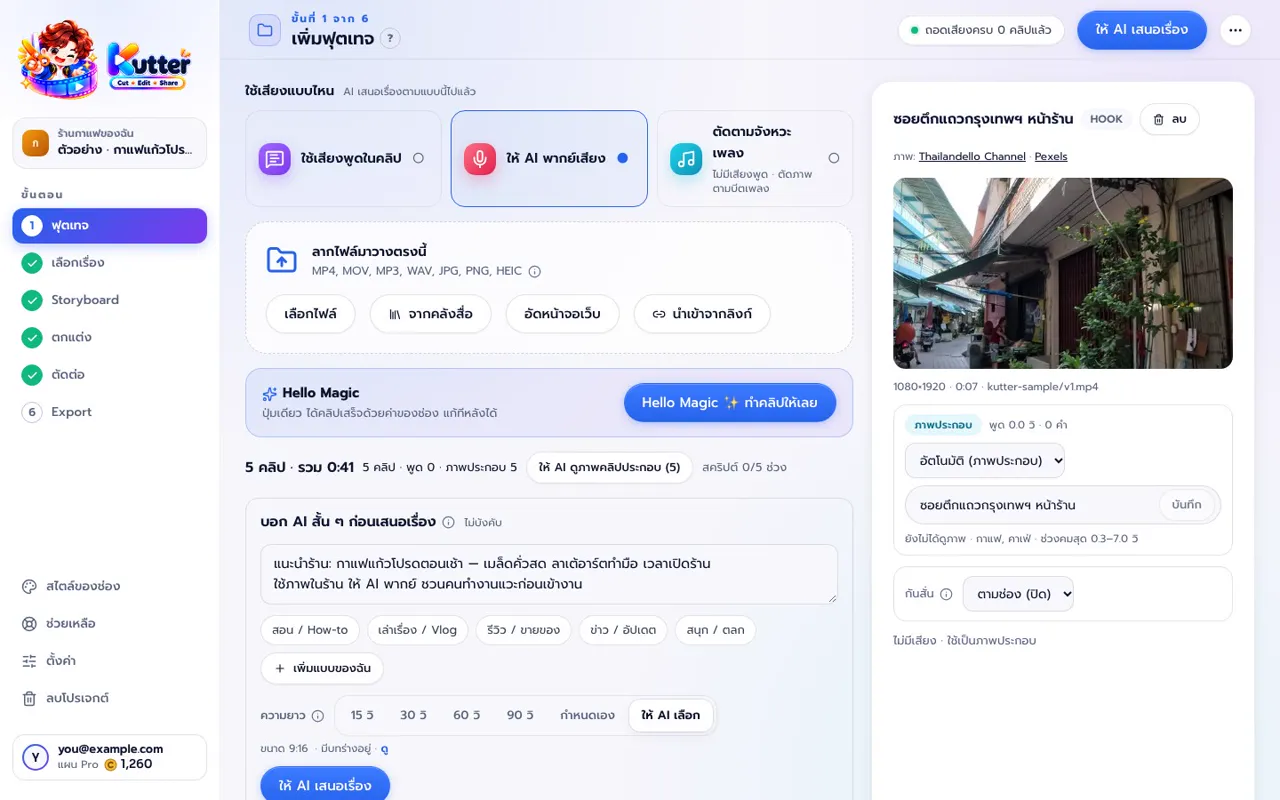
Each photo counts as a 3-second piece of supporting footage. If you only have 5 photos, the clip can run about 15 seconds. For a longer clip, add more clips or photos. See the details of this step in The footage step.
Edit the voiceover script scene by scene in the Storyboard
In the Storyboard, each scene has an AI พากย์ (AI Voice-over) tag and that scene's voiceover script, so you can see right away what AI will say over which shot before the real edit.
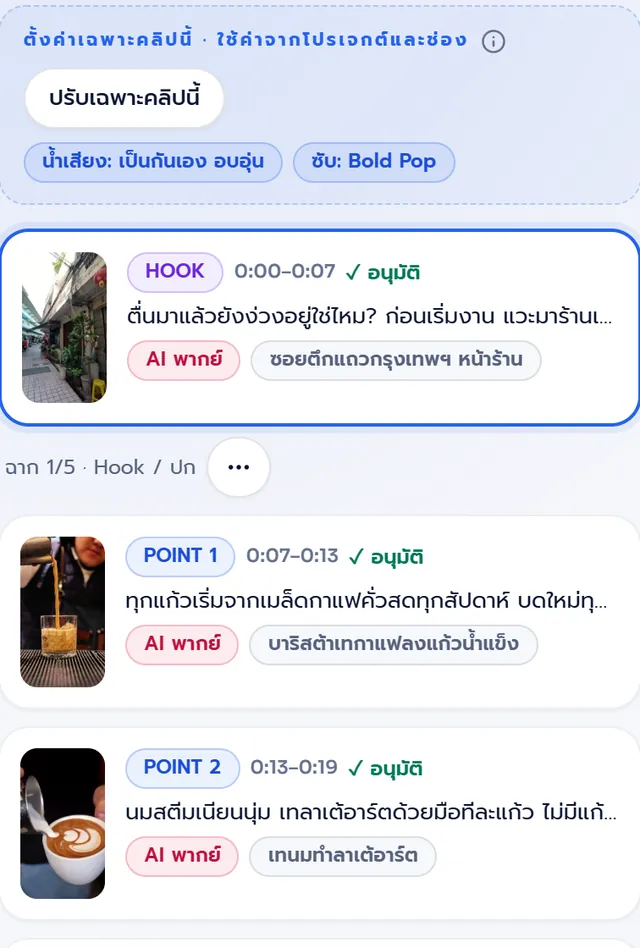
If a scene's script isn't quite right, type in the สั่งแก้ฉากนี้ด้วยคำพูด (Edit this scene with words) box, for example "make it shorter", then click ส่ง (Send). You don't have to rewrite the whole script yourself. Scenes AI already got right, you can approve and move on.
After that, carry on as with any clip: style, edit, and Export. The Thai subtitles match the voiceover line by line.
Set your channel's Thai voiceover
You set the voiceover for every clip once, under สไตล์ของช่อง (Channel style) in the เสียง (Sound) section. You won't need to pick again next time, and the app shows the voice settings before every build.
| Setting | Options | What it's for |
|---|---|---|
| ผู้ให้บริการเสียง (Voice Provider) | Gemini (แนะนำ) (Gemini (recommended)) or ElevenLabs | Picks the system that generates the voiceover |
| Default voice | Filter by all / female / male, and preview before choosing | Voices tagged "รองรับไทย" (Supports Thai) read Thai well |
| ความเร็วพูด (Speaking speed) | ช้า (Slow), ปกติ (Normal), or เร็ว (Fast) | Controls the pace of the narration |
| สไตล์การพูด (Speaking style) (Gemini only) | Type how the voice should speak | For example, "friendly and warm, like a friend chatting with you" |
The café example uses a female voice that supports Thai at normal speed, easy to listen to, like a barista walking you through the menu. Text in the speaking style box is guidance for the AI only and is never read aloud. See all the settings in Channel Style: Audio.
Clone your own voice for the voiceover
If you want clips in your own voice but recording every clip isn't practical, use voice cloning. You read the on-screen text for 1–3 minutes, the app sends the recording to ElevenLabs to create a cloned voice, and then sets it as your channel's voiceover.
What you need before you start:
- A Kutter plan from Creator up (on the free plan the button shows a padlock). See prices on the pricing page
- Your own ElevenLabs key, on an ElevenLabs plan that allows voice cloning (Starter or higher). Costs are billed to your ElevenLabs account and don't use Kutter Credit
- A quiet room without echo, and the same mic you use for your clips
Voice cloning steps:
- Open สไตล์ของช่อง (Channel style) › เสียง (Sound) and set ผู้ให้บริการเสียง (Voice Provider) to ElevenLabs
- Click โคลนเสียงของคุณ (Clone Your Voice) at the right corner of the voice list
- Choose a ไมโครโฟน (Microphone) and try speaking. Make sure the level meter reaches about the middle
- Click เริ่มอัด (Start Recording) and read the text under อ่านออกเสียง (Read Aloud), about a hand's width from the mic
- Click อัดเทคต่อไป (Record Next Take) until you have 1:00–3:00 minutes in total, then click ถัดไป (Next)
- Set a ชื่อเสียง (Voice Name), tick the box confirming it's your voice, then click สร้างเสียง (Create Voice)
- Listen to the sample, then click ใช้เป็นเสียงของช่อง (Use as Channel Voice)
From then on, clips where you choose AI voiceover use your voice. In the voice list it carries a เสียงโคลนของคุณ (Your Cloned Voice) tag, and you can switch back to another AI voice whenever you like.
Read more on making a cloned voice sound natural in Clone your voice so it sounds good.
Mix AI voice with your voice, and your clips with stock footage
If you have no footage yet, or want to speak some scenes yourself, start from เริ่มจากสคริปต์ (Start from a script) instead. Choose วางบทของฉัน (Paste My Script) or ให้ AI เขียนบท (Let AI Write the Script), then click ทำเสียงพากย์ + ภาพ (Make voice-over + pictures). AI splits the script into scenes and takes you to the voiceover Storyboard, where one button generates the voice and finds visuals for every scene.
- Set ใครพูด (Who Speaks) to ผสม (Mixed), then choose scene by scene between AI พากย์ (AI Voice-over) and ฉันพูดเอง (I'll Speak) in your own clip
- Click ใส่ฟุตเทจของฉัน (Add My Footage) and select several files. The app places them by scene, and files whose names match words in a scene are placed first
- Other scenes can use stock video, animations, or graphic cards in the same clip
See the full guide in Make a clip with AI voiceover.
Frequently asked questions
Can I make a Thai voiceover clip from footage with no speech at all?
Yes. Open a มีฟุตเทจแล้ว (I have footage) project and choose ให้ AI พากย์เสียง (AI voice-over). AI watches every clip, writes a script, and narrates it in Thai over your footage. If most of your clips have no speech, the app puts the recommended tag on this option for you.
Does AI voiceover use Credit?
Kutter Credit is used only when you Export a clip to a file. For example, a clip up to 90 seconds uses 3 Credit. Voice cloning is billed to your own ElevenLabs account and doesn't use Kutter Credit.
Which plan do I need to clone my own voice?
You need the Creator plan or higher, and an ElevenLabs key on a plan that allows voice cloning (Starter or higher). Record 1–3 minutes of reading in the app once, then use it for every clip on your channel.
I don't like the AI's voiceover script. How do I change it?
In the Storyboard, type in the สั่งแก้ฉากนี้ด้วยคำพูด (Edit this scene with words) box, for example "make it shorter", then click ส่ง (Send). For a project that started from a script, edit the voiceover text directly in the scene's box, then generate the voice again.
Can I speak some scenes myself and let AI narrate others?
Yes. Start from เริ่มจากสคริปต์ (Start from a script) and set ใครพูด (Who Speaks) to ผสม (Mixed). Each scene then has a Voice field where you choose AI พากย์ (AI Voice-over) or ฉันพูดเอง (I'll Speak).