Kutter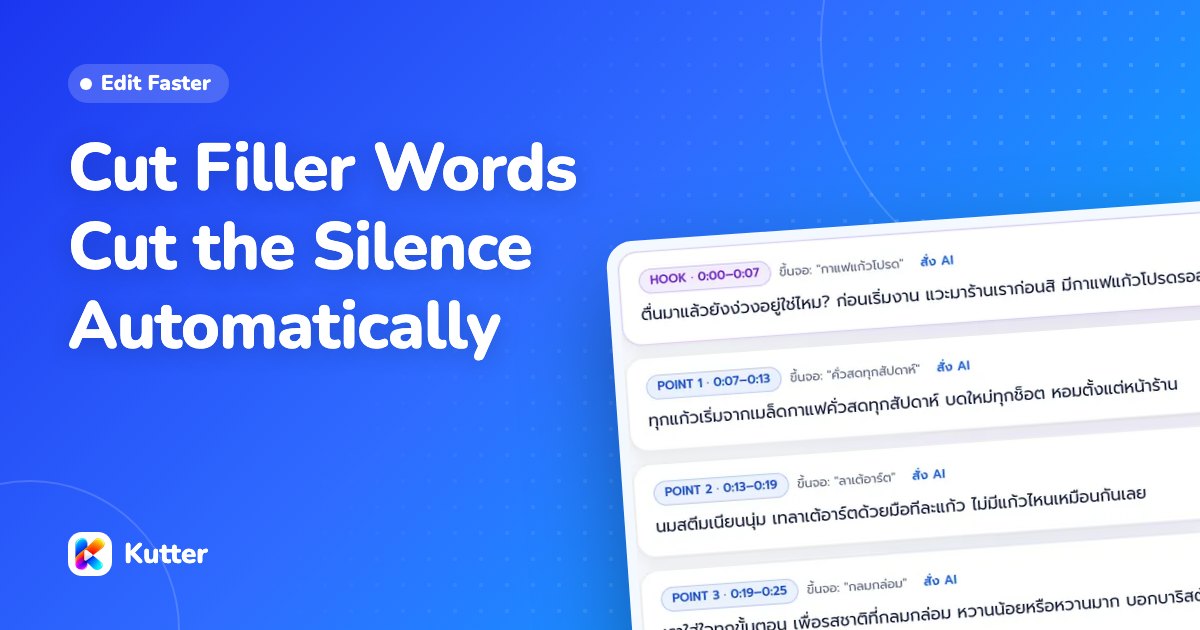
You can cut filler words and silences from talking clips automatically with Kutter. Add a talking-to-camera clip and choose ใช้เสียงพูดในคลิป (Use the speech in the clips). The app transcribes every word, then cuts "เอ่อ/อ่า/อืม" (er/uh/um) and overly long silences on its own, based on the tightness level you choose. The default is กระชับ (Tight), which cuts silences longer than half a second and filler words. If the app cuts a word you want to keep, click เอากลับ (Restore) on any word.
Kutter cuts filler words from the transcript
Kutter doesn't cut by listening section by section the way a human editor does. It first transcribes the speech in your clip into text, every word with its timing, then uses that text to cut repeated words, cut silences, and make subtitles. So the app knows where the word "เอ่อ" (er) is, where you paused to think, and which sentence you said twice.
This works well for talking-to-camera clips, product reviews, tutorials, or storytelling clips shot in one take. For clips with an AI voiceover, you don't need to set this up, since there are no filler words to cut.
Another plus: a wrong cut costs you nothing. The app keeps a list of every word it cut for you to review, and you can restore them one at a time, without going back and re-cutting the whole clip.
How to cut filler words and silence automatically, step by step
Follow these steps with your own talking clip, from adding the clip to a finished, cut file.
- Click the มีฟุตเทจแล้ว (I have footage) card on the หน้าแรก (Home) screen, name the project, then click สร้าง (Create)
- Choose ใช้เสียงพูดในคลิป (Use the speech in the clips), then drag in your clips or click เลือกไฟล์ (Choose files). The app transcribes clips with speech on its own
- Choose a ความยาว (Length) or ให้ AI เลือก (Let AI choose), then click ให้ AI เสนอเรื่อง (Let AI suggest stories)
- Tick the story you like, then click สร้าง Storyboard (Create Storyboard)
- Pick a tightness level on the card in the Storyboard page, which shows the before → after length of each level so you can compare
- Open สิ่งที่ตัดออก (What Was Cut) to check the cut words. For any word you want to keep, click เอากลับ (Restore)
- Click ถัดไป: ตกแต่ง (Next: Finish), then ไปตัดต่อ (Go to render) and เริ่มตัดต่อ (Start render) (you need to sign in first). The "What AI did for you" list ticks off the silence-cutting step so you can see it

If you haven't filmed yet, you can start from เริ่มจากสคริปต์ (Start from a script). Choose ฉันพูดเอง (ถ่ายมา) (I'll Speak (Filmed)), let AI help write the script, then click ไปถ่ายต่อ (Go film). Once you've filmed, add the clips in the footage step. See an overview of every step in Make your first clip.
5 tightness levels: which one to choose
The tightness level decides how tightly the app cuts. The higher the level, the shorter the pauses between words and the faster the clip.
| Level | What the app cuts | Best for |
|---|---|---|
| ธรรมชาติ (Natural) | Only silences longer than 1 second | Interviews, slow storytelling |
| กระชับ (Tight) (default) | Silences longer than half a second, and er/uh/um | Most clips |
| ฉับไว (Snappy) | Pauses longer than 0.35 seconds, and repeated stutters | TikTok / Reels |
| เร็วมาก (Very fast) | Pauses longer than 0.3 seconds, jump-cut style | Clips where you want tight jump-cuts |
| สั้นสุด (Shortest) | Same as Very Fast, then AI cuts repeated sentences to hit your set length | Clips that must fit the length you set |
Set it once, use it for every clip on your channel
If you make talking clips regularly, set your cutting rules in your channel style, and every new clip uses them automatically. No need to set them again.
- Go to สไตล์ของช่อง (Channel style) → การตัดต่อ (Editing), the Editing rules card, and choose a level. Under the buttons is a description of what that level cuts
- Turn on ตัดคำติดปาก (Cut filler words) to cut er/uh/um, and turn on ตัดช่วงเงียบ (Cut Silences) to cut silences longer than your limit
- Click ปรับละเอียด (Fine-tune) if you want to set things yourself: Cut silences longer than (the smaller the number, the closer the words), Filler words (keep all, or cut), Repeated words, and ตัดจังหวะหายใจ (Cut Breaths) for really tight jump-cuts
- Two more switches that help talking clips are พูดซ้ำหลายรอบ ให้ใช้รอบที่ชัดที่สุด (Repeated takes: use the clearest one) and เก็บเสียงหัวเราะและรีแอคชันไว้ (Keep laughter and reactions)
In the in-app example, the café uses the Tight level together with filler-word cutting, and its 30-second menu clip sounds smooth, with no silences. See every option in this section in Channel Style: Editing.
Cut "แบบ" and "คือ" and repeated takes with AI, or delete word by word yourself
Words like "แบบ" (like) and "คือ" (so / I mean) aren't always filler; sometimes they're part of the sentence. That's why Kutter lets AI read the context before cutting. Words you want to cut yourself, you can delete from the text as if editing a document.
- Let AI help: at the ฉับไว (Snappy) level and up, click ให้ AI ช่วยตัดให้ลื่น (Let AI Smooth the Cuts). AI reads the context and cuts words like "แบบ" and "คือ" or sentences you said twice
- Delete word by word yourself: click แก้จากคำพูด (Edit by words) above the scene list. The whole clip appears as text. Select words and press Delete or click ลบคำที่เลือก (Delete selected words). Those words are cut from the video but still show as struck-through text
- Shortcut buttons: คำติดปาก (Filler words) deletes er/um/uh across the whole clip at once, เทคซ้ำ (Repeated takes) deletes sentences said several times while keeping the best one, and AI ดู แบบ/คือ (AI checks "like" / "I mean") has AI check the context before deleting
Words you delete yourself are cut at every tightness level and stay gone even if you change the level later. If you delete something by mistake, tap the struck-through word and click เอากลับ (Restore), or click เลิกทำ (Undo). See the details of editing scene by scene in The Storyboard step.
Audio clipped or video jumpy after cutting: how to fix it
Most problems after automatic cutting can be fixed in a few clicks, without reshooting.
- Audio cuts off abruptly at the end of words: increase "Space after words" in ปรับละเอียด (Fine-tune), or lower the level by one step
- An important word is missing: open สิ่งที่ตัดออก (What Was Cut) and click เอากลับ (Restore)
- The picture jumps at cut points: increase "Cut crossfade", or turn on Zoom ตามจังหวะพูด (Zoom to the speech rhythm), which zooms in for you at cut points and emphasized words
- The clip is cut so much the speech breaks up: lower the level to ธรรมชาติ (Natural) or กระชับ (Tight)
None of this costs Credit, because Kutter only charges Credit when you Export to a file. Transcribing, cutting, and editing the Storyboard are yours to try as much as you like. Read about tightness levels in detail in Filler words, silences, and tightness, or download Kutter and try it with your own clips.
Frequently asked questions
Does automatic filler-word cutting cost Credit?
No. Transcribing, cutting words, and editing the Storyboard don't cost Credit. You're charged only when you Export. For example, a clip up to 90 seconds uses 3 Credit, and the free plan has no watermark.
If the app cuts an important word, can I get it back?
Yes. Open สิ่งที่ตัดออก (What Was Cut) on the Storyboard page and click เอากลับ (Restore) on that word. If it's a word you deleted yourself in แก้จากคำพูด (Edit by words), tap the struck-through word and click เอากลับ (Restore) or เลิกทำ (Undo).
Do clips with an AI voiceover need a tightness setting?
No. Cutting filler words and silences applies to clips with someone talking where you chose ใช้เสียงพูดในคลิป (Use the speech in the clips), so voiceover clips have no tightness-level card in the Storyboard.
Will the subtitles still contain "เอ่อ" (er)?
No. If ซับตรงคำพูดทุกคำ (Verbatim subtitles) is off, the app removes er/uh and repeated words from the subtitles so they read smoothly. If you want the subtitles to match the actual audio word for word, turn this switch on.
What computers does Kutter run on?
It runs on Windows 10/11 (64-bit) and on Macs with Apple Silicon (M1 or later). A graphics card makes on-device transcription faster, but it isn't required.