 Kutter
Help › Getting started
Make your first clip
From a talking-to-camera clip to a short clip ready to post: an overview of all 6 steps.
If you already have clips, a project has 6 steps, shown in the left sidebar: Footage → Story → Storyboard → Finish → Render → Export. A finished step gets a green check mark. You can go back to any step.
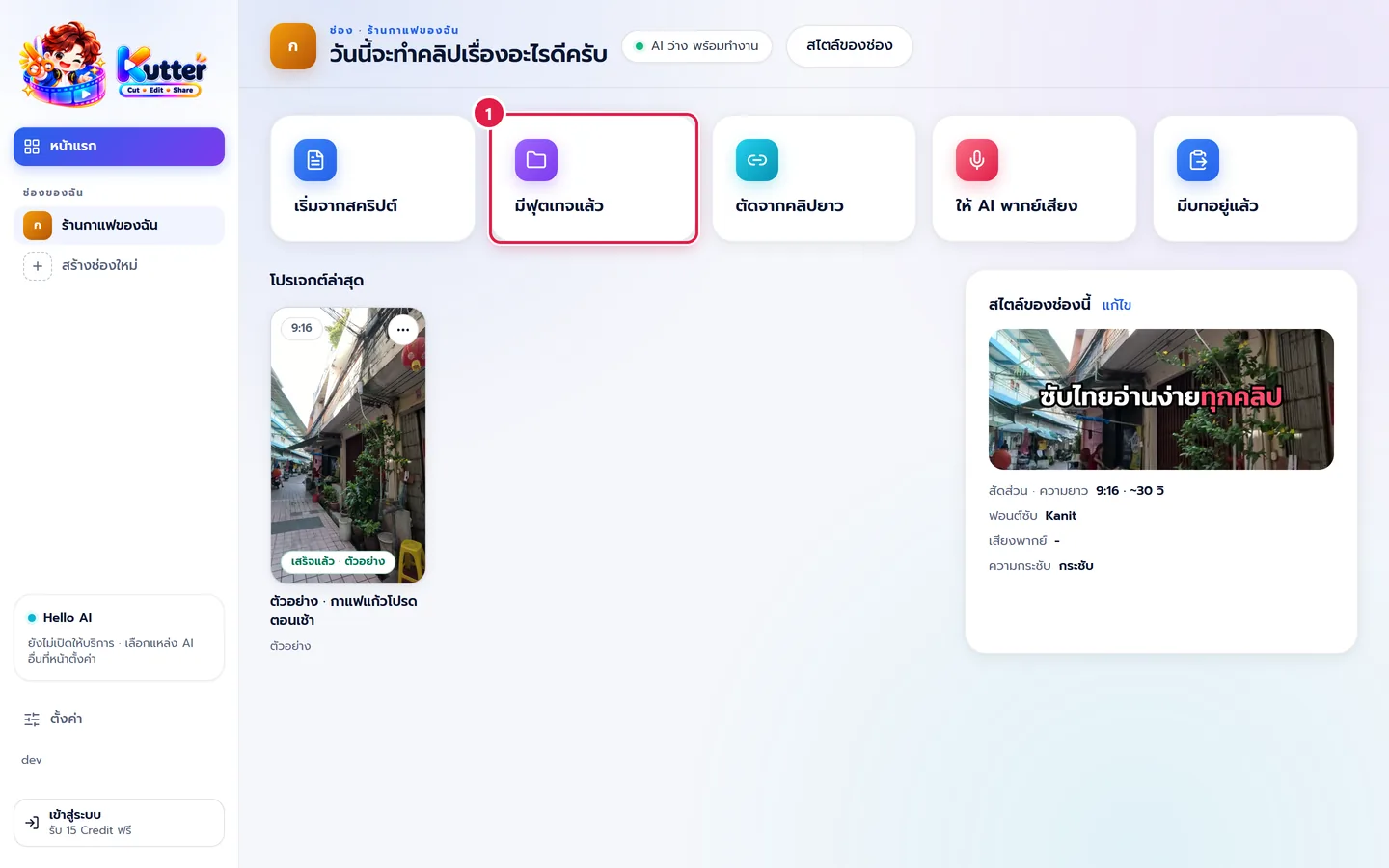
The example on this page is the sample project in the "ร้านกาแฟของฉัน" (My Café) channel: 5 footage clips (the shopfront, making iced coffee, latte art, Thai iced tea) turned into a short clip, "กาแฟแก้วโปรดตอนเช้า" (My favorite morning coffee), about 30 seconds long. You can open it from โปรเจกต์ล่าสุด (Recent projects) on the Home page.
1. Start a project
-
On หน้าแรก (Home), click the มีฟุตเทจแล้ว (I have footage) card (marker 1), name the project, and click สร้าง (Create). The app takes you to the Footage step.
2. Add footage
- "ใช้เสียงแบบไหน" (Which audio to use) (marker 1): choose ใช้เสียงพูดในคลิป (Use the speech in the clips) if someone talks to the camera, or ให้ AI พากย์เสียง (AI voice-over) if no one talks in the clips, such as clips of coffee being made. If most of your clips have no speech, the app tags this option "แนะนำ" (Recommended).
- Drag files onto the ลากไฟล์มาวางตรงนี้ (Drop files here) box, or click เลือกไฟล์ (Choose files) (marker 2). It accepts MP4, MOV, MP3, WAV and JPG, PNG, HEIC images, several files at once.
- The "บอก AI สั้น ๆ ก่อนเสนอเรื่อง" (Brief the AI before it suggests stories) box is optional, but it helps you get the story you want, for example "แนะนำร้าน: กาแฟแก้วโปรดตอนเช้า เน้นเมล็ดคั่วสดและลาเต้อาร์ต" (Introduce the café: my favorite morning coffee, focus on freshly roasted beans and latte art). Then choose a clip type, such as review / selling.
- Choose a ความยาว (Length) (marker 3), such as 30 sec, or ให้ AI เลือก (Let AI choose).
-
Click ให้ AI เสนอเรื่อง (Let AI suggest stories) (marker 4) (The Footage step).
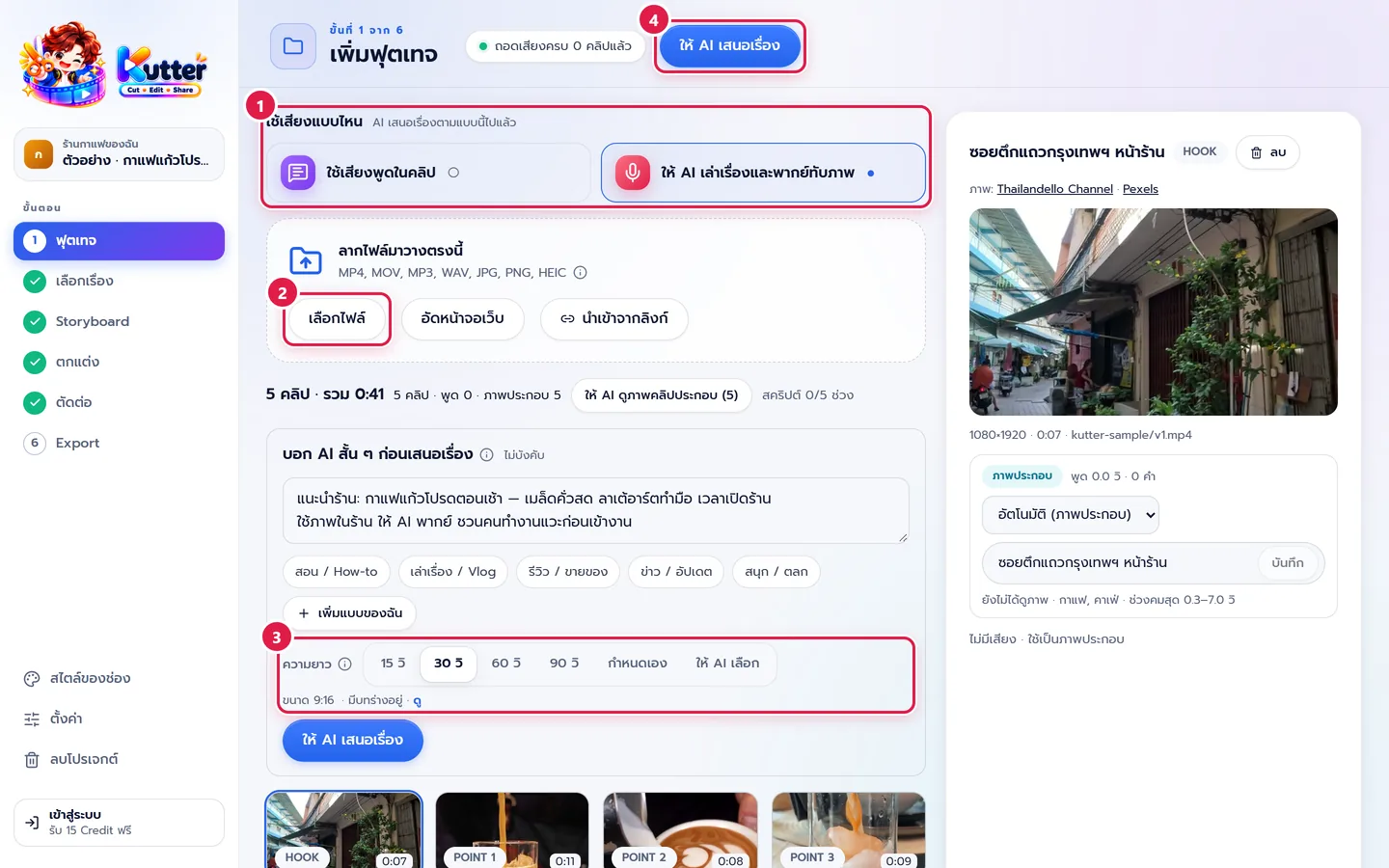
Meanwhile, the app transcribes your clips by itself. You can follow the progress on the tag at the top, for example "ถอดเสียงครบ 5 คลิปแล้ว" (All 5 clips transcribed).
3. Choose a story
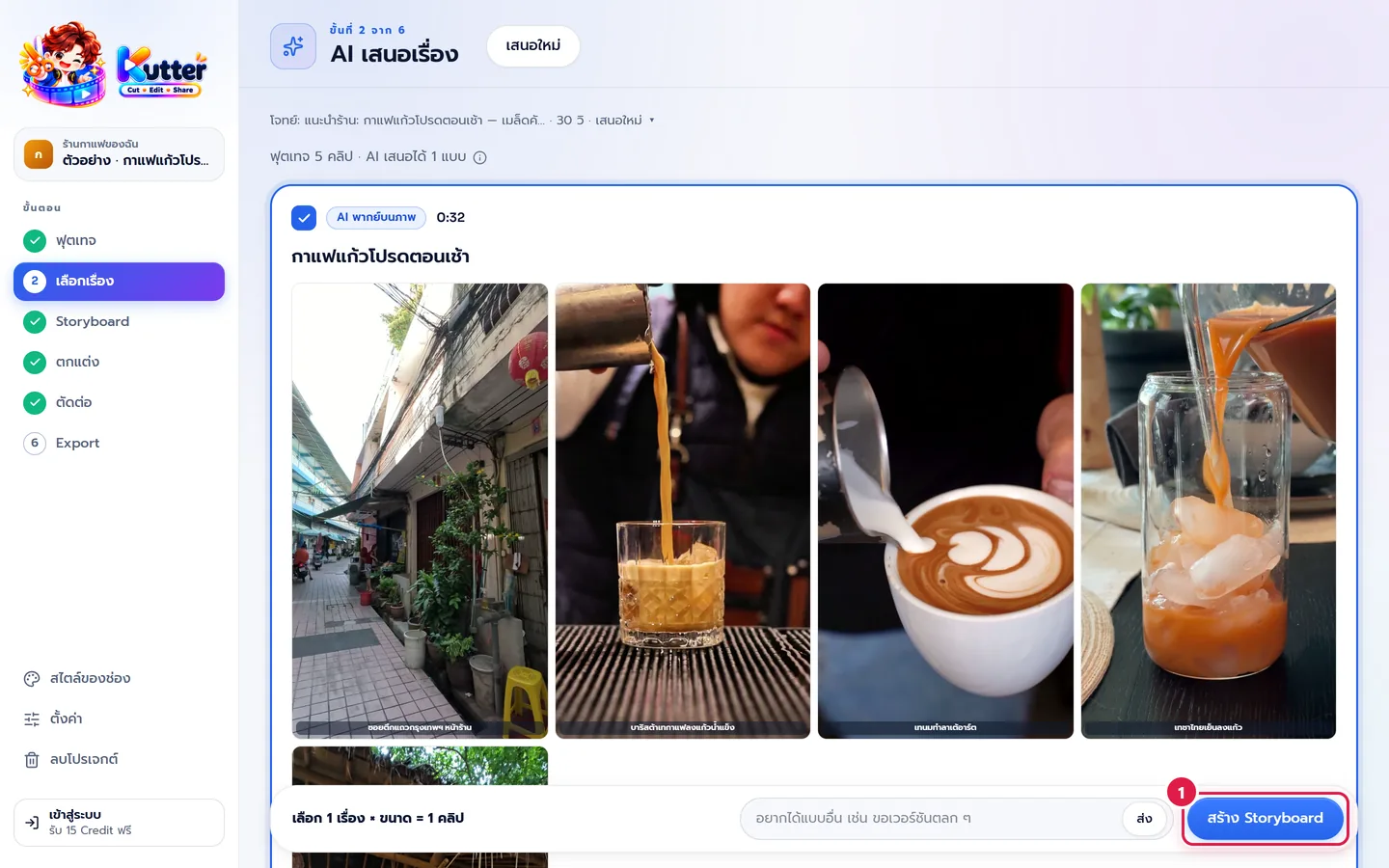
- The AI suggests stories as cards. Each story has a title, a length and a picture of each part, for example "กาแฟแก้วโปรดตอนเช้า · 0:32" (My favorite morning coffee · 0:32).
- Tick the story you like. If none fits, type a request for something different in the box below, or click เสนอใหม่ (Suggest again).
-
Click สร้าง Storyboard (Create Storyboard) (marker 1) (The Story step).
4. Storyboard
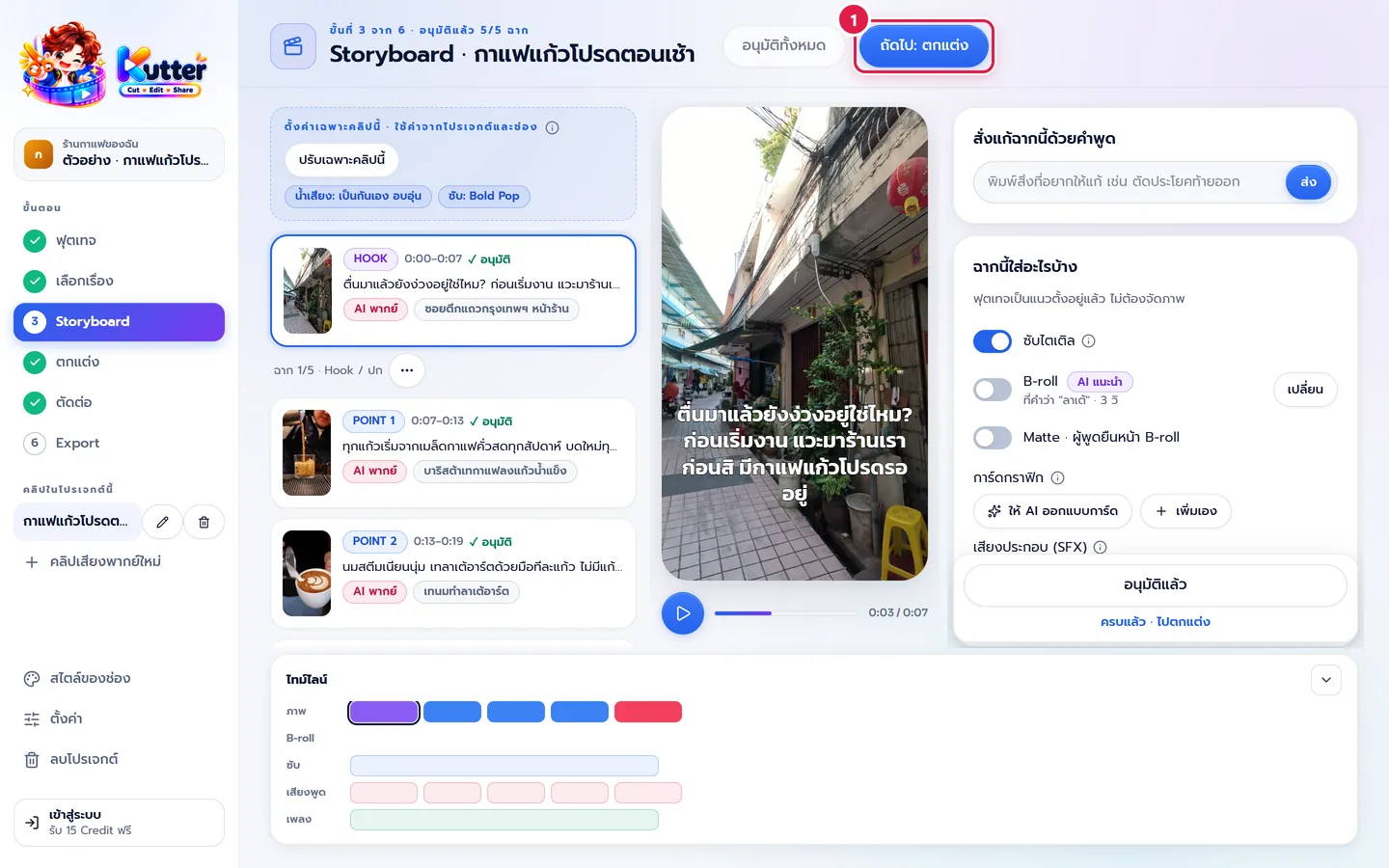
- Go through the scenes one by one on the left. Click a scene to preview it in the middle.
- To make changes, type an instruction in plain words in the "สั่งแก้ฉากนี้ด้วยคำพูด" (Edit this scene in plain words) box, for example "ตัดประโยคท้ายออก" (Cut the last sentence).
- When a scene looks good, click "อนุมัติ" (Approve), or click อนุมัติทั้งหมด (Approve all).
-
Click ถัดไป: ตกแต่ง (Next: Finish) (marker 1) (The Storyboard step).
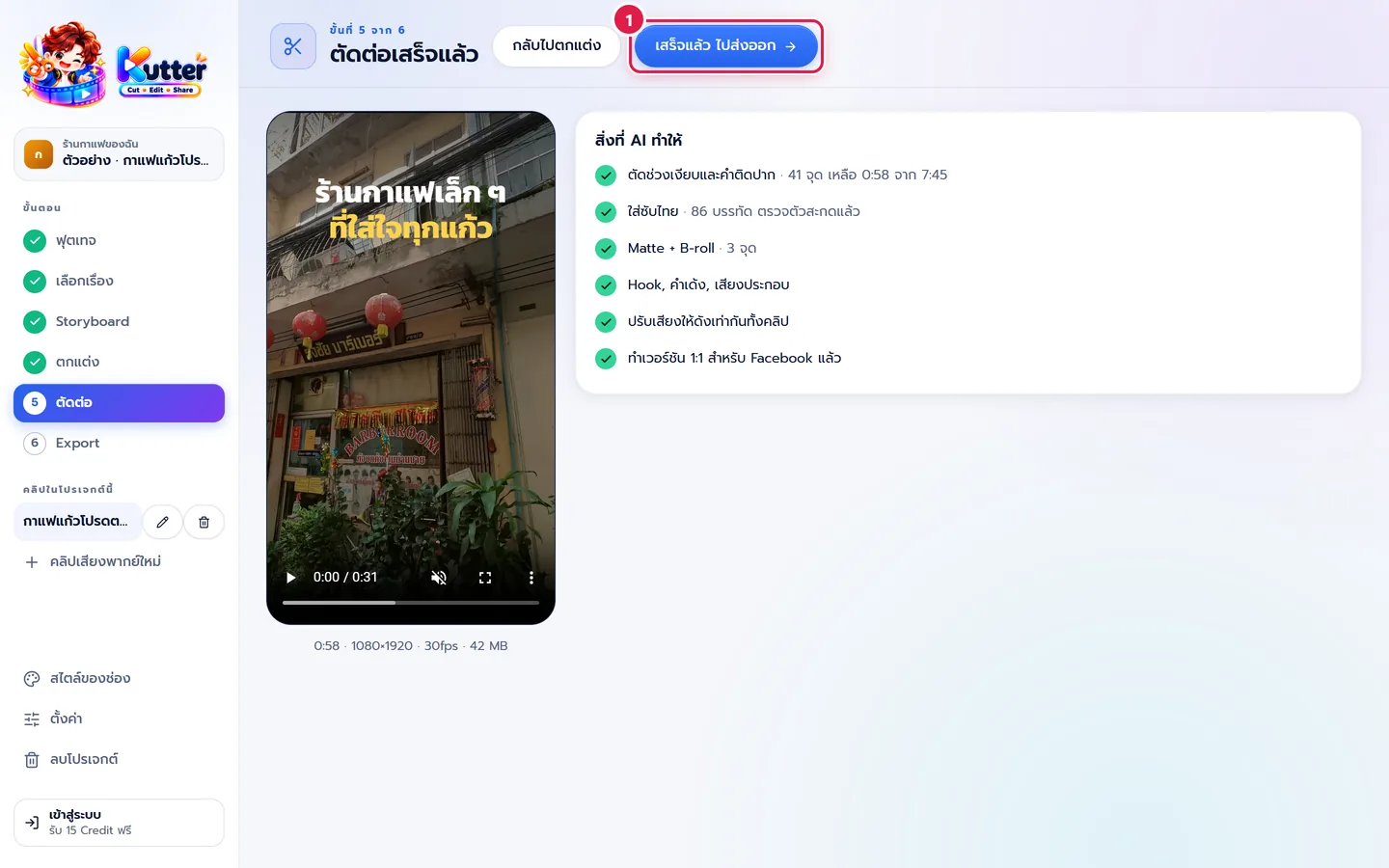
5. Finish and render
- In the Finish step, check the music, cover and decorations, then click ไปตัดต่อ (Go to render) (The Finish step).
- Click เริ่มตัดต่อ (Start render) and wait a moment. You need to sign in before this step.
- Watch the finished clip and the "สิ่งที่ AI ทำให้" (What the AI did) list, for example cutting silences and adding Thai subtitles.
-
Click เสร็จแล้ว ไปส่งออก (Done, go to export) (marker 1) (The Render step).
6. Export
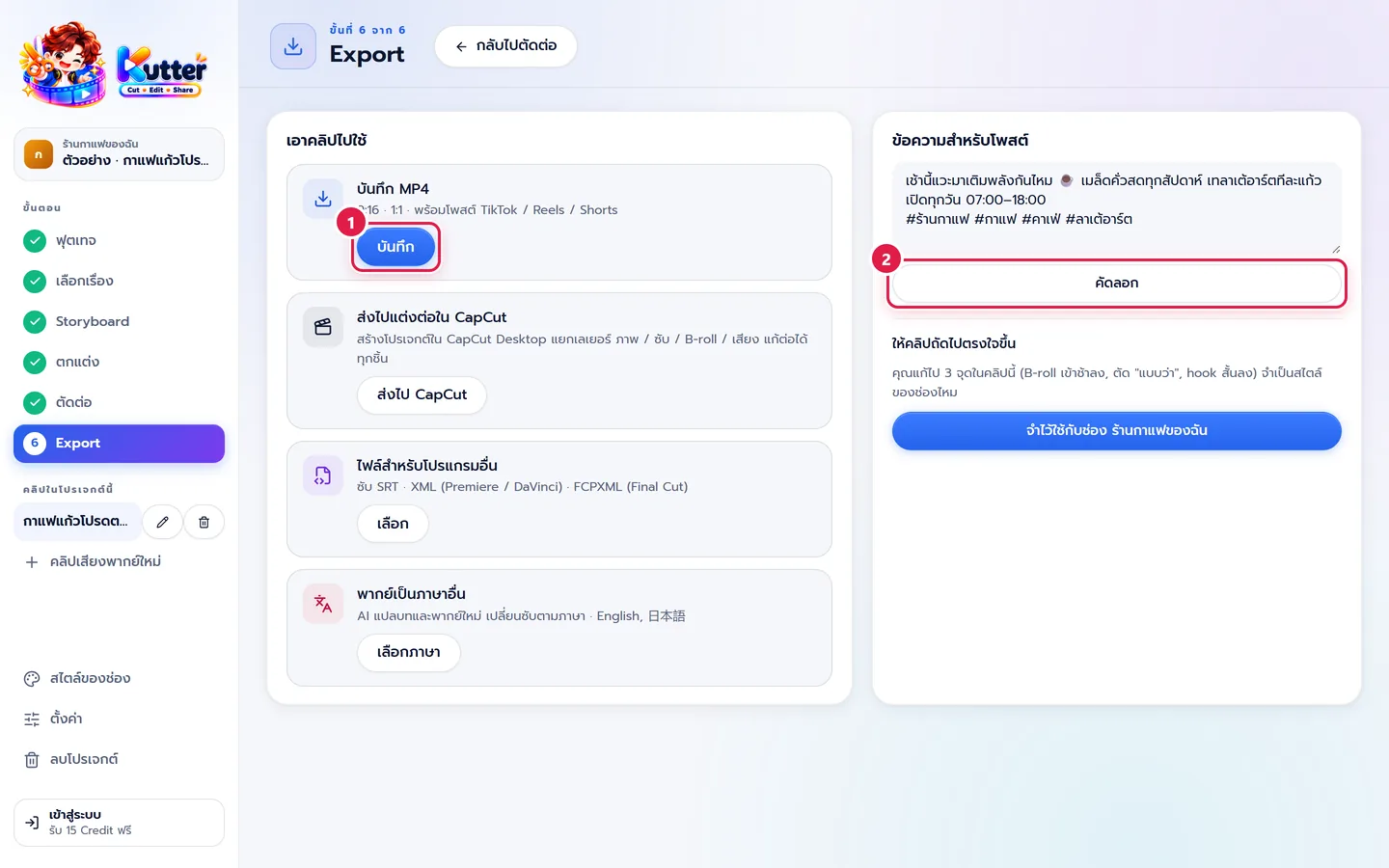
- On the "บันทึก MP4" (Save MP4) card, click บันทึก (Save) (marker 1) and choose where to save the file.
-
The AI has already written the post text for you, and you can edit it. Click คัดลอก (Copy) (marker 2), then paste it when you post (The Export step).
Troubleshooting
- If you can't click ให้ AI เสนอเรื่อง (Let AI suggest stories), wait until at least 1 clip finishes transcribing, or add B-roll clips.
- If a file won't import, check the file type. Supported: video (MP4, MOV), audio (MP3, WAV) and images (JPG, PNG, HEIC).
- If the stories the AI suggests aren't what you want, make the "บอก AI สั้น ๆ" (Brief the AI) box clearer, then ask for new suggestions.
- If you can't render because you haven't signed in, click เข้าสู่ระบบ (Sign in) in the left sidebar (Sign in).
- If another step doesn't show a check mark, go back to that step from the left sidebar and click the button to go to the next step.
Still stuck? Chat with us (bottom right) or email support@helloworld-solution.com