 Kutter
Help › Settings, plans and handoff
Send to CapCut for more editing
Create a CapCut Desktop project with separate tracks for footage, subtitles, B-roll, and music.
Want to add a few touches yourself, such as CapCut stickers or effects? Let Kutter create a CapCut project for you. Every piece sits on its own track, so you can keep editing right away without cutting from scratch.
Available from the Creator plan up, and you need CapCut Desktop (Windows / macOS) installed on the same computer.
Send to CapCut
- Finish rendering your clip first (the Render step), then go to the Export step.
-
In the ส่งไปแต่งต่อใน CapCut (Send to CapCut for Editing) card, click ส่งไป CapCut (Send to CapCut).
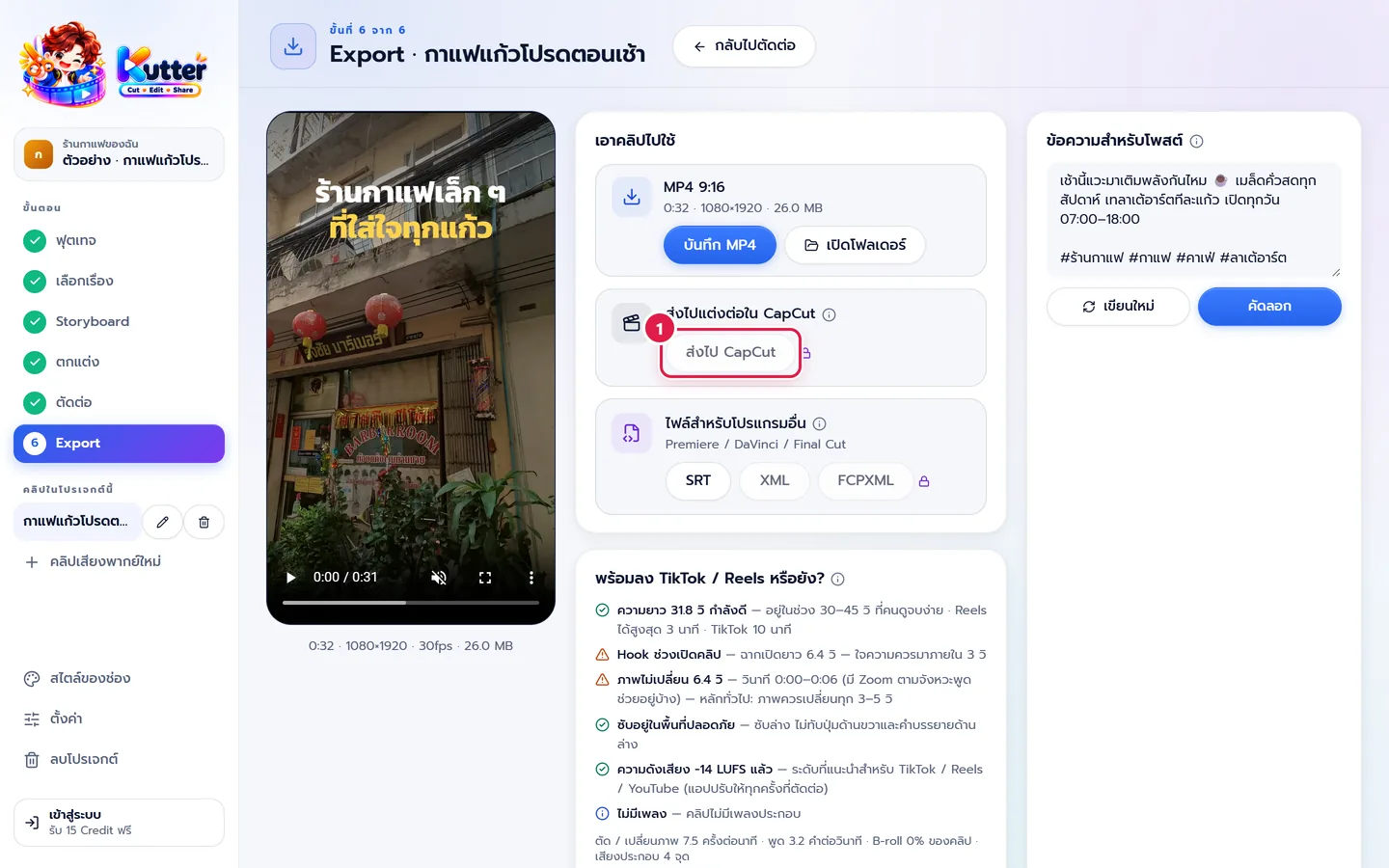
- If your footage is on a different drive from your CapCut projects, the app first tells you how much it needs to copy. Click ก๊อปและส่ง (Copy and Send).
- Wait until you see "ส่งไป CapCut แล้ว" (sent to CapCut), then open CapCut Desktop. You'll see a project with the same name as the clip, such as "กาแฟแก้วโปรดตอนเช้า" (My Favorite Morning Coffee).
- Open the project and keep editing.
What's in the CapCut project
- Main footage The cut segments joined on one track, with zooms that follow the speech rhythm
- B-roll on its own track (pictures such as latte art)
- Thai subtitles as editable text, using the channel's font and colors, with keywords in the highlight color
- Hook The opening text of the clip, as editable text
- Music with the volume lowered during speech, and sound effects on their own track
- The channel's logo and Intro / Outro (if turned on)
- Cover If you saved a cover in the Finish step, the 9:16 cover becomes the CapCut project's cover
B-roll, music, voice-over, and sound effect files are copied into the CapCut project for you (if they're on the same drive, this takes no extra space). So you can later move to another computer or move your original files without losing anything.
What doesn't carry over
- Transitions are straight cuts in CapCut. You can add CapCut's own transitions.
- Hook animation (word-by-word pop) comes over as static text. Use CapCut's text animations instead.
- Color grading and loudness leveling are only in the MP4 file.
If something goes wrong
- If you don't see the project in CapCut, close CapCut and open it again.
- If you have moved CapCut's project folder, click เลือกโฟลเดอร์ (Choose Folder) and pick that new folder (you can find it in CapCut → Settings → Project location).
- If the button has a lock icon, upgrade to the Creator plan. See Plans and Credits.
- If you see the message "ส่งไป CapCut ได้เมื่อโปรเจกต์มีฟุตเทจจริงและตัดต่อแล้ว" (you can send to CapCut once the project has real footage and has been rendered), render the clip first.
- If the subtitle font in CapCut looks wrong, install the font files from the assets/fonts folder of the CapCut project, then pick the font in CapCut.
Using Premiere, DaVinci, or Final Cut? See Send to Premiere / DaVinci / Final Cut.
Still stuck? Chat with us (bottom right) or email support@helloworld-solution.com