 Kutter
Help › Channel style
Channel style: General
Your channel's name and color, audience, tone of voice, and clips you want to emulate.
You set Channel style once, and it applies to every clip in that channel. The page has 8 sections. The ทั่วไป (General) section tells the AI who this channel is, who it talks to, and what tone it uses.
The examples on this page use the sample channel "ร้านกาแฟของฉัน" (My Café), a small café down a side street with a friendly, warm tone.
Set up the General section
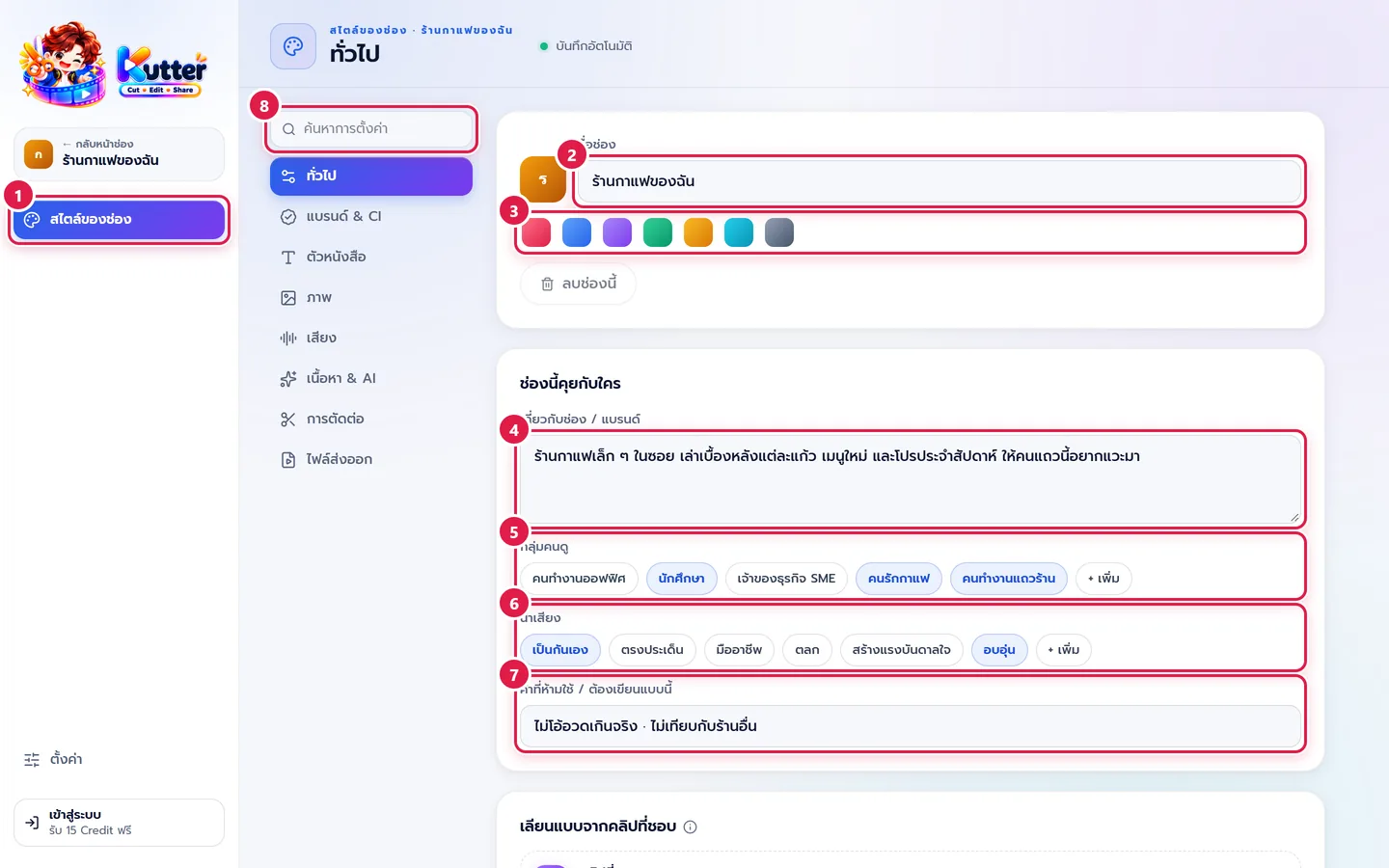
- In the left sidebar, click สไตล์ของช่อง (Channel style), then pick the ทั่วไป (General) section.
- Channel name: edit it in the field at the top, e.g. "ร้านกาแฟของฉัน".
- Channel color: click the color circle. The app uses it for the channel's name tag inside the app. (Colors in your clips are set in Brand & CI.)
- About the channel / brand: describe what the channel does in 1–2 sentences, e.g. "A small café down a side street. We share the story behind each cup, new menu items, and weekly deals."
- กลุ่มคนดู (Audience): click the chips that match your viewers, e.g. students or coffee lovers. If yours isn't listed, click + Add and type it in.
- น้ำเสียง (Tone): you can pick more than one, e.g. friendly + warm.
- คำที่ห้ามใช้ / ต้องเขียนแบบนี้ (Banned words / Write it like this): e.g. "No exaggerated claims · No comparisons with other shops", or brand names that must be spelled correctly.
To find a setting fast, use the ค้นหาการตั้งค่า (Search settings) box (marker 8 in the picture). Type something like "subtitles" or "logo" and the app jumps straight to that card.
In your clip: The AI uses this information when it writes the script, picks the story, and creates on-screen text. The café's scripts come out short, friendly, and free of exaggeration.
Emulate a clip you like (optional)
The เลียนแบบจากคลิปที่ชอบ (Emulate a clip you like) card sits below the Audience card. Click the Clip you like box and add a sample clip. Kutter picks up its pacing, subtitles, colors, and sound, then suggests similar settings for this channel. Only the items you confirm are changed.
Delete a channel
Click ลบช่องนี้ (Delete this channel) below the color bar. If the channel has projects, the app first asks whether to move them to another channel or delete them too. You must always keep at least 1 channel.
Troubleshooting
- If the AI's scripts don't match your channel's tone, add more detail under About the channel / brand and choose a clearer น้ำเสียง (Tone).
- If you can't click ลบช่องนี้ (Delete this channel), check whether it's your only channel. The app won't let you delete the last one.
Next: Brand & CI
Still stuck? Chat with us (bottom right) or email support@helloworld-solution.com