 Kutter
Help › Getting started
Install Kutter
Download Kutter and open it for the first time on Windows or Mac.
Kutter runs on Windows 10 / 11 (64-bit) and Apple silicon Macs (M1 or later) with macOS 13.3 or later (Intel Macs are not supported yet).
You install it once and it takes a few minutes. The installer already includes ffmpeg (the video engine) and an on-device transcriber, so you don't need to install anything else.
Before you start
- Make sure you have free disk space for the app and your project files (installing Whisper on your computer as well takes about 570 MB more).
- Stay online while downloading. After that, many steps work right on your computer.
- You don't need admin rights on the computer.
Windows
-
Open the download page and click Download for Windows. You get an
.exeinstaller. - Double-click the downloaded file (usually in your Downloads folder).
-
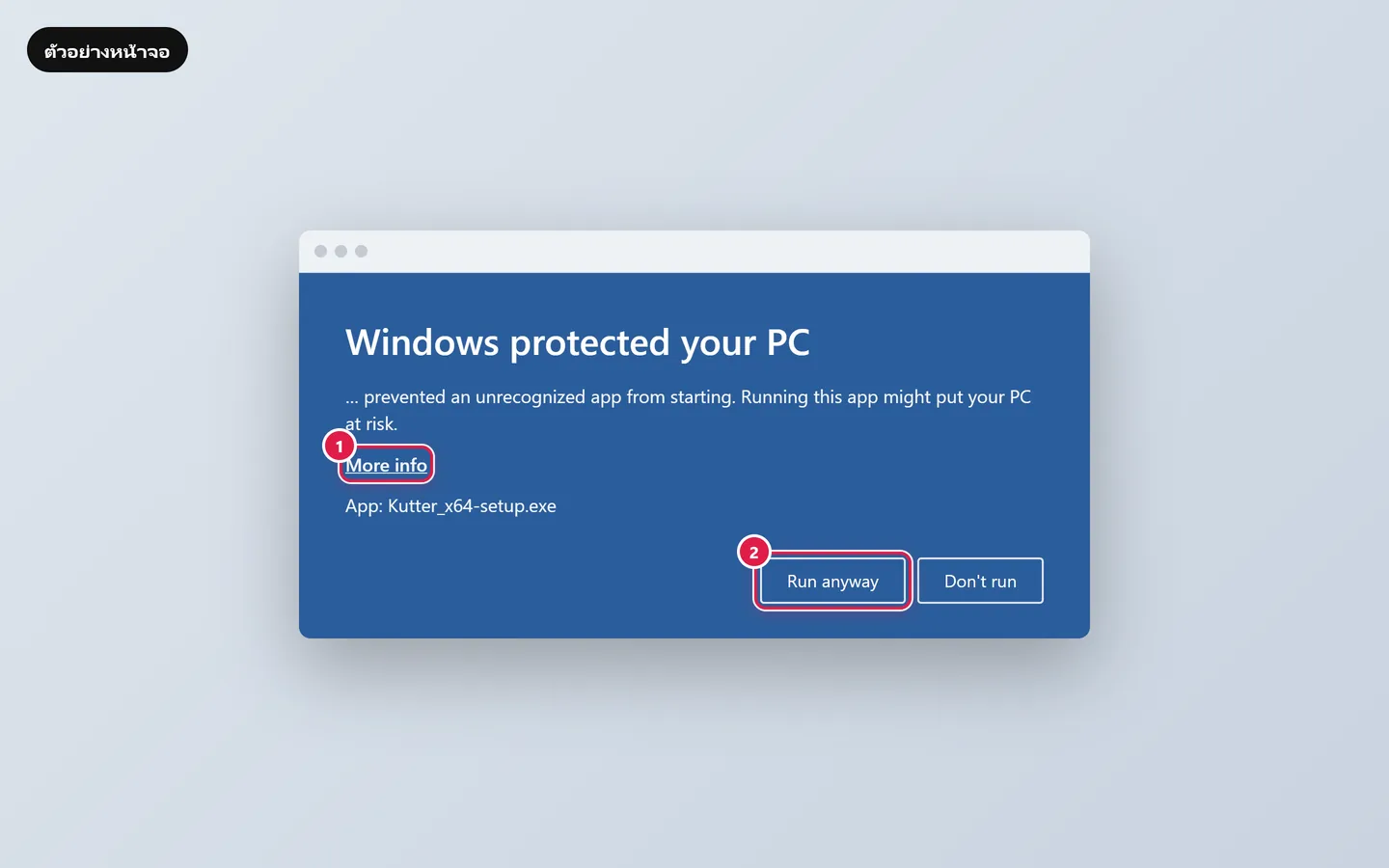
If a blue "Windows protected your PC" screen appears, don't worry. It shows up because the app is still new to Windows. Click More info (marker 1), then Run anyway (marker 2). Windows asks only the first time.
- Wait for the installer to finish.
- Open Kutter from the Start menu (type Kutter). The first-time setup guide opens right away.
Mac
-
On the download page, click Download for macOS. You get a
.dmgfile. -
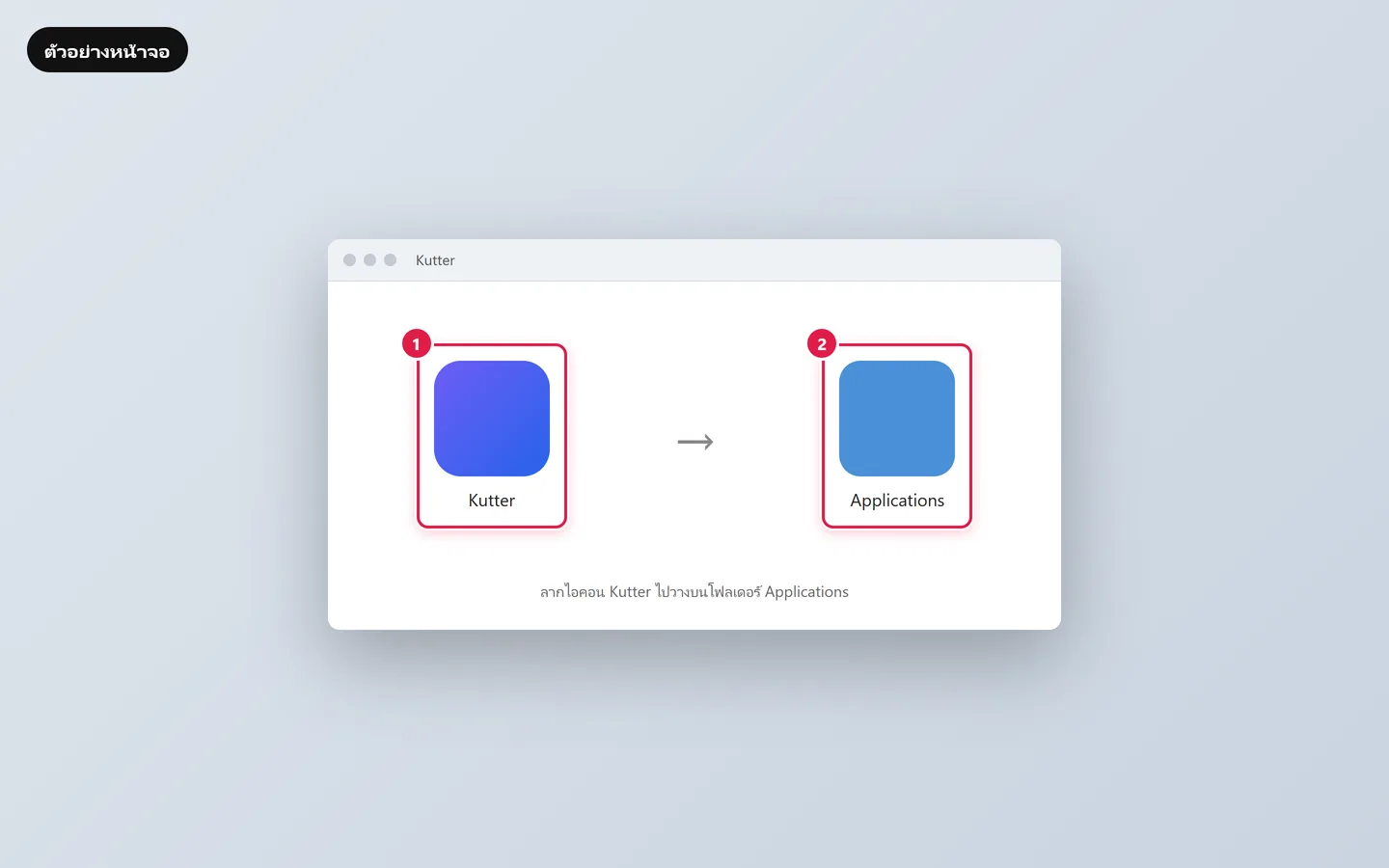
Double-click the .dmg file. A small window opens. Drag the Kutter icon (marker 1) onto the Applications folder (marker 2).
- Open Kutter from the Applications folder or Launchpad.
-
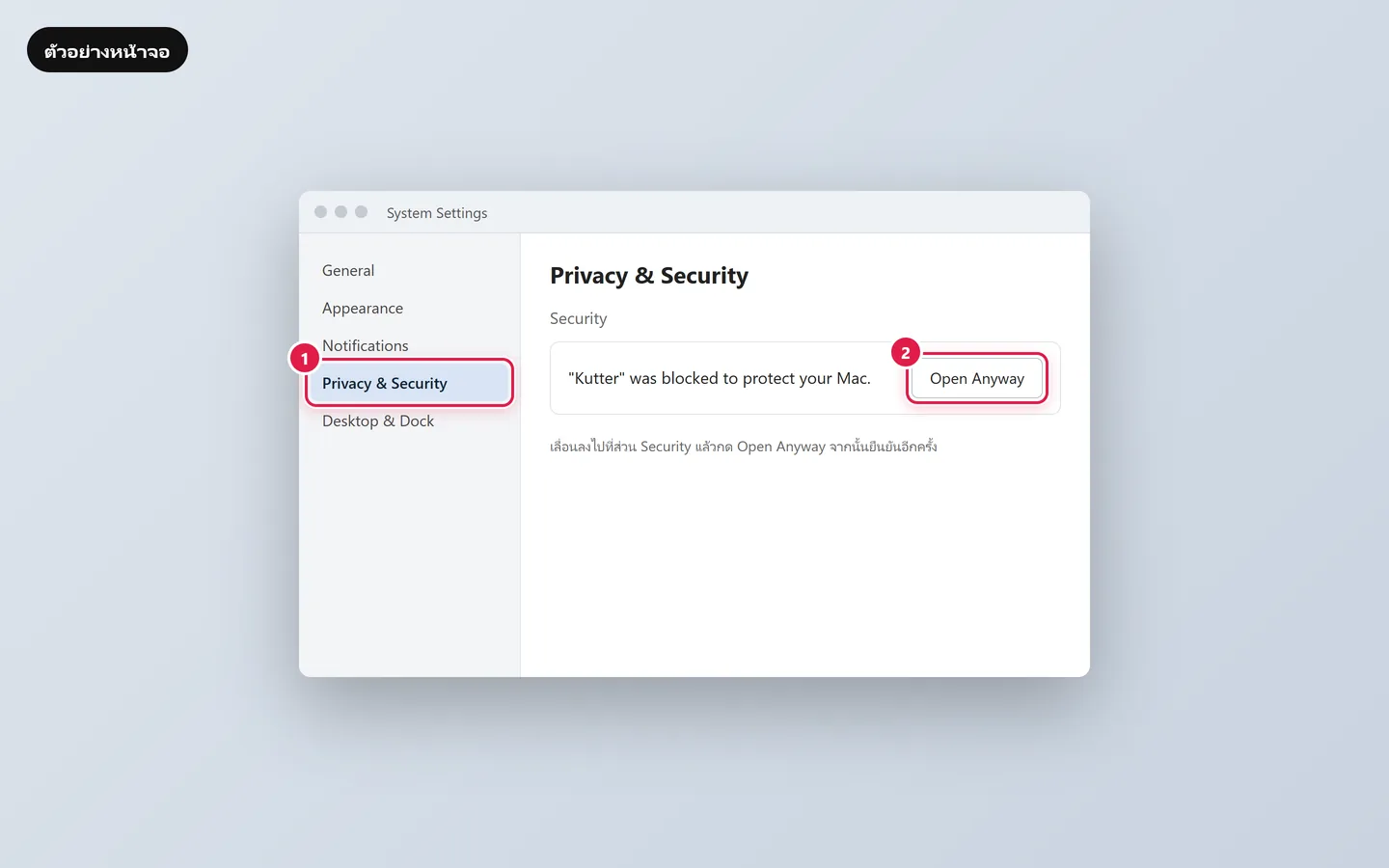
If it says the app can't be opened or "Kutter was blocked", go to System Settings, choose Privacy & Security (marker 1), scroll down to the Security section, click Open Anyway (marker 2), then confirm once more.
-
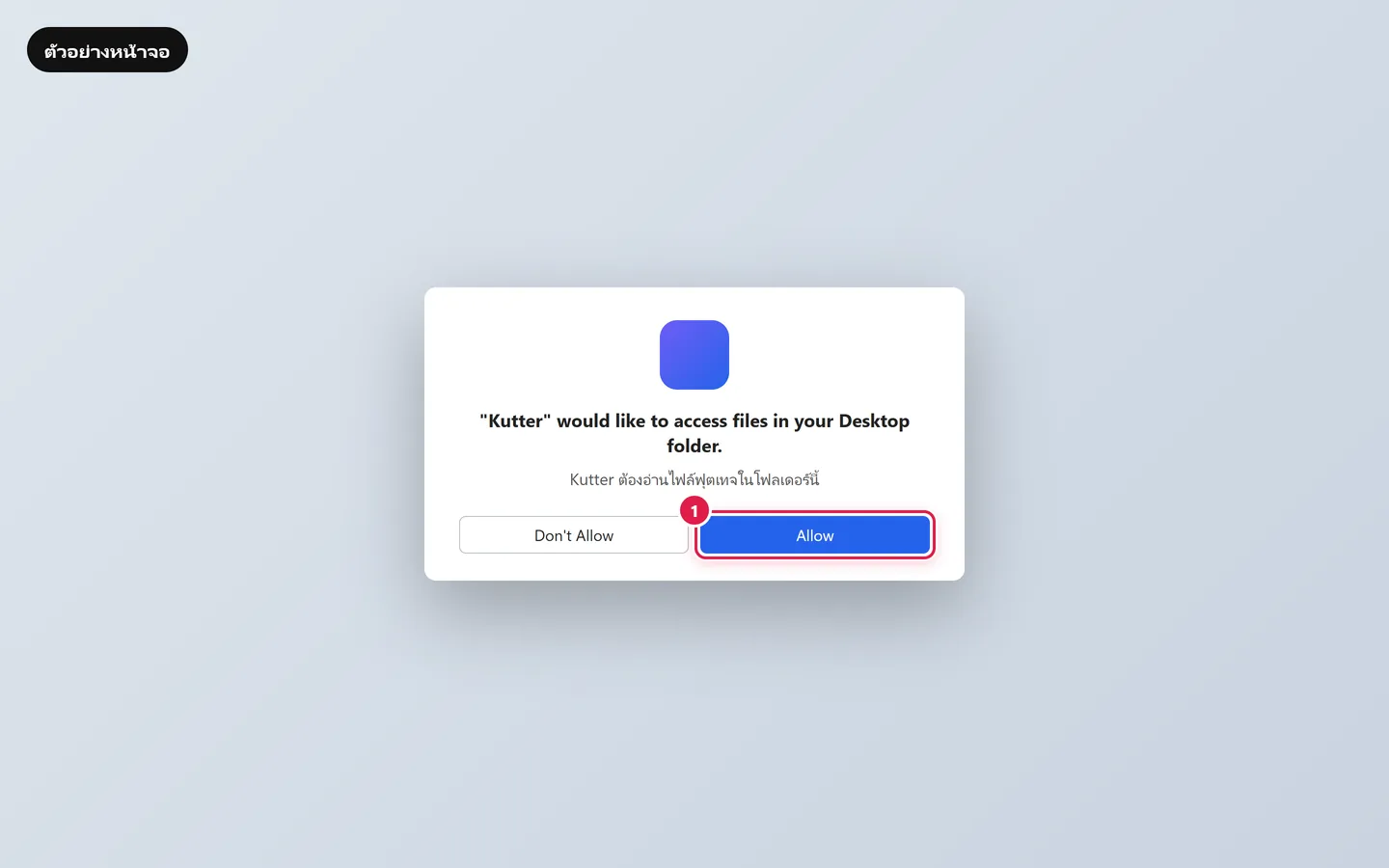
The first time you pick footage from Desktop, Documents, Downloads or an external drive, macOS asks whether Kutter may read files in that folder. Click Allow, or the app won't be able to see your clips.
Update to a new version
Kutter checks for updates every 30 minutes, but it doesn't install one until you click update. To see the version you're on, read the release notes, or click เช็คอัปเดต (Check for updates), go to ตั้งค่า (Settings) › อัปเดต (Updates). Your projects and settings stay as they are after an update.
Troubleshooting
- If there's no Run anyway button, click More info first and the button appears.
- If your antivirus quarantines the installer, download it again from the Kutter download page only, then allow that file in your antivirus.
- If your Mac says the app is damaged or can't be opened, check that it's an Apple silicon Mac with macOS 13.3 or later, then follow step 4 in the Mac section.
- If the app can't see clips on your Desktop or an external drive, go to System Settings › Privacy & Security › Files and Folders and turn on access for Kutter.
- If you run out of disk space, delete files you don't use, or move your work folder to another drive in ตั้งค่า (Settings) › ทั่วไป (General).
Next: First-time setup
Still stuck? Chat with us (bottom right) or email support@helloworld-solution.com