 Kutter
Help › Tips
Tips for better clips
A few settings that make subtitles more accurate, pictures sharper, and B-roll more varied.
Quick tips that work for any channel. Set them once and every clip benefits.
1. Transcribe with ElevenLabs instead of Whisper
ElevenLabs transcribes Thai more accurately than Whisper on your computer, especially loanwords, proper names, and fillers like "เอ่อ" (uh) and "แบบ" (like), and it can tell speakers apart. Your subtitles are accurate from the start, and the app does a better job of cutting repeated words and picking the best moments.
- Sign up for ElevenLabs and create a key with Speech-to-Text access (if you'll use voice-over too, also enable Text-to-Speech).
- Go to ตั้งค่า (Settings) › AI ที่ใช้ (AI providers), paste the key in the Transcription & voice-over field, then click บันทึก (Save).
-
Go to ตั้งค่า (Settings) › ถอดเสียง (Transcription) and choose อัตโนมัติ (Automatic) (uses ElevenLabs when a key is set), or choose ElevenLabs directly.
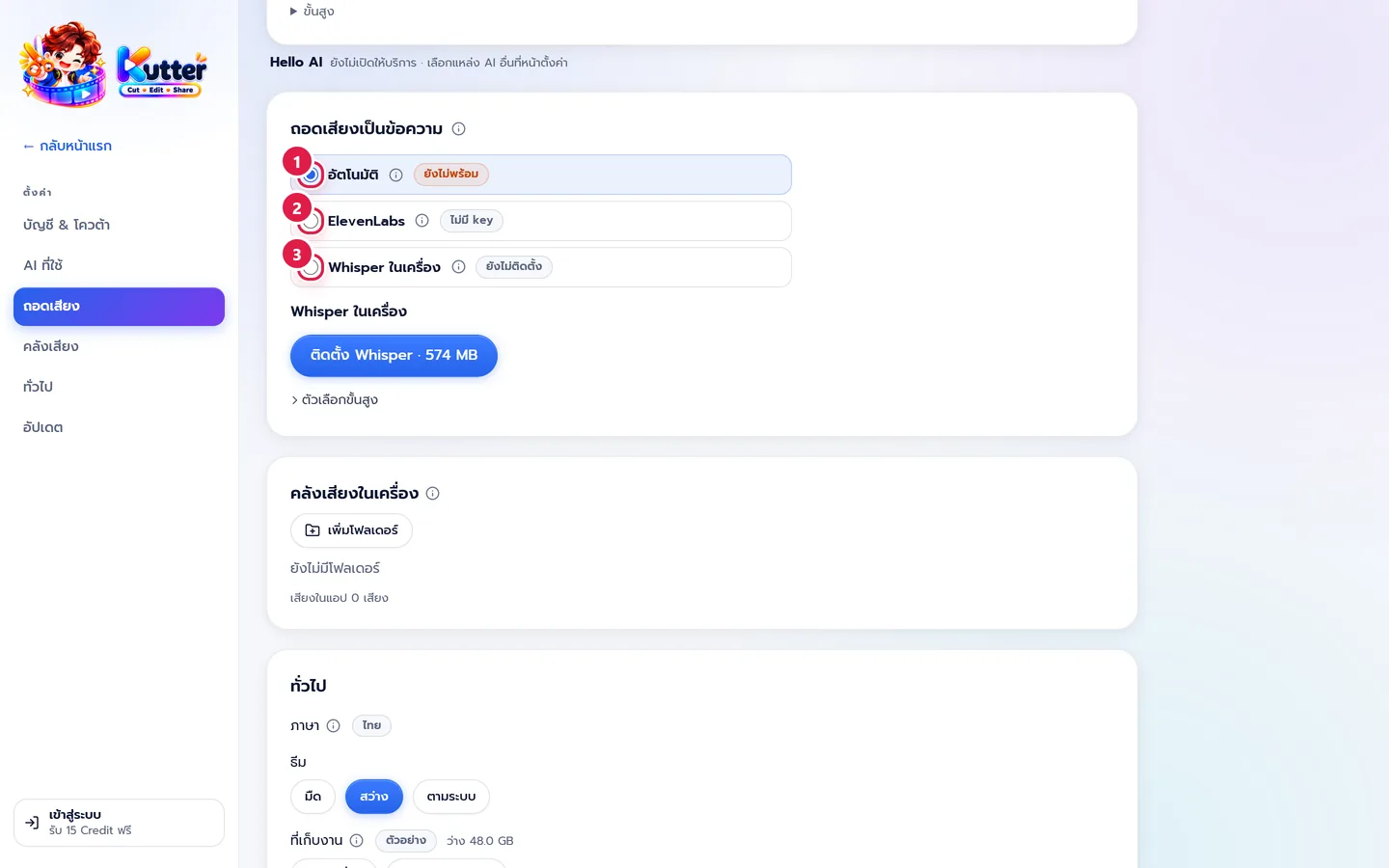
The same key also works for voice-over and voice cloning. See also Transcription setup.
2. Export at a higher resolution and frame rate
- Go to สไตล์ของช่อง (Channel style) › ไฟล์ส่งออก (Export files) (or change it for a single clip on the Render screen).
-
Set ความละเอียด (Resolution) and เฟรมเรต (fps) (Frame rate (fps)) to the highest your plan supports.
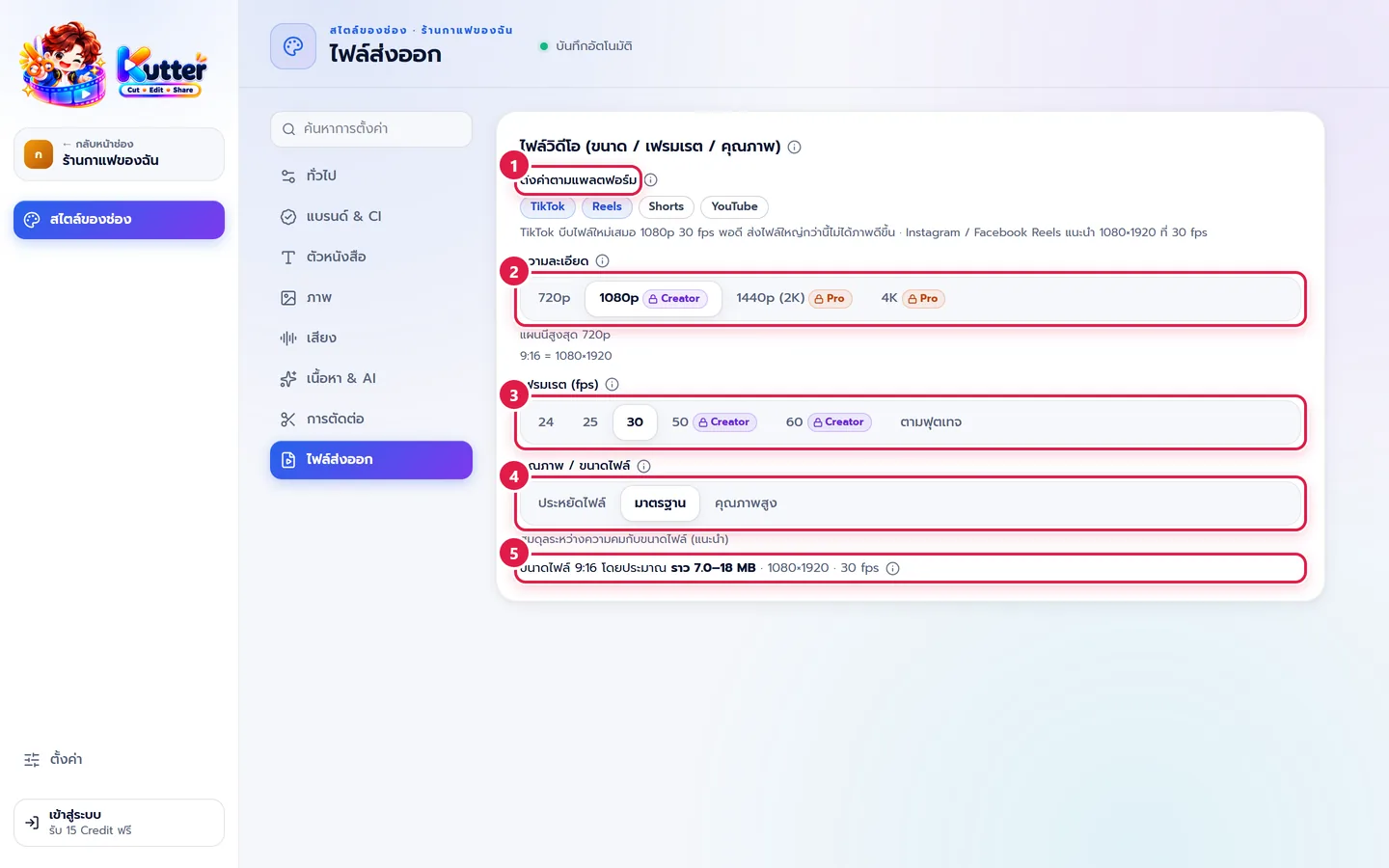
- Free: up to 720p and 30 fps
- Creator: up to 1080p and 50 / 60 fps
- Pro and Founder Edition: 1440p, 4K, and H.265
Good to know:
- Resolution and frame rate don't change how many Credits you use. Credits are based on clip length only. See Save Credits.
- The higher the settings, the bigger the file and the longer the render.
- Your original footage has to be sharp enough. Exporting 1080p footage at 4K won't make it sharper.
- 60 fps only helps if you filmed at 60 fps. If you're not sure, choose ตามฟุตเทจ (Match footage).
- TikTok and Reels always re-compress your file, so 1080p at 30 fps is enough. See Channel style: Export files.
3. Add a Pixabay key for more varied B-roll
With more image sources turned on, the app has more pictures to choose from and finds ones that fit your story more easily. Pixabay keys are free.
- Go to ตั้งค่า (Settings) › AI ที่ใช้ (AI providers) and scroll down to แหล่งภาพ B-roll (B-roll sources).
- Turn on the Pixabay switch, then click วิธีขอ key (How to get a key). A button that opens pixabay.com/api appears.
- Sign up or sign in to Pixabay (free).
- Go back to the API Documentation page and scroll down to "Search Images". Your key is shown in the key field (in green text).
-
Copy the key, paste it into Kutter, then click บันทึก (Save). The app checks that the key works.
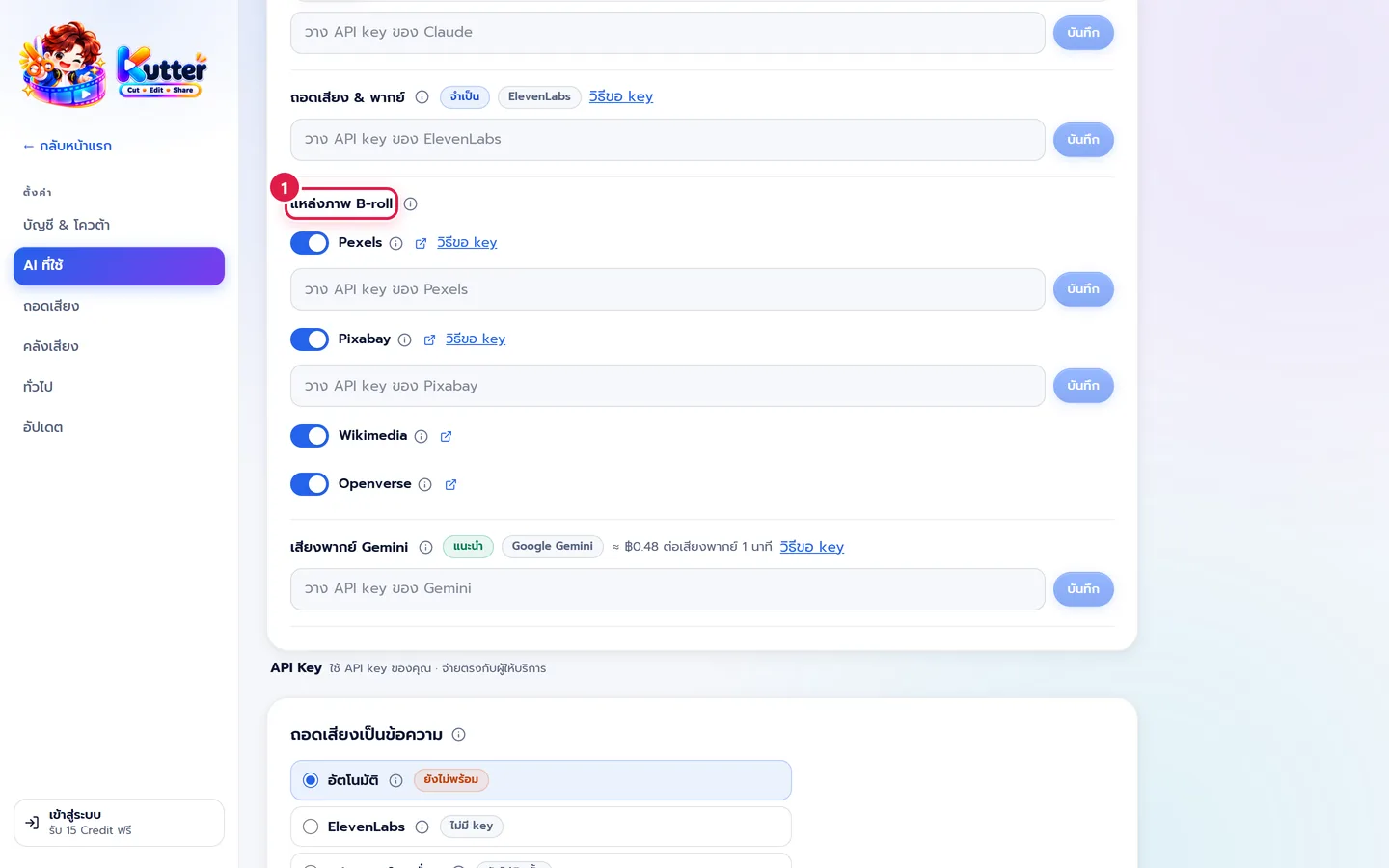
Pexels keys are free too. Follow the same steps. Wikimedia and Openverse don't need a key.
4. Add your channel vocabulary
Put your shop name, menu names, and brand names you say often in Channel vocabulary. The transcriber spells them correctly from the start, so you don't have to fix subtitles in every clip.
5. Turn on the graphics card for Whisper
If you use Whisper on your computer, go to ตั้งค่า (Settings) › ถอดเสียง (Transcription) › ตัวเลือกขั้นสูง (Advanced options) and turn on ใช้การ์ดจอเร่งความเร็ว (Use graphics card acceleration) (if your computer has a supported graphics card). Transcription becomes several times faster.
6. Set up your channel style once
Set your fonts, subtitle colors, music, and export files in สไตล์ของช่อง (Channel style). Every clip in the channel gets the same look without setting it up again. See Channel style: General.
7. Check subtitles before you render
Previewing and editing are unlimited. Check the subtitles and cut points in the Storyboard step before you click render, because Credits are deducted when the render starts. (Rendering the same clip again with the same settings within 7 days isn't charged again. If a render fails or you cancel it, you get your Credits back.)
8. AI slow or incomplete? Try a different AI brain
If the AI account on your computer is often slow or gives incomplete answers, try an API Key (API Key) for Claude, OpenAI, or Gemini instead. See App settings.
9. Made a mistake? Undo works across the whole project
Every page in a project has an เลิกทำ (Undo) button in the top-right corner (Ctrl+Z on Windows, ⌘Z on Mac). It steps back one change at a time, including your own edits and changes the AI made, such as rewriting a section, deleting a scene, or pasting a script. If you go back too far, click ทำซ้ำ (Redo) (Ctrl+Shift+Z). While you're typing in a text box, Ctrl+Z undoes only the text in that box.
Still stuck? Chat with us (bottom right) or email support@helloworld-solution.com