 Kutter
Help › Make a clip step by step
The Script step
Paste your own script, let AI write it, or mix the two section by section.
Every เริ่มจากสคริปต์ (Start from a script) project opens on this step. The script is split into sections (HOOK opens the clip, POINT is the content, CLOSER wraps it up). You can paste your own script, let AI write it, or mix the two section by section. Then let AI do the voice-over, or take the script and film it yourself.
From the home screen, press เริ่มจากสคริปต์ (Start from a script), give it a name, and press สร้าง (Create). The app picks "AI พากย์" (AI voice-over) for you. If you plan to film yourself, change ใครพูด (Who speaks) to "ฉันพูดเอง (ถ่ายมา)" (I speak (filmed)). If you already have clips you filmed, you can skip this step.
Already have a script: paste your own
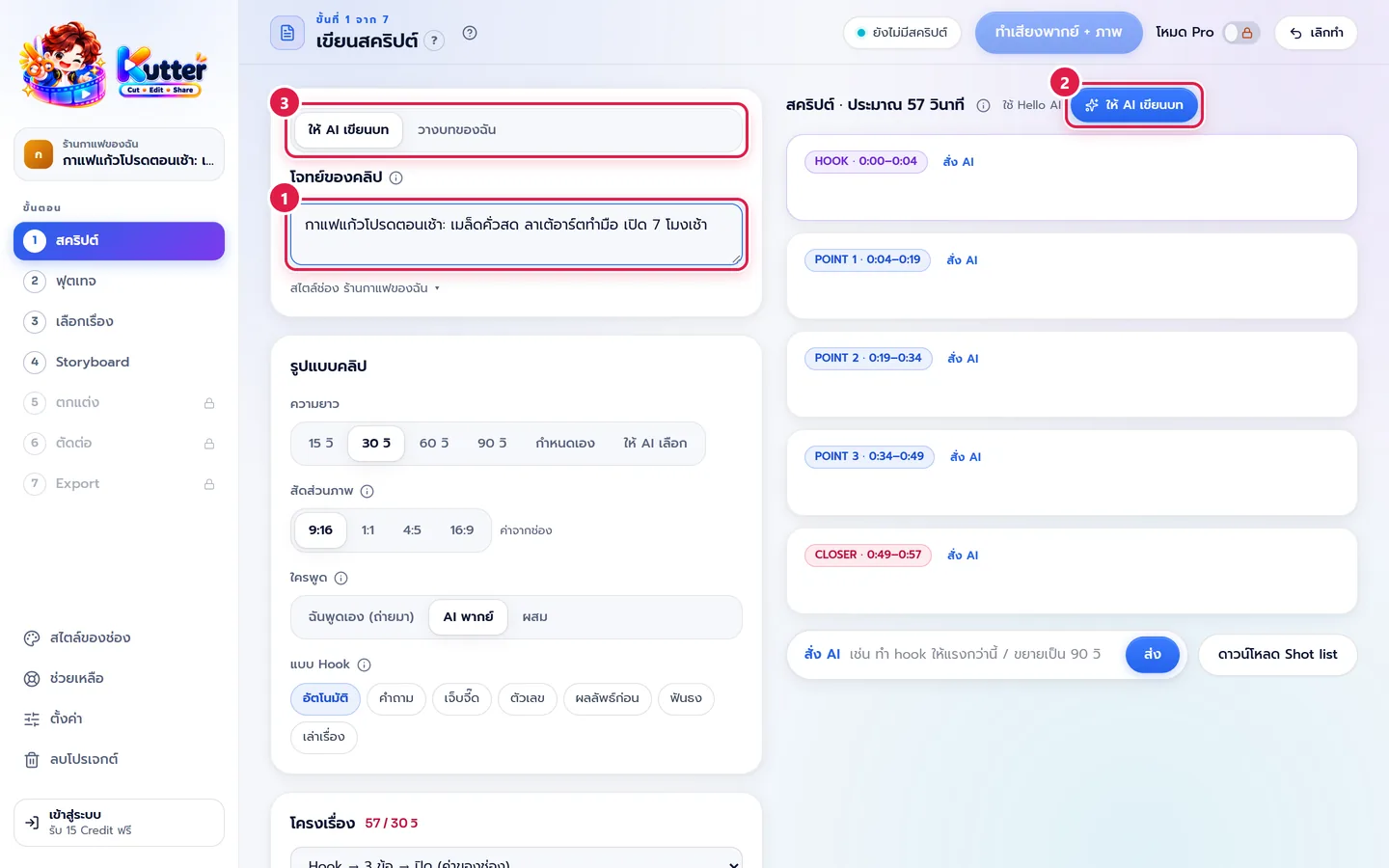
- At the top of the brief card, choose วางบทของฉัน (Paste my script) (instead of ให้ AI เขียนบท (Let AI write the script)), paste your script, and press ทำ Storyboard (Make Storyboard). The app splits it into scenes and takes you straight to the Storyboard. See Paste your script for details.
- If you write some sections yourself, press ให้ AI เติมช่วงที่ว่าง (Let AI fill the empty sections) for the rest.
Give a topic and let AI write
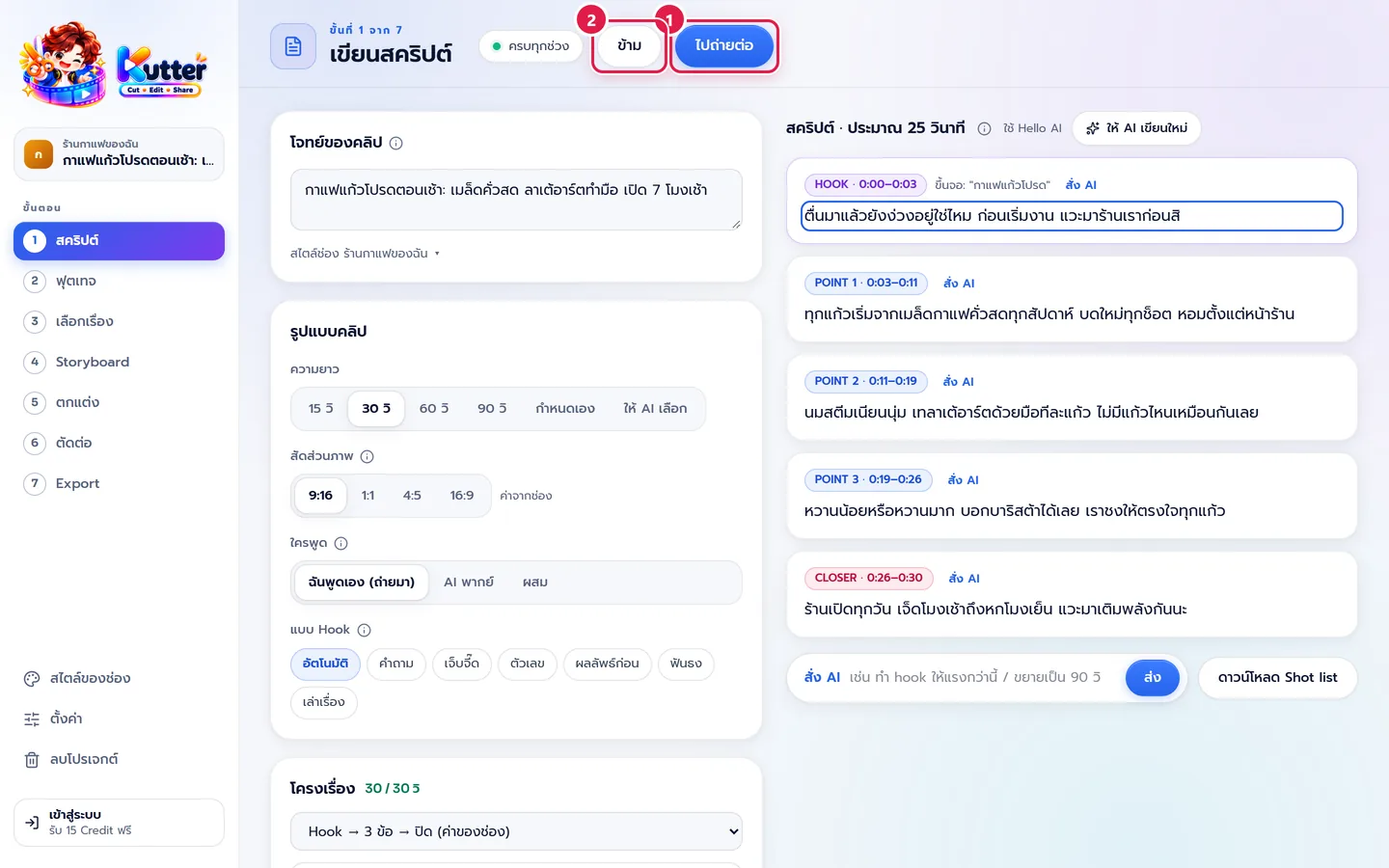
- Type your topic in the โจทย์ของคลิป (Clip brief) box. The first line is the topic; the next lines can say what to focus on, for example "กาแฟแก้วโปรดตอนเช้า: เมล็ดคั่วสด ลาเต้อาร์ตทำมือ เปิด 7 โมงเช้า" (Your favorite morning coffee: freshly roasted beans, hand-poured latte art, open from 7 a.m.)
-
Press ให้ AI เขียนบท (Let AI write the script). AI writes one section at a time so you can watch it live. It doesn't take long.
AI also uses your Channel style (audience, tone), so the script sounds like your shop. For example, the HOOK might come out as "ตื่นมาแล้วยังง่วงอยู่ใช่ไหม ก่อนเริ่มงาน แวะมาร้านเราก่อนสิ" (Up but still sleepy? Stop by our shop before work.)
Edit the script until you like it
- To change one section only, press สั่ง AI (Ask AI) on that section and type something like "สั้นลงครึ่งหนึ่ง" (Cut it in half).
- To change the whole script, type in the chat at the bottom, for example "ทำ hook ให้แรงกว่านี้" (Make the hook stronger), and press ส่ง (Send).
-
Don't like any of it? Press ให้ AI เขียนใหม่ (Let AI rewrite) for a whole new script.
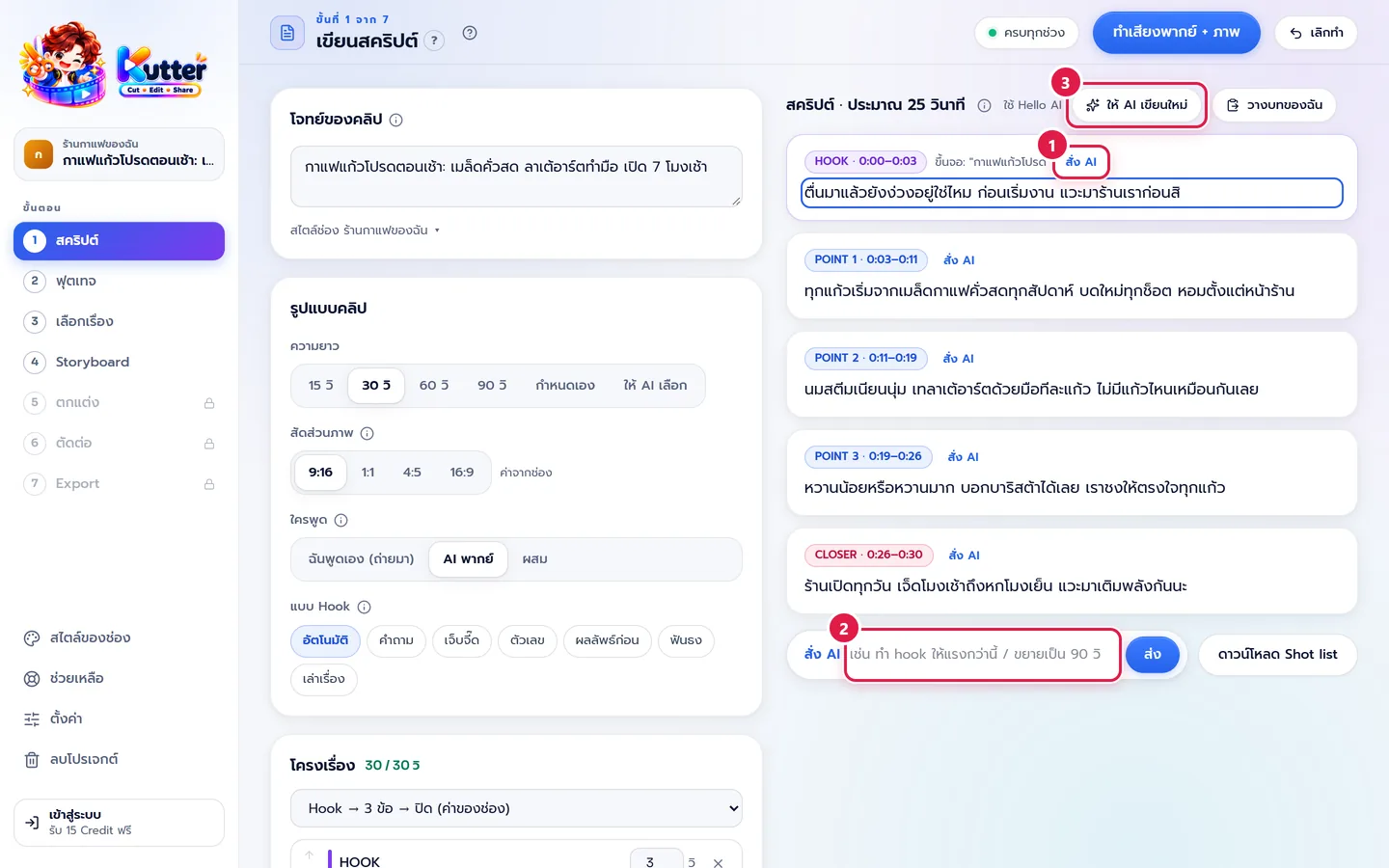
You can also edit the text in each section's box yourself, without AI.
Set the length and the speaker
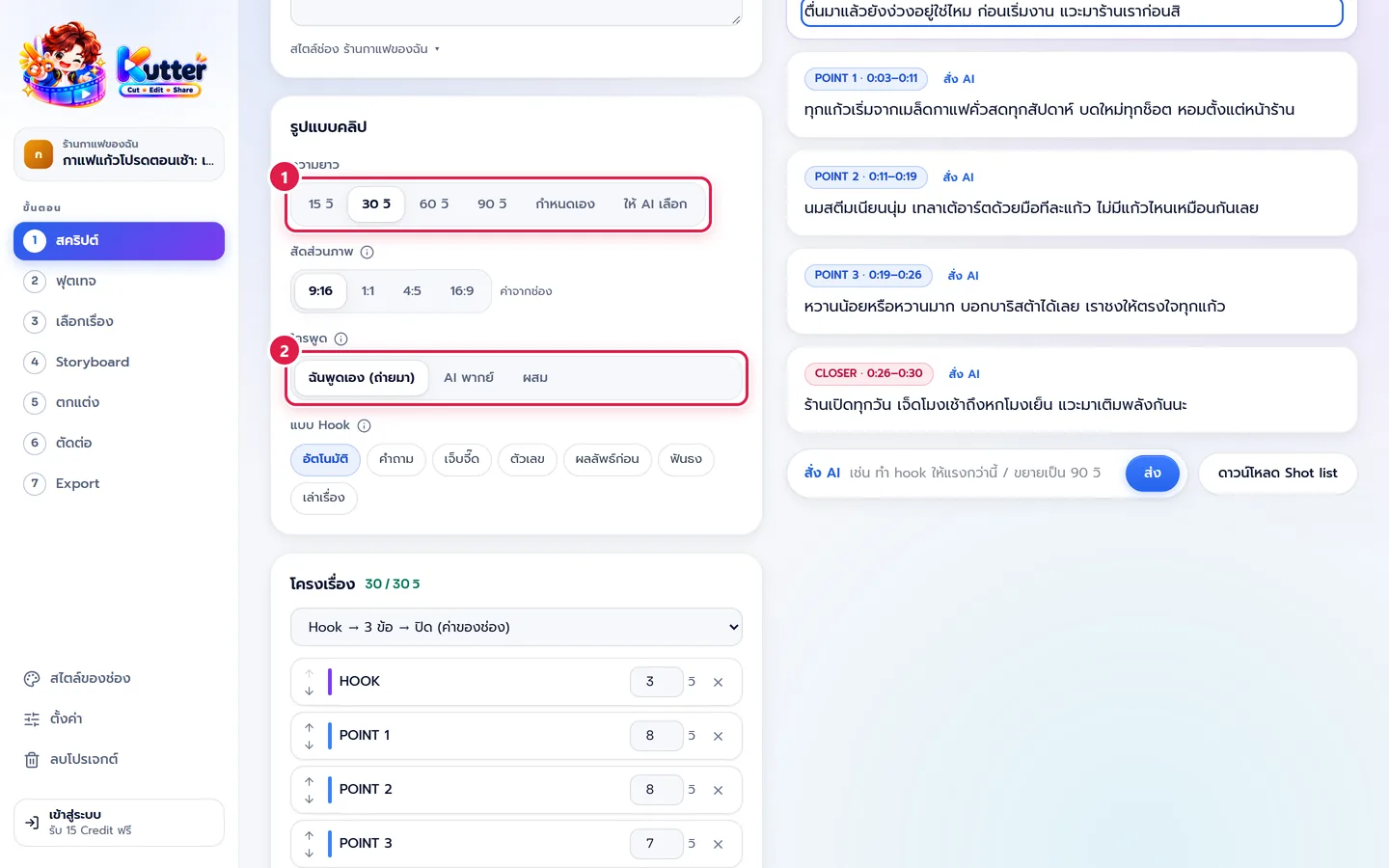
- Choose a ความยาว (Length): 15, 30, 60, or 90 seconds, กำหนดเอง (Custom), or ให้ AI เลือก (Let AI choose). For a short café clip, 30 seconds works well.
-
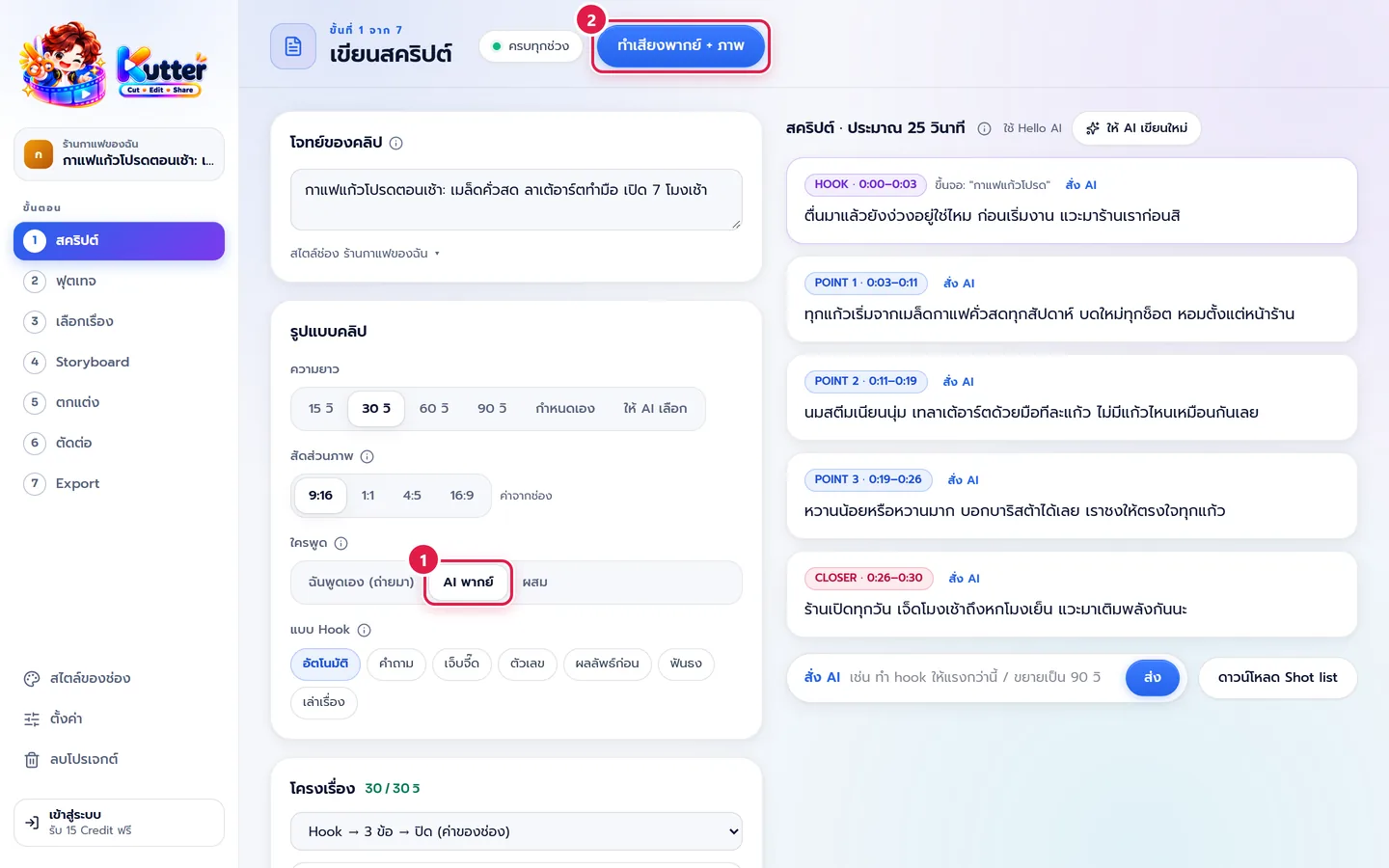
Choose who speaks: ฉันพูดเอง (ถ่ายมา) (I speak (filmed)) if you'll talk on camera, AI พากย์ (AI voice-over) if you'd rather stay off camera, or ผสม (Mixed) if you speak in some sections.
Adjust the structure
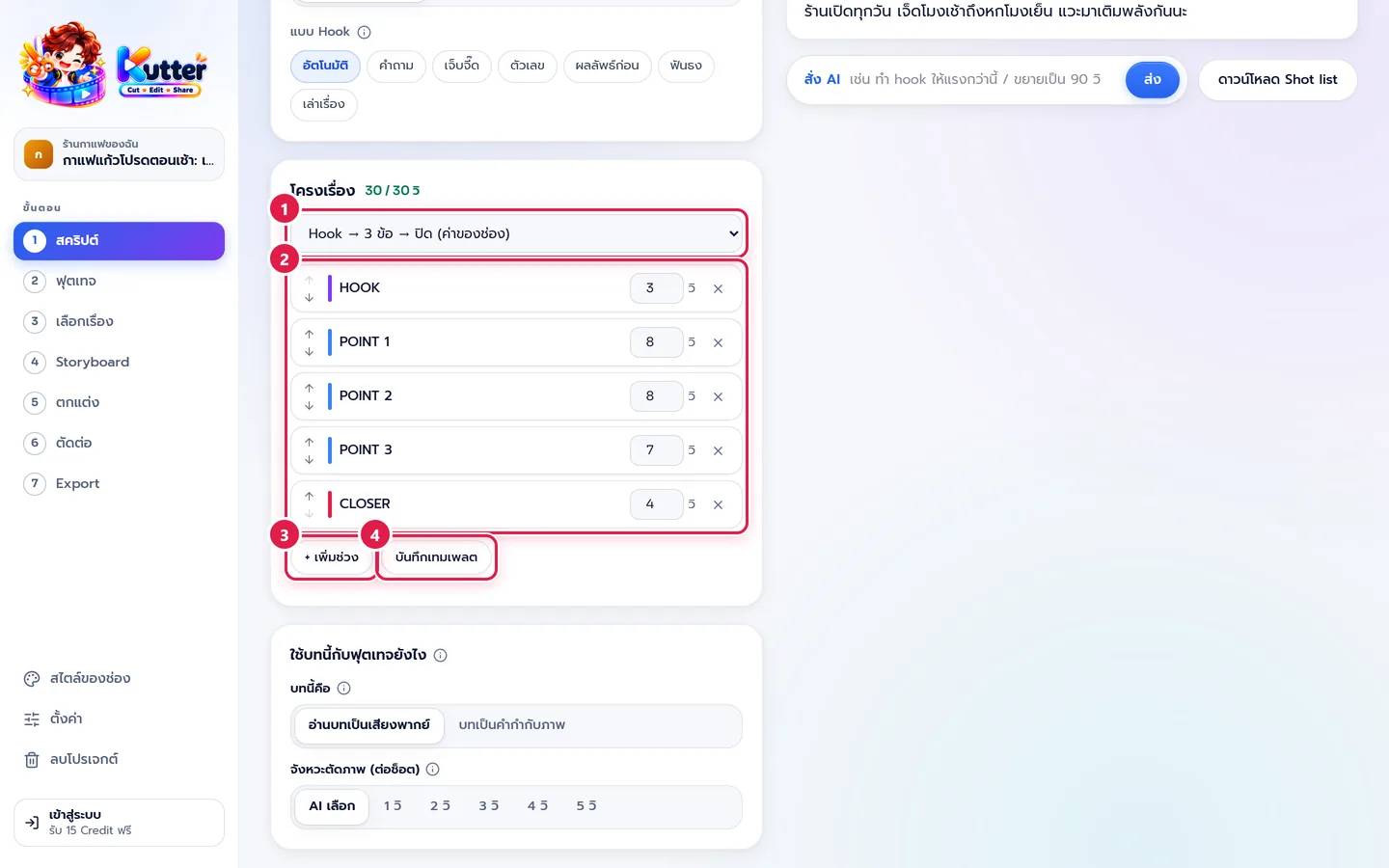
- Pick a structure from the list, for example Hook → 3 points → close.
- You can rename a section or change its seconds. If the total doesn't fit, press the "ปรับให้พอดี" (Fit) button that appears under the list.
- Need another section? Press + เพิ่มช่วง (+ Add section).
-
Like this structure and want it for your next clip? Press บันทึกเทมเพลต (Save template).
Go to the next step
- Speaking yourself: press ไปถ่ายต่อ (Go film), take the script and film it, then add the clips in the Footage step.
-
Already have clips and don't need this script? Press ข้าม (Skip).
-
If you chose AI พากย์ (AI voice-over), the top button changes to ทำเสียงพากย์ + ภาพ (Make voice-over + pictures). Press it to go to the voice-over Storyboard, with no filming. See Make a clip with an AI voice-over.
If something goes wrong
- If the script runs longer than the length you set, adjust the times in the structure, or ask in the chat: "ย่อให้พอดี 30 วิ" (Trim it to fit 30 seconds).
- If the script doesn't fit your shop, add details to the brief box, such as your signature menu item or opening hours, and press ให้ AI เขียนใหม่ (Let AI rewrite).
- If AI doesn't finish writing or gets stuck, press stop, then press rewrite again. Your existing script stays.
- If you can't press ทำเสียงพากย์ + ภาพ (Make voice-over + pictures), wait for AI to finish writing first, and make sure at least one section of the script has text.
Still stuck? Chat with us (bottom right) or email support@helloworld-solution.com