 Kutter
Help › Channel style
Clone your voice
Record 1–3 minutes of reading, then have AI voice your clips in your own voice.
Use it for voice-overs when recording yourself isn't convenient. You read the on-screen text for 1–3 minutes, the app sends the recording to ElevenLabs to create a cloned voice, and you can then use it as your channel's voice-over.
Before you start
- A Kutter plan of Creator or higher (on the free plan the button shows a padlock, and pressing it opens the upgrade page)
- Your own ElevenLabs key. Your ElevenLabs plan must support voice cloning (Starter or higher). ElevenLabs charges go to your own account and don't use Kutter Credits.
- A quiet room and the microphone you normally use for your clips
Open the voice clone window
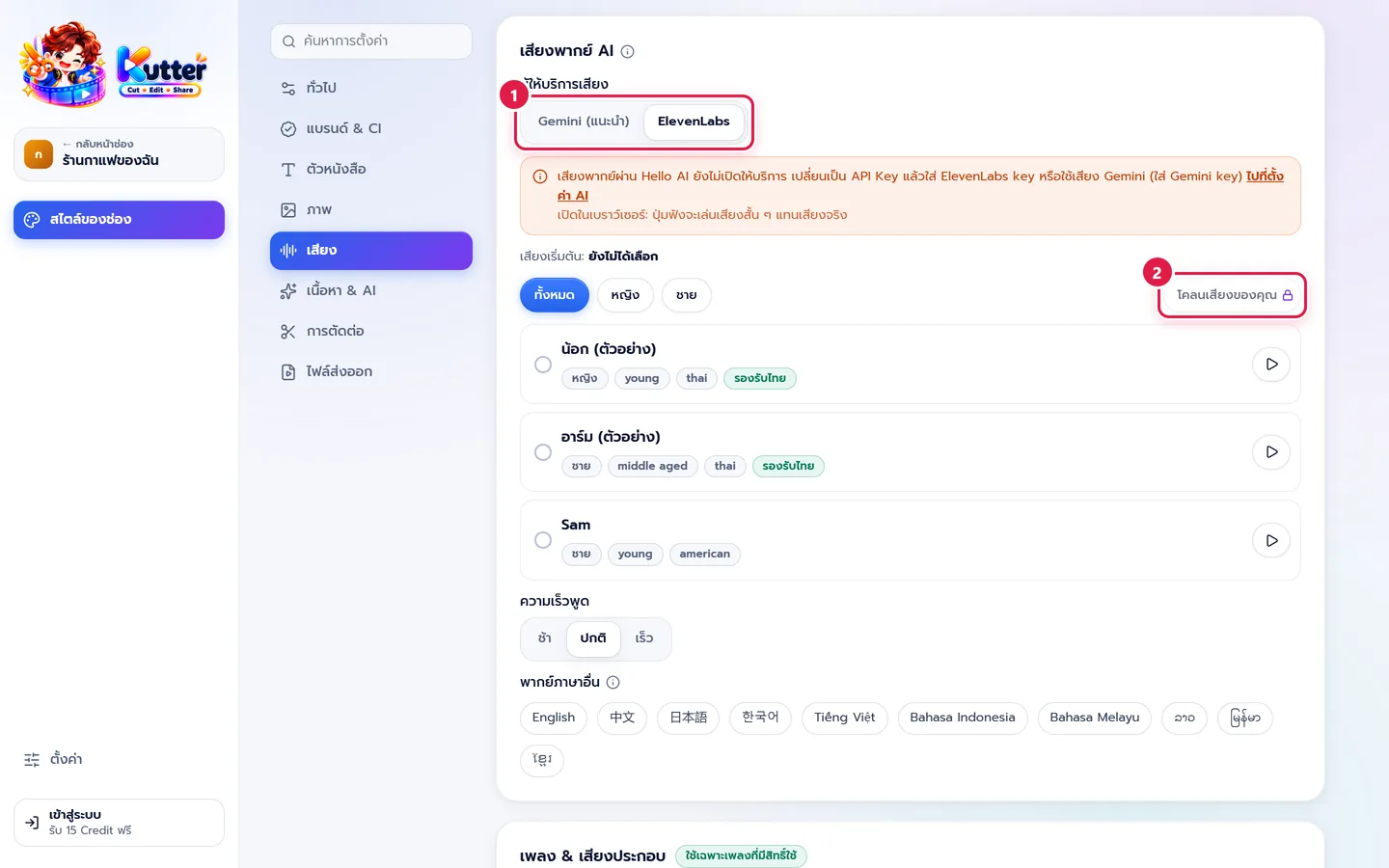
- In สไตล์ของช่อง (Channel Style) › เสียง (Sound), set ผู้ให้บริการเสียง (Voice Provider) to ElevenLabs (if it's on Gemini, you can also press ใช้ ElevenLabs (Use ElevenLabs) in the voice clone box)
- Press โคลนเสียงของคุณ (Clone Your Voice) at the right corner of the voice list
If you don't have an ElevenLabs key yet, pressing the button takes you to App settings › AI providers.
Record your voice
- Choose a ไมโครโฟน (Microphone), say a few words, and check that the level bar moves
- Press เริ่มอัด (Start Recording) and read the text under อ่านออกเสียง (Read Aloud) in the normal tone you use for your clips, with the mic about a hand's width away
- Press Stop when you finish a section. To record more, press อัดเทคต่อไป (Record Next Take). All takes together should total 1:00–3:00 minutes.
- Listen to each take. If a red warning appears under a take, delete it and record again.
- Once the length is right, press ถัดไป (Next)
Name and confirm
- Set the ชื่อเสียง (Voice Name), for example "เสียงเจ้าของร้าน" (Shop owner's voice)
- Tick the confirmation "ฉันยืนยันว่าเป็นเสียงของฉันเอง หรือได้รับอนุญาตจากเจ้าของเสียงแล้ว" (I confirm this is my own voice, or I have permission from the voice's owner)
- Press สร้างเสียง (Create Voice) and wait a moment
- Listen to the sample, then press ใช้เป็นเสียงของช่อง (Use as Channel Voice)
In your clips: clips set to AI voice-over use your voice. The voice list shows a เสียงโคลนของคุณ (Your Cloned Voice) tag.
If something goes wrong
- If you see "เสียงเบาไป ขยับเข้าใกล้ไมค์" (Too quiet — move closer to the mic), move closer to the mic and record a new take.
- If you see "เสียงแตก ถอยห่างไมค์หรือลดเสียงลง" (Distorted — move away from the mic or lower the volume), move away from the mic or lower the mic level.
- If you see "มีช่วงเงียบนาน อ่านต่อเนื่อง" (Long silence — keep reading), read continuously without long pauses.
- If you see "ยังสั้นไป" (Still too short), record more takes until you have at least 1 minute in total. If you see "ยาวเกิน 3 นาที" (Over 3 minutes), delete some takes.
- If you see "เปิดไมโครโฟนไม่ได้" (Can't open the microphone), allow the app to use the microphone in your computer's settings, then open the window again.
Back to Channel style: Sound
Still stuck? Chat with us (bottom right) or email support@helloworld-solution.com