 Kutter
Help › Make a clip step by step
Pro mode: edit by typing
Type what you want as if chatting with AI, such as changing pictures, adding animation, or setting subtitles and colors, then render, without clicking through each page.
Want to fix a clip fast without clicking through every page? Turn on Pro mode and type what you want. AI does it in the same project, and you can see and undo everything in the app.
1. Set up your own AI (one time)
Pro mode only works with your own AI. Choose one of these in Settings › AI in Use:
- API Key for Claude, OpenAI, or Gemini works best and handles multi-step work accurately.
- Claude Code / Codex on your computer uses the plan you already subscribe to.
If you haven't set it up yet, the chat shows a short message. Click ตั้งค่า › AI ที่ใช้ (Settings › AI in Use). If you picked a small model (such as Haiku), the app suggests a stronger one. Click เปลี่ยนโมเดล (Change Model).
2. Turn on Pro mode
- Open any project.
-
Click the โหมด Pro (Pro Mode) switch in the top-right corner, next to the เลิกทำ (Undo) button.
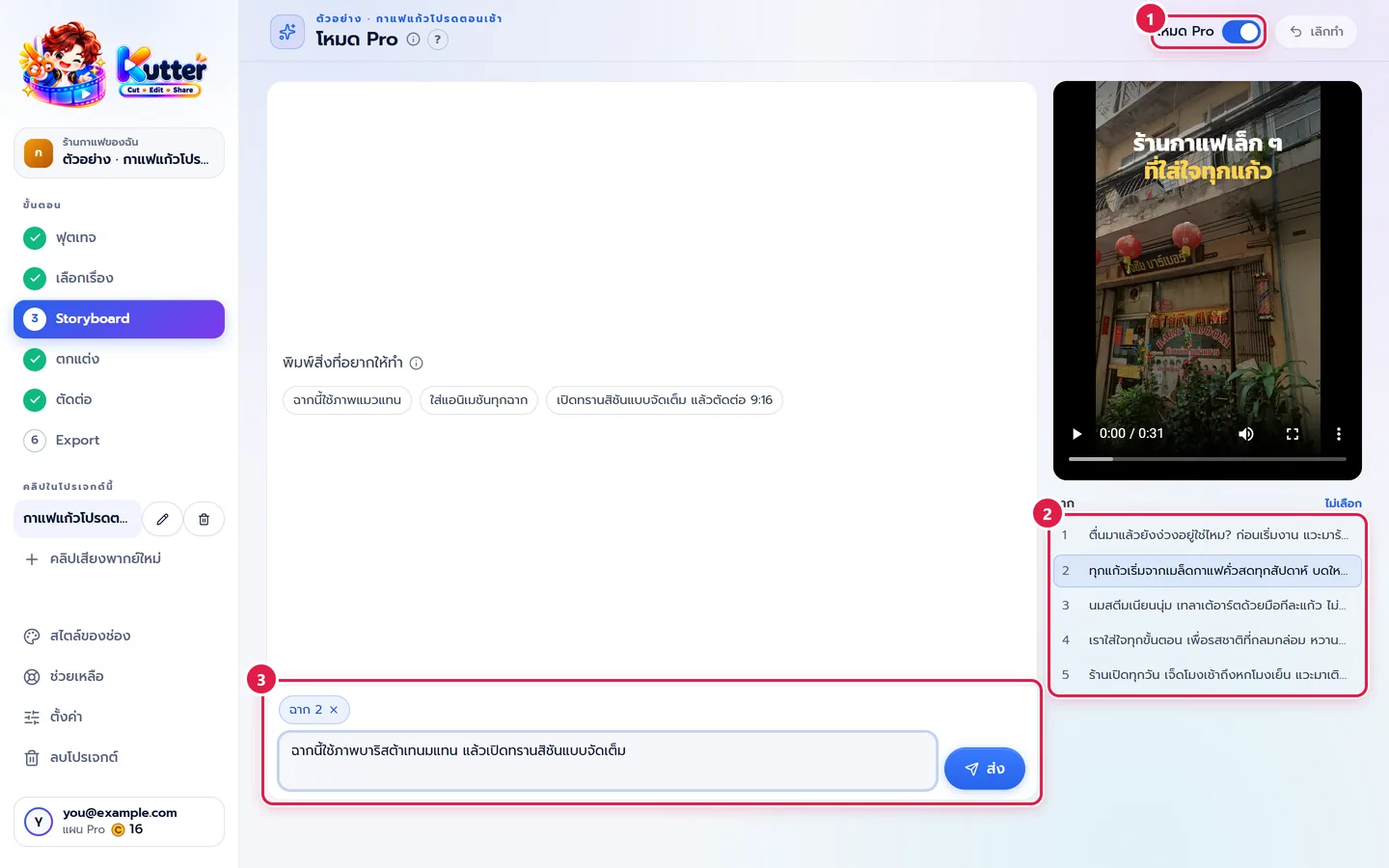
- To go back to the normal pages, click the switch again. The app remembers which mode you used last.
3. Type your request
- Type what you want done, then press Enter (Shift+Enter for a new line) or click ส่ง (Send).
- To target specific scenes, click the scene in the list on the right first, then type "this scene…".
- You can paste a picture with Ctrl+V, for example take a screenshot and type "use this picture in scene 2".
- While it works, the chat shows each step, such as "finding pictures for scene 3…". Long jobs like rendering or animation show a % and appear in the "In progress" list on the right.
- To stop it, click หยุด (Stop).
Example requests
- "Use a picture of a sleeping cat in scene 3 instead"
- "Make the text in scene 1 shorter, then generate the voice again"
- "Add animation to every scene that has numbers"
- "Turn off subtitles, turn on full transitions, warm colors, no music"
- "Render in 9:16 and save the file for me"
4. Steps that use Credits always ask first
Voice-over, finding pictures, animation, and rendering always show a card in the chat with the estimated Credits first. Click อนุมัติ (Approve) to go ahead, or ไม่ใช่ตอนนี้ (Not Now) to skip. AI can never spend Credits for you.
Result: your clip, edited the way you typed. You see the changes right away on the Storyboard, Finish, and Render pages. The chat is saved with the project and is still there when you reopen it.
If something goes wrong
- If the โหมด Pro (Pro Mode) switch has a lock icon, this mode is part of the Pro plan. See Plans and Credits.
- If AI doesn't do what you asked, name the scene number clearly, or click the scene on the right before typing.
- If some tasks can't be done in the chat (such as cutting a clip by the words spoken in the footage), AI tells you which page to use. Turn the switch off and do it on the normal page.
Still stuck? Chat with us (bottom right) or email support@helloworld-solution.com