 Kutter
Help › Make a clip step by step
Make animation and motion graphic clips
No filming needed. Have AI make explainer animation scene by scene, or add animated graphic cards.
TikTok-style explainer clips with counting numbers, 1-2-3 steps, notes pinned to a wall, or notifications popping up one by one — you can make them in a voice-over clip without a single shot of footage.
1. Set your channel's animation look (once)
-
Go to สไตล์ของช่อง (Channel Style) › ภาพ (Visual), the Channel animation theme card
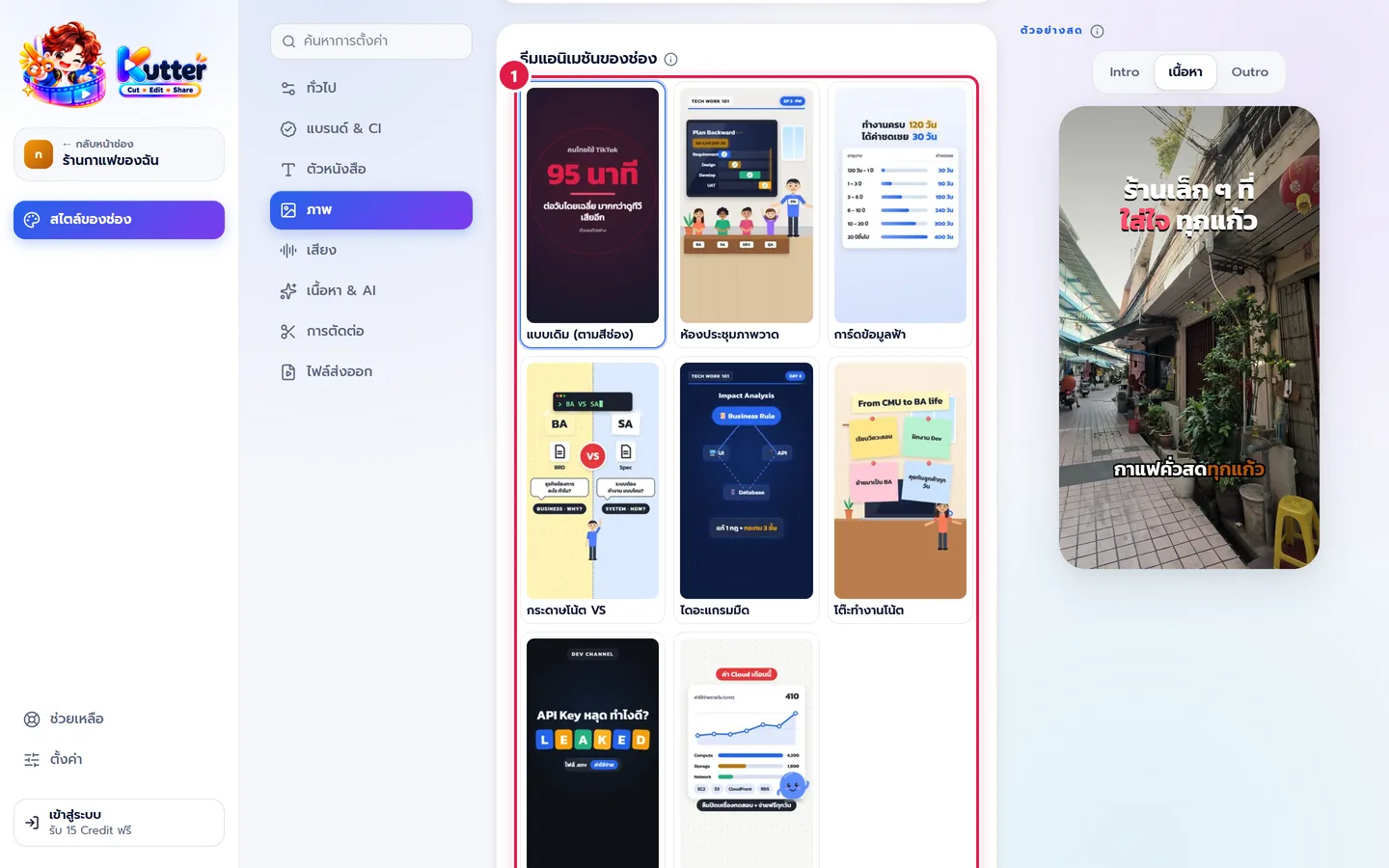
- Choose a theme, such as notes desk, blue info cards, or white dashboard. The preview is exactly the look you'll get.
- In the Channel character card, choose a mascot, your own photo, or a ready-made cartoon character. Every clip in the channel then shares the same look.
2. Add animation to scenes
- Open a voice-over clip (see Make a clip with AI voice-over) and go to the Storyboard
-
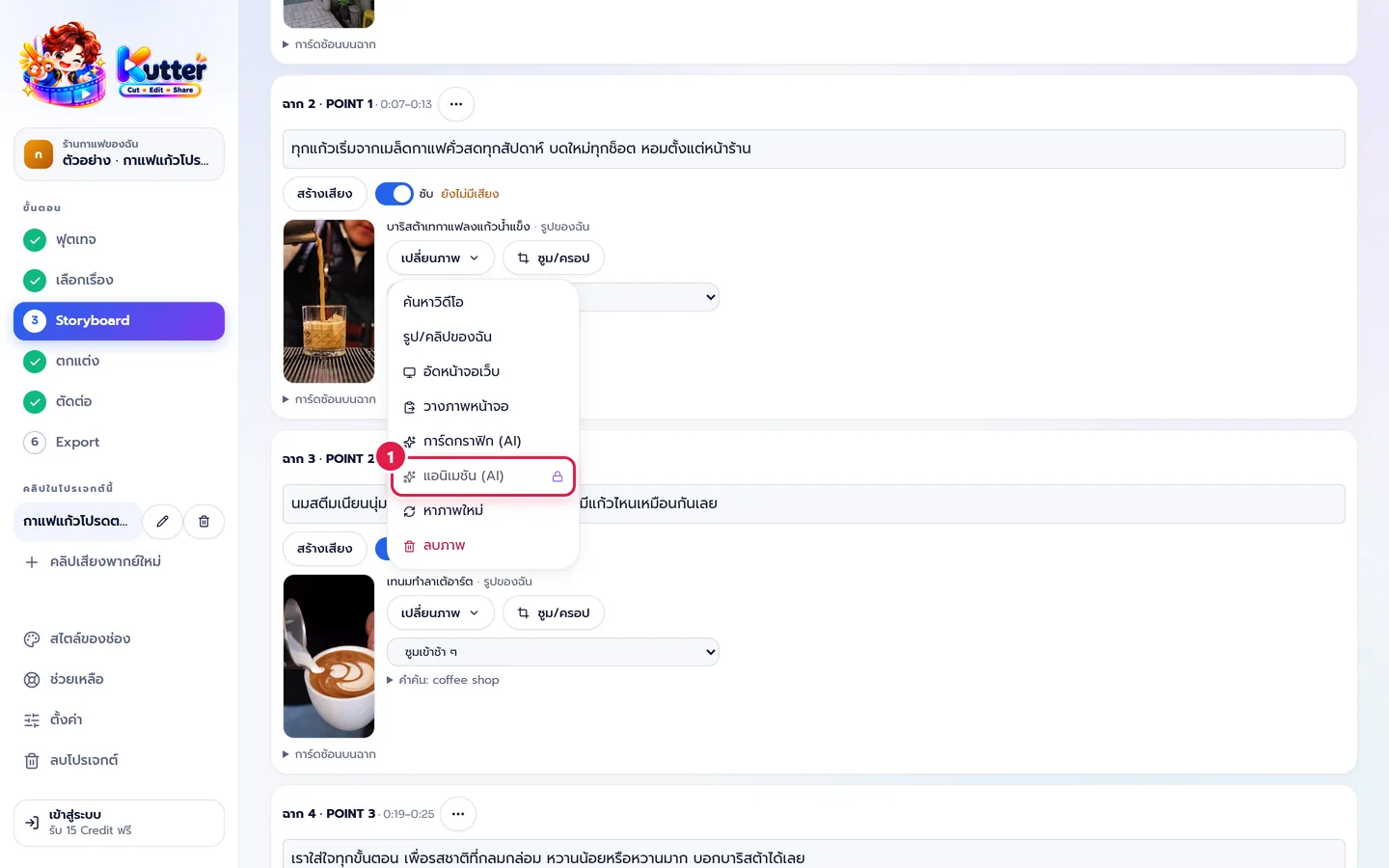
On a scene with numbers, steps, or a comparison, press เปลี่ยนภาพ (Change Picture) (or เลือกภาพ (Choose Picture)) and choose แอนิเมชัน (AI) (Animation (AI))
- Type what you want, for example "โน้ตแปะผนัง 4 ขั้นกว่าจะเป็นลาเต้" (Notes on a wall: 4 steps to a latte). You can attach a sample picture you like. Then press สร้างแอนิเมชัน (Create Animation)
- Check the preview. If you don't like it, press ทำใหม่ (Redo) or type a change such as "ตัวหนังสือใหญ่ขึ้น" (bigger text), then press ใช้กับฉากนี้ (Use for This Scene)
- On the next scene, tick ต่อจากฉากก่อนหน้า (Continue from Previous Scene) so the setting and characters carry on like one continuous animation
To do many scenes at once: press เพิ่มเติม (More) › ใส่แอนิเมชัน AI (Add AI Animation) (shown once every scene has a voice and a picture)
3. Want something faster and lighter? Graphic cards
With การ์ดกราฟิก (AI) (Graphic Card (AI)) in the same menu, AI picks a card design and fills in text from the script right away (title, big number, steps, comparison, bar chart, and more). See Motion graphic cards and animated text for details.
Result: a café clip whose first scene is notes on a wall, "กว่าจะเป็นลาเต้ 1 แก้ว" (What it takes to make one latte), and whose next scene is notifications, "วันหนึ่งของร้านเรา" (A day at our shop), on the same desk, with subtitles and voice-over.
If something goes wrong
- If แอนิเมชัน (AI) (Animation (AI)) shows a lock, check your plan in Plans and Credits. Full animation is on the Creator plan and up.
- If AI doesn't succeed, the app uses a basic version first (animated text from the script). You can press ทำใหม่ (Redo).
- If text overlaps the subtitles, ask for the change "ย้ายเนื้อหาขึ้นด้านบน" (move the content up).
- If the animation still doesn't look good enough: animation uses a more economical model by default (such as Claude Sonnet). You can switch to a stronger model in ตั้งค่า (Settings) › AI ที่ใช้ (AI Providers) › Model, the Animation row (higher AI cost).
Still stuck? Chat with us (bottom right) or email support@helloworld-solution.com