Kutter
To make a short video with AI in one click, add your footage to a Kutter มีฟุตเทจแล้ว (I have footage) project and click Kutter Magic ✨ ทำคลิปให้เลย (Kutter Magic ✨ Make My Clip). The app transcribes, picks a story, builds the Storyboard, finds visuals, styles, and edits all the way to a clip ready to post, in the style set for your channel. Before it starts, the app tells you how many Credit it will use, and when it's done you can go back and edit any step.
What is Kutter Magic?
Kutter Magic is one button that runs every step of cutting a clip back to back on its own, from footage to video file. You don't click through each step, but everything the app chooses for you stays open to view and edit.
This button suits people who have already filmed their clips and already set their channel style, such as fonts, colors, Hook, and music, because Kutter Magic uses those settings to make decisions for you. The closer your channel style is to what you want, the less you'll need to fix in the clip you get.
An example from the "ร้านกาแฟของฉัน" (My Café) project that comes with the app: 5 clips totaling 41 seconds, all shots inside the café, with no speech and no script, subtitles, music, or cover. After clicking Kutter Magic, you get a 32-second 9:16 clip with 5 scenes following the script AI wrote, a Thai voiceover line by line, subtitles that match the voice, and key words that pop in the brand color.

How to use Kutter Magic, step by step
You can start once your clips are imported. It takes only a few clicks, and the app does the rest in the background.
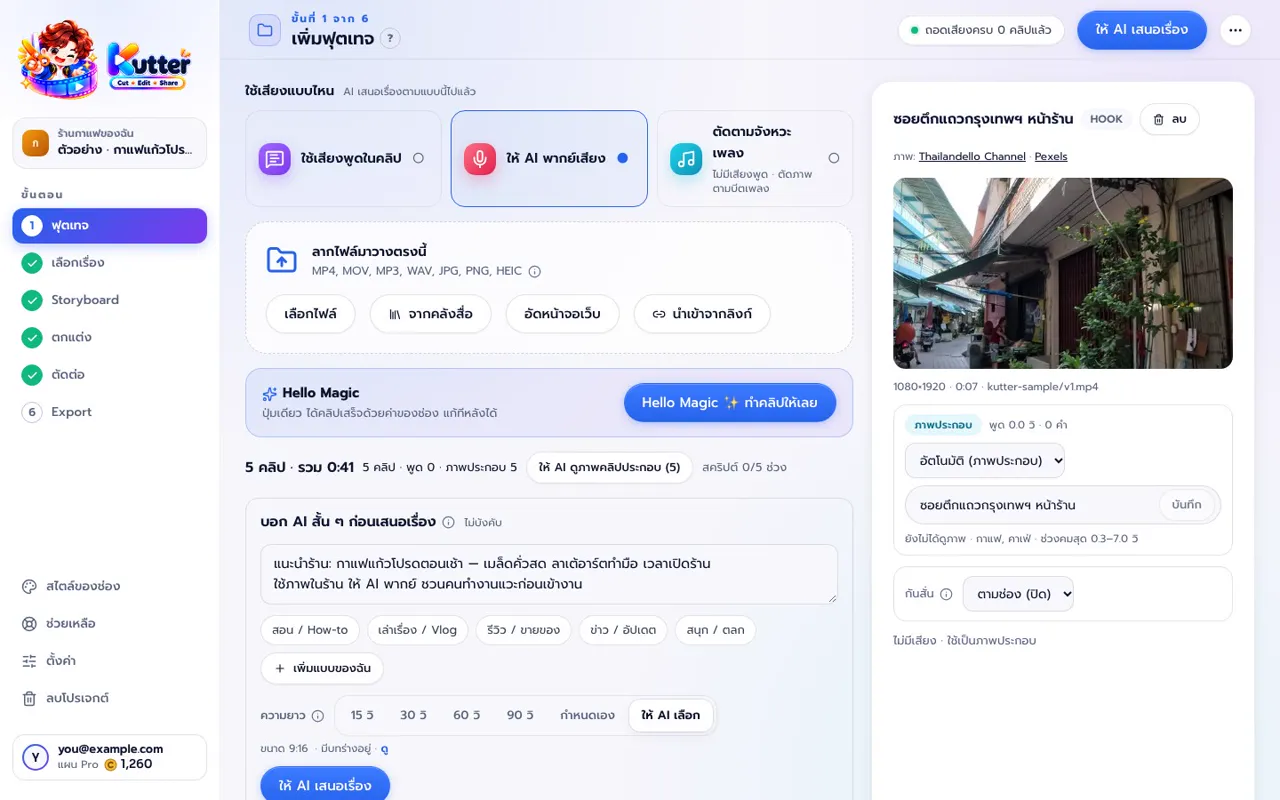
- Click มีฟุตเทจแล้ว (I have footage) on the home screen, name the project, then click สร้าง (Create)
- Drag your clips or photos into the footage step
- Click Kutter Magic ✨ ทำคลิปให้เลย (Kutter Magic ✨ Make My Clip) in the Kutter Magic box under the drop zone
- Read the window that appears before it starts: what it will do, which AI it uses, and how many Credit the edit will use
- Click start, then go do other things in the app. Progress shows in the panel at the bottom right
- Wait for the app to take you to the edit step, then play the clip in the app
If you haven't signed in yet, the window before it starts will tell you, because the edit step requires you to sign in first (you can use a Google account for free).
What Kutter Magic does at each step
Kutter Magic does 6 things in order, and you can edit all of them later. This table sums up what the app chooses for you and where to change it.
| Step | What the app does for you | Can you change it later? |
|---|---|---|
| 1. Transcribe | Waits until every clip is transcribed | Reuses the existing result |
| 2. Pick a story | AI pitches stories, then picks the best one for you. If you already chose a story, it uses that one | Click เปลี่ยน (Change) to pick another story AI pitched |
| 3. Storyboard | Lays out scenes based on your channel's tightness level and opening Hook | Click แก้ (Edit) to cut more, move scenes, or fix subtitles |
| 4. B-roll | Finds supporting footage on its own. If most of your footage has no speech, it uses an AI voiceover over the visuals instead | Click เลือกเอง (Choose Myself) to pick visuals or B-roll yourself |
| 5. Styling | Adds a cover, music, sound effects, transitions, and highlighted words, based on your channel settings | Click แก้ (Edit) to change the cover, music, or sound effects |
| 6. Edit | Edits it into a video file, then takes you to the edit step | Click ตัดต่อใหม่ (Render again) after making changes |
The other stories AI pitched don't disappear. They stay in the project so you can switch. Step 4 is what lets Kutter Magic work for both talking-to-camera clips and visuals-only clips. To learn more about voiceovers, see AI voiceover from footage, or the audio in your clips.
How many Credit does Kutter Magic use?
Kutter Magic uses the same Credit as a regular edit, deducted only when the edit starts. All the earlier steps, like transcribing, having AI lay out the story, and building the Storyboard, cost no Credit. The amount depends on clip length.
| Clip length | Credit used |
|---|---|
| Up to 90 seconds | 3 Credit |
| Up to 3 minutes | 5 Credit |
| Up to 10 minutes | 10 Credit |
| Over 10 minutes | 10 Credit per 30 minutes |
Things to know:
- The window before it starts shows the number of Credit. If the clip you get is long enough to need more than that, the app always asks you first
- If the edit fails or you stop it, your Credit is refunded automatically
- If you've already done the same edit before, the app reuses the existing file and doesn't deduct Credit
- Exporting the same piece again within 7 days costs nothing extra, but an edited clip counts as a new export
The AI cost of coming up with the story and writing the script is paid directly to the AI provider you use, through your API key for Claude, OpenAI, or Gemini, or an AI account on your computer. The window before it starts shows the estimated AI cost up front.
The free plan can use Kutter Magic. You get 15 Credit when you first sign in, and you can claim free Credit every day. Clips have no watermark on any plan. See all plans on the pricing page and the details in Plans and Credit.
Stopping partway, or a step that fails
You can stop Kutter Magic at any time, and it doesn't throw away work already done. Click หยุด (Stop) and what's been done stays in the project. To continue, click ทำต่อ (Continue).
- If a step fails, the panel tells you why and how to fix it. Once fixed, click ทำต่อจากขั้นนี้ (Continue from This Step), or click เปิดขั้นนี้เอง (Open This Step Myself) to do that step on your own
- If you haven't signed in yet, or don't have enough Credit, click ทำถึงขั้นตกแต่งก่อน (Go Up to Finish First), then start the edit yourself in the edit step
This way you can look over the Storyboard and styling first, without spending any Credit yet.
Adjust the clip after Kutter Magic finishes
After the edit is done, the edit step has a What Kutter Magic did for you box that lists everything the app chose for you, with a button at the end of each line to go edit it. Hover over a line to see the full details.
If you only want a small change, you don't have to go back step by step. Type in the อยากแก้อะไรในคลิปนี้? (What do you want to change in this clip?) card, for example "change the music to something more upbeat", then click แก้ไข (Edit), or click the shortcut แก้เองเฉพาะคลิปนี้ (Edit this clip yourself) to change the cover, music, sound effects, transitions, or scenes.
When you're done editing, click ตัดต่อใหม่ (Render again). The previous file is kept in the เวอร์ชันก่อนหน้า (Previous versions) card (the latest 5 versions). If you like the earlier one better, click ใช้เวอร์ชันนี้ (Use this version) to bring it back. When you're happy, click เสร็จแล้ว ไปส่งออก (Done, go to Export). See more about this step in The edit step and the full guide in Kutter Magic makes your clip in one click.
Frequently asked questions
What kind of clips does Kutter Magic work with?
It works with มีฟุตเทจแล้ว (I have footage) projects, both talking-to-camera clips and visuals-only clips. If most of your footage has no speech, the app uses an AI voiceover over the visuals instead.
How many Credit does Kutter Magic cost?
The same as a regular edit, based on clip length. For example, a clip up to 90 seconds uses 3 Credit, deducted only when the edit starts. If the edit fails or you stop it, your Credit is refunded automatically.
Do I need to sign in before using Kutter Magic?
The edit step requires signing in. If you haven't signed in yet, you can click ทำถึงขั้นตกแต่งก่อน (Go Up to Finish First), then sign in and start the edit yourself in the edit step.
I don't like the story AI picked. What do I do?
In the What Kutter Magic did for you box, click เปลี่ยน (Change) on the story line and pick another story AI pitched. Then click ตัดต่อใหม่ (Render again).
Can I use other parts of the app while Kutter Magic is working?
Yes. Kutter Magic works in the background. You can go to other pages and check progress in the panel at the bottom right.