Kutter
If you're already at home in CapCut, Premiere Pro, DaVinci Resolve, or Final Cut Pro, let Kutter do the heavy lifting first: cutting silences and adding subtitles, B-roll, and music until most of the work is done. Then send it over for the final touches in the editor you know. In Kutter's Export step, click ส่งไป CapCut (Send to CapCut) for a CapCut project with separate tracks, or save an XML file for Premiere and DaVinci, FCPXML for Final Cut, or SRT for subtitles only. No need to start cutting from scratch.
Why rough cut in Kutter first
The most time-consuming part of a short video is the early work: transcribing, cutting filler words and silences, choosing which parts to use, adding Thai subtitles line by line, finding B-roll, and laying in music. Kutter has AI do this part for you, and you review it scene by scene in the Storyboard.
When you hand it off, the timeline you get has the speaker, B-roll, subtitles, and music on separate tracks, editable piece by piece. So your time in the editor goes to what Kutter doesn't do, like special transitions, effects, or detailed color grading.
Choose the export that fits your editor
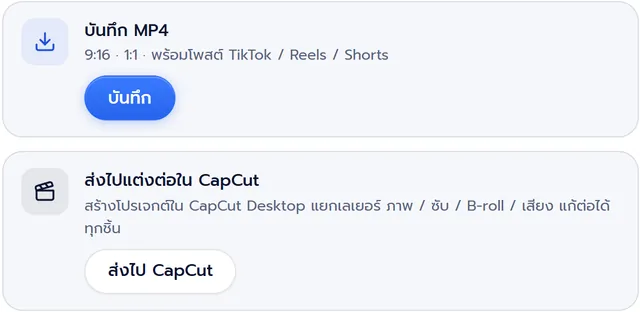
Every option is in the Export step, in the ส่งไปแต่งต่อใน CapCut (Send to CapCut for Editing) card and the ไฟล์สำหรับโปรแกรมอื่น (Files for other programs) card. This table sums up who each one suits.
| Export | Works with | Subtitles and Hook | Transitions | Plans |
|---|---|---|---|---|
| ส่งไป CapCut (Send to CapCut) | CapCut Desktop (Windows / macOS) | Editable text in your channel's fonts and colors | Straight cuts | Creator and up |
| XML | Premiere Pro, DaVinci Resolve | Subtitles as images, words editable in the .srt file · Hook as an image with a marker showing the text | Markers show transition points | Creator and up |
| FCPXML | Final Cut Pro (DaVinci can open it too) | Editable text in your channel's fonts and colors | Straight cuts | Creator and up |
| SRT | Any editor, or upload as subtitles on YouTube | Subtitles only | Not applicable | All plans |
| บันทึก MP4 (Save MP4) | Post right away to TikTok / Reels / Shorts | Burned into the video | Everything as set in Kutter | All plans |
An easy way to choose:
- Using CapCut Desktop: click ส่งไป CapCut (Send to CapCut) for a project with separate tracks, and edit the subtitles as text right away
- Using Premiere Pro or DaVinci Resolve: save XML for markers showing where to add transitions
- Using Final Cut Pro: save FCPXML, and subtitles and Hook come in as editable text
- Only want subtitles: save SRT, available on all plans
Send your work from Kutter to finish elsewhere, step by step
- Finish the clip in Kutter first. Check it in the Storyboard and the styling step, then edit it into a file
- Go to the Export step and click บันทึก MP4 (Save MP4) to always keep one file first
- For CapCut, click ส่งไป CapCut (Send to CapCut) in the ส่งไปแต่งต่อใน CapCut (Send to CapCut for Editing) card. If the app asks about copying files, click ก๊อปและส่ง (Copy and Send)
- For other editors, click XML, FCPXML, or SRT in the ไฟล์สำหรับโปรแกรมอื่น (Files for other programs) card, then choose where to save
- Open the project or import the file in your editor (see the menus in the next table)
- Add only what Kutter didn't do, like special transitions, effects, or detailed color grading
The files are named after the clip and its size, for example "กาแฟแก้วโปรดตอนเช้า_9x16.xml" (favorite morning coffee), with a matching .srt file. The CapCut project uses the same name as the clip. See screenshots of every step in Send to CapCut / Premiere / DaVinci and keep editing.
| Editor | How to open your Kutter work |
|---|---|
| CapCut Desktop | Wait until it says "ส่งไป CapCut แล้ว" (Sent to CapCut), then open CapCut and you'll see a project with the same name as the clip |
| Premiere Pro | File › Import, then choose the .xml file |
| DaVinci Resolve | File › Import › Timeline, then choose the .xml file |
| Final Cut Pro | File › Import › XML, then choose the .fcpxml file |
What carries over, and what doesn't
The timeline you send matches the MP4 file at every point, including cut points, B-roll, and subtitles. What carries over to every editor:
- Main footage: the cut sections joined together, with zooms that follow the speech
- B-roll on its own track
- Music, with the volume ducked during speech, and sound effects
- Your channel's logo and Intro / Outro (if turned on)
What differs by editor:
- CapCut: Thai subtitles and Hook come in as editable text, with highlighted words in the accent color. If you saved a cover in the styling step, the 9:16 cover becomes the CapCut project's cover. B-roll, music, voiceover, and sound effect files are copied into the project for you, so you can move the original files later without losing anything
- Premiere / DaVinci and Final Cut: the files point to your original footage where it sits, without copying the large files along. Don't move or rename your footage folder until you've opened the file and saved the project in that editor
What doesn't carry over:
- Transitions: in CapCut and Final Cut they're straight cuts. Add that editor's own transitions (the XML has markers showing the spots)
- Hook animation, such as word-by-word pops, comes in as static text in CapCut. Use CapCut's text animations instead
- Color tone and loudness leveling exist only in the MP4 file
Details for each editor are in Finish in CapCut and Send to Premiere / DaVinci / Final Cut.
Tips so you don't have to redo work after handing off
- Fix subtitle typos and scene order in Kutter before sending: it's faster than fixing line by line in another editor
- Always save one MP4 file first: if you don't like how the finishing turns out, you still have a file ready to post
- Fonts don't match: in CapCut, install the font files from the CapCut project's assets/fonts folder. For Final Cut, install the fonts from the _assets/fonts folder that comes with the file before opening it
- Subtitles don't show in Premiere / DaVinci: import the matching .srt file as separate subtitles
- Footage shows as Offline: the original footage was moved. Move it back, or click Relink and point to the new file
- Can't see the project in CapCut: close and reopen CapCut. If you've moved CapCut's project folder, click เลือกโฟลเดอร์ (Choose Folder) and pick that folder
Sending to CapCut, XML, and FCPXML are available from the Creator plan up, while MP4 and SRT work on all plans, including the free plan with no watermark. See prices and what each plan includes on the pricing page, and the full Export page walkthrough in The Export step.
Frequently asked questions
Can Kutter send work to CapCut?
Yes. In the Export step, click ส่งไป CapCut (Send to CapCut) and Kutter creates a project in CapCut Desktop for you, with footage, subtitles, B-roll, and music on separate tracks, ready to keep editing right away. You need the Creator plan or higher, with CapCut Desktop installed on the same computer.
Which file do I choose for Premiere Pro or DaVinci Resolve?
Choose XML, then import it in Premiere with File › Import, or in DaVinci with File › Import › Timeline. Subtitles come in as images. If you want to edit the words, use the matching .srt file.
Can I send work to other editors on the free plan?
The free plan can save MP4 and SRT subtitles. Sending to CapCut and XML / FCPXML files are available from the Creator plan up. Buttons you can't use yet show a padlock.
Where did my transitions go after exporting?
In CapCut and Final Cut, the hand-off file uses straight cuts, so add that editor's own transitions. The XML file for Premiere and DaVinci has markers showing where the transitions go.
Does sending to CapCut or saving XML cost extra Credit?
No extra cost. Credit is used when editing the clip into a file. After that, saving MP4, sending to CapCut, or saving XML / SRT costs no more Credit.