Kutter
A short video hook is the opening text that has to make people stop scrolling within the first 3 seconds. What works is picking a hook type that fits your content, keeping it short enough to read in 2–3 seconds, and telling viewers right away what they'll get. In Kutter, you set your channel's hook type once, then press เสนอ Hook (Suggest Hooks) and AI suggests 3 opening lines for you to pick from, for every clip.
What a hook is, and why it comes first
A hook is the first line that stops people from scrolling past. On TikTok, Reels, and Shorts, viewers swipe away instantly if the start of a clip isn't interesting. So the first 3 seconds have one goal: make people stop.
Good hooks have a few things in common:
- Short. Readable in 2–3 seconds. If it's so long it spills off the screen, cut it to one sentence.
- Tells viewers what they'll get. Not only a greeting or an introduction.
- Matches the actual content. This matters most for hooks that warn or make a bold claim. If the content doesn't deliver on what the opening promised, viewers feel tricked.
- In your own words. Let AI suggest first, then tweak a few words so it sounds like your shop or channel.
In Kutter, the hook type isn't only used for the on-screen text. AI also uses it when writing the script, building the Storyboard, and suggesting hooks, so the clip opens the same way from the spoken lines all the way to the cover.
6 hook types and when to use each
Kutter has 6 hook types, plus อัตโนมัติ (Automatic), which lets AI pick the type that fits each clip's content (this is the default). The table uses examples from a café.
| Hook type | Use it when | Example opening line |
|---|---|---|
| คำถาม (Question) | You want viewers to think along, or you have an answer people want to know | "Still sleepy after waking up?" |
| เจ็บจี๊ด (Pain point) | You're warning about a mistake or a common misconception | "Don't buy your first coffee of the day until you've tried this place" |
| ตัวเลข (Number) | You're teaching or recommending in a list | "3 drinks to try before work" |
| ผลลัพธ์ก่อน (Result first) | You have a result to show from the very first second | "This latte art takes only 20 seconds" |
| ฟันธง (Bold claim) | You have a clear opinion that makes people want to hear why | "A good morning coffee doesn't have to be expensive" |
| เล่าเรื่อง (Story) | Vlogs or behind-the-scenes, opening with a short moment | "On opening day, we sold only two cups" |
If you're not sure which type suits your channel, start with อัตโนมัติ (Automatic). If all your clips open the same way, that's even more reason to use Automatic, because AI picks the type based on each clip's content. And if a hook doesn't match the content, switch to the type you want and suggest again.

Let Kutter suggest hooks and cover titles
The fastest way is to let AI suggest and you choose. You do this in the Finish step, before rendering the clip to a file.
- Go to สไตล์ของช่อง (Channel style) → เนื้อหา & AI (Content & AI), card Hook type, and pick the type your channel uses most, or อัตโนมัติ (Automatic)
- Open your project, go to the Finish step, and look at the Opening text (Hook) card
- Press เสนอ Hook (Suggest Hooks). AI suggests 3 lines, each labeled with its type. Press the one you like to use it
- Edit the wording so it sounds like you, or type the whole line yourself. To go back to AI's text, press ใช้ของ AI (Use AI's)
- On the cover card, press เลือกแบบปก (Choose cover design), then type a title or press ให้ AI เสนอหัวข้อ (Let AI suggest titles)
- Pick a cover frame, then press บันทึกปก (JPG) (Save cover (JPG)) to keep it for uploading as the clip cover
The result is a clip that opens with text that grabs viewers from the first frame, and a cover with a clear title that's easy to read on your profile page. See the steps with screenshots in 6 hook types, when to use them + clip covers and The Finish step.
A good hook starts with the brief and the Storyboard
The on-screen text is only half of the hook. The other half is the clip's first scene: what you say and what viewers see. In Kutter, the first scene of the Storyboard is the HOOK scene, followed by content scenes (POINT) and a closing scene (CLOSER).
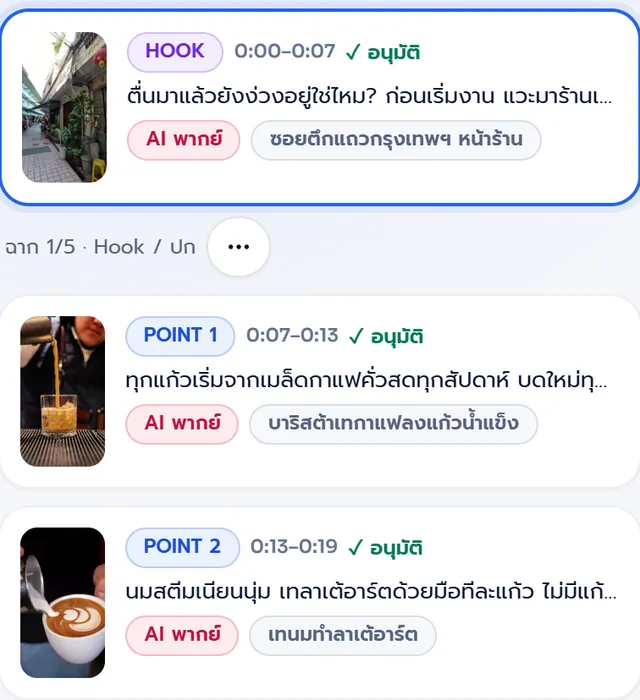
Three things help make the opening scene stronger:
- Give AI a brief before it suggests stories. In the บอก AI สั้น ๆ ก่อนเสนอเรื่อง (Brief AI before it suggests stories) card, the first line is the topic and the next lines say what you want viewers to get. If the suggested stories aren't right yet, type a request, for example "Give me a version that opens with a question, aimed at people in a morning rush." See how to write a brief in Write a brief so AI suggests a good story.
- Ask for changes in the script. If you start from a script, type "make the hook punchier" in the chat, or change the hook type for this project only on the script writing page.
- Pull your best line to the opening. In talking clips, sometimes the best line is in the middle. In the Storyboard, select words in the subtitles and press ยกมาเปิดคลิป (Move to the opening) to make them the hook. See more in The Storyboard step.
Where you can set the hook
You can set the hook in Kutter at several levels. The channel-level setting is the default for every clip, and you can adjust it later for a single project or a single clip.
| Level | Where to set it | What it does |
|---|---|---|
| Whole channel | สไตล์ของช่อง (Channel style) → เนื้อหา & AI (Content & AI) | The hook type AI uses to write scripts, build the Storyboard, and suggest hooks |
| Whole channel | สไตล์ของช่อง (Channel style) → ตัวหนังสือ (Text) | Hook effects such as คำเด้งทีละคำ (Word-by-Word Pop), พิมพ์ทีละตัว (Typewriter), or ซูมเข้า (Zoom In), and hook length |
| This project | Script writing page | Change the hook type for this project only |
| This clip | Finish step | Choose or type the hook text, cover title, and cover frame |
If you use Kutter Magic to let AI do every step in one click, the Storyboard also follows your channel's opening hook. Setting up your channel's hook type well from the start helps every clip you make after that.
Before posting, you can press ให้ AI ให้คะแนนคลิปนี้ (Let AI score this clip) in the Export step. One of the four areas it scores is "ทำให้คนหยุดดู" (Makes people stop and watch), with reasons and how to fix it. This score looks at the clip itself only. Views also depend on your audience, posting time, and trends.
Common hook problems and how to fix them
- The hook is so long the text spills off the screen. Cut it to one sentence, or press เสนอ Hook (Suggest Hooks) again.
- The cover text sits too close to the person's face. Use a shorter title, or pick a different cover frame.
- Every clip opens the same way. Change your channel's hook type to อัตโนมัติ (Automatic).
- The hook doesn't match the content. Switch from Automatic to the type you want, then suggest again.
You can try suggesting hooks and making covers without spending Credits, because Credits are used only when you export a clip to a file. Download Kutter for Windows or Mac and start on the free plan.
Frequently asked questions
How long should a short video hook be?
Short enough to read in 2–3 seconds. If the text spills off the screen, cut it to one sentence.
Which hook type should I choose?
If you're not sure, choose อัตโนมัติ (Automatic) and let AI pick based on each clip's content. If you're teaching in a list, use Number. If you have a result to show, use Result First. If it's a vlog, use Story.
Should the cover title and the opening line be the same?
No. The cover title should be different from the first spoken line, so viewers get two layers of information.
Can I change the hook type for just one clip?
Yes. You can change it for a single project on the script writing page, and choose or type the hook text for that clip in the Finish step.
Does suggesting hooks cost Credits?
No. Kutter uses Credits only when you export a clip to a file. Earlier steps, such as suggesting hooks and making covers, are free to try as much as you like.