Kutter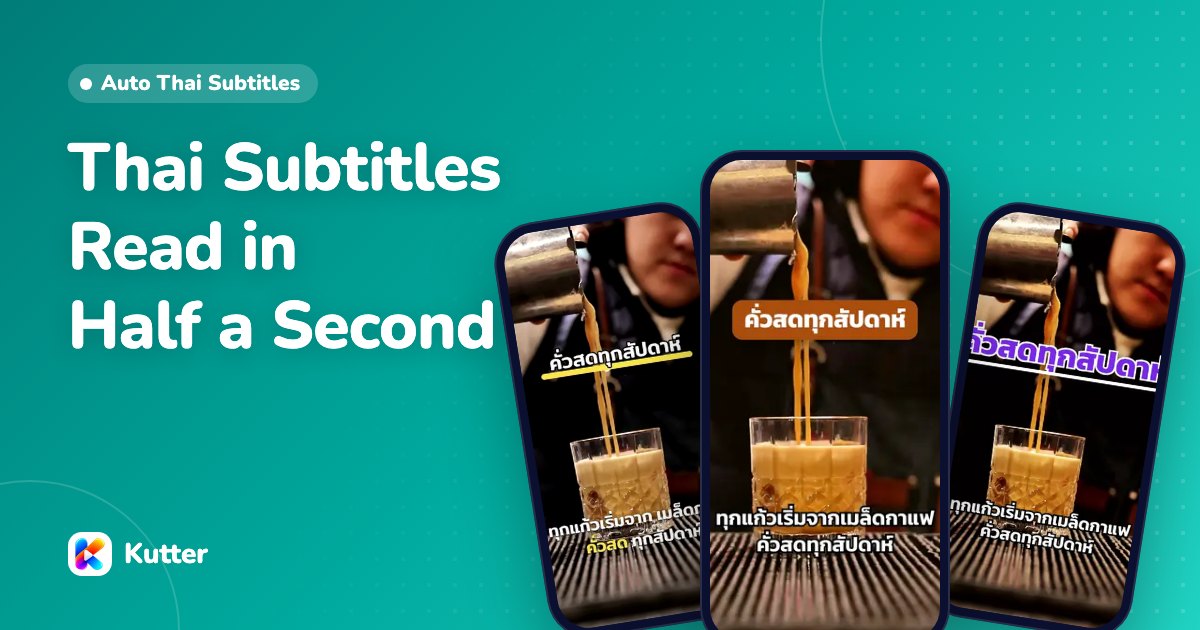
You can add Thai subtitles to short videos automatically with Kutter, without typing them yourself. The app transcribes the speech in your clip into timed text, then adds Thai subtitles that match the voice on every line when it renders. You set how the subtitles look once in สไตล์ของช่อง (Channel style) › ตัวหนังสือ (Text), for example a bold font, a black outline, at the bottom, with key words popping in your brand color, and every clip on your channel comes out the same way.
How automatic Thai subtitles work in Kutter
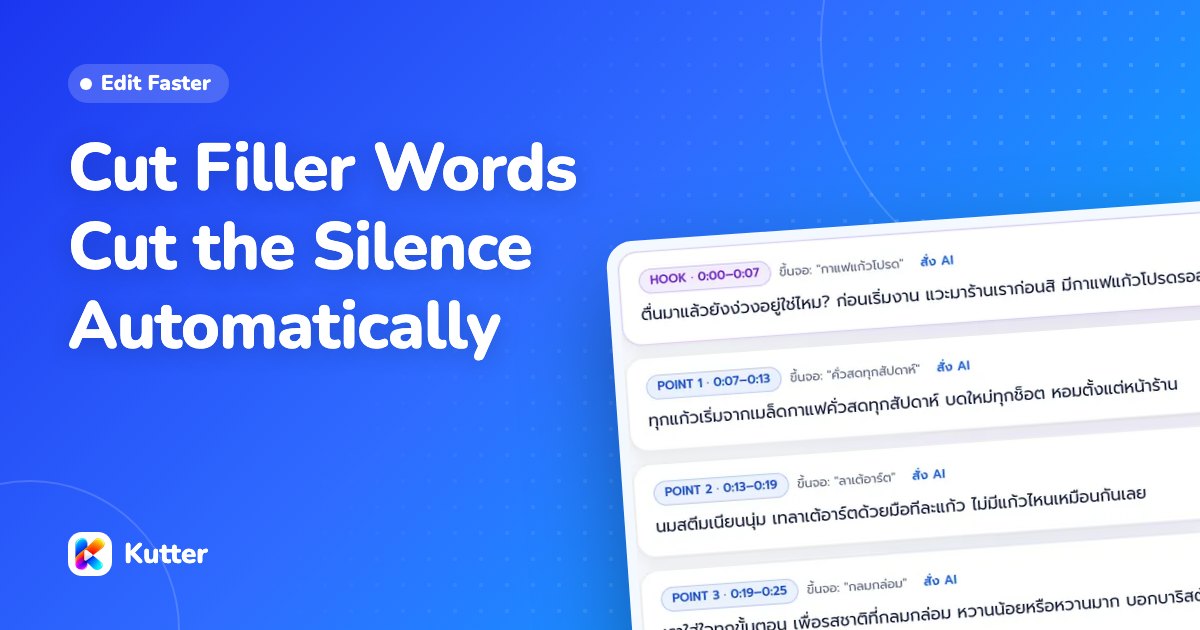
Subtitles in Kutter are made from the actual words spoken in your clip, not typed over it afterward. The app transcribes every word with its timing, uses that text to cut filler words and silences, and then builds the subtitles from the same text. So the subtitles match the voice on every line and never split a word in half.
It works for both talking-to-camera clips and clips with an AI voice-over. For a voice-over clip, AI voices the Thai one line at a time, and the subtitles appear in sync with the voice-over.
When you press เริ่มตัดต่อ (Start render), the "สิ่งที่ AI ทำให้" (What AI does for you) card ticks off each step as it happens, including the step that adds Thai subtitles. You get a 9:16 vertical clip for TikTok, Reels, and Shorts, and you can add 1:1, 4:5, or 16:9 sizes in the same render.
How to add Thai subtitles automatically, step by step
Set up how the subtitles look first, then make your project as usual. Subtitles are added for you when the clip renders.
- Open สไตล์ของช่อง (Channel style) and choose ตัวหนังสือ (Text)
- Press a ready-made theme, such as Bold Pop (Bold Pop), Minimal Clean (Minimal Clean), Corporate (Corporate), Karaoke (Karaoke), or Cute Pastel (Cute Pastel), to get a full set of subtitle settings in one go
- Fine-tune the font, size, outline, and position in the ซับไตเติล (Subtitles) card, and check the result in the ตัวอย่างสด (Live preview) on the right
- Set เน้นคำสำคัญ (Emphasize key words) to เปลี่ยนสี + เด้ง (Color change + pop) or Karaoke, then set สีคำที่เน้น (Emphasis color) to your brand color
- Add your clips in the Footage step, pick a story, then check the subtitles on the Storyboard page. If a word is misspelled, press ✎ แก้คำในซับ (Subtitle word fixes)
- Press เริ่มตัดต่อ (Start render), then play the clip in the app all the way through once
- Press เสร็จแล้ว ไปส่งออก (Done, go to Export) and save it as an MP4 with subtitles
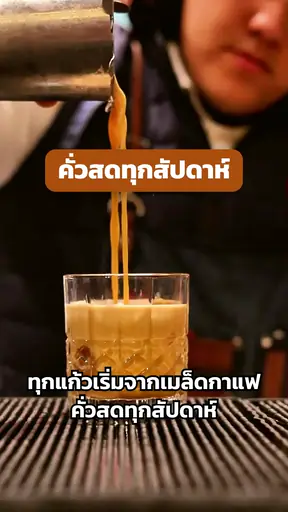
The sample café in the app uses the Bold Pop theme with the Kanit font: white subtitles with a black outline that stay readable over a busy shop background, and highlighted words in the brand color. See every option in this section in Channel style: Text.
Set up subtitles that are easy to read on a phone
Good subtitles for short videos can be read in half a second, don't cover anyone's face, and don't clash with the app's buttons. This table sums up each setting in the ซับไตเติล (Subtitles) card and the recommended value.
| Setting | Options in Kutter | Recommended for short videos |
|---|---|---|
| Font | Thai fonts in the app, or อัปโหลด (Upload) your brand font | A bold Thai font, such as Kanit at weight 600–700 |
| Size | Drag to adjust and check the live preview | Text about half the screen wide |
| Text outline | เส้นขอบ (Outline), เงา (Shadow), or กล่องพื้น (Background Box) | A black outline, readable on any background. Use a background box when the picture is bright and busy |
| Position | Top, middle, or bottom | ล่าง (Bottom) already leaves room for TikTok's buttons. Use กลาง (Middle) if there's a product at the bottom |
| Line breaks | ทีละคำ (Word by word), วลีสั้น (Short phrases), or ทั้งประโยค (Full sentence) | Short phrases (up to 16 characters) are the easiest to read for talking clips |
| Subtitles match every spoken word | On or off | Off, so "เอ่อ/อ่า" (um/uh) and repeated words are cut from the subtitles |
| Motion | เด้งขึ้น (Pop up), สปริง (Spring), สีตามคำ (Color by Word), or กล่องตามคำ (Box by Word) | Color by word, which suits fast-talking clips |
Once you're done, check it on a real phone before using it for the whole channel. If subtitles run onto two lines, change the line breaks to วลีสั้น (Short phrases) or turn on Single line. For detailed setup, see Easy-to-read Thai subtitles.
Emphasize key words and keyword pop-ups
Kutter can catch viewers' eyes in two ways. The first is highlighting words in the subtitles. The second is big keywords that pop up in the middle of the screen when they're mentioned. You can use both together.
Highlighting words in the subtitles: choose เปลี่ยนสี + เด้ง (Color change + pop) to turn key words the emphasis color, or Karaoke (Karaoke) to gradually color words as they're spoken. Use your brand color as the emphasis color, and highlight only 1–2 words per line.
Keyword pop-ups: turn on ใส่คำเด่นในทุกคลิป (Add Keywords to Every Clip) in the คำเด่น (Keyword pop-up) (Keywords (Keyword Pop-up)) card, and AI picks 2–6 key words per clip for you, such as prices, numbers, or menu names.
- Style: ป้ายสี (Color Tag), ตัวใหญ่กลางจอ (Big Center Text), or สติกเกอร์เอียง (Tilted Sticker)
- Motion: เด้ง (Bounce), กระแทก (Slam), ปากกาเน้น (Highlighter), ขีดเส้นใต้ (Underline), or ปั๊มตรา (Stamp)
- Frequency: low (about 1 word every 15 seconds), normal (about 1 word every 10 seconds), or high (about 1 word every 7 seconds)
- Add emoji and pop sound can be set in the same card
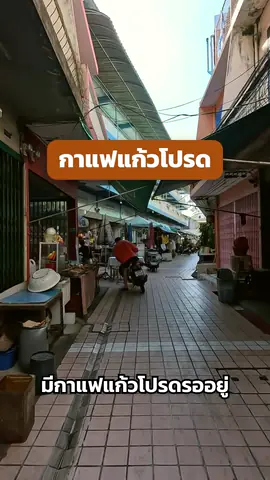
You can edit keywords one by one in the Finish step, for example changing "เจ็ดโมง" (seven o'clock) to "07:00", pressing เอาออก (Remove) on a word you don't want, or pressing เพิ่มคำเด่น (Add Keyword). Good keywords are short, 1–3 words, and they don't appear while the opening text is still on screen, so they never clash with the Hook. See how to edit them one by one in Keyword pop-ups.
Misspelled subtitles: how to get them right from the start
How accurate the subtitles are depends on the transcription. The transcriber may misspell some words, especially shop names, menu names, and English words, so check the words before making subtitles every time.
Kutter has 3 transcribers to choose from in ตั้งค่า (Settings) › ถอดเสียง (Transcription):
- Automatic (the default) uses ElevenLabs if you have a key, otherwise Whisper on your computer
- ElevenLabs is accurate for Thai, especially for English loanwords and proper names. It needs a key and an internet connection
- Whisper on your computer is free and works offline. Your audio never leaves your computer, but it may misspell some words
If a proper name keeps getting misspelled, add your channel's specific words in สไตล์ของช่อง (Channel style) › การตัดต่อ (Editing). Put names you say often in คำที่พูดบ่อย (Frequently spoken words), or add word pairs in แก้คำในซับ (Subtitle word fixes), such as "โคลด์บรูว์ = Cold Brew", then press ถอดเสียงใหม่ (Transcribe again) on the clip in the Footage step. Next time, the subtitles will be right from the start. See how to choose a transcriber in Transcription setup.
Turn off subtitles for some scenes, and send subtitles elsewhere for more editing
Some scenes already have text on screen, such as a shot of the shop sign. In the Storyboard step, select that scene and turn off the ซับไตเติล (Subtitles) switch in the ฉากนี้ใส่อะไรบ้าง (What's in This Scene) card. Other scenes still get subtitles as usual.
If you want to keep editing in another program, Kutter exports an MP4 with an SRT subtitle file, or sends a CapCut project with separate layers where you can still edit the subtitle text (Creator plan and up). Keyword pop-ups come through as still images in the exported file.
Thai subtitles work on every plan. Options with a Creator label, such as the 100+ font library, spring subtitle motion, color by word, box by word, and every keyword pop-up style, need the Creator plan or higher. Compare plans on the pricing page.
Frequently asked questions
Do I have to type subtitles myself to add Thai subtitles in Kutter?
No. The app transcribes the speech into text and makes subtitles that match the voice for you when it renders. You only check for misspelled words and press ✎ แก้คำในซับ (Subtitle word fixes) on the Storyboard page.
Will the subtitles cover TikTok's buttons?
No, as long as you set the position to ล่าง (Bottom), which already leaves room for TikTok's buttons. If there's something important at the bottom, such as a product, use กลาง (Middle).
Can I use my brand's font?
Yes. Press อัปโหลด (Upload) in the Subtitles card. If you see "ไฟล์นี้ใช้เป็นฟอนต์ไม่ได้" (This file can't be used as a font), try a different .ttf or .otf file.
Can I add Thai subtitles on the free plan?
Yes. The free plan exports at 720p with no watermark. Options with a Creator label, such as the 100+ font library and some motion styles, need the Creator plan or higher.
Does my clip's audio leave my computer during transcription?
If you use Whisper on your computer, the audio never leaves your computer and it costs nothing. If you use ElevenLabs, the audio is sent over the internet to be transcribed, which is more accurate for English loanwords and proper names.