 Kutter
Help › In depth
Smooth B-roll + Matte
Cut to B-roll while the speaker talks, and keep the speaker standing in front of the B-roll like a pro clip.
Goal: when the speaker mentions something viewers should see, such as "iced coffee," the picture switches to a short 2–4 second B-roll. If you turn on Matte, the speaker is cut out of their background and stands in front of the B-roll instead of disappearing from the screen.
1. Set the channel defaults
-
Go to สไตล์ของช่อง (Channel Style) › การตัดต่อ (Editing), card Zoom & B-roll
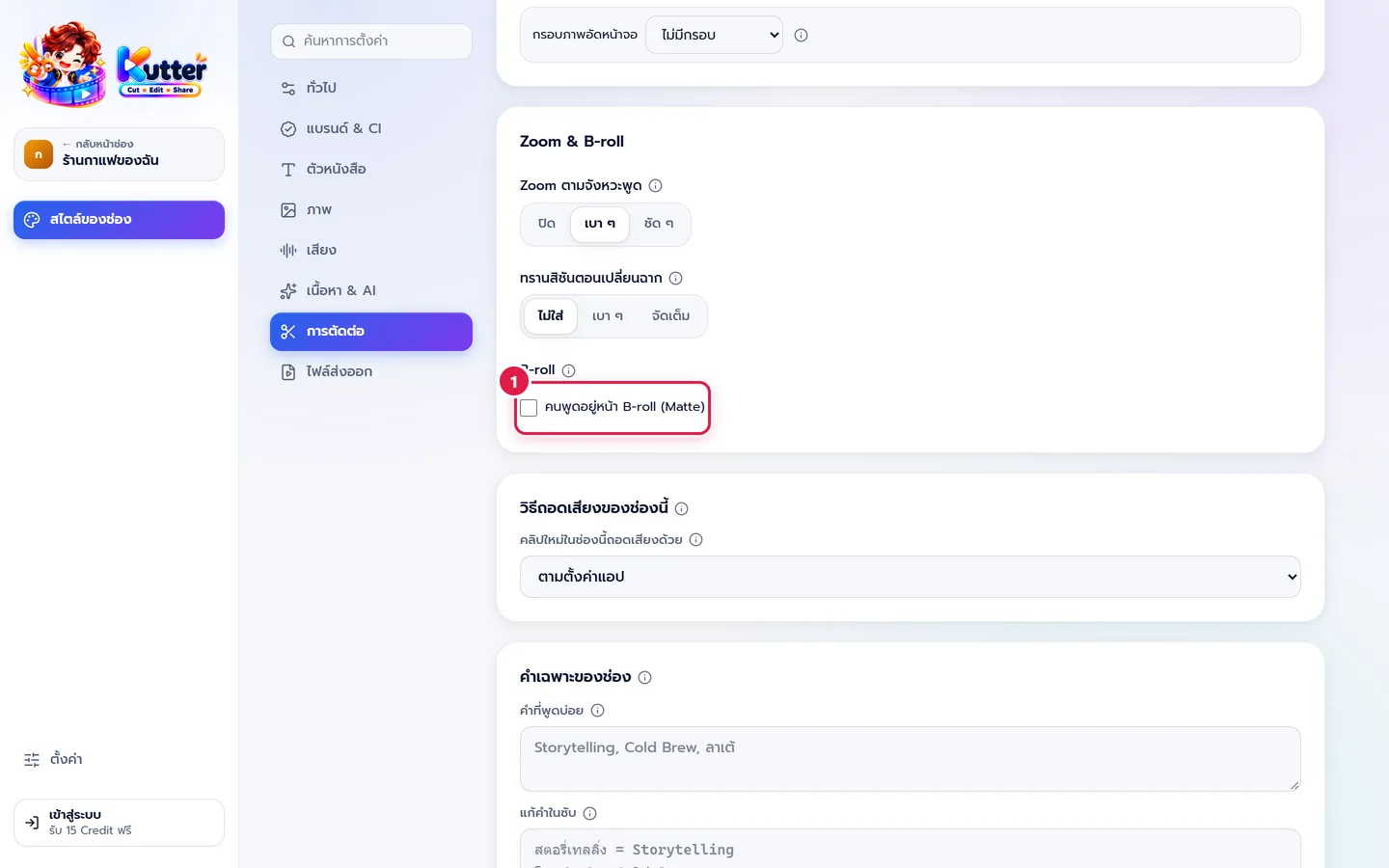
- Tick คนพูดอยู่หน้า B-roll (Matte) (Speaker in Front of B-roll (Matte)) if almost every clip on your channel is someone talking to the camera
- Set B-roll sources (such as Pexels) in ตั้งค่า (Settings). See App settings
2. Adjust scene by scene in the Storyboard
-
Select a scene, look at the ฉากนี้ใส่อะไรบ้าง (What's in This Scene) card, and turn on the B-roll switch

- Each slot shows the word AI picked, the search term, and the clip it found. If you don't like it, press เปลี่ยน (Change) to search again
- Adjust Start at and Length so the B-roll appears right on the spoken word. Press ใช้ตำแหน่งที่เล่นอยู่ (Use Current Position) to use the point where the preview is paused
- The Matte switch in that slot keeps the speaker in front of the B-roll for that segment only. You can also adjust the B-roll's Zoom
- The Matte · ผู้พูดยืนหน้า B-roll (Matte · Speaker in Front of B-roll) switch at the bottom of the card turns every slot in the scene on or off at once
- To add another segment, press เพิ่ม B-roll (Add B-roll)
3. Animations and vectors from Pixabay
Available once you've set a Pixabay key (see App settings)
- On the B-roll search page, find the picture-type row under the source chips. The default is ภาพจริง (Photos)
- Press แอนิเมชัน (Animation) to find moving backgrounds, or เวกเตอร์ (Vector) / ภาพวาด (Illustration) to find sticker-style line art. The app searches Pixabay only
- Pick the clip or picture you like. The app downloads only the ones you pick into the project folder. The Pixabay credit shows like any other picture
- To go back to real photos, press ภาพจริง (Photos) or ทุกแหล่ง (All Sources)
Result: the café opening scene cuts to a 3-second shot of a barista pouring coffee over ice, while the speaker stays on screen. A Matte (Matte) chip appears on the scene card on the left.
Common problems
- If rendering takes longer, note that Matte adds a few seconds per segment (faster with a graphics card). Turn it off where you don't need it
- If the B-roll doesn't match the topic, press เปลี่ยน (Change) and type a clearer English search term, such as "iced coffee"
- If the speaker's edges look chipped, turn off Matte for that segment and use full-screen B-roll instead
- If there are no B-roll slots to choose from, set a picture source key first. See App settings
More basics: The Storyboard step · Channel style: Editing
Still stuck? Chat with us (bottom right) or email support@helloworld-solution.com