 Kutter
Help › In depth
Send to CapCut / Premiere / DaVinci and keep editing
Let Kutter do the heavy lifting, then polish the details in the editor you know best without starting over.
Goal: use Kutter to cut silences and add subtitles, B-roll, and music until the clip is 90% done, then finish the last 10% in the editor you're comfortable with.
Available from the Creator plan up (SRT subtitles work on every plan).
Pick the right route for your editor
- CapCut Desktop gives you a CapCut project with separate tracks. Subtitles stay editable as text
- Premiere Pro / DaVinci Resolve get an XML file with markers showing where transitions go
- Final Cut Pro gets an FCPXML file (straight cuts, no transitions)
- Subtitles only is an SRT file that works in any editor
Steps
- Finish the clip in Kutter first. Check everything in Storyboard and Finish, then render
-
Go to the Export step
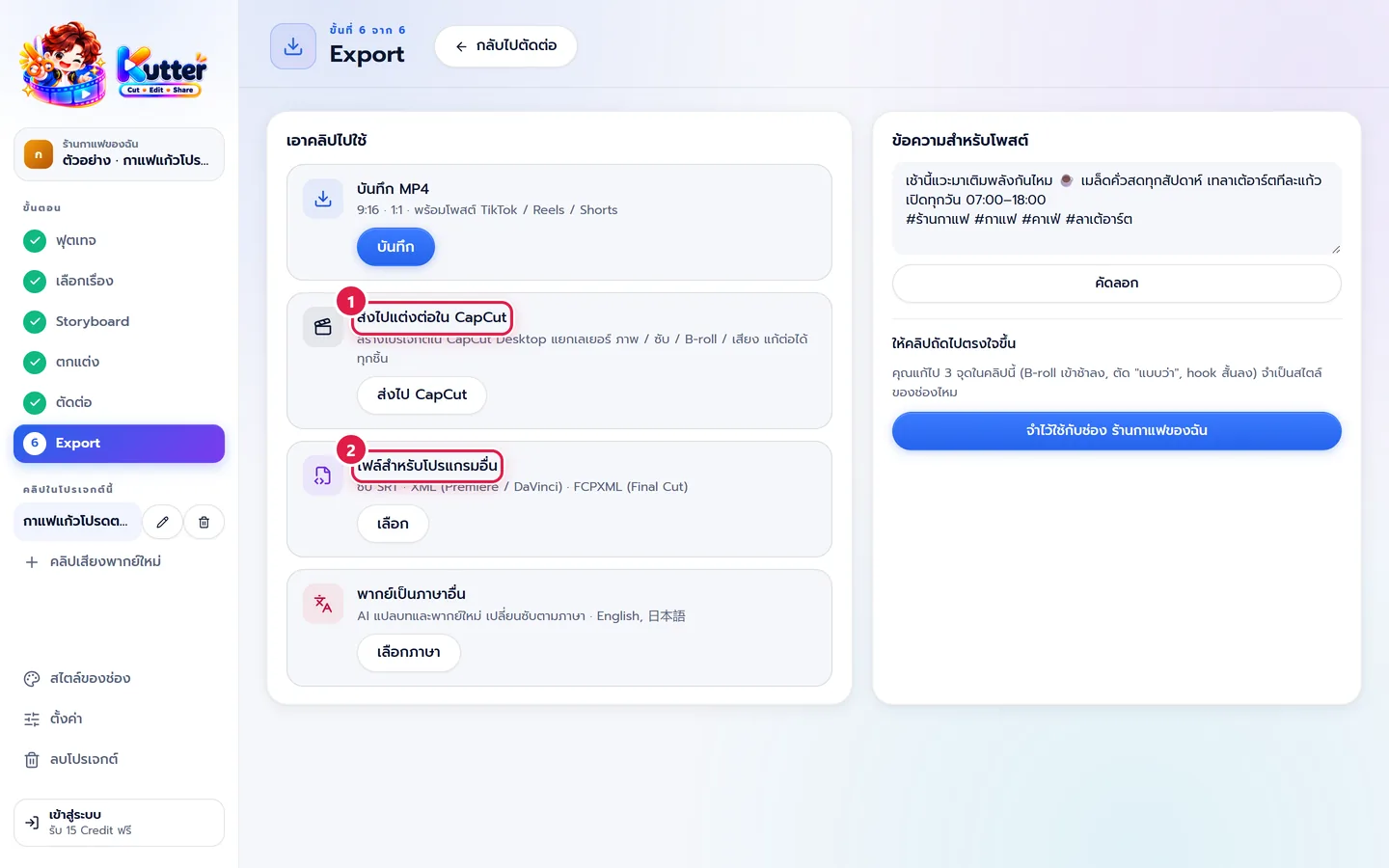
- For CapCut, press ส่งไป CapCut (Send to CapCut) in the ส่งไปแต่งต่อใน CapCut (Keep Editing in CapCut) card (marker 1), then open CapCut Desktop
- For other editors, in the ไฟล์สำหรับโปรแกรมอื่น (Files for Other Editors) card (marker 2), press XML (XML), FCPXML (FCPXML), or SRT (SRT) and choose where to save
- Import into your editor: Premiere uses File › Import · DaVinci uses File › Import › Timeline · Final Cut uses File › Import › XML
- Add only what Kutter doesn't do, such as special transitions, effects, or detailed color grading
Result: an edited timeline with the speaker, B-roll, subtitles, and music on separate tracks. You can change each piece without re-cutting from scratch.
Common problems
- If footage is missing (offline) when you open the file, move the footage back to where it was. The XML file points to the original footage on your computer, so don't move or rename it until you're done editing
- If you can't see the project in CapCut, close and reopen CapCut. If you've moved CapCut's project folder, press เลือกโฟลเดอร์ (Choose Folder) and select that folder
- If transitions are missing in CapCut or Final Cut, add that editor's own transitions. The hand-off file uses straight cuts
- If subtitles don't show in Premiere / DaVinci, import the .srt file that comes with it as a separate subtitle track
Details for each editor: Keep editing in CapCut · Send to Premiere / DaVinci / Final Cut
Still stuck? Chat with us (bottom right) or email support@helloworld-solution.com