 Kutter
Help › In depth
Keyword pop-ups
Make key words pop up on screen as they're spoken. Pick a style, motion, and frequency, then fine-tune word by word.
Goal: key words such as prices, numbers, and menu names pop up on screen with a pop sound. They hold viewers' attention, and you don't have to add them one by one.
1. Set up the channel
-
Go to สไตล์ของช่อง (Channel Style) › ตัวหนังสือ (Text) and scroll down to the คำเด่น (Keyword pop-up) (Keywords (Keyword Pop-up)) card
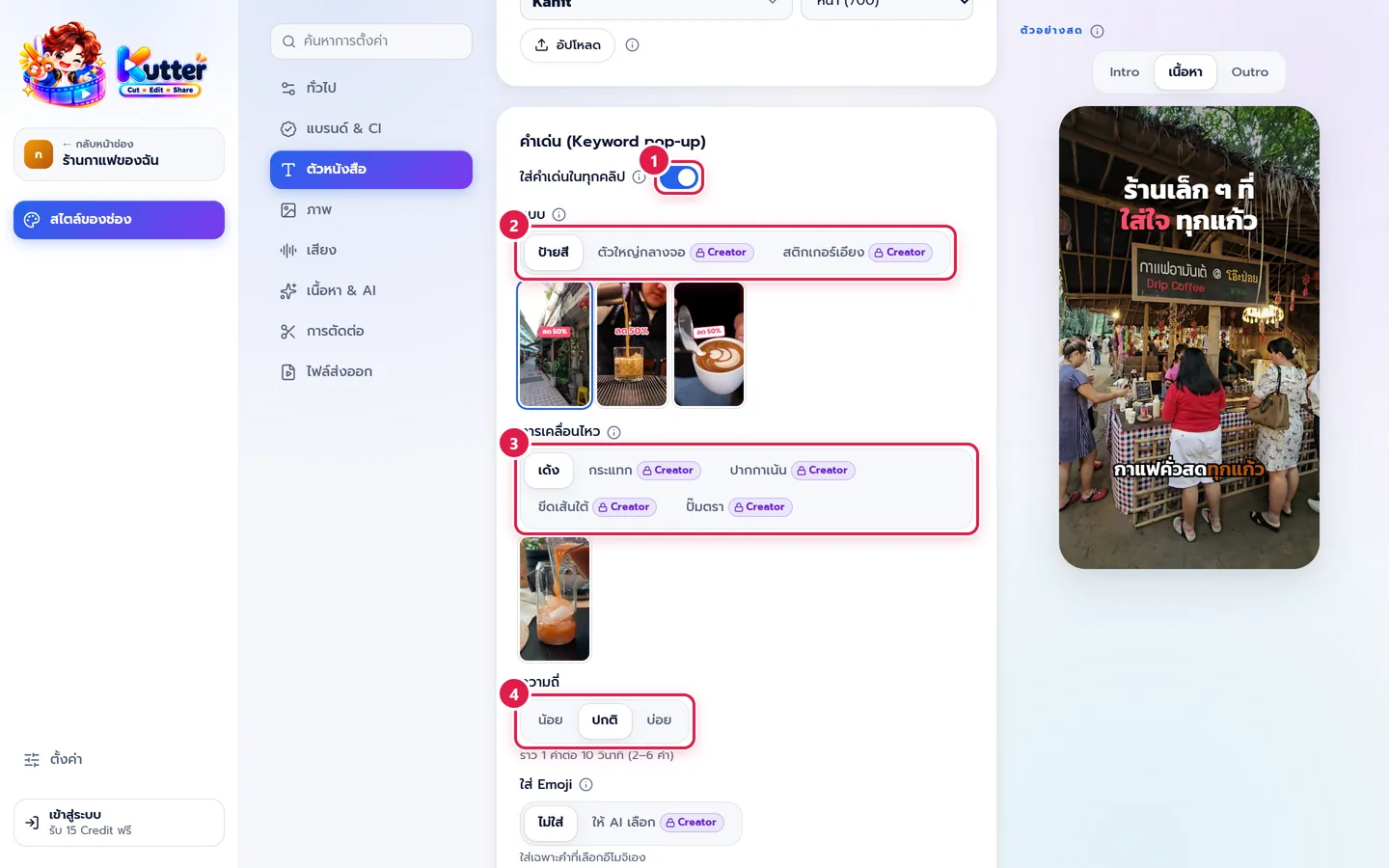
- Turn on ใส่คำเด่นในทุกคลิป (Add Keywords to Every Clip)
- Style: pick ป้ายสี (Color Tag), ตัวใหญ่กลางจอ (Big Center Text), or สติกเกอร์เอียง (Tilted Sticker). The preview under the buttons shows what each one looks like
- Motion: pick เด้ง (Bounce), กระแทก (Slam), ปากกาเน้น (Highlighter), ขีดเส้นใต้ (Underline), or ปั๊มตรา (Stamp)
- Frequency: ปกติ (Normal) is about 1 word every 10 seconds. For dense content, pick บ่อย (Often)
- You can also set Add emoji and Pop sound in the same card
2. Edit word by word in the clip
-
In the Finish step, scroll to the Keywords card. The ใส่ในคลิปนี้ (Use in This Clip) switch turns them on or off for this clip only
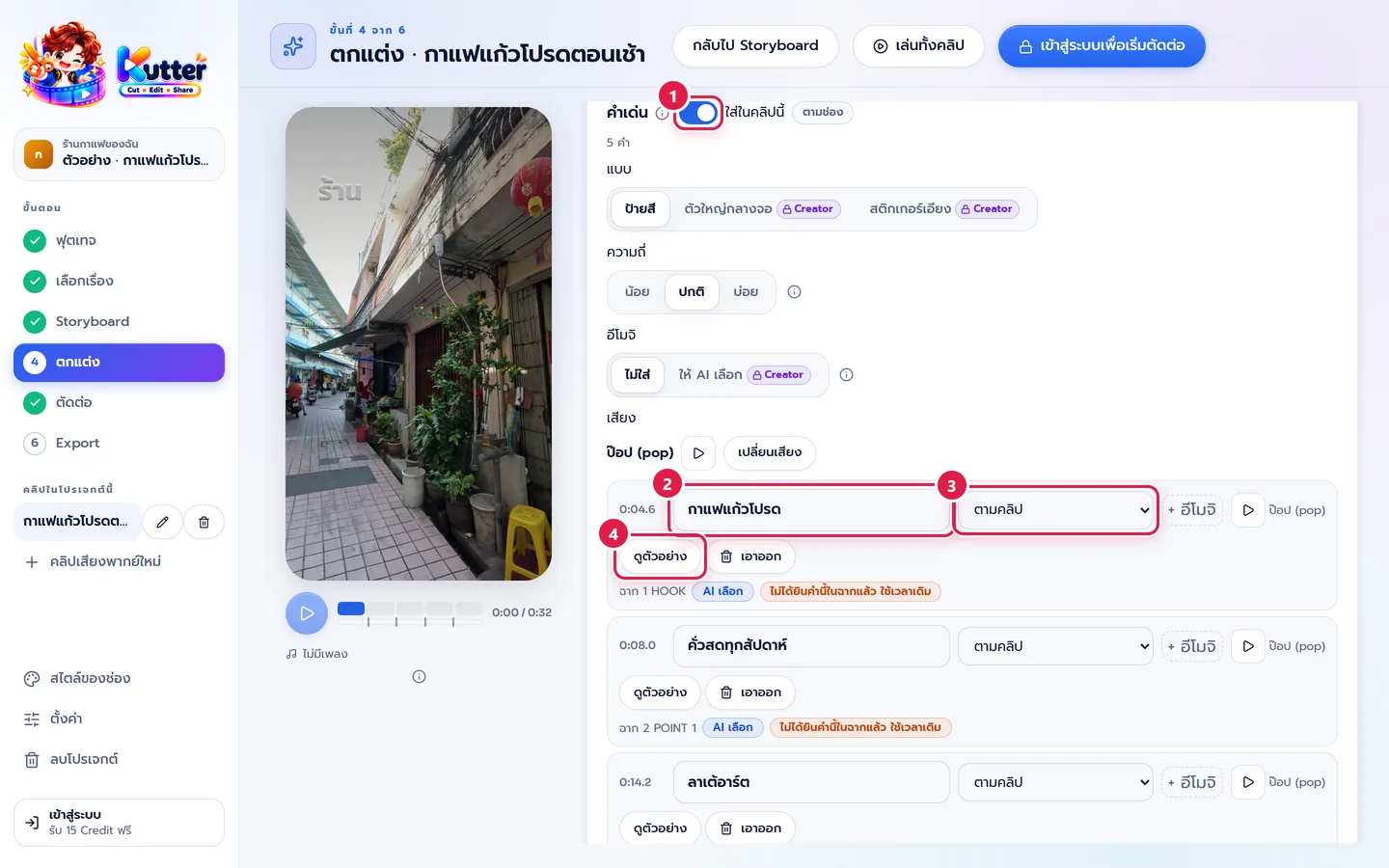
- AI has already picked words (labeled AI เลือก (AI Picked)). You can edit the text in the box, for example change "เจ็ดโมง" (seven o'clock) to "07:00"
- Change the style for that word only in the ตามคลิป (Same as Clip) box
- Press ดูตัวอย่าง (Preview) to see that word's pop motion
-
Press เอาออก (Remove) on words you don't want. For a new word, press เพิ่มคำเด่น (Add Keyword) or ให้ AI เลือกคำเด่น (Let AI Pick Keywords)
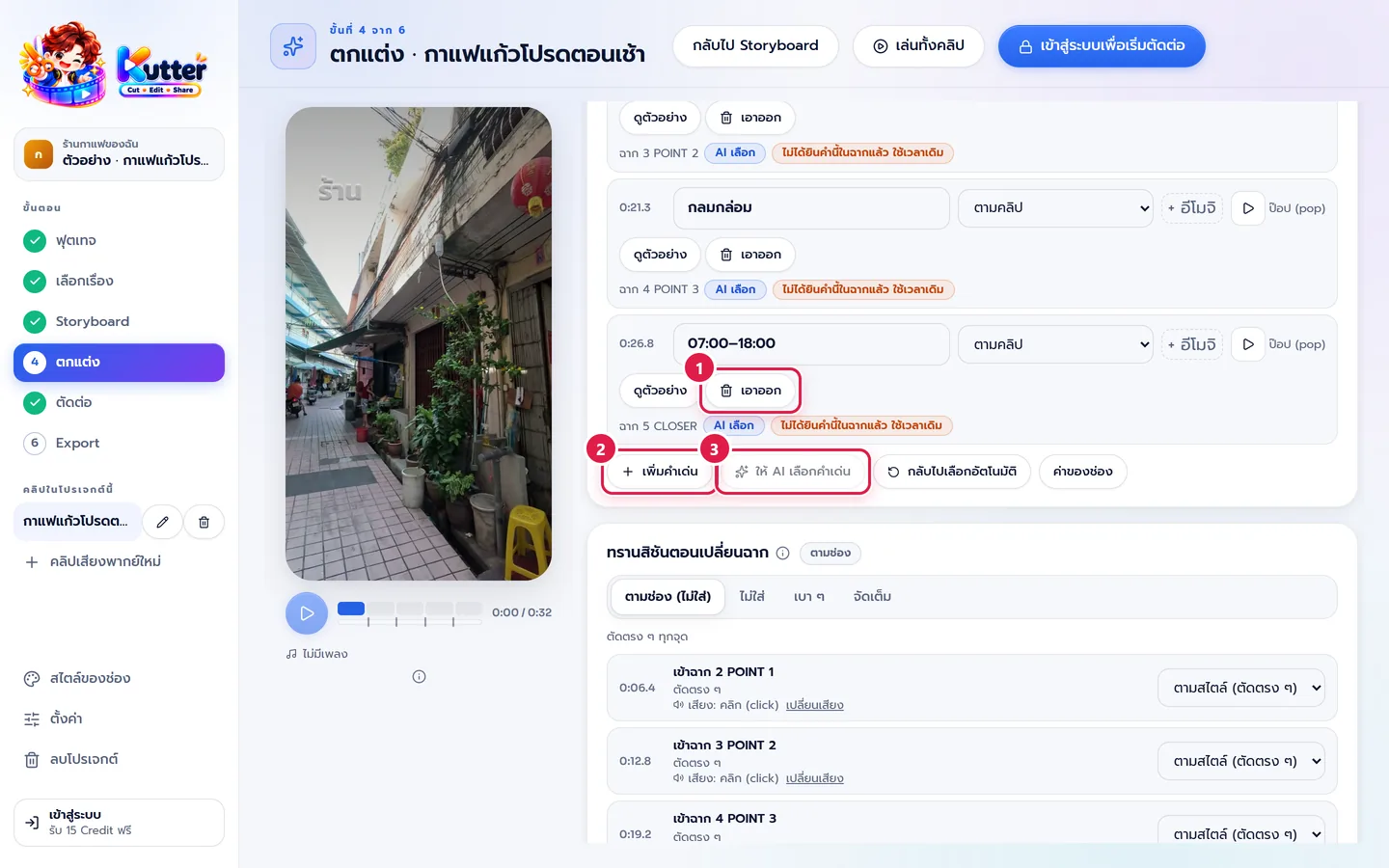
Result: a 30-second coffee clip has about 3–5 keywords, such as "คั่วสดทุกสัปดาห์" (freshly roasted every week), "ลาเต้อาร์ต" (latte art), and "07:00–18:00", popping up right as they're spoken.
Common problems
- If there are so many keywords it looks cluttered, lower the frequency to น้อย (Rarely) or press เอาออก (Remove) on some words
- If no keywords appear at all, check that the ใส่ในคลิปนี้ (Use in This Clip) switch is on
- If you see the label "ไม่ได้ยินคำนี้ในฉากแล้ว ใช้เวลาเดิม" (This word is no longer heard in the scene; using the original time), check the timing with ดูตัวอย่าง (Preview) after re-cutting the scene
- If a style or motion has a Creator label, see Plans and Credits · Hand-off files for CapCut / Premiere get keywords as still images
More basics: Channel style: Text · The Finish step
Still stuck? Chat with us (bottom right) or email support@helloworld-solution.com