 Kutter
Help › In depth
Choose a clip length that fits your footage
15/30/60/90 seconds, a custom length, or let AI choose, and see whether you have enough footage.
Goal: a clip that's just long enough for its content: not stretched out and boring, and not so short of footage that pictures repeat.
Set the length
-
In the บอก AI สั้น ๆ ก่อนเสนอเรื่อง (Brief AI Before It Suggests a Story) card, find the ความยาว (Length) row
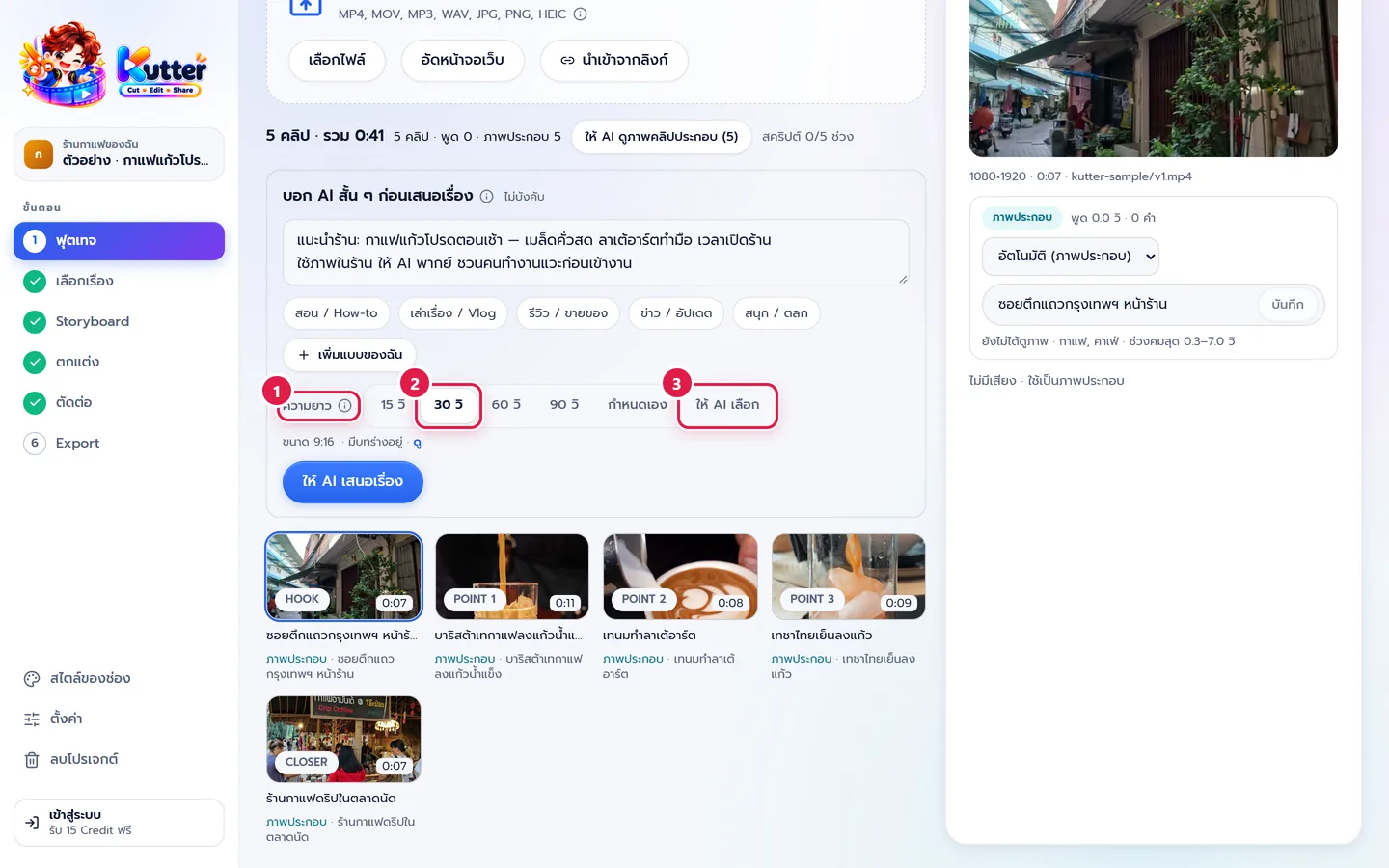
- Pick 15 วิ (15 sec), 30 วิ (30 sec), 60 วิ (60 sec), or 90 วิ (90 sec)
- Not sure? Pick ให้ AI เลือก (Let AI Choose). AI checks how long a story your footage can tell
-
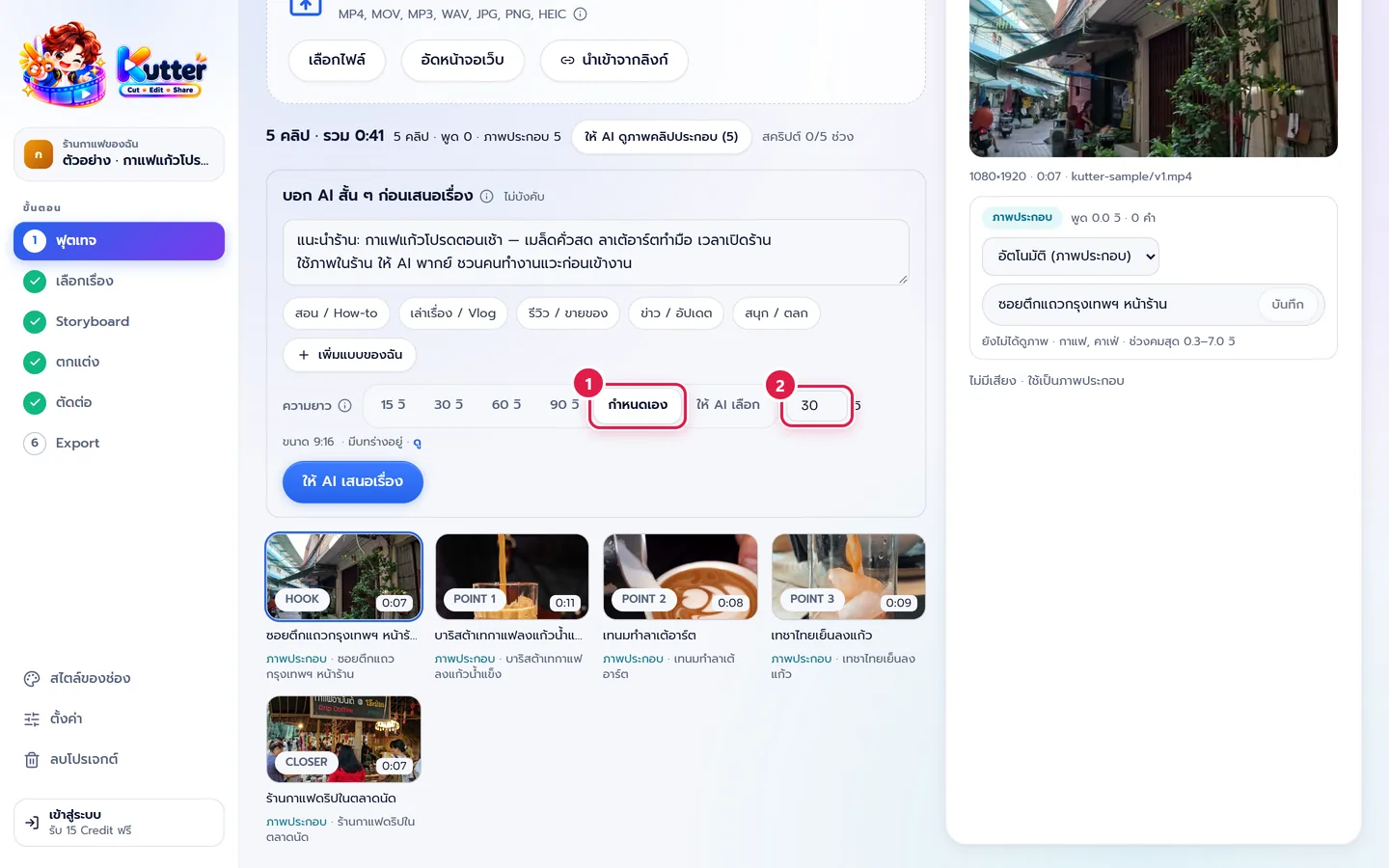
For an exact number, press กำหนดเอง (Custom) and type the number of seconds
Do you have enough footage?
- Clips with someone speaking: under the length row, the app shows how many seconds of speech your footage has and a "แนะนำ … วิ" (Recommended … sec) value. Press the recommended number to use it
- Picture-only clips (no one speaking) count as about 3 seconds per clip. The sample café has 5 picture-only clips, so 15–30 seconds fits
- If you set a length longer than your footage, you'll see a warning that the footage may not be enough
Rough guide:
- 5–10 picture-only clips → 15–30 sec
- 1–2 minutes of talking to the camera → 60 sec
- 3+ minutes of talking → 90 sec or custom
Common problems
- If you get the not-enough-footage warning, shorten the length or add 3–5 more B-roll clips
- If the clip comes out shorter than you expected, check whether ให้ AI เลือก (Let AI Choose) is selected. Switch to a number and have AI suggest again
- If a long talking clip gets cut very short, try lowering the tightness level
Read more: The Footage step · Write a brief for AI
Still stuck? Chat with us (bottom right) or email support@helloworld-solution.com