 Kutter
Help › In depth
Get music and sound effects (SFX) just right
Set music for the whole channel once, let the music duck while someone speaks, and add SFX only where they help tell the story.
Goal: a clip where music never drowns out the voice and sound effects play only at key moments, without clutter.
Set the channel's music (once)
-
In สไตล์ของช่อง (Channel Style) › เสียง (Sound), scroll down to the เพลง & เสียงประกอบ (Music & Sound Effects) card
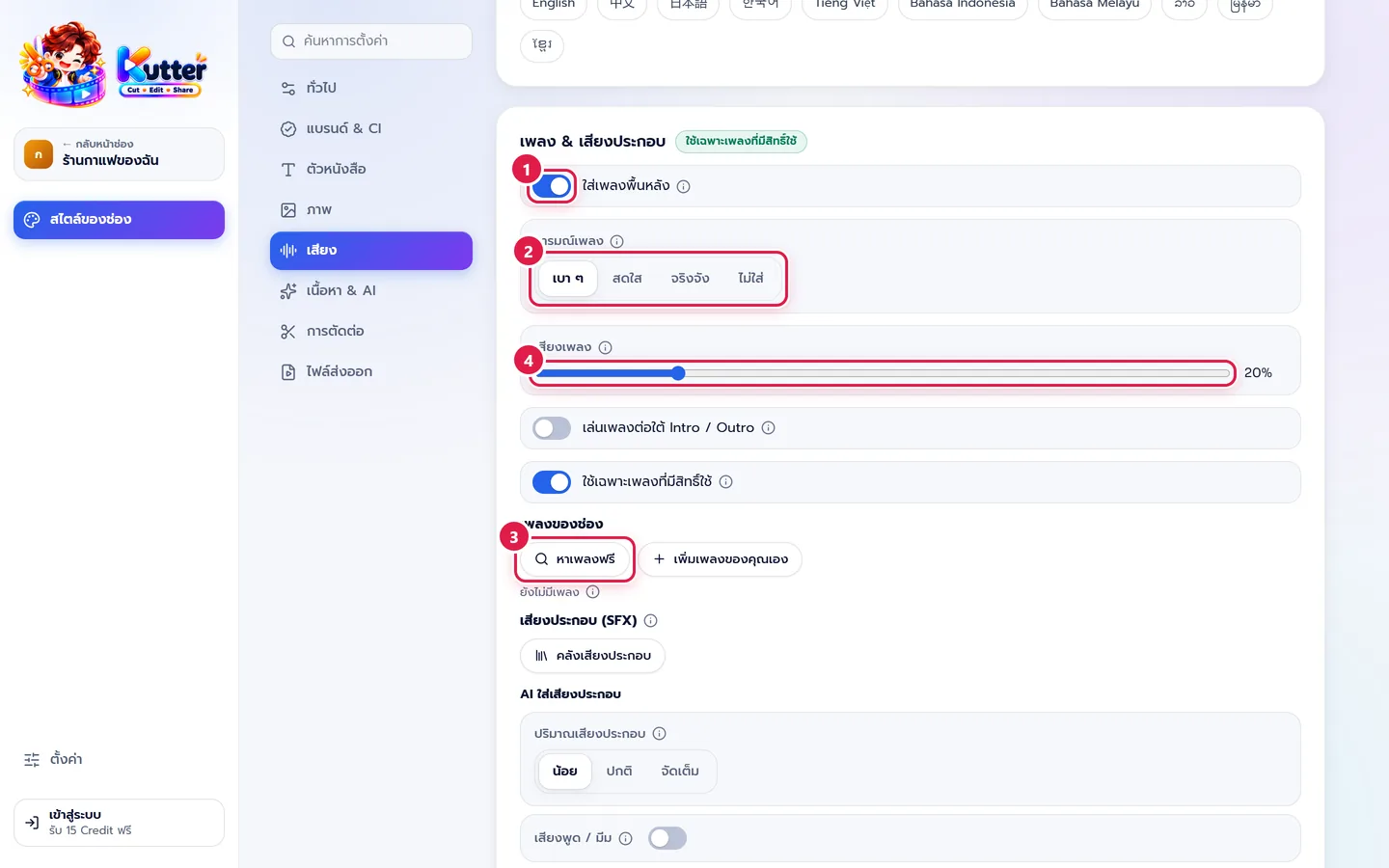
- Turn on ใส่เพลงพื้นหลัง (Add Background Music) (marker 1)
- Pick a อารมณ์เพลง (Music Mood) that suits the channel. For example, the café picks "เบา ๆ" (Soft) (marker 2)
- Press หาเพลงฟรี (Find Free Music) to pick Creative Commons music cleared for commercial use, or press เพิ่มเพลงของคุณเอง (Add Your Own Music) (marker 3)
- Start with the เสียงเพลง (Music Volume) slider low (about 20%). While someone speaks, the music drops to this level, then comes back up when they stop (marker 4)
Set the channel's sound effects
-
In the same card, scroll down to เสียงประกอบ (SFX) (Sound Effects (SFX))
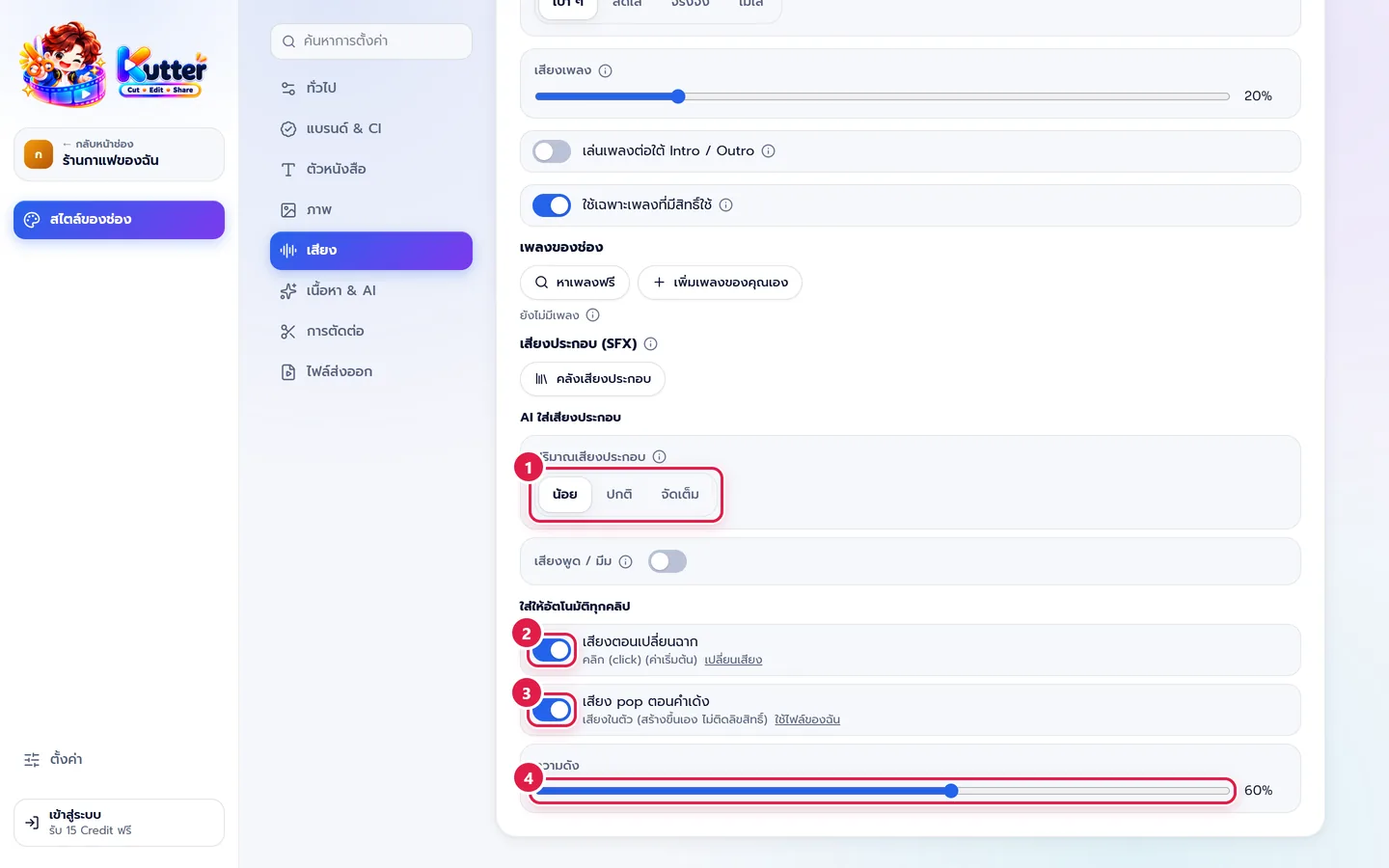
- Set ปริมาณเสียงประกอบ (Amount of Sound Effects) to น้อย (Few) first, and raise it later if it feels too quiet (marker 1)
- Turn เสียงตอนเปลี่ยนฉาก (Sound on Scene Change) and เสียง pop ตอนคำเด้ง (Pop Sound on Keyword Pop) on or off. Channels with a calm style can leave them off (markers 2–3)
- Set the sound effects' ความดัง (Volume) slider lower than the voice (marker 4)
Adjust this clip only, in the Finish step
-
Go to the Finish step and look at the เพลงของคลิปนี้ (Music for This Clip) card
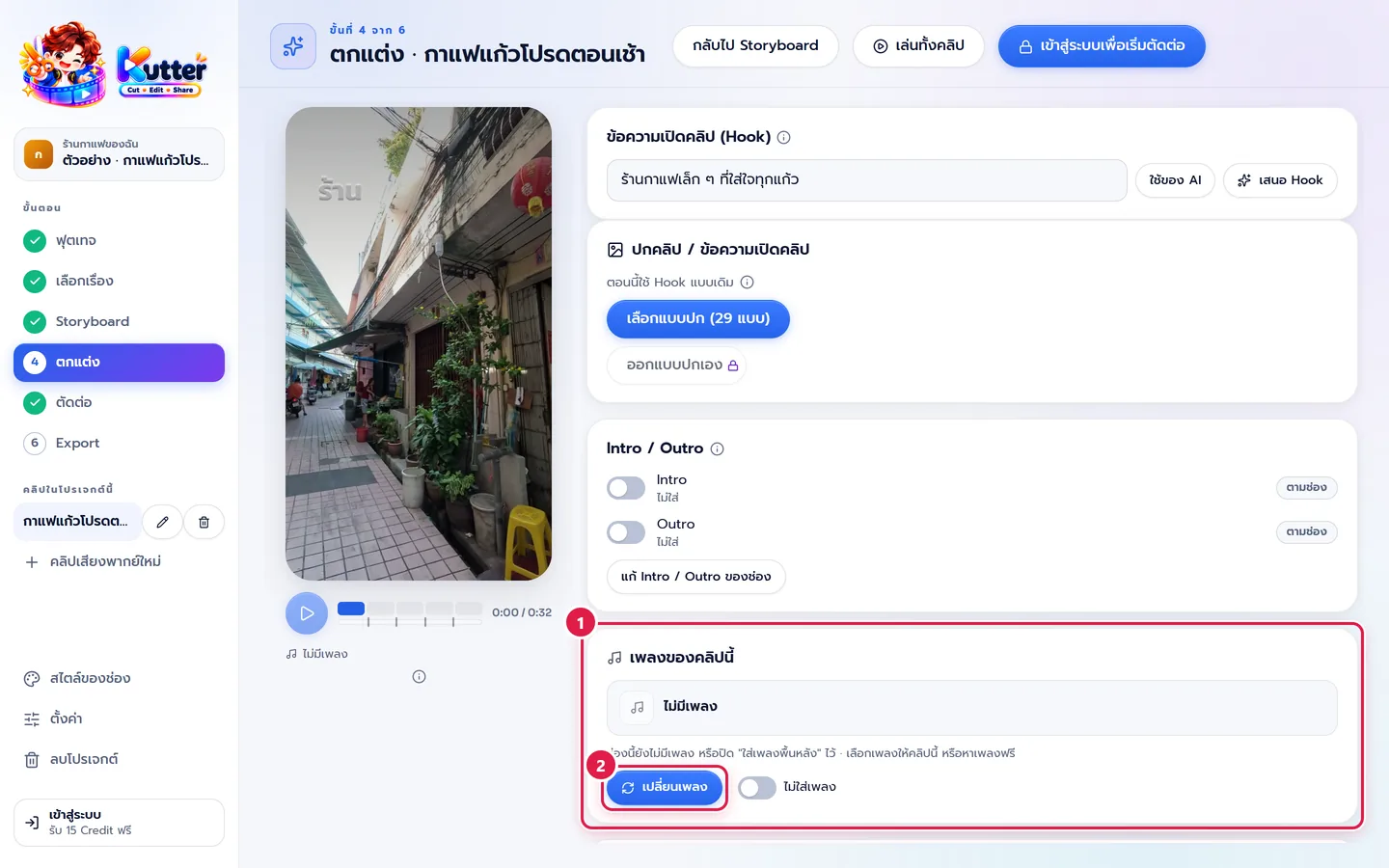
- For a different song, press เปลี่ยนเพลง (Change Music), then ให้ AI เลือกตามอารมณ์ (Let AI Pick by Mood). AI listens to the clip and suggests 3 songs with reasons. Press ใช้เพลงนี้ (Use This Song)
- For a clip you don't want music on, press ไม่ใส่เพลง (No Music)
- Scroll down to the clip's sound effects card. For any sound that doesn't fit, press เอาออก (Remove) or เปลี่ยนเสียง (Change Sound)
Place sounds on the beat yourself, in the Storyboard
-
In the Storyboard step, open the scene you want to emphasize
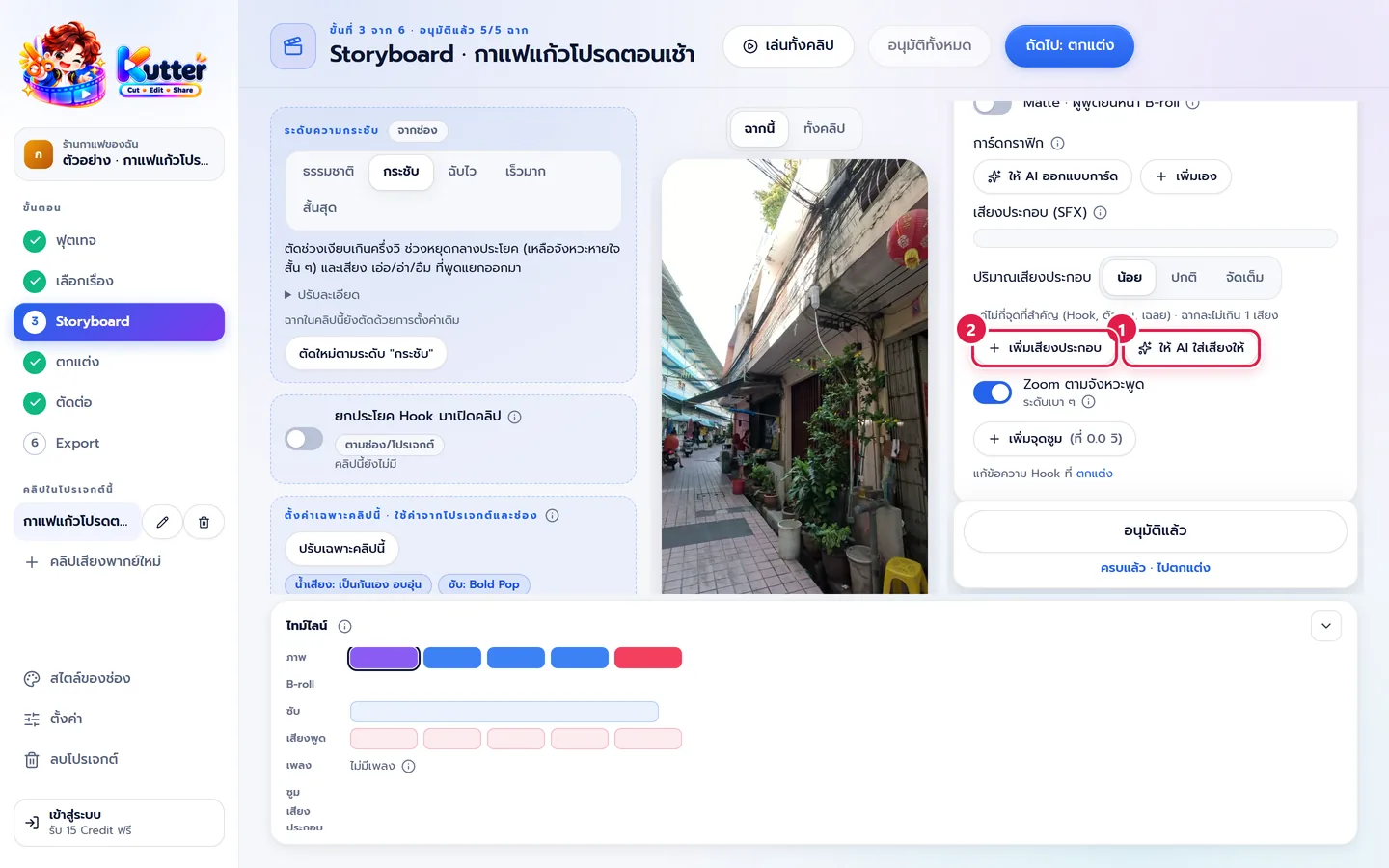
- Press ให้ AI ใส่เสียงให้ (Let AI Add Sounds). AI listens to the script and suggests sounds at the right moments (marker 1)
- Or press เพิ่มเสียงประกอบ (Add Sound Effect), pick a sound, and set ให้เสียงดังตอนไหน (When the Sound Plays) on a spoken word, or use ตั้งเวลาเอง (Set Time Manually) (marker 2)
Find free sound effects on Openverse
- In the sound picker (from เพิ่มเสียงประกอบ (Add Sound Effect) or เปลี่ยนเสียง (Change Sound)), press the หาเสียงฟรี (CC) (Find Free Sounds (CC)) tab
- Type an English word, such as whoosh or ding, and press ค้นหา (Search), or press a quick search chip
- Press ▶ to listen first. The app doesn't add anything until you press เพิ่มเข้าคลัง (Add to Library)
- Press เพิ่มเข้าคลัง (Add to Library). The app checks the license again and downloads only that sound. If you opened the picker from the Storyboard, the sound is selected right away
- Place the sound on the beat like any other sound. It plays in the preview and is included in the rendered file
Result: the voice is clear when someone speaks, the music plays softly underneath, and sound effects play only at scene changes or key words.
Common problems
- If the music drowns out the voice, lower the เสียงเพลง (Music Volume) slider in the channel's music card, then render again
- If there are so many sound effects it's cluttered, lower ปริมาณ (Amount) in the clip's sound effects card, or remove sounds you don't need
- If the clip has no music at all, check that ใส่เพลงพื้นหลัง (Add Background Music) is on and the channel has at least 1 song
- If Openverse says you're searching too often, wait for the time shown (about 20 searches per minute). The app won't ask again until the time is up, and your earlier results still work
- If the file still has the old song after you changed it, render again. A rendered file doesn't update by itself
For the basic settings in this area, see Channel style: Sound
Still stuck? Chat with us (bottom right) or email support@helloworld-solution.com