 Kutter
Help › In depth
Save Credits
Know what costs Credits and what doesn't, then render once and be done.
Goal: spend Credits only when you get a real clip, and never pay twice for the same clip.
What costs Credits
Credits are used only when you render/export a clip file, based on the length of the finished clip.
- Up to 90 seconds: 3 Credits
- Up to 3 minutes: 5 Credits
- Up to 10 minutes: 10 Credits
- Over 10 minutes: 10 Credits for every 30 minutes
Each aspect ratio (for example 9:16 and 1:1) and each voice-over language counts as a new file and costs Credits separately.
What doesn't cost Credits
- Previews, transcribing, AI planning, script writing, Storyboard, Finish, covers, and animations
- Sending to CapCut or saving XML / FCPXML / SRT for a clip you've already rendered
- Re-exporting the same clip within 7 days (with every setting unchanged)
- Failed renders: the app refunds your Credits
AI costs (AI brain, transcription, voice-over) are paid directly to the provider under the key you entered, not with Kutter Credits.
Render once and be done
- Check every scene in the Storyboard and play the preview in Finish until you're happy
- Set the size and video file correctly from the start (see Export files), because changing settings counts as a new file
-
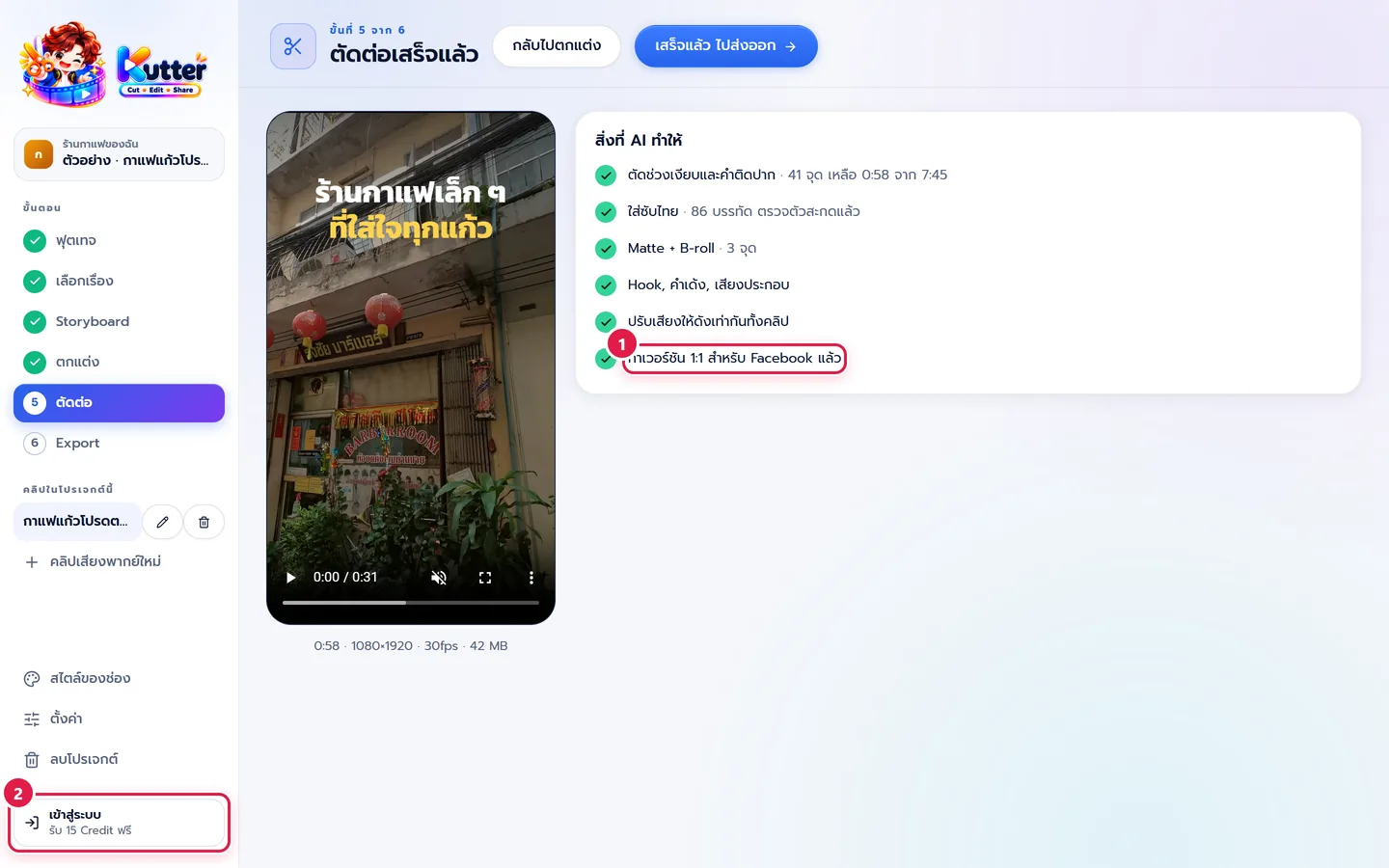
Sign in first (marker 2). Then, in the Render step, look at the "ใช้ … Credit" (Uses … Credits) text under the render button. It shows how much the render uses and how much you have
- Press render, then check the clip right away. If something needs fixing, fix several things at once and render again only once
- Make other sizes (such as the 1:1 version, marker 1) or other voice-over languages only for clips you'll actually post
Result: one short clip uses only 3 Credits, with nothing wasted on trial and error.
Common problems
- If you don't have enough Credits, press รับ Credit วันนี้ (Get Today's Credits), top up Credits, or upgrade your plan, then press render again
- If re-exporting still costs Credits, something changed, such as an edited scene, new music, or a different file size, so the system counts it as a new clip
- If you see that the resolution is above your plan, lower the resolution in the video file settings (the free plan is 720p) or upgrade your plan
See every plan and top-up price at Plans and Credits
Still stuck? Chat with us (bottom right) or email support@helloworld-solution.com