 Kutter
Help › In depth
Screen images in scenes
Use a web page or app screen as a scene's picture by recording a website or pasting a screenshot.
Goal: a website tutorial, app review, or online menu showcase where each scene's picture is the real screen, matching the voice-over. This works in the Storyboard of a voice-over clip.
1. Add screen images scene by scene
-
In the voice-over Storyboard, press เปลี่ยนภาพ (Change Picture) (or เลือกภาพ (Choose Picture)) for that scene
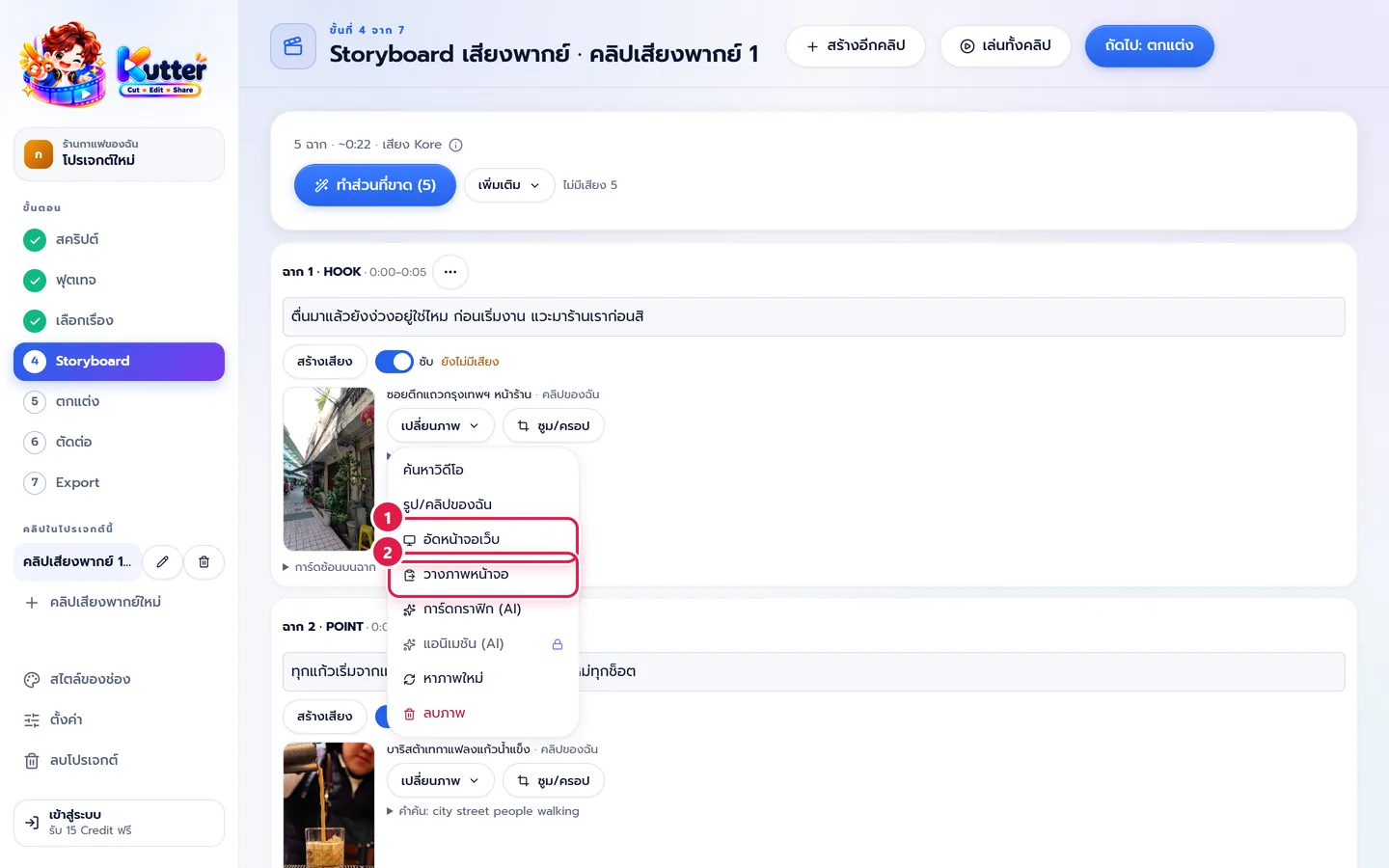
- Record a website records a web page as this scene's clip, as long as the voice-over. Enter the link and say what you want done on the site
- Paste a screenshot uses an image you've copied (for example with Print Screen or Win+Shift+S) as the scene's still picture. You can also click the scene card and press Ctrl+V
- For still pictures you can pick a motion, such as ซูมเข้าช้า ๆ (Slow Zoom In) or เลื่อนลง (Scroll Down) (good for long web pages)
- To focus on one part of the screen, press ซูม/ครอป (Zoom/Crop). See Zoom, crop, and zoom timing
2. Record many scenes at once
-
Press เพิ่มเติม (More) at the top of the Storyboard
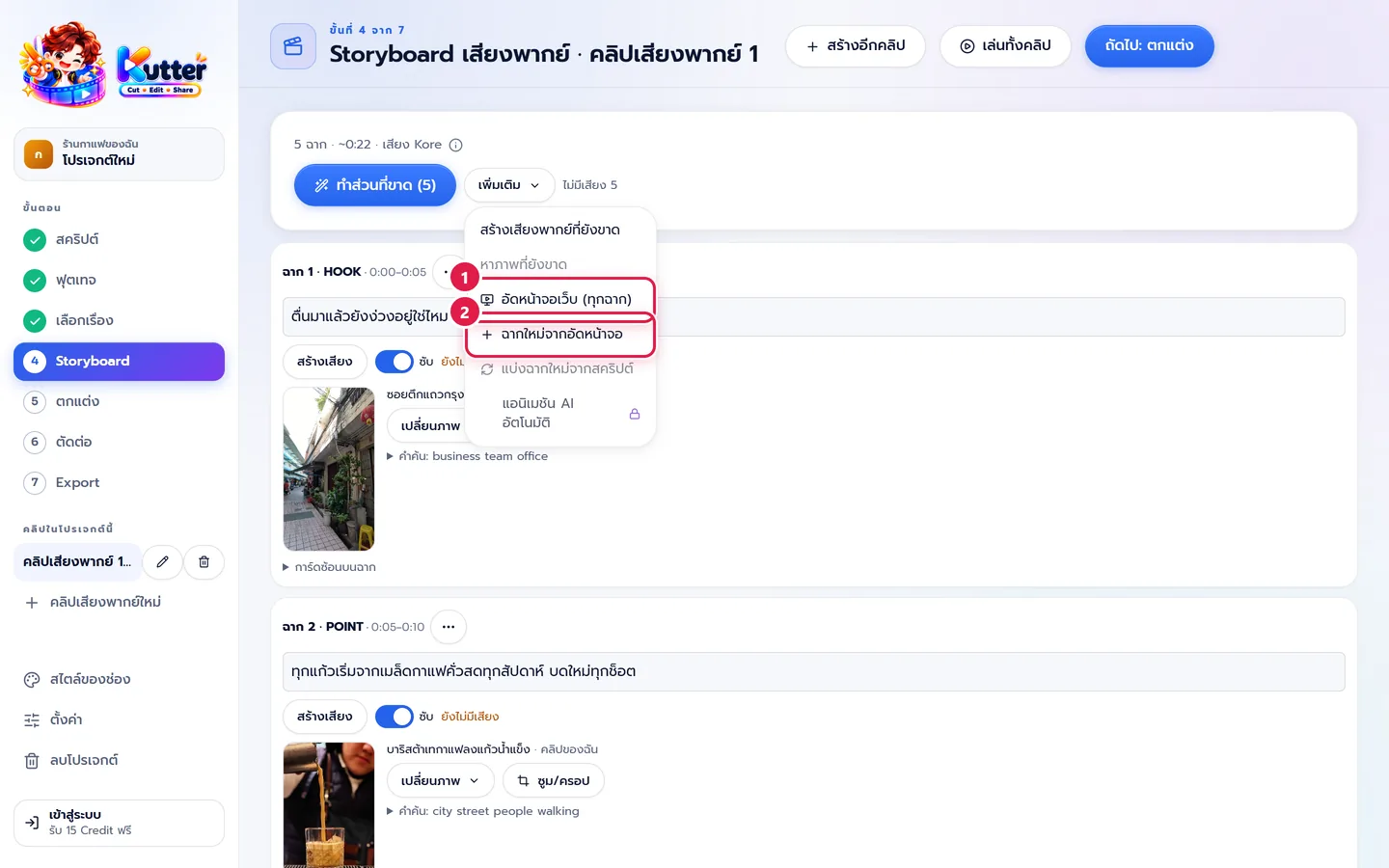
- อัดหน้าจอเว็บ (ทุกฉาก) (Record Website (All Scenes)) records every scene in a row. Each scene gets a clip that fits its voice-over
- ฉากใหม่จากอัดหน้าจอ (New Scene from Recording) adds a new scene whose picture is a screen recording
- Pick a frame in the Frame box, such as กรอบมือถือ (Phone Frame), กรอบเบราว์เซอร์ (Browser Frame), or ไม่มีกรอบ (No Frame). Set the channel default in สไตล์ของช่อง (Channel Style) › การตัดต่อ (Editing) › กรอบภาพอัดหน้าจอ (Screen Recording Frame)
Result: a tutorial on ordering coffee online where each scene shows the real web page in a phone frame on the channel's background color, with a "ขั้นที่ 1 / 5" (Step 1 / 5) label.
Common problems
- If nothing happens when you paste a screenshot, copy the image again (it must be an image, not a file) and try again
- If the website requires a login, press เข้าสู่ระบบ (Sign In) in the screen recording panel and finish logging in first. See Record a website
- If the text on screen is too small to read, use ซูม/ครอป (Zoom/Crop) or record in มือถือ 9:16 (Phone 9:16)
- If recording doesn't work, check that Microsoft Edge or Google Chrome is installed on your computer
More basics: Record a website · Voice-over clips
Still stuck? Chat with us (bottom right) or email support@helloworld-solution.com