 Kutter
Help › In depth
Easy-to-read Thai subtitles
Set the subtitle font, size, outline, position, and motion so viewers can keep up on a phone.
Goal: subtitles that can be read in half a second, don't cover faces, don't clash with the app's buttons, and move right in time with the voice. Set them once in Channel style, and every clip follows.
1. How the subtitles look
-
Go to สไตล์ของช่อง (Channel Style) › ตัวหนังสือ (Text) and scroll down to the Subtitles card
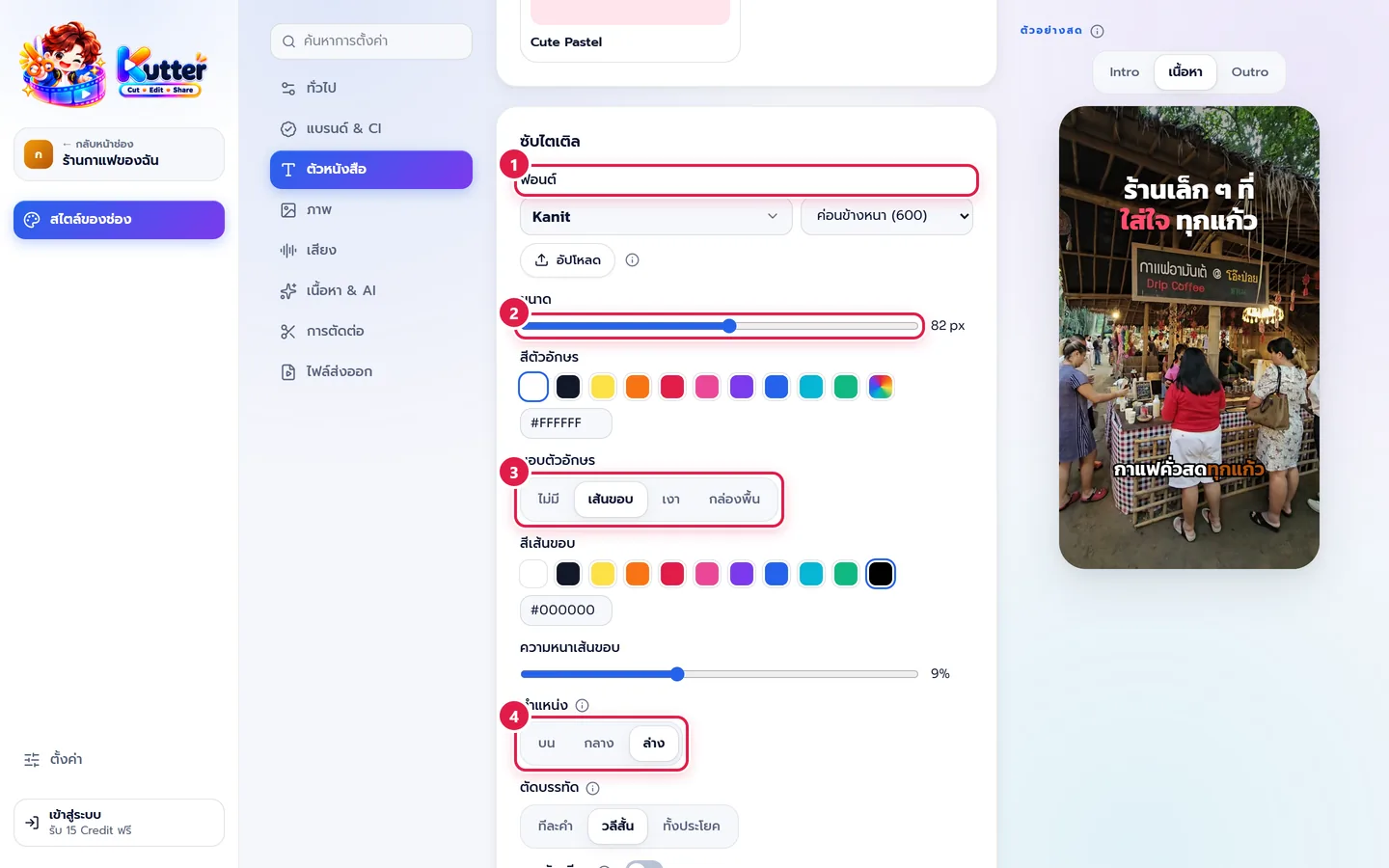
- Font: pick a bold Thai font, such as Kanit at weight 600–700. If you have a brand font, press อัปโหลด (Upload)
- Size: drag until the text is about half the screen wide. See the result right away in the ตัวอย่างสด (Live Preview) on the right
- Text outline: pick a black เส้นขอบ (Outline) (readable on any background), or กล่องพื้น (Background Box) if the picture is bright and busy
- Position: most clips use ล่าง (Bottom) (it already leaves room for TikTok's buttons). If something important is at the bottom, such as a product, use กลาง (Middle)
2. Timing and motion
-
Line breaks: วลีสั้น (Short Phrases) is the easiest to read for talking clips. ทีละคำ (Word by Word) is more exciting but tiring on the eyes
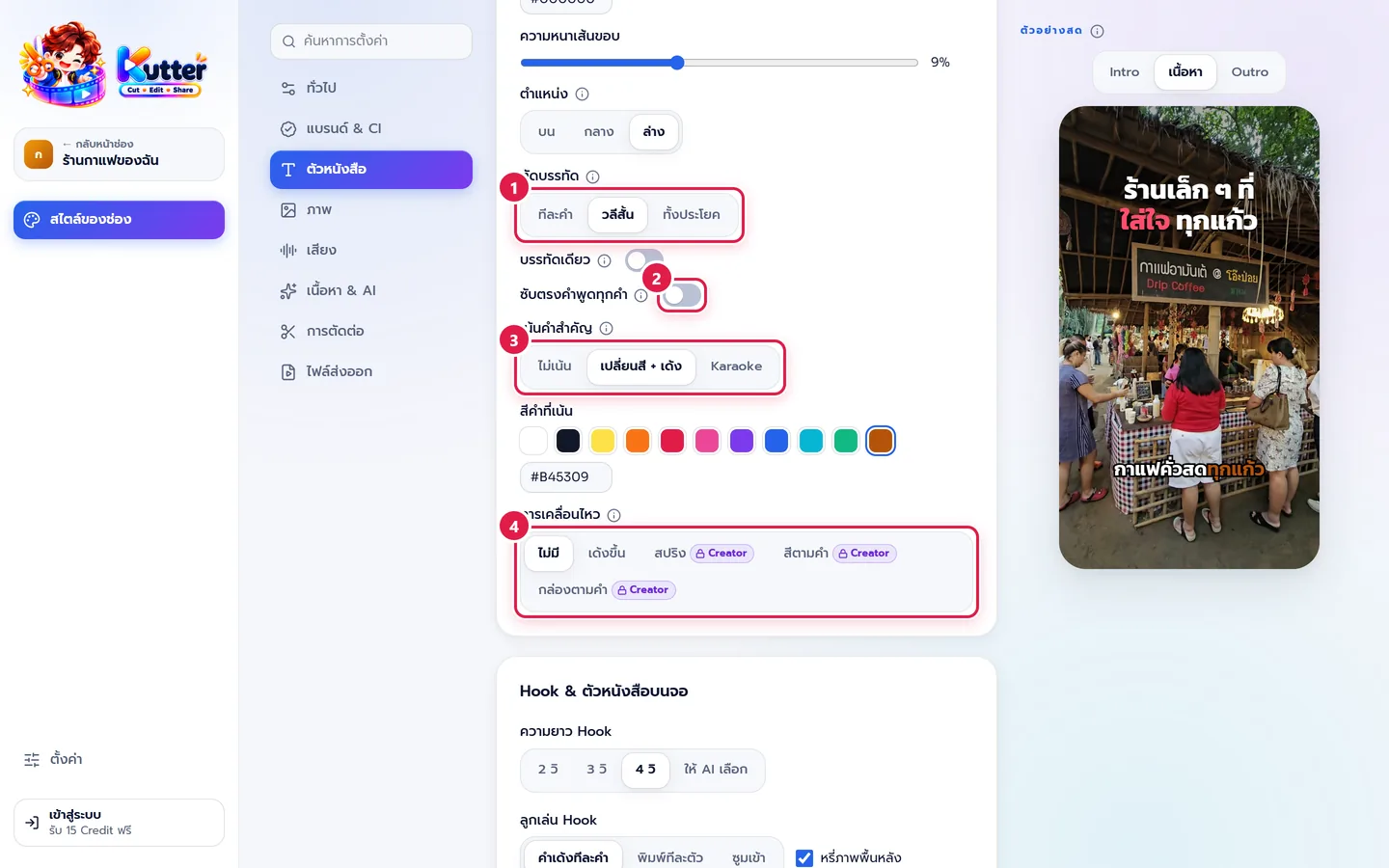
- Subtitles match every spoken word: leave this off, and the app removes "um"/"uh" and repeated words so subtitles read smoothly
- Highlight key words: เปลี่ยนสี + เด้ง (Color + Pop) turns key words the highlight color, or Karaoke (Karaoke) gradually colors words as they're spoken
- Motion: pick เด้งขึ้น (Pop Up), สปริง (Spring), สีตามคำ (Color by Word), or กล่องตามคำ (Box by Word)
3. Turn off subtitles for certain scenes
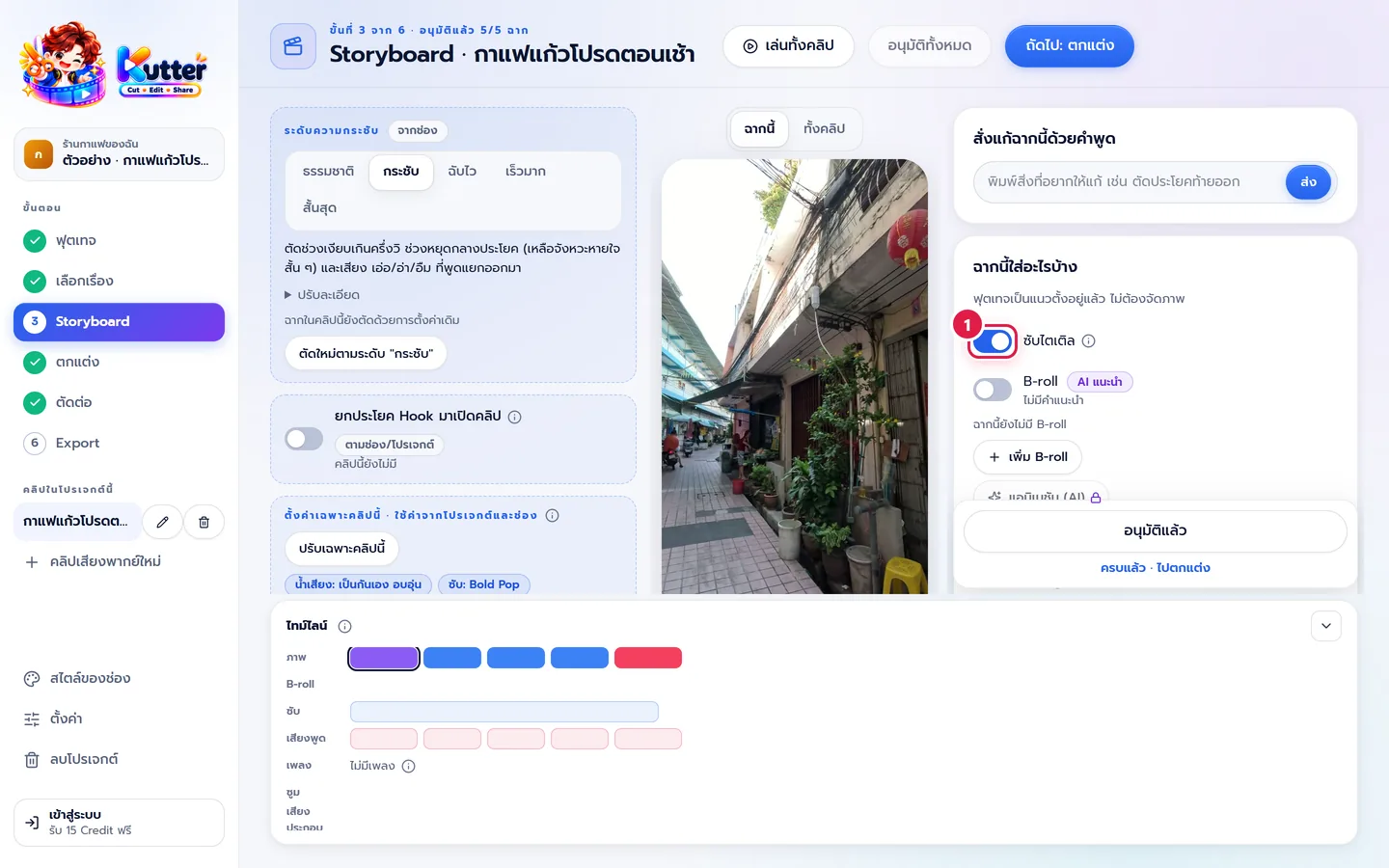
- In the Storyboard step, select a scene and look at the ฉากนี้ใส่อะไรบ้าง (What's in This Scene) card
-
Turn off the ซับไตเติล (Subtitles) switch in scenes that already have text on screen, such as a shot of the shop sign
Result: bold subtitles with a crisp outline, in the same position in every clip, with key words popping in the channel's color.
Common problems
- If subtitles cover the speaker's face, change the position to ล่าง (Bottom) or make them smaller
- If subtitles are hard to read on a bright background, switch the outline to กล่องพื้น (Background Box) or increase the Outline thickness
- If subtitles misspell your brand name, add it under Channel-specific words. See Channel style: Editing
- If some motions have a Creator label and can't be selected, see Plans and Credits
More basics: Channel style: Text
Still stuck? Chat with us (bottom right) or email support@helloworld-solution.com