 Kutter
Help › Getting started
First-time setup
A 5-step setup guide the first time you open the app. It takes a few minutes.
The first time you open Kutter, a "แนะนำการใช้งาน" (Getting started) guide walks you through 5 steps in one box. The recommended options are already selected. You can skip any step for now with ข้ามขั้นนี้ (Skip this step), or close the box (✕) partway through. The app remembers where you stopped.
The steps: set up AI → create your first channel → feature tour → sign in → get started
The app comes with a sample channel, "ร้านกาแฟของฉัน" (My Café), with a finished clip, "กาแฟแก้วโปรดตอนเช้า" (My favorite morning coffee). It's used in the tour in step 3 and in the pictures on this page.
1. Set up AI
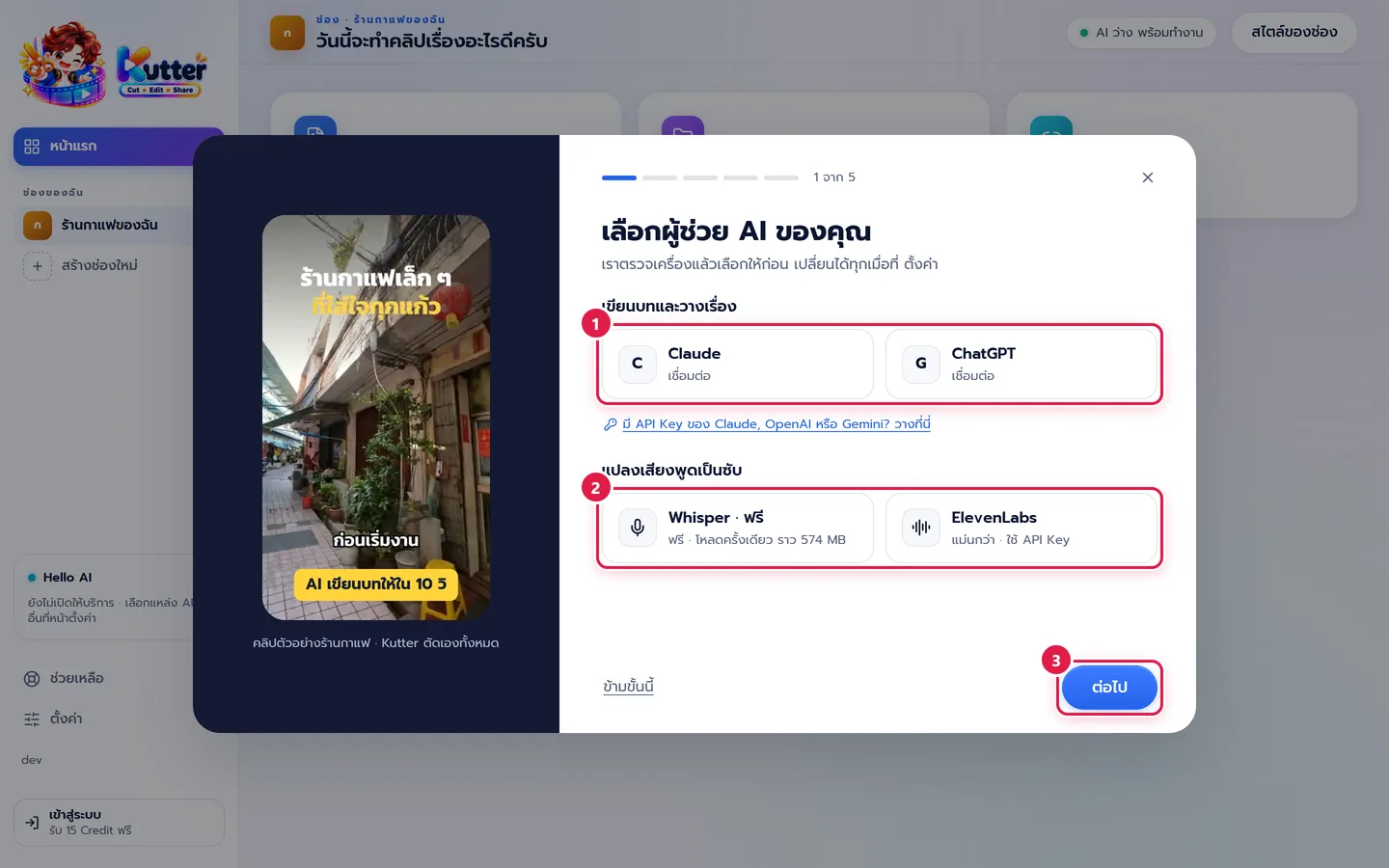
On the "เลือกผู้ช่วย AI ของคุณ" (Choose your AI assistant) page, the app checks your computer and picks options for you first.
- "เขียนบทและวางเรื่อง" (Script and story) (marker 1): choose Claude or ChatGPT to use the plan you're signed in to on this computer, or click "มี API Key ของ Claude หรือ OpenAI? วางที่นี่" (Have a Claude or OpenAI API key? Paste it here) and paste the key. If the program isn't on your computer yet, the app walks you through installing it step by step (Use your Claude or ChatGPT account with Kutter).
- "แปลงเสียงพูดเป็นซับ" (Speech to subtitles) (marker 2): choose the "Whisper · ฟรี" (Whisper · Free) transcriber, which downloads once in the background, or ElevenLabs (more accurate, uses an API key) (Transcription setup).
-
Click ต่อไป (Next) (marker 3). You don't have to wait for Whisper to finish downloading.
2. Create your first channel
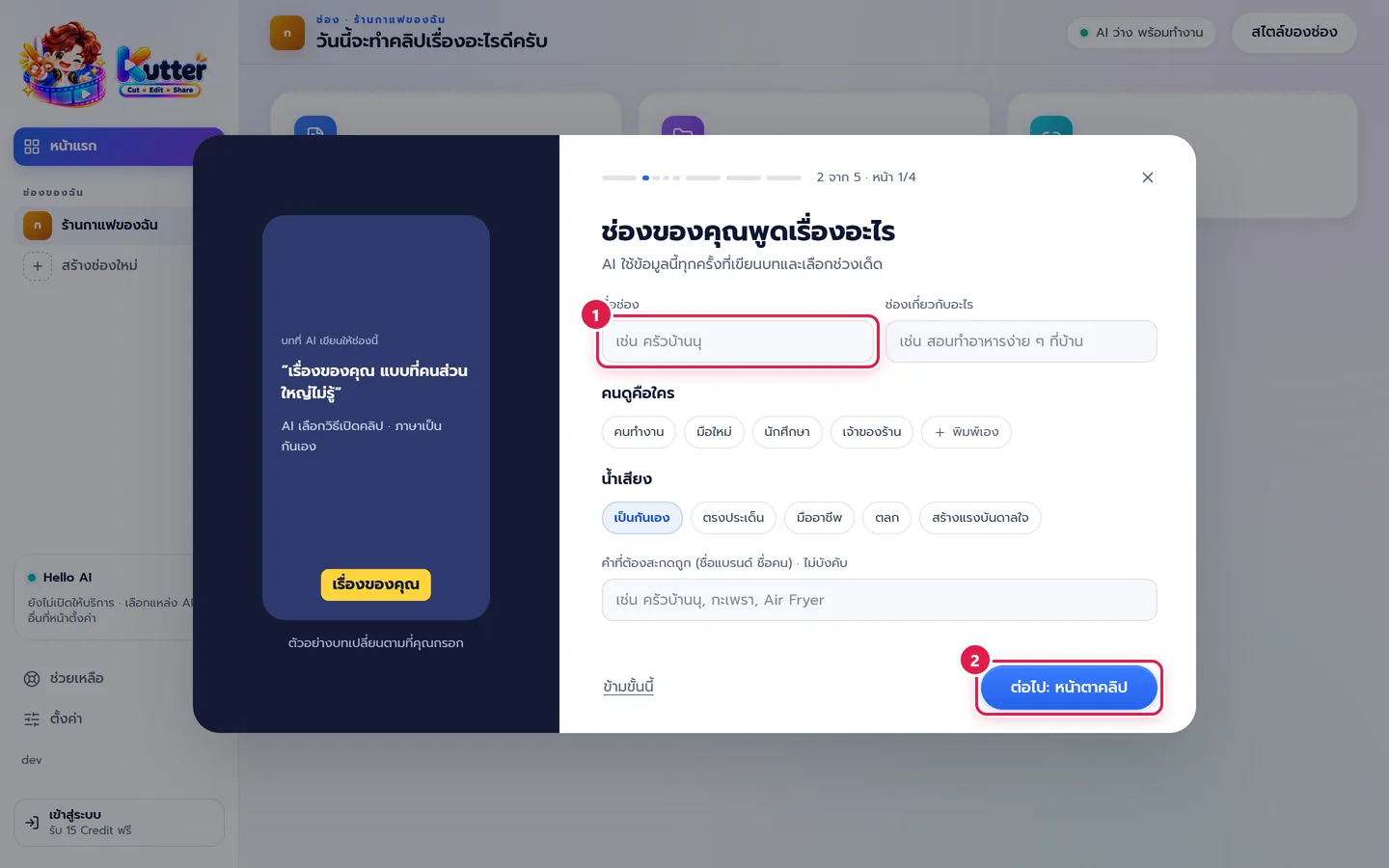
A channel = one brand or one social media channel. The style you set here applies to every clip in the channel. The left side shows a preview clip based on your answers. There are 4 pages.
- "ช่องของคุณพูดเรื่องอะไร" (What does your channel talk about?): enter the "ชื่อช่อง" (Channel name) and "ช่องเกี่ยวกับอะไร" (What the channel is about) (marker 1). These are the only two required fields. The others already have defaults.
-
Click ต่อไป: หน้าตาคลิป (Next: Clip look) (marker 2). The app creates the channel when you click this button.
- On the next pages, answer one question at a time: who speaks, where you post (screen size), clip length → subtitles, pop-up words, hook type → logo, channel colors, background music. Then click สร้างช่อง (Create channel).
You can fine-tune more later, such as fonts and brand colors, in สไตล์ของช่อง (Channel style).
3. Feature tour
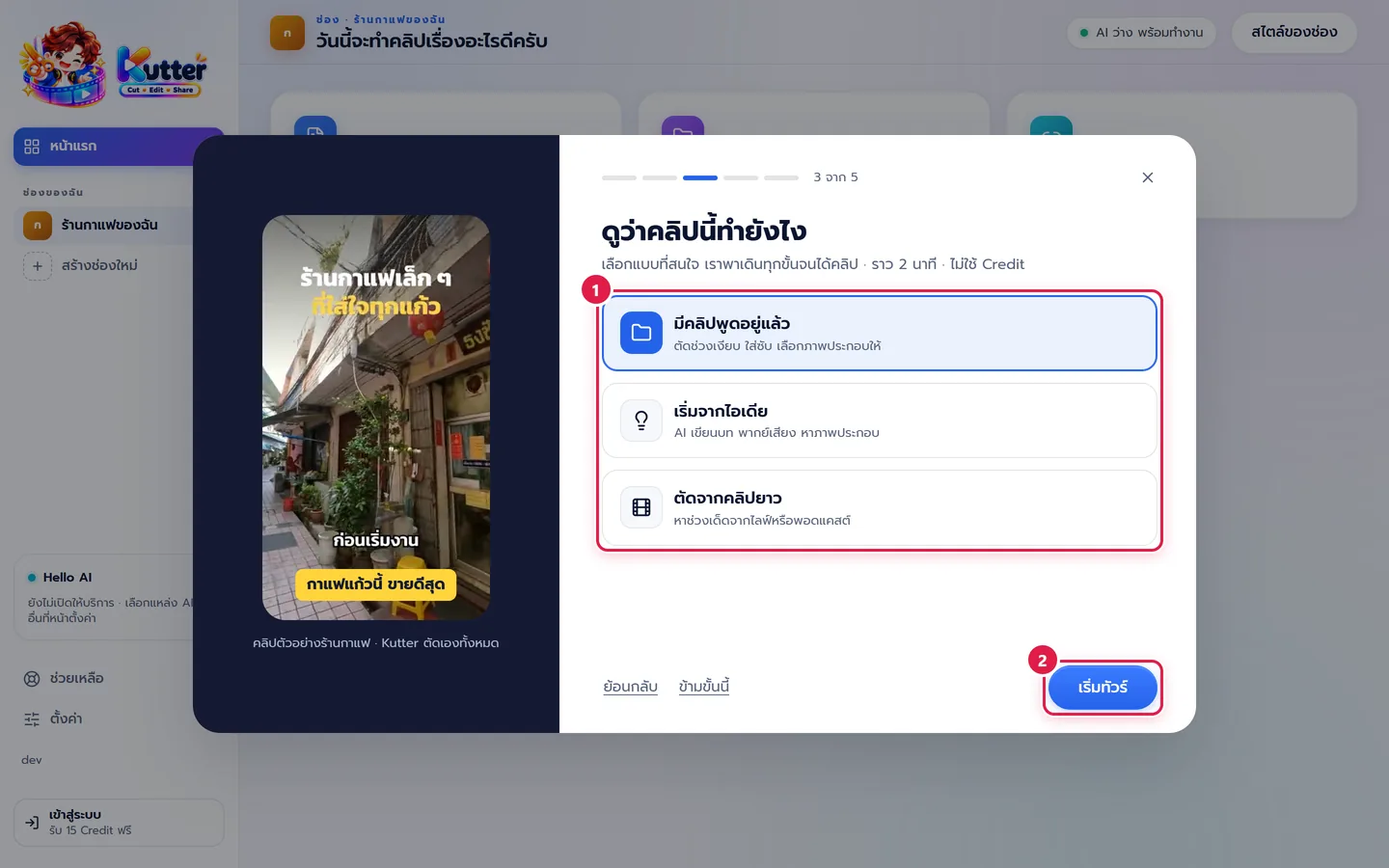
- Choose the way you want to start (marker 1): "มีคลิปพูดอยู่แล้ว" (I already have a talking clip), "เริ่มจากไอเดีย" (Start from an idea) or "ตัดจากคลิปยาว" (Cut from a long video) (Choose how to start a clip).
-
Click เริ่มทัวร์ (Start tour) (marker 2). The app walks you through a sample project step by step until you have a clip. It takes about 2 minutes and uses no Credits.
4. Sign in
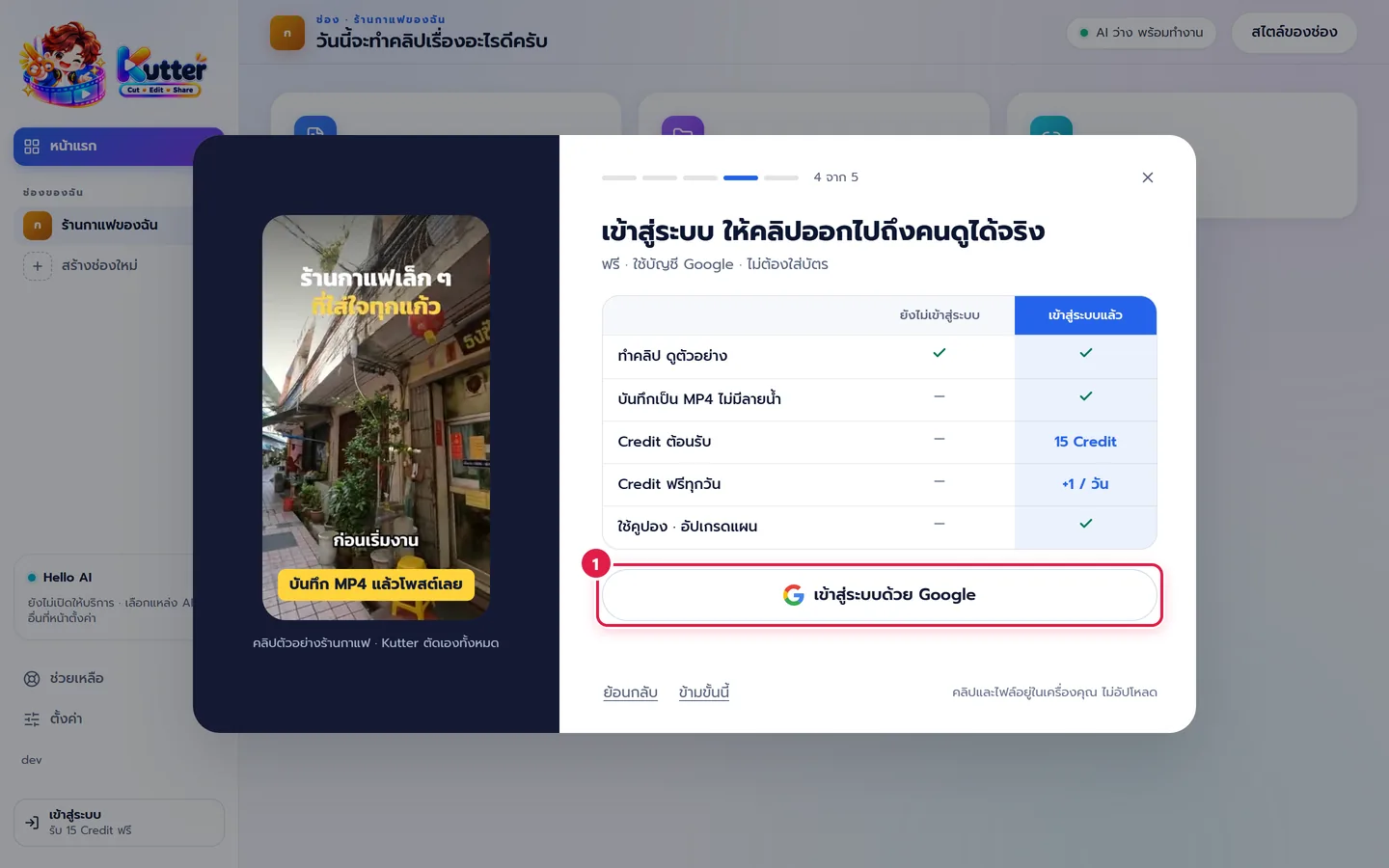
A table shows what you get by signing in, such as saving MP4 files without a watermark and free Credits every day. Your clips and files stay on your computer.
- Click เข้าสู่ระบบด้วย Google (Sign in with Google) (marker 1). The app opens your browser so you can choose an account (Sign in).
-
Not a good time? Click ข้ามขั้นนี้ (Skip this step). You can sign in later, before you save an MP4.
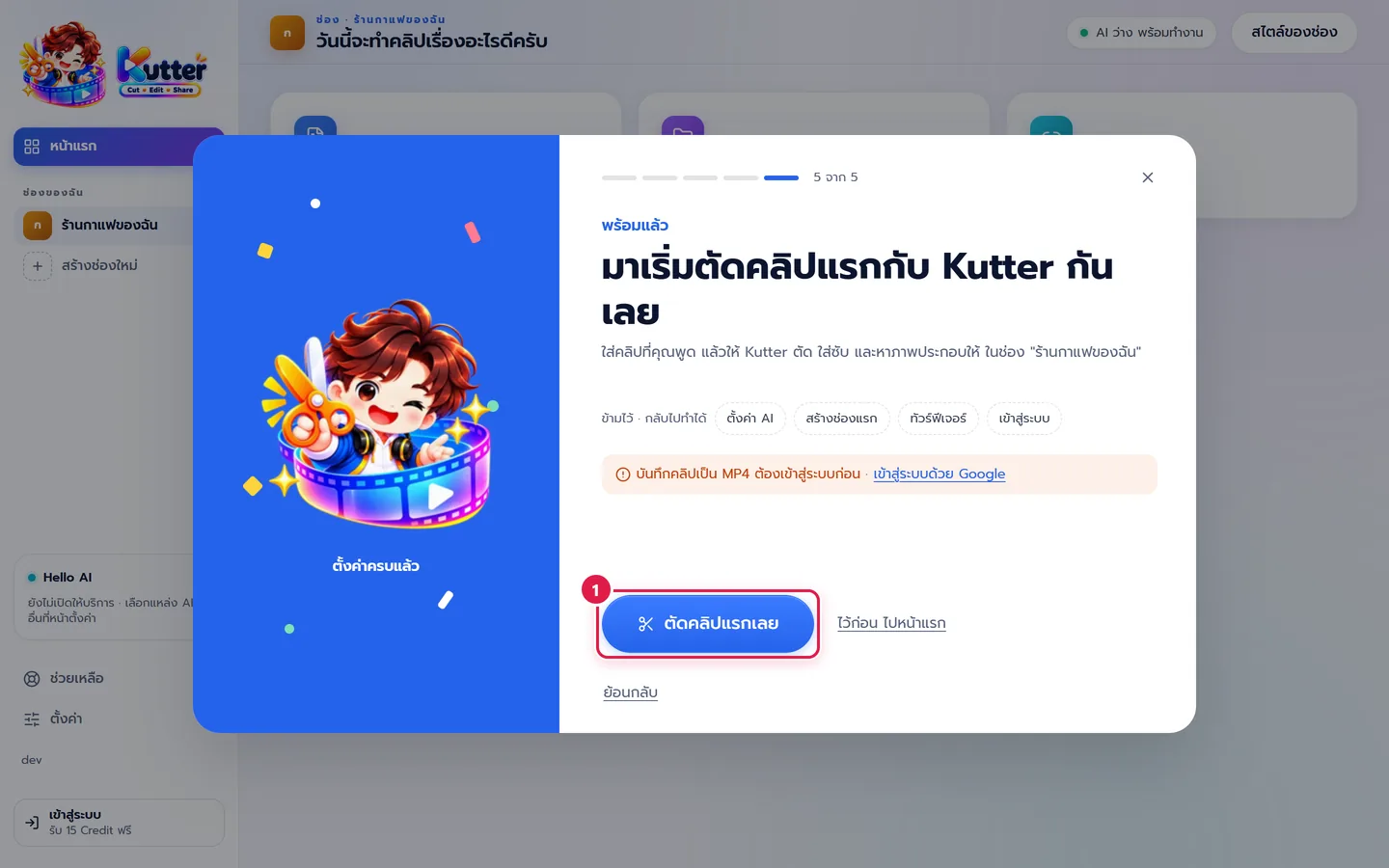
5. Get started
- Review what you've set up. You can go back to any step you skipped.
-
Click ตัดคลิปแรกเลย (Make my first clip) (marker 1). The app creates your first project in your channel, using the way you chose in step 3, and takes you straight to the first step. Or click ไว้ก่อน ไปหน้าแรก (Later, go to Home).
Replay the setup guide
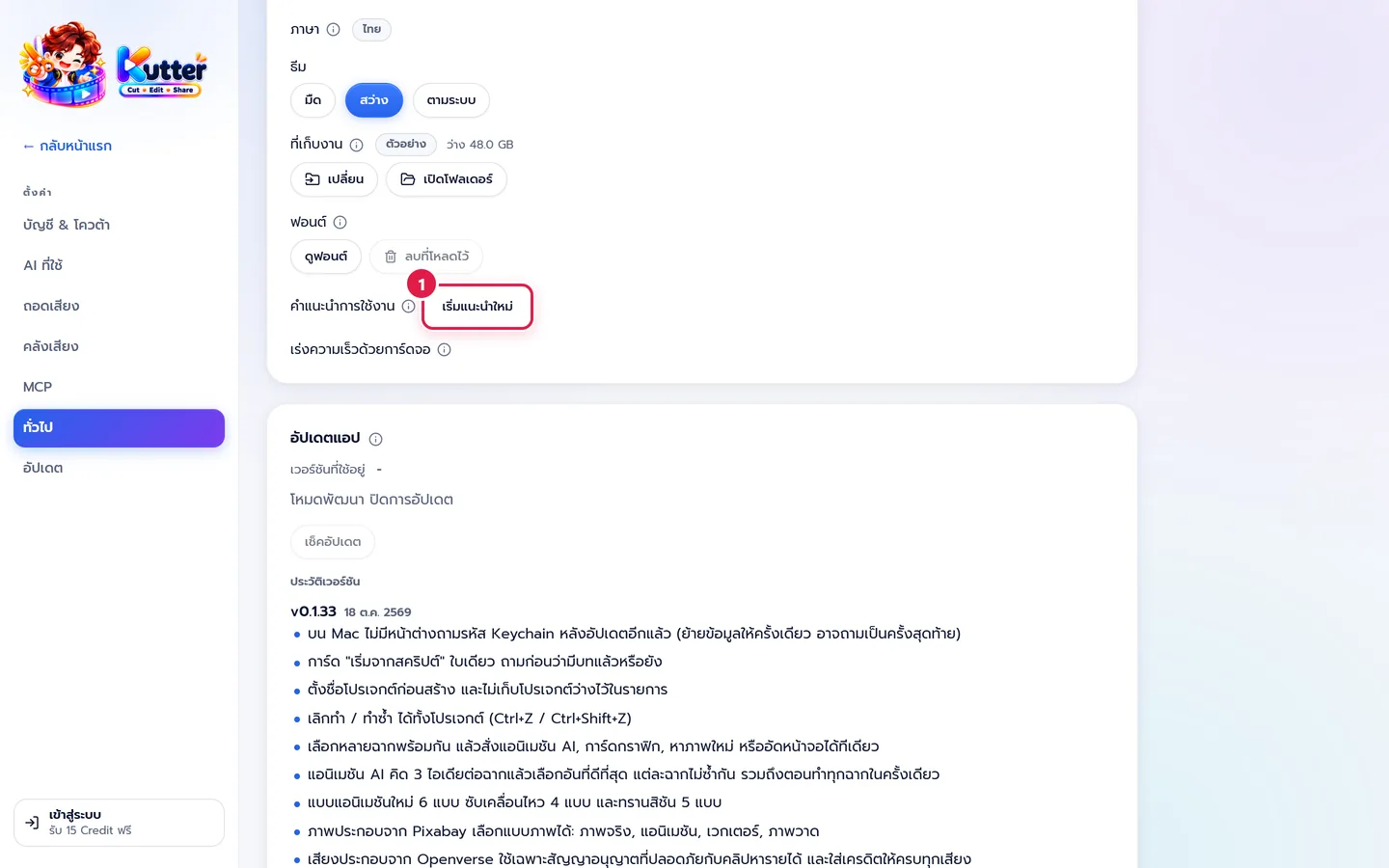
- Go to ตั้งค่า (Settings) › ทั่วไป (General).
-
In the "คำแนะนำการใช้งาน" (Getting started guide) row, click เริ่มแนะนำใหม่ (Restart guide) (marker 1). The guide starts again from the first step.
Troubleshooting
- If you closed the box partway through, click ทำต่อ (Continue) on the "แนะนำการใช้งาน" (Getting started) card on the Home page.
- If you already hid the card, go to ตั้งค่า (Settings) › ทั่วไป (General) and click เริ่มแนะนำใหม่ (Restart guide).
- If you don't have a key or an AI plan yet, skip the step for now and add a key later in ตั้งค่า (Settings) › AI ที่ใช้ (AI).
- If the Whisper download is slow or stuck, click ต่อไป (Next) for now, then check it later in ตั้งค่า (Settings) › ถอดเสียง (Transcription).
- If you want to change the channel name or clip size later, go to สไตล์ของช่อง (Channel style).
Next: Make your first clip
Still stuck? Chat with us (bottom right) or email support@helloworld-solution.com