 Kutter
Help › Make a clip step by step
Paste your script and build the Storyboard
Already have a script? Paste it and press one button. AI splits it into Storyboard scenes that follow your script, every word kept.
If you already have a written script (in Word, notes, or a chat), paste it in the Script step and press one button. The app splits it into Storyboard scenes that follow your script. You don't need to specify anything else, and every word you wrote stays.
Paste your script
- On the home page, press เริ่มจากสคริปต์ (Start from Script), enter a name, and press สร้าง (Create). The app opens the Script step.
- At the top of the brief card, choose วางบทของฉัน (Paste My Script) (instead of ให้ AI เขียนบท (Let AI Write the Script)), then paste your script in the box, or press เปิดไฟล์ (Open File) and choose a .docx, .txt, or .md file Options used only when AI writes the script, such as length, Hook style, and story structure, are hidden. Only aspect ratio and ใครพูด (Who Speaks) remain. The clip length follows the script you paste.
-
Press ทำ Storyboard (Build Storyboard). The app splits the script and takes you to the voice-over Storyboard with the scenes already divided.
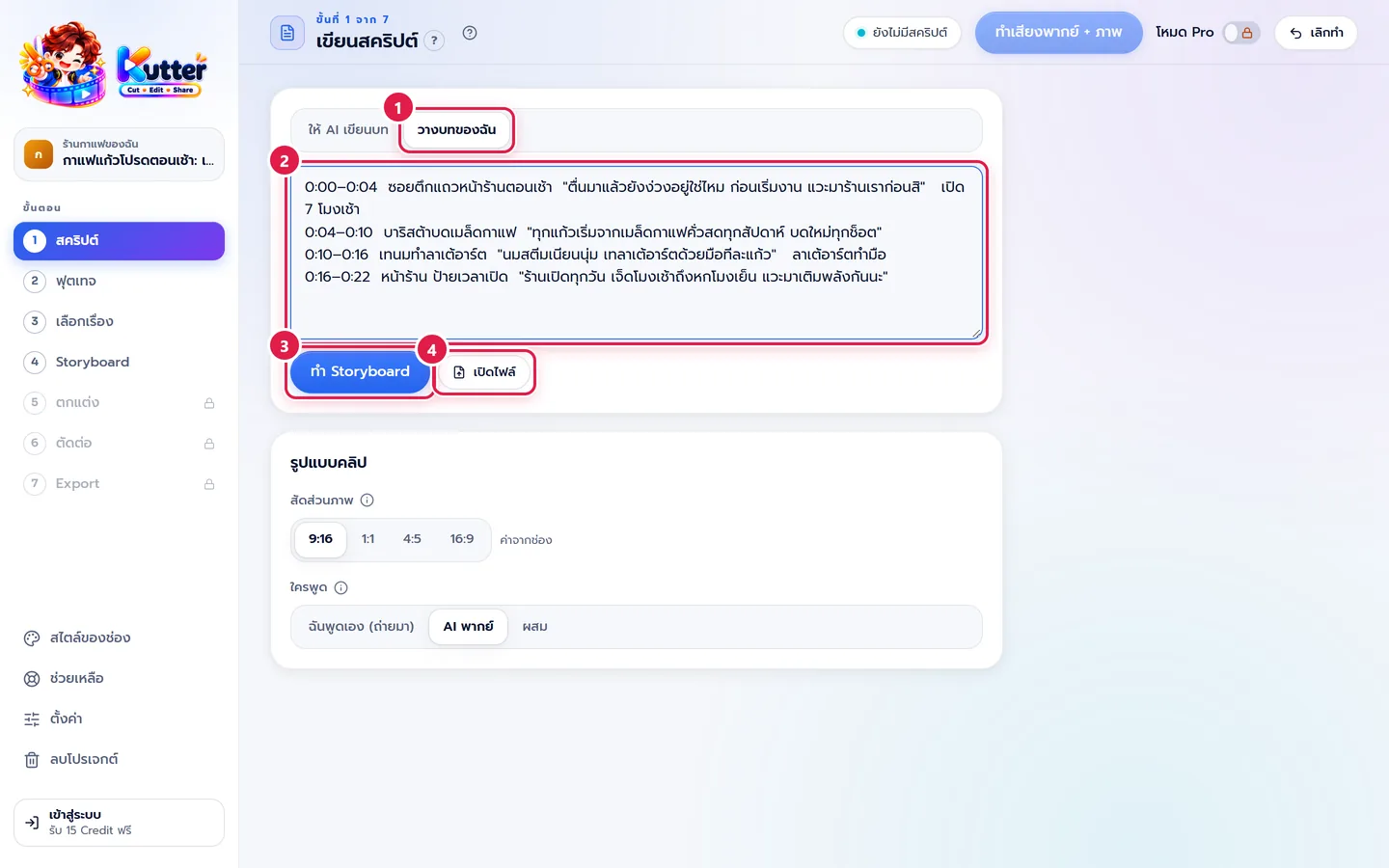
You can paste a shooting script with timings, visual directions, or on-screen text as is, for example 0:00–0:06 Dark background… "Buying AI tools isn't hard" AI Tools ≠ AI Transformation
- Words in quotation marks become the voice-over and subtitles, word for word
- Visual directions are used to find the scene's picture and aren't read aloud
- On-screen text appears as text on the picture and isn't read aloud
- Timings aren't read
If the app can't split it clearly by itself, it has AI split it automatically (one AI use).
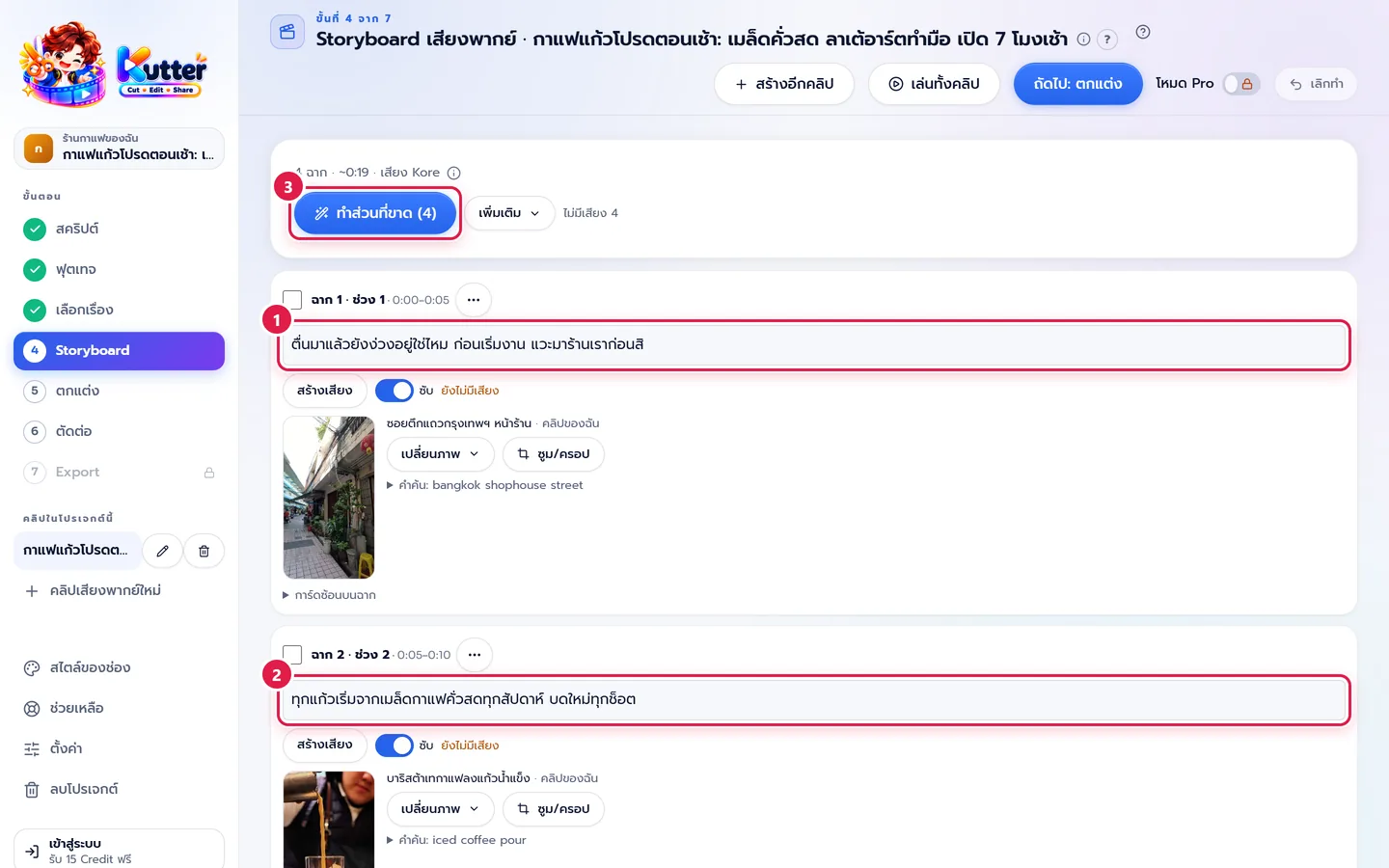
Edit in the Storyboard
You can edit the text, picture, or voice of each scene in the Storyboard, like any other project, then press สร้างเสียง + หาภาพ (Create Voice + Find Pictures) → Make a clip with AI voice-over
If something goes wrong
-
If the app reads visual directions aloud, put the spoken words in quotation marks, or start lines with
Visual:/Voice:/On-screen text:(the Thai labels "ภาพ:", "เสียง:", and "ข้อความบนจอ:" work too), then paste again. - If the scenes aren't split the way you want, leave a blank line between sections in the script and paste again, or merge/split scenes in the Storyboard.
- If ใครพูด (Who Speaks) is set to ฉันพูดเอง (ถ่ายมา) (I'll Speak (Filmed)), the button becomes ใส่บทนี้ (Use This Script). The script goes into the Script step for you to take to your shoot, and doesn't go to the Storyboard.
- If AI fails to split the script, the app uses its own split instead. Check your AI provider in Settings, then try again.
Still stuck? Chat with us (bottom right) or email support@helloworld-solution.com