 Kutter
Help › Make a clip step by step
Record a website screen
Tell the AI what you want to record, and it tries it on the website for you and records it as a clip.
This works well for clips that teach people how to use a website or system, such as a demo of ordering coffee on a café's website. Tell it what you want to record, and the AI clicks through the website for you and records it as a smooth clip.
You need Microsoft Edge or Google Chrome on your computer.
Set up and tell the AI
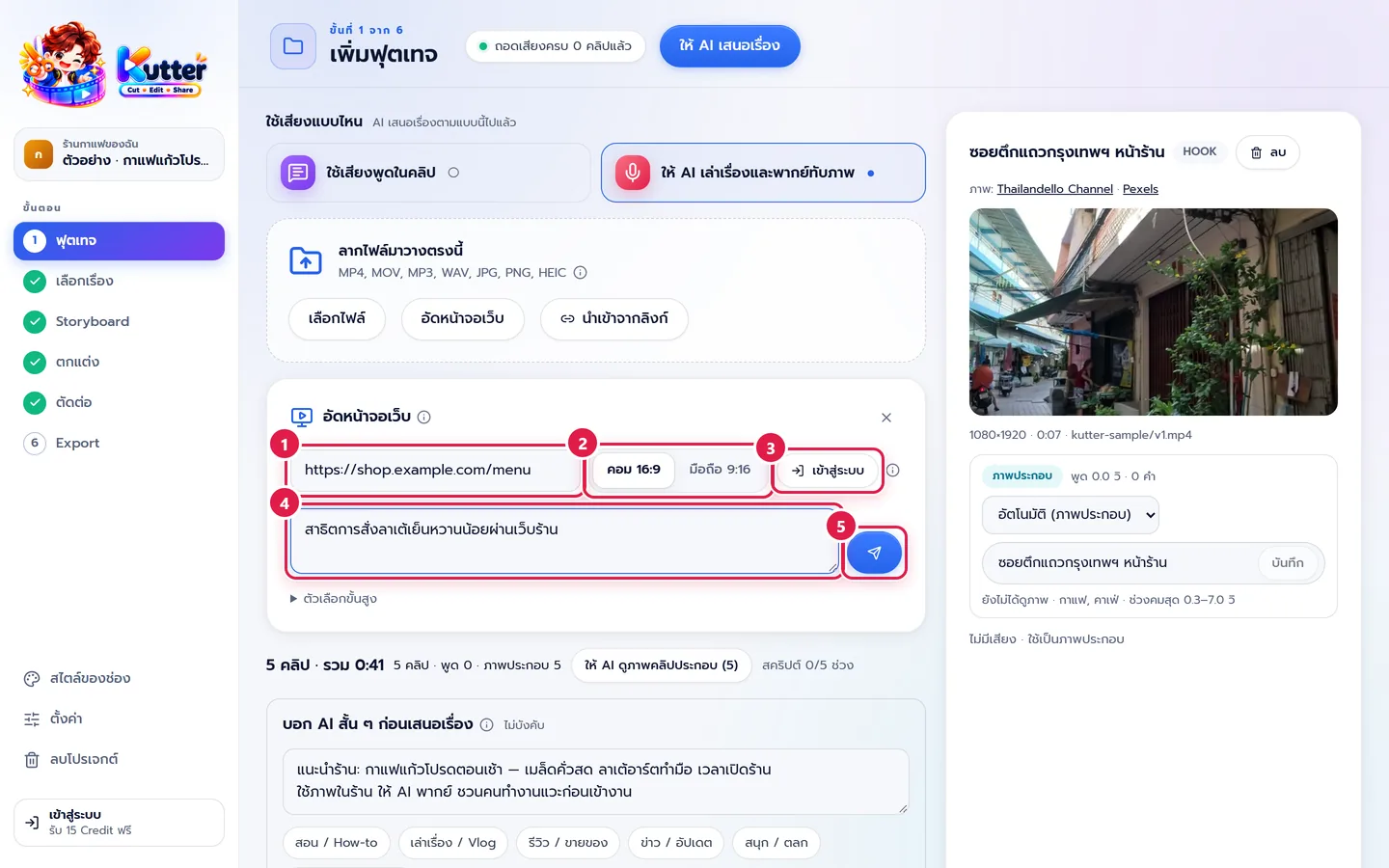
- In the Footage step, click อัดหน้าจอเว็บ (Record website screen).
- Enter the website link, e.g. https://shop.example.com/menu
- Choose a screen type: คอม 16:9 (Desktop 16:9) or มือถือ 9:16 (Mobile 9:16). For TikTok/Reels clips, choose mobile.
- If the website requires a login, click เข้าสู่ระบบ (Sign in), sign in in the window that opens, then click ล็อกอินเสร็จแล้ว (Done signing in). The app remembers it for this channel.
- Type what you want to record, e.g. "สาธิตการสั่งลาเต้เย็นหวานน้อยผ่านเว็บร้าน" (Demo ordering an iced latte, less sweet, on the shop's website).
-
Click ส่ง (Send).
Review the steps, then record
- The AI tries it on the website in test mode, then sums it up as a list of steps. Each step has a line to say (used as the voice-over) and what it will click.
- If something's wrong, click ปรับ (Adjust) and type what to change, e.g. "เลือกไซซ์ใหญ่" (Choose the large size), or edit each step yourself. Click เพิ่มขั้นตอน (Add step) if a step is missing.
- Click อัดเลย (Record now) and wait for the recording to finish.
- When you see "อัดเสร็จแล้ว · นำเข้าเป็นฟุตเทจแล้ว" (Recording done · imported as footage), the clip is already in your project's footage.
Continue in the Story step, or use the screen recording as the picture for voice-over scenes. See Make a clip with AI voice-over.
Troubleshooting
- If you see "ไม่พบ Microsoft Edge หรือ Google Chrome ในเครื่อง" (Microsoft Edge or Google Chrome not found on this computer), install one of them, then reopen the app.
- If you see "ลิงก์นี้ใช้ไม่ได้" (This link doesn't work), check that the link starts with https:// and opens in your browser.
- If the AI clicks the wrong button, click ปรับ (Adjust) and tell it the name of the right button, or edit that step yourself.
- If the website sends you to a login page on another domain, add that link under "ตัวเลือกขั้นสูง" (Advanced options) → "เว็บอื่นที่อนุญาต" (Other allowed websites).
Still stuck? Chat with us (bottom right) or email support@helloworld-solution.com