 Kutter
Help › Settings, plans and handoff
App settings
Account, AI sources, transcription, sound library, MCP (connect Claude), general, and updates, all on one page.
The Settings page holds everything shared across all channels and projects, such as your AI keys, the transcriber, and where your work is stored. Each channel's own style (for example "ร้านกาแฟของฉัน" (My Café)) is set on the channel page instead.
Open Settings
- Click ตั้งค่า (Settings) at the bottom of the left sidebar.
- The left menu takes you to each section: บัญชี & โควต้า (Account & Quota) · AI ที่ใช้ (AI in Use) · ถอดเสียง (Transcription) · คลังเสียง (Sound Library) · MCP (MCP) · ทั่วไป (General) · อัปเดต (Updates)
-
Click กลับหน้าแรก (Back to Home) when you're done. Choices save automatically, but for key fields you must click บันทึก (Save) on each one.
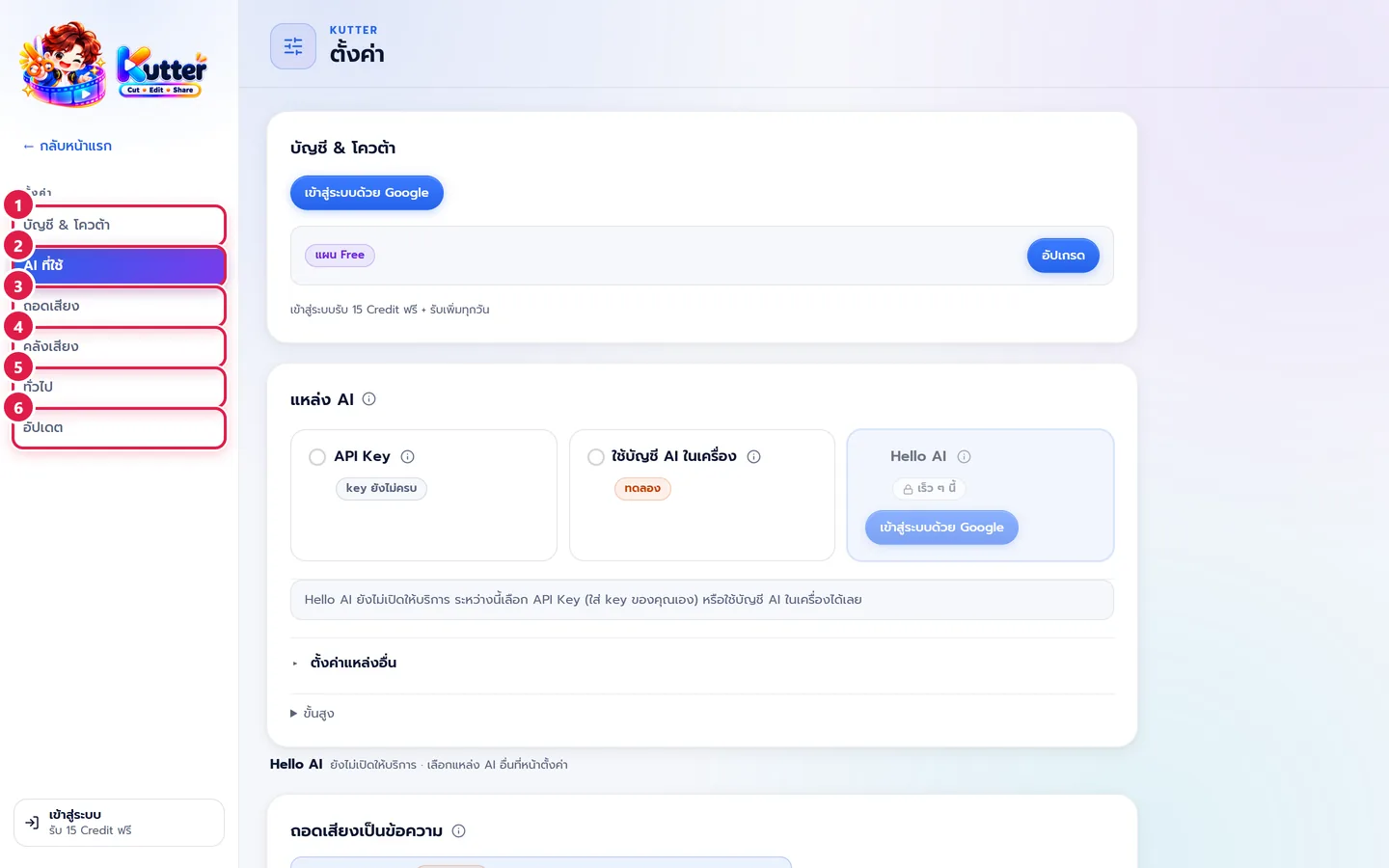
Account & Quota
Sign in with Google to use Credits when you export. This section shows your plan, remaining Credits, the daily Credit claim button, the อัปเกรด (Upgrade) button, and your Credit history. See Plans and Credits for details.
เครื่องของฉัน (My Devices) lists every computer signed in to this account (1 device on the free plan, 3 at the same time on paid plans). For a computer you no longer use, click นำออก (Remove) (Sign in).
Under ข้อมูลการใช้งาน (Usage Data) there is a ตัวเลขสถิติ (Statistics) switch. It sends numbers only, such as how many channels and clips you have, and counts that this computer opened the app today (even before you sign in). It never sends project names, scripts, or files. You can turn it off at any time.
AI in Use
AI helps write scripts, plan the Storyboard, and make editing decisions. You can choose between 2 kinds of แหล่ง AI (AI Source).
- API Key (API Key) Enter your own Claude, OpenAI, or Gemini key. You pay the provider for what you actually use.
- ใช้บัญชี AI ในเครื่อง (Use Local AI Account) (recommended) Use your Claude Pro/Max or ChatGPT Plus plan through Claude Code / Codex installed on your computer. The app walks you through setup step by step. See Use your Claude or ChatGPT account with Kutter.
- If you chose API Key, enter the key for the AI brain (pick the Claude / OpenAI / Gemini tab), then click บันทึก (Save).
- Enter a key for Transcription & voice-over (ElevenLabs) if you want accurate transcription, or want to use AI voice-over / voice cloning.
-
Not sure where to get a key? Click วิธีขอ key (How to Get a Key) next to that field.
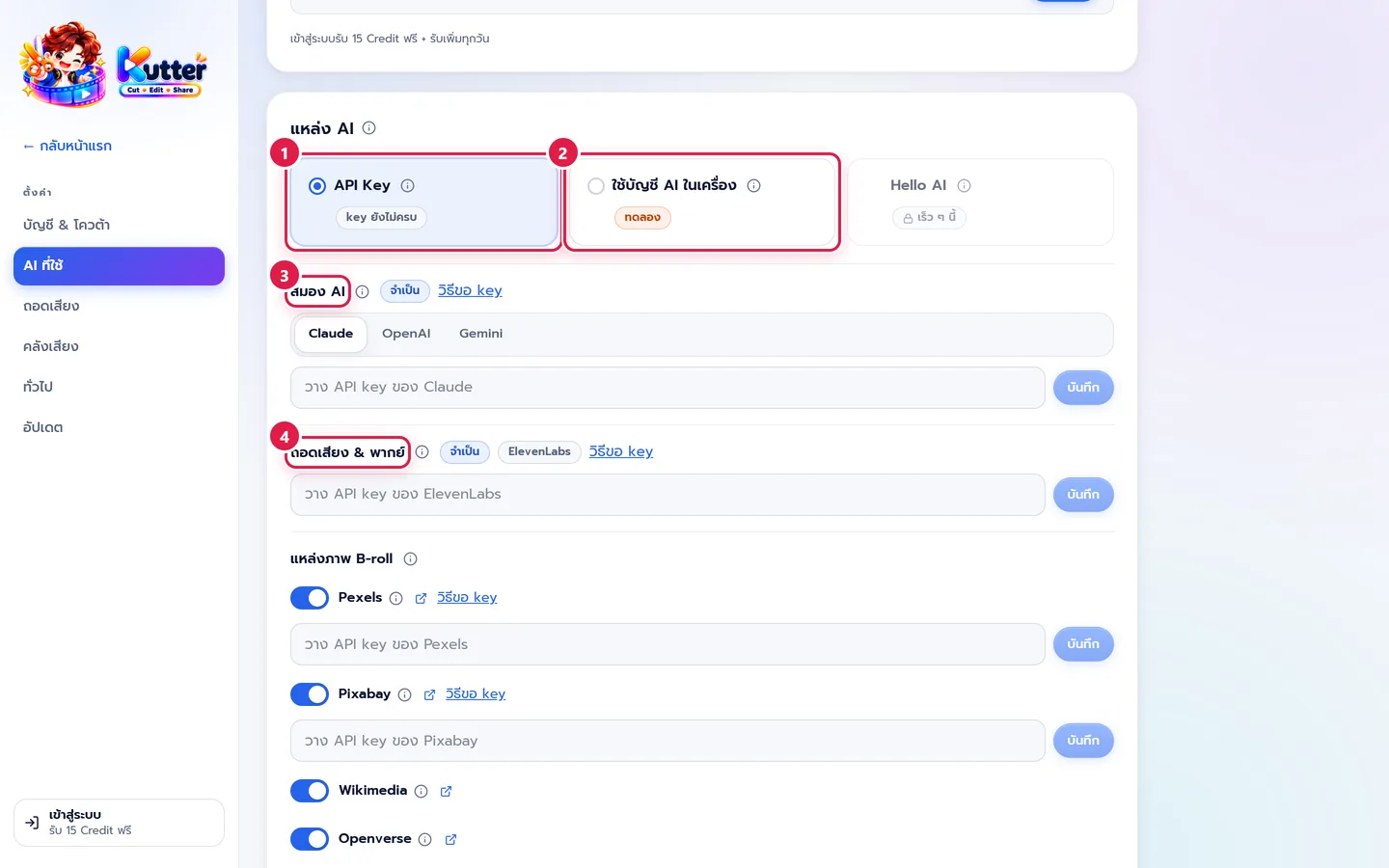
Result: the badge changes from "key ยังไม่ครบ" (keys incomplete) to "พร้อมใช้" (ready). Below the card there is also a key field for Gemini voice-over, if you want to use Gemini voices.
B-roll sources
- Scroll down to แหล่งภาพ B-roll (B-roll Sources) below the key fields.
- Turn each source on or off.
- Pexels and Pixabay need your own free key. Click วิธีขอ key (How to Get a Key), sign up, paste the key, and click บันทึก (Save).
-
Wikimedia and Openverse don't need a key.
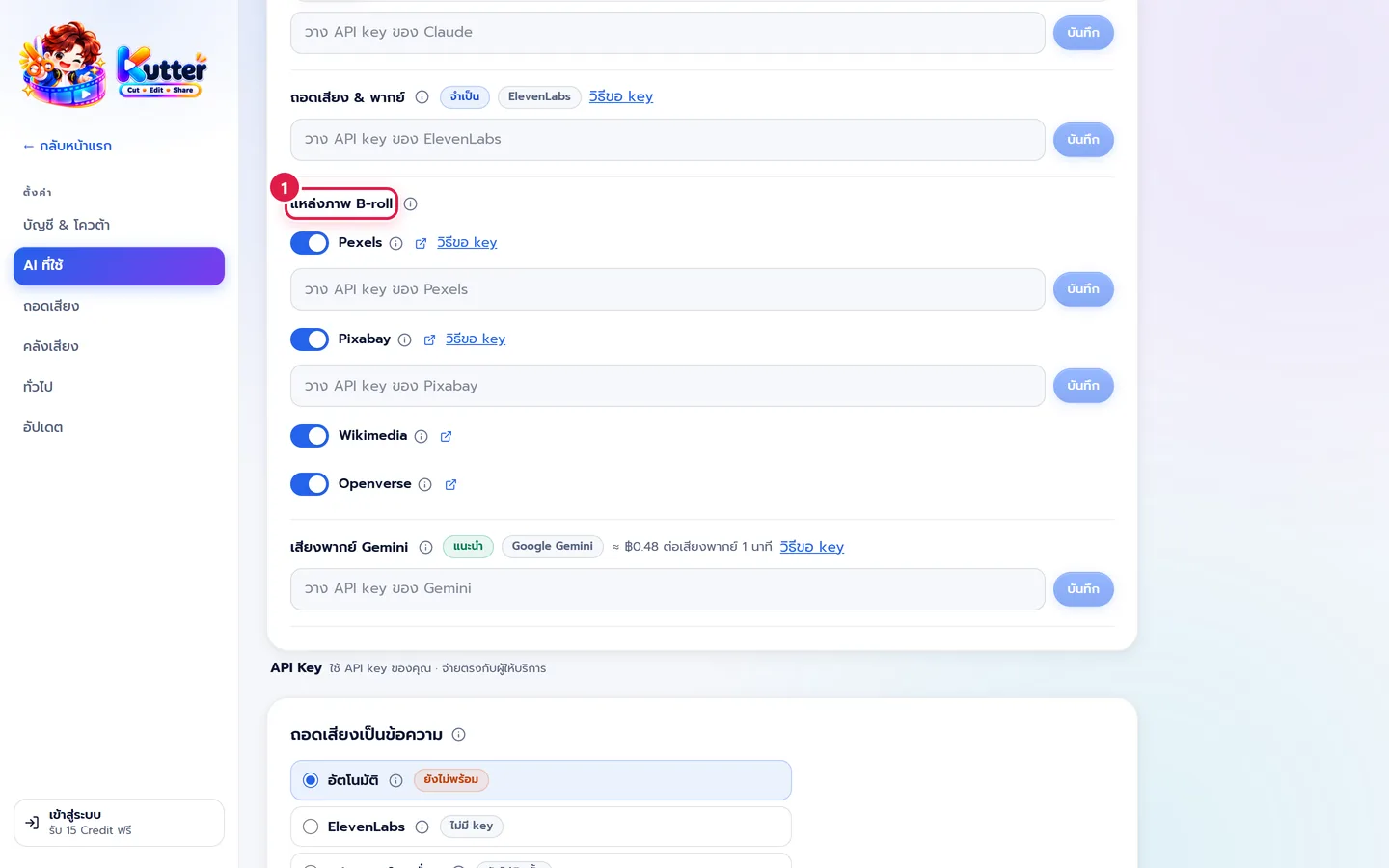
Example: a café clip talks about "เมล็ดกาแฟคั่ว" (roasted coffee beans). The app searches for coffee bean pictures in every source you turned on. More sources means more pictures to choose from.
Transcription
- Open the ถอดเสียง (Transcription) section.
- Choose อัตโนมัติ (Automatic) (recommended). It uses ElevenLabs if you have a key, otherwise Whisper on your computer. If your internet drops partway through, it switches for you.
- Or choose ElevenLabs (accurate, separates speakers, billed per minute of audio) or local Whisper (free, works offline).
-
The first time you use Whisper, click ติดตั้ง Whisper (Install Whisper). Install it once and it works for every project.
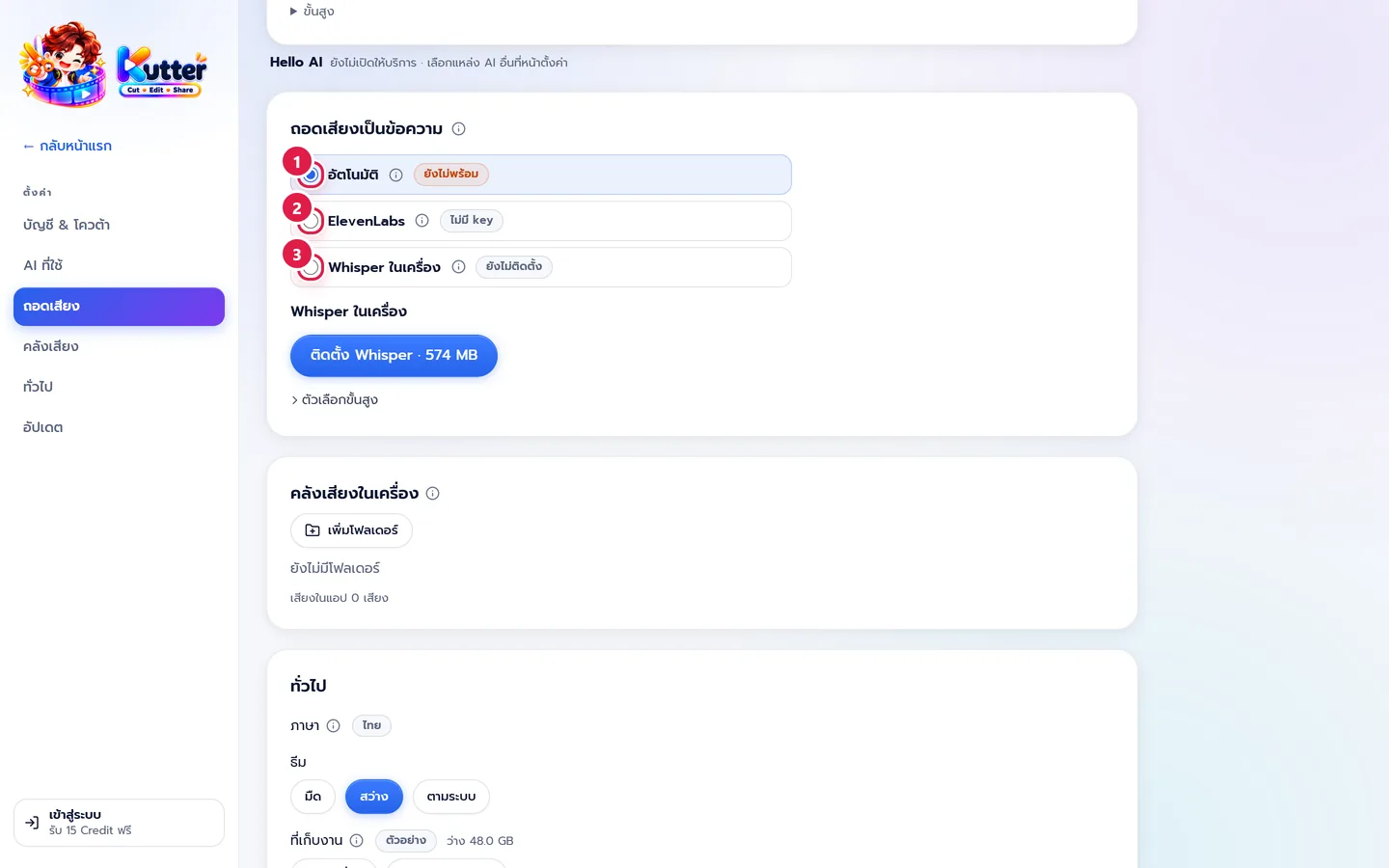
More details in Transcription settings.
Sound Library
Click เพิ่มโฟลเดอร์ (Add Folder) and pick a folder of sound effects on your computer. It works for every channel and project. The app only reads the files; it never moves or changes them. For video files (.mp4), only the audio is used. Only use sounds you have the rights to use.
MCP
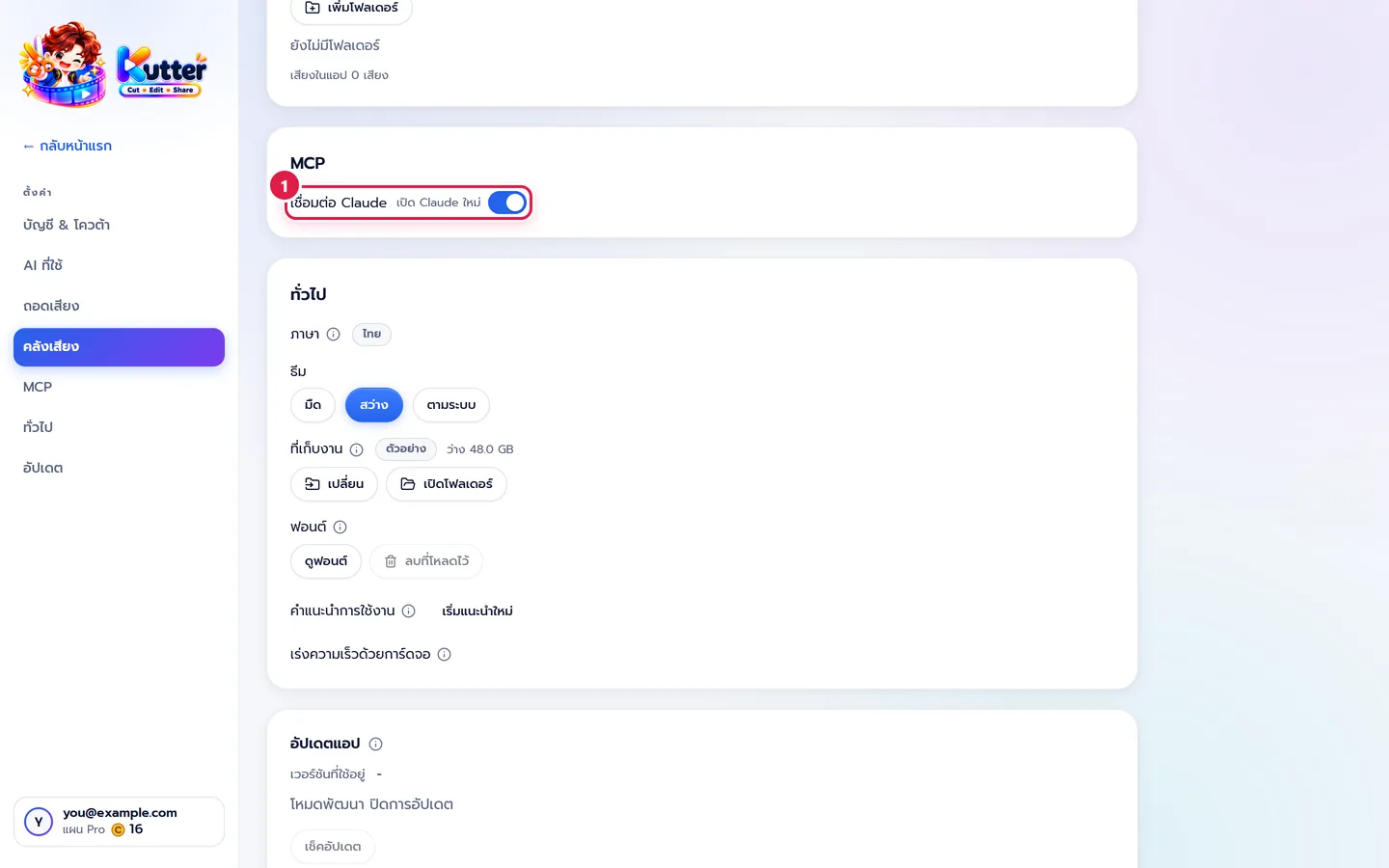
Control Kutter from Claude Desktop or Claude Code, for example to make a video from a script, find pictures, or render (Pro plan). The Kutter app must be open, and rendering uses Credits the same as clicking in the app.
- Settings › MCP › เชื่อมต่อ Claude (Connect Claude) Turn the switch on, then restart Claude.
-
Turning the switch off = disconnect (Kutter removes itself from Claude for you).
General
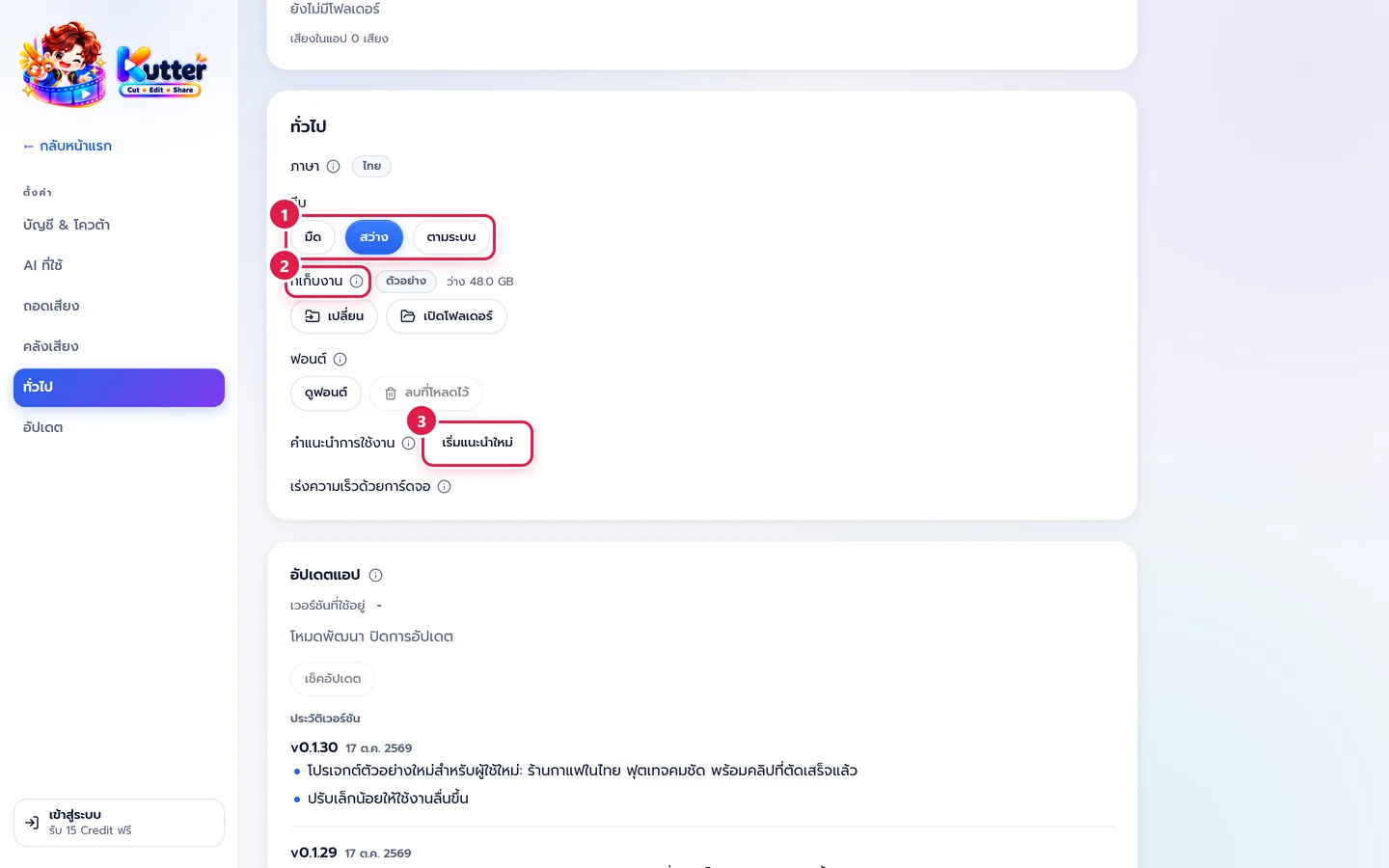
- Theme Choose dark, light, or follow the system.
- ที่เก็บงาน (Work Location) Where projects and rendered clips are stored. Click เปลี่ยน (Change) to move them to a drive with more space. The app copies everything and verifies it before deleting the originals.
- Fonts See which fonts you have, or delete downloaded fonts to free up space.
- ล้างถังขยะ (Empty Trash) Deletes leftover files from projects you deleted. Your original footage is never touched.
- เริ่มแนะนำใหม่ (Restart Tour) Shows the getting-started tips again.
-
GPU acceleration Tells you whether this computer renders with the graphics card or the CPU.
There is also a switch for sending error reports automatically. It sends technical data when the app has a problem. If the app closes unexpectedly, it also sends a crash dump (the program's state at that moment). It never sends your clips or scripts.
If the app closes by itself or has a problem, click ส่งข้อมูล (Send Info) on the Send info to the team row (you can add a short note about what happened), then give the team the code you get, such as K-ABC234. The team sees the device info they need to fix it right away, and you don't have to dig through other programs.
Updates
See which version you're on, click เช็คอัปเดต (Check for Updates), and read the version history to see what's new in each release.
If something goes wrong
- If you see the "key ยังไม่ครบ" (keys incomplete) badge, fill in the AI brain key and click บันทึก (Save).
- If AI doesn't work and mentions Kutter AI, choose API Key (API Key) or ใช้บัญชี AI ในเครื่อง (Use Local AI Account) instead.
- If Work Location says the drive may have been removed, plug the drive back in, or click เปลี่ยน (Change) to pick another location.
- If B-roll doesn't show up from Pexels, enter a Pexels key or turn that source off.
Still stuck? Chat with us (bottom right) or email support@helloworld-solution.com