 Kutter
Help › Getting started
Sign in
Use a free Google account. You only need to sign in before you render to a file.
Kutter signs you in with a free Google account. You don't need to create a new password, and it's the same account as Hello Translator.
You can do the other steps without signing in, such as adding footage, letting the AI suggest stories, and editing the Storyboard. You only need to sign in before the Render step (making the video file).
Why sign in
- You can render to an MP4 file.
- You get free Credits: the sign-in button tells you how many, for example "รับ 15 Credit ฟรี" (Get 15 free Credits), and you get more every day (Plans and Credits).
- You can see your plan, Credit balance and today's usage in one place.
Sign in
-
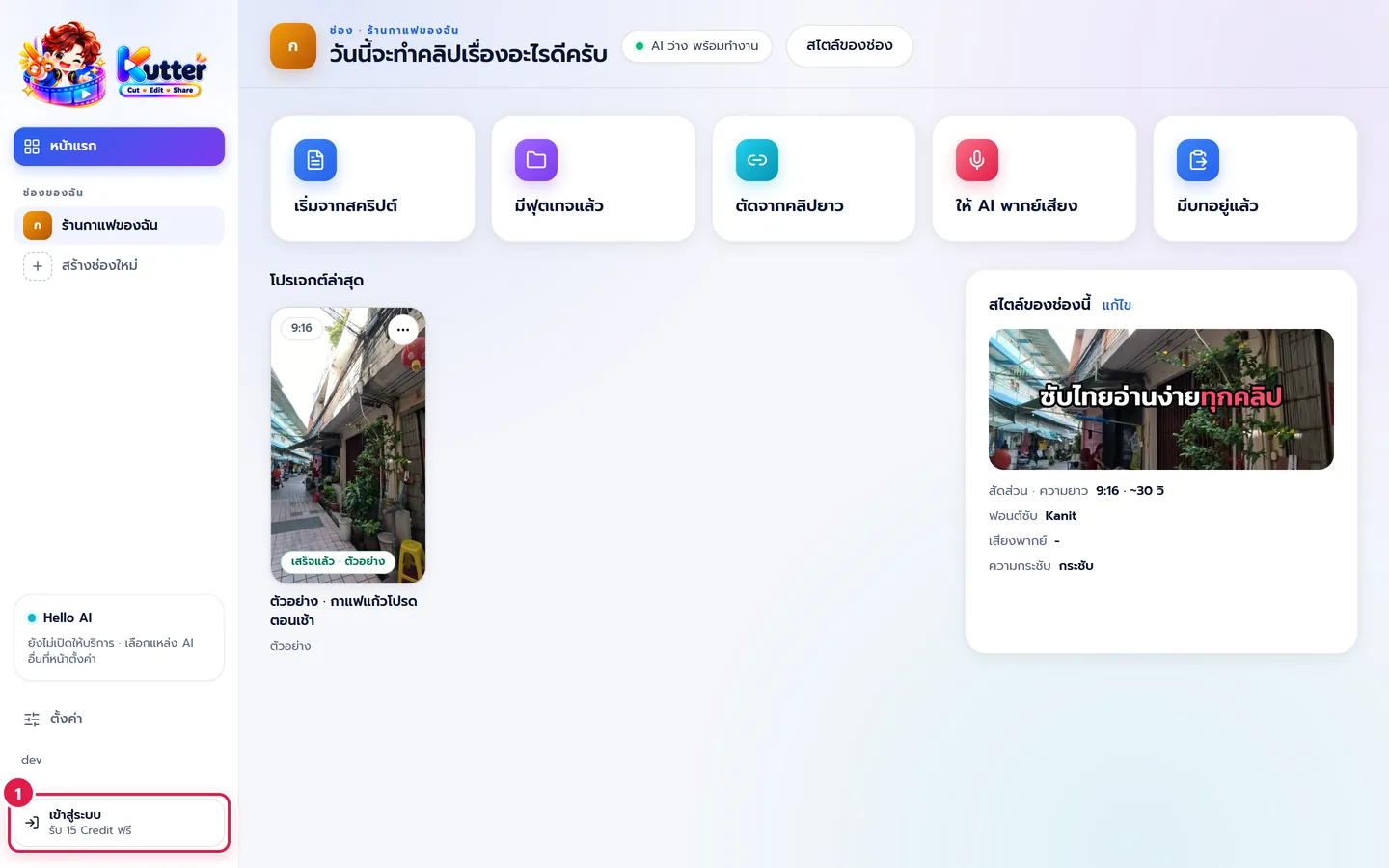
Click เข้าสู่ระบบ (Sign in) at the bottom of the left sidebar (marker 1). If the app window is narrow, the button moves to an icon in the top-right corner.
-
In the "เข้าสู่ระบบ Kutter" (Sign in to Kutter) window, click เข้าสู่ระบบด้วย Google (Sign in with Google) (marker 1). The app opens your browser.
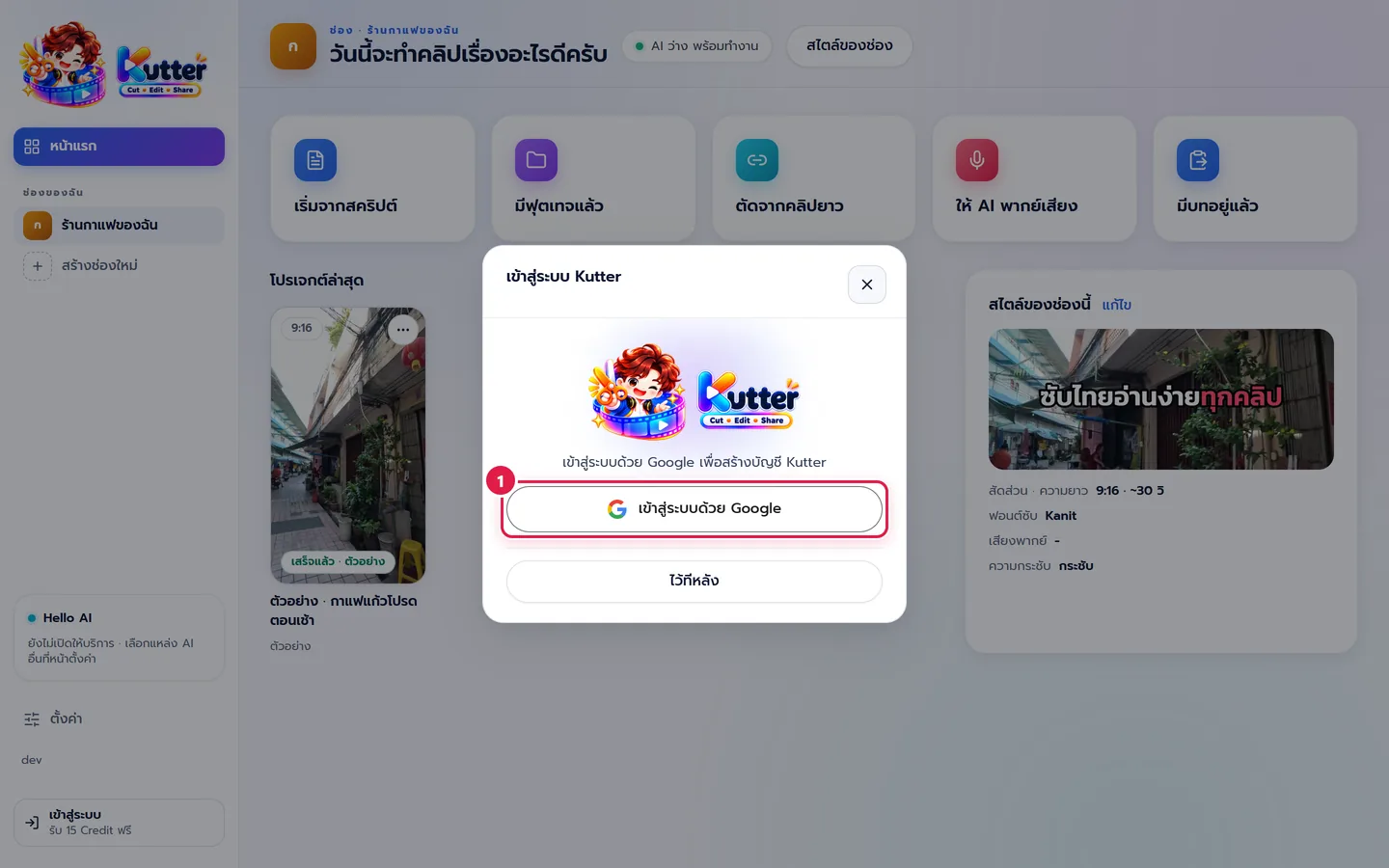
- Finish choosing your Google account in the browser. While you wait, the button in the app says "รอยืนยันในเบราว์เซอร์…" (Waiting for confirmation in the browser…).
- Go back to Kutter. The app detects it and closes the window for you. Your name appears in place of the Sign in button.
Not ready yet? Click ไว้ทีหลัง (Later). You can keep using the app as usual.
Sign in from Settings
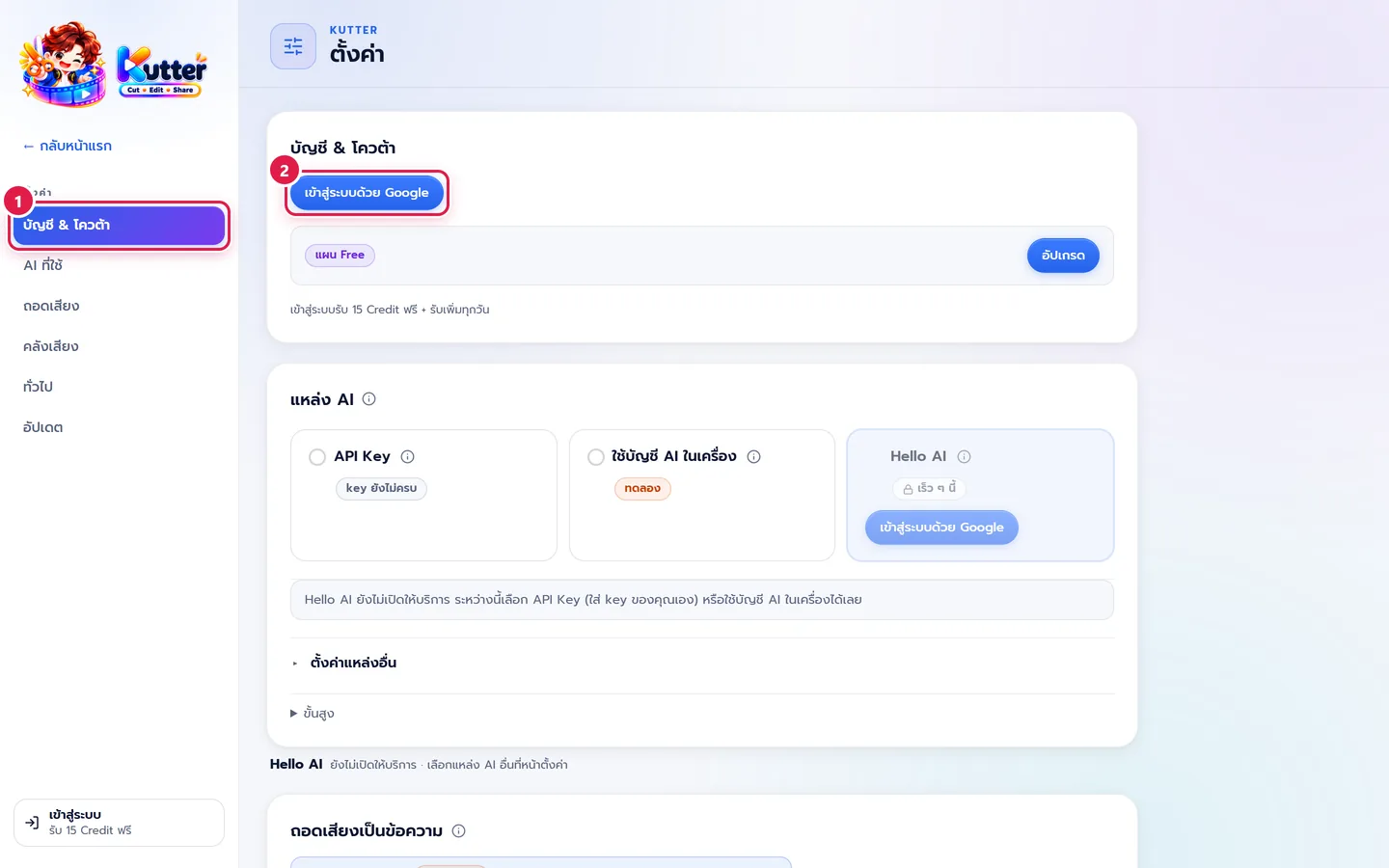
- Go to ตั้งค่า (Settings) › บัญชี & โควต้า (Account & quota) (marker 1).
-
Click เข้าสู่ระบบด้วย Google (Sign in with Google) (marker 2). Below the button you'll see your current plan and the message "เข้าสู่ระบบรับ 15 Credit ฟรี + รับเพิ่มทุกวัน" (Sign in to get 15 free Credits + more every day).
View your account and Credits, and sign out
- Click your name in the left sidebar to open the account menu.
- See your name, email, plan and Credit balance. Click อัปเดตยอด (Refresh balance) if you just bought or used Credits.
- Click จัดการบัญชี (Manage account) to see the full details in Settings.
- Click ออกจากระบบ (Sign out). The app asks you to confirm first. After you sign out, your projects, settings and API keys all stay on your computer.
Use more than one computer
- The free plan works on 1 computer. The Creator, Pro and Founder Edition plans can be signed in on 3 computers at the same time.
- See the computers you're signed in on in ตั้งค่า (Settings) › บัญชี & โควต้า (Account & quota) › เครื่องของฉัน (My devices). For a computer you no longer use, click นำออก (Remove).
- If you sign in on a new computer when you've reached the limit, the computer you haven't used for the longest time signs out by itself and shows a message about it. The projects on that computer stay as they are.
Troubleshooting
- If the browser doesn't open, click เปิดหน้าเข้าสู่ระบบอีกครั้ง (Open the sign-in page again) or เปิดหน้าเข้าสู่ระบบ (Open the sign-in page) in the same window.
- If the button says เข้าสู่ระบบอีกครั้ง (Sign in again), your sign-in has expired. Click it and follow the steps above. Your Credits are all still there.
- If you chose an account in the browser but nothing changes in the app, check that you finished within 10 minutes. If it took longer, start again.
- If it says it can't read this computer's ID, you can still sign in, but you won't get the free monthly Credits yet. Try closing and reopening the app.
- If it says this computer already got this month's free Credits with another account, use that same account, or use Credits you bought.
- If your Credit balance looks wrong, click อัปเดตยอด (Refresh balance) in the account menu.
Next: Make your first clip
Still stuck? Chat with us (bottom right) or email support@helloworld-solution.com