 Kutter
Help › Make a clip step by step
The Export step
Save an MP4, or send the clip on for more editing in CapCut, Premiere, DaVinci, or Final Cut.
The last step is putting your rendered clip to use: save it as an MP4 to post, or send it to another editing program for more work. This step doesn't change the video itself and doesn't use any more Credits.
Save the MP4 and post text
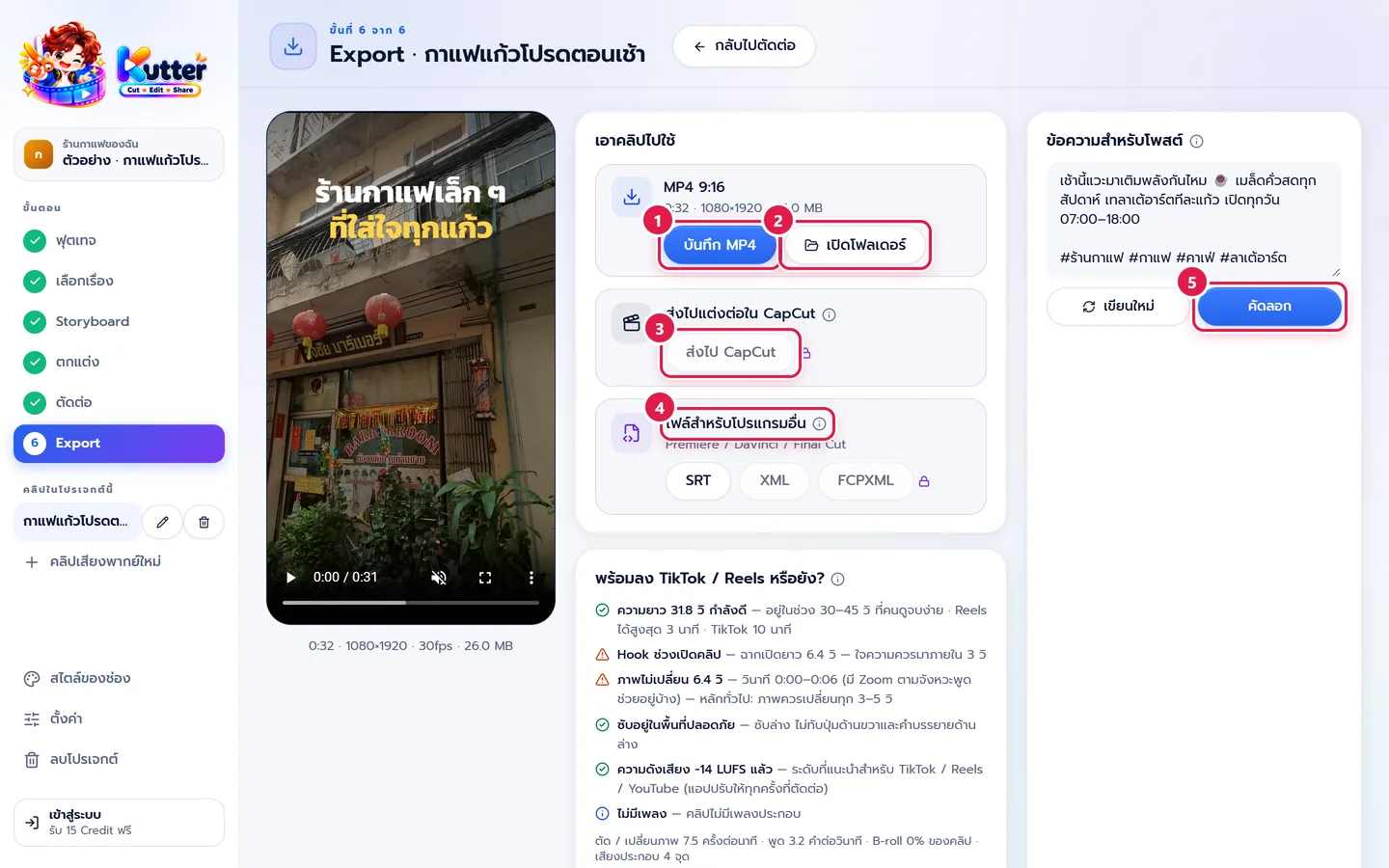
- In the เอาคลิปไปใช้ (Use your clip) card, press บันทึก MP4 (Save MP4) and choose where to save the file (if you have several sizes, such as 9:16 and 1:1, each size has its own button).
- Press เปิดโฟลเดอร์ (Open folder) to see the saved file, ready to post on TikTok / Reels / Shorts.
- Want to keep editing in CapCut? Press ส่งไป CapCut (Send to CapCut) (see Send to CapCut for more editing).
- Using Premiere, DaVinci, or Final Cut? Use the ไฟล์สำหรับโปรแกรมอื่น (Files for other programs) card (see Send to Premiere / DaVinci / Final Cut).
- The ข้อความสำหรับโพสต์ (Post text) card on the right has a caption and hashtags that AI already wrote in your channel's tone, for example "เช้านี้แวะมาเติมพลังกันไหม ☕ … #ร้านกาแฟ #ลาเต้อาร์ต" (Stop by for a morning boost? ☕ … #café #latteart). Edit it in the box, then press คัดลอก (Copy) and paste it when you post (don't like it? press เขียนใหม่ (Rewrite)).
If the clip uses B-roll from Pexels / Pixabay or CC music, the app adds the credits to the end of the text for you. Don't delete them.
Review before posting, cover, and dubbing into other languages
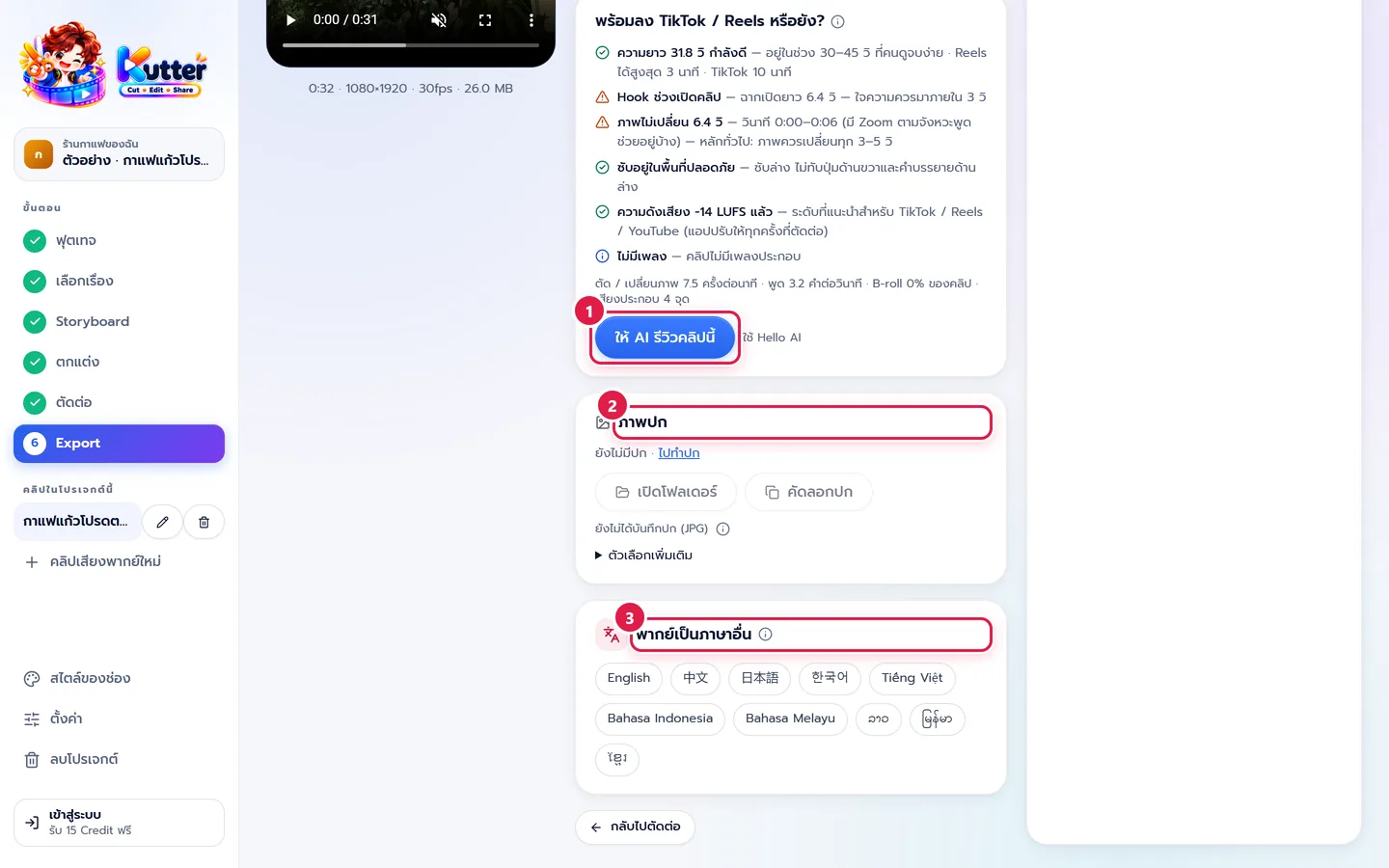
- The "พร้อมลง TikTok / Reels หรือยัง?" (Ready for TikTok / Reels?) card automatically checks the length, the opening Hook, whether subtitles are inside the safe area, and the loudness. To find out how good the clip is, press ให้ AI ให้คะแนนคลิปนี้ (Let AI score this clip). You get a score in 4 areas: "ทำให้คนหยุดดู" (Stops the scroll) · "เนื้อหามีของ" (Solid content) · "ทำให้อยากแชร์ / คอมเมนต์ / ติดตาม" (Makes people share / comment / follow) · "ภาพ & เสียง" (Picture & sound) (each 1–10, with reasons and how to fix), plus an overall result of "ยังไม่พร้อม / ควรแก้ / พร้อมโพสต์" (Not ready / Should fix / Ready to post). Anything the app can fix for you has a ให้แก้ให้ (Fix it for me) button. This score looks at the clip only. Views also depend on your audience, posting time, and trends.
- The ภาพปก (Cover image) card can open the cover folder or copy the 9:16 cover to paste into another app. If you don't have a cover yet, press ไปทำปก (Go make a cover) (it's done in the Finish step).
- In the พากย์เป็นภาษาอื่น (Dub into another language) card, choose a language, such as English or 日本語. AI translates what's said line by line, records a new voice-over that fits the original timing, and switches the subtitles to that language. You get a new, separate clip (the Thai clip doesn't change). Check the translation, choose a voice, then press พากย์ + ตัดต่อ (Dub + render).
What each plan includes
- Saving MP4 and SRT subtitles works on every plan.
- Exporting to CapCut / Premiere / Final Cut and dubbing into other languages are available from the Creator plan up (the button shows a lock icon if your plan doesn't include it).
- File resolution depends on your plan at render time. See The Render step and Plans and Credits.
If something goes wrong
- If there's no บันทึก MP4 (Save MP4) button for the size you want, go back to the Render step and add that size first (you can only export sizes that have been rendered).
- If you see "ไฟล์นี้ทำก่อนแก้ตั้งค่าล่าสุด" (This file was made before your latest settings change), press ตัดต่อใหม่ (Render again) if you want a file with the new settings.
- If you see "ส่งออกได้เฉพาะในแอป Kutter" (Export works only in the Kutter app), you've opened it in a browser. Open the Kutter app on your computer instead.
- If you want to change the clip again, press กลับไปตัดต่อ (Back to Render).
- If copying the text doesn't work, drag to select the text in the box and press Ctrl+C (Mac ⌘C).
Still stuck? Chat with us (bottom right) or email support@helloworld-solution.com