 Kutter
Help › Make a clip step by step
The Finish step
The opening text, keywords, sound effects, music, and cover.
This step styles the look and sound of the whole clip: the opening text (Hook), cover, Intro/Outro, music, sound effects, keywords, transitions, and freeze frames.
Every default comes from your สไตล์ของช่อง (Channel style). Changes here affect this clip only (you'll see the tag "เฉพาะคลิปนี้" (This clip only) instead of "ตามช่อง" (From channel)). The preview on the left shows the result exactly as it will render. Press เล่นทั้งคลิป (Play whole clip) to watch it any time.
Hook, cover, Intro/Outro, and music
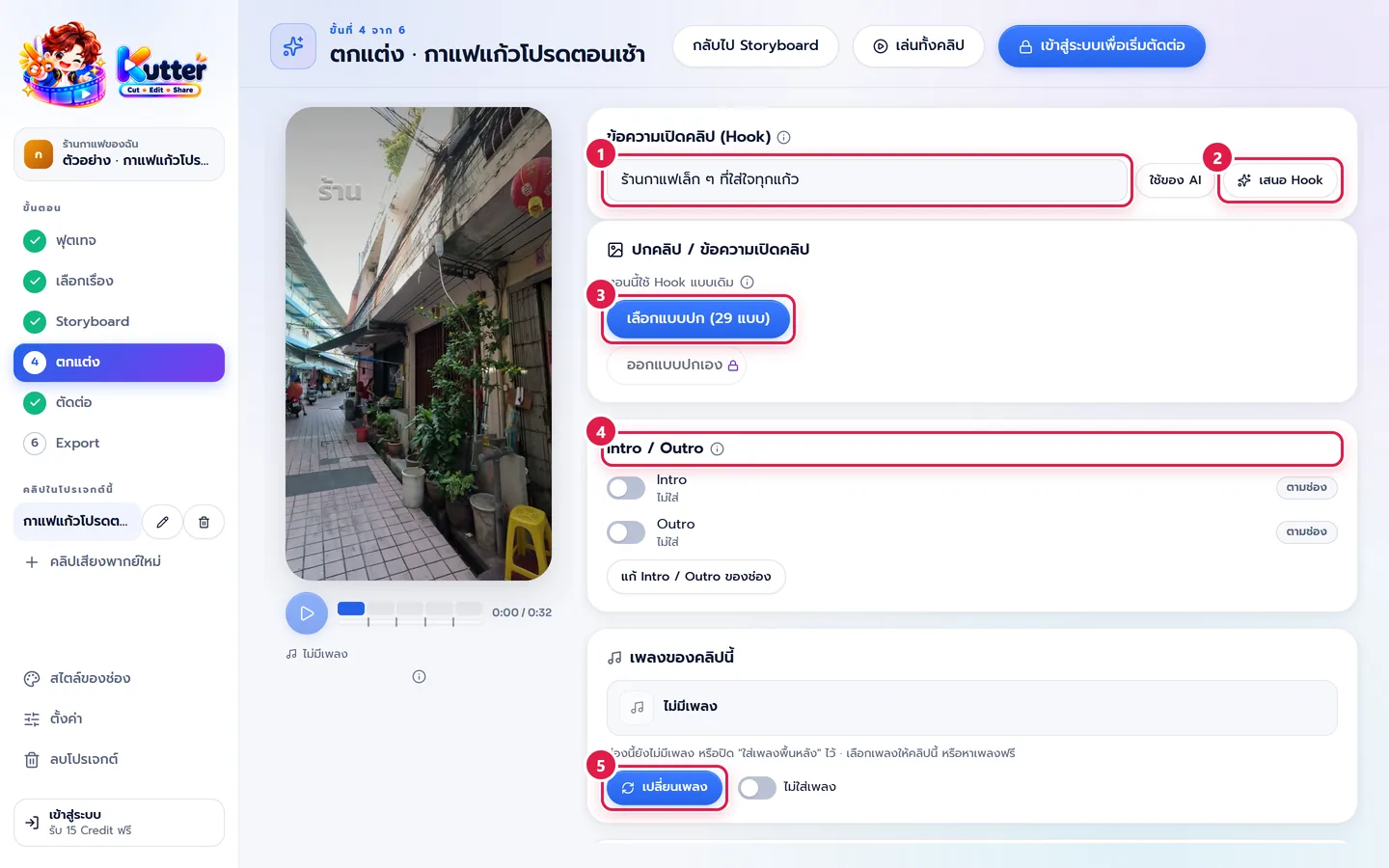
- Hook text is the text that appears on screen at the start of the clip. You can type your own, for example "ร้านกาแฟเล็ก ๆ ที่ใส่ใจทุกแก้ว" (A small café that cares about every cup). If you leave it empty, the text AI wrote is used (press ใช้ของ AI (Use AI's) to go back to AI's text).
- Press เสนอ Hook (Suggest Hooks) and AI suggests 3 options based on your channel's แบบ Hook (Hook type). Tap the one you like to use it.
- Cover: press เลือกแบบปก (Choose cover style) to choose how the cover title looks (29 styles in total; the free plan can use 8). These cover styles show the title from the very first frame, so TikTok / Reels can use it as the cover, and every clip on your profile page looks consistent.
- Intro / Outro: turn this clip's opening and closing segments on or off. If you don't have any yet, press แก้ Intro / Outro ของช่อง (Edit channel Intro / Outro) to set them up for the channel first.
- Music: press เปลี่ยนเพลง (Change music) to pick a track yourself, or let AI choose one to match the mood. Don't want music? Turn on ไม่ใส่เพลง (No music).
There are 6 Hook types for AI to write: "คำถาม" (Question), "เจ็บจี๊ด" (Pain point), "ตัวเลข" (Number), "ผลลัพธ์ก่อน" (Result first), "ฟันธง" (Bold claim), and "เล่าเรื่อง" (Story) (or "อัตโนมัติ" (Auto) to let AI choose).
Once you choose a cover style, the ปกคลิป (Clip cover) card has title boxes for lines 1–3, a button for AI to suggest a title, a เฟรมปก (Cover frame) slider to pick a picture from the clip, and a บันทึกปก (JPG) (Save cover (JPG)) button that saves the cover in 5 sizes to your project folder (the 9:16 cover is also used as the cover in CapCut). Want to lay out every element yourself? Press ออกแบบปกเอง (Design your own cover) (Creator plan and up).
Sound effects and keywords
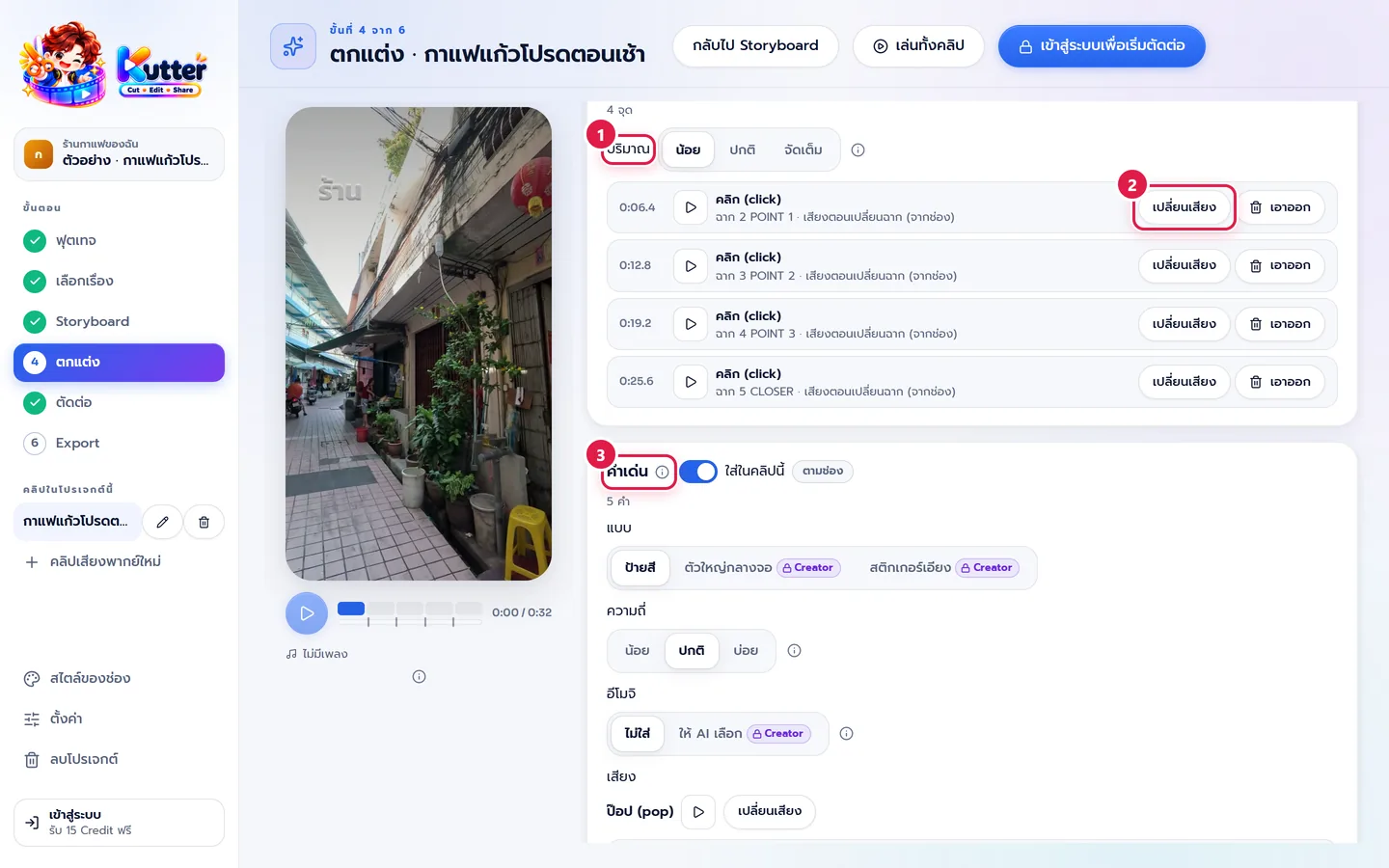
- Amount: choose "น้อย" (Light) / "ปกติ" (Normal) / "จัดเต็ม" (Full) for how many sound effects AI adds.
- The list below shows every sound in the clip, for example a click as the POINT 2 scene starts. Press ▶ to listen, and press เปลี่ยนเสียง (Change sound) or เอาออก (Remove) one at a time.
- Keywords are words that pop up on screen, such as "ลาเต้อาร์ต" (latte art) and "07:00–18:00". Turn them on or off, and choose the style ("ป้ายสี" (Color tag), "ตัวใหญ่กลางจอ" (Big center text), "สติกเกอร์เอียง" (Tilted sticker)), frequency, emoji, and pop sound. You can edit each word or its timing one by one.
To add more sounds to a specific scene, do it on the Storyboard page (The Storyboard step).
Transitions, subtitles, zoom, logo
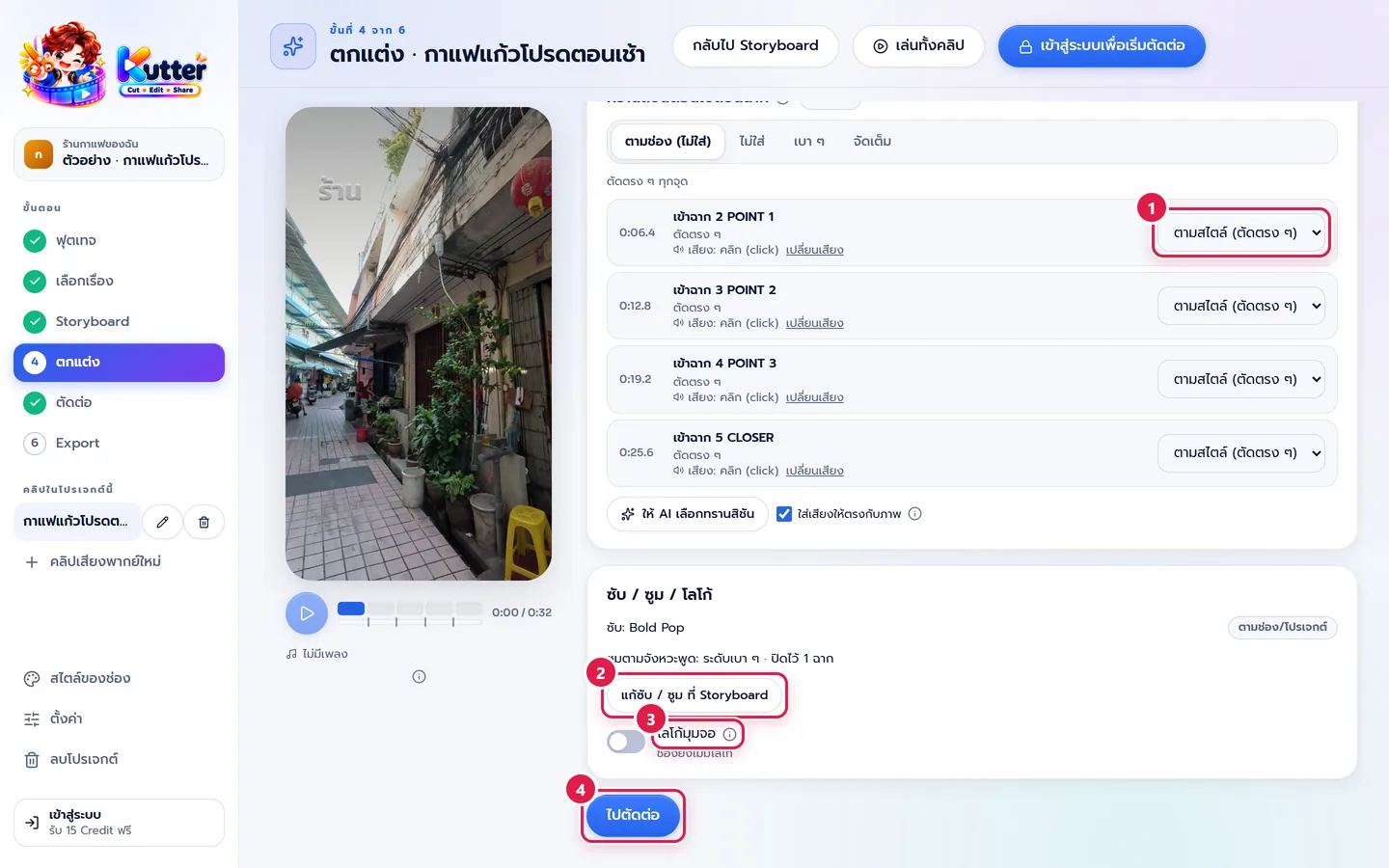
- Transitions: choose for the whole clip in the bar, "ตามช่อง" (From channel) / "ไม่ใส่" (None) / "เบา ๆ" (Subtle) / "จัดเต็ม" (Full), or choose one for each scene change (or press ให้ AI เลือกทรานสิชัน (Let AI choose transitions)). Transitions are very short and don't make the clip longer.
- Freeze frames hold the picture for about 1 second on a joke or a key moment, with short text such as "นี่ไง!" (There it is!) or a pointing arrow. Turn on the ใส่หยุดภาพในคลิปนี้ (Add freeze frames to this clip) switch, move the preview to the spot you want, and press the "+ หยุดภาพ" (+ Freeze frame) button. Or press ให้ AI เลือกจุดหยุดภาพ (Let AI choose freeze points) and tick the ones you like. The speech keeps going while the picture is frozen, so the clip doesn't get longer.
- Subtitles and zoom: see a summary here. To change them, press แก้ซับ / ซูม ที่ Storyboard (Edit subtitles / zoom in Storyboard).
- Logo: turn on โลโก้มุมจอ (Corner logo) to add your channel's logo (upload the logo in สไตล์ของช่อง (Channel style) → "แบรนด์ & CI" (Brand & CI)).
- When you're done, press ไปตัดต่อ (Go to render). If you haven't signed in yet, the top button shows เข้าสู่ระบบเพื่อเริ่มตัดต่อ (Sign in to start rendering). Press it and sign in with Google first.
If something goes wrong
- If you see "ยังไม่มี Storyboard ของคลิปนี้" (No Storyboard for this clip yet), press ไปที่ Storyboard (Go to Storyboard) and finish the Storyboard first.
- If you changed a setting and want to go back to the channel's setting, press ใช้ค่าของช่อง (Use channel setting) in that card.
- If you changed the cover or music after rendering, go to the Render step and press ตัดต่อใหม่ (Render again). The existing file keeps the old version until you render again.
- If a button has a lock icon, see which plan it needs in Plans and Credits.
- If some sound effects are missing ("เว้นไว้ ถี่เกินไป" (Skipped, too frequent)), lower the ปริมาณ (Amount) or press เอากลับ (Restore) on that sound.
Next: The Render step
Still stuck? Chat with us (bottom right) or email support@helloworld-solution.com