 Kutter
Help › Make a clip step by step
The Footage step
Add the clips you filmed, transcribe them, give AI a short brief, choose a length, and let AI suggest stories.
This step is where you add all the clips you filmed. The app works out which clips have speech and which are B-roll, then hands them to AI to come up with a story.
Projects started with มีฟุตเทจแล้ว (I have footage) begin on this step (there are 6 steps, with no Script step). The example on this page is a café with 5 clips: the shophouse alley in front of the shop, a barista pouring iced coffee, latte art, iced Thai tea, and a drip-coffee stall at a weekend market.
Add clips
- Drag and drop files or a whole folder, or press เลือกไฟล์ (Choose files). MP4, MOV, MP3, WAV, and JPG, PNG, and HEIC images are supported.
- If the clip is on the web (YouTube, TikTok, Facebook), press นำเข้าจากลิงก์ (Import from link).
-
Want a recording of a web page? Press อัดหน้าจอเว็บ (Record web screen). See Record a web screen.
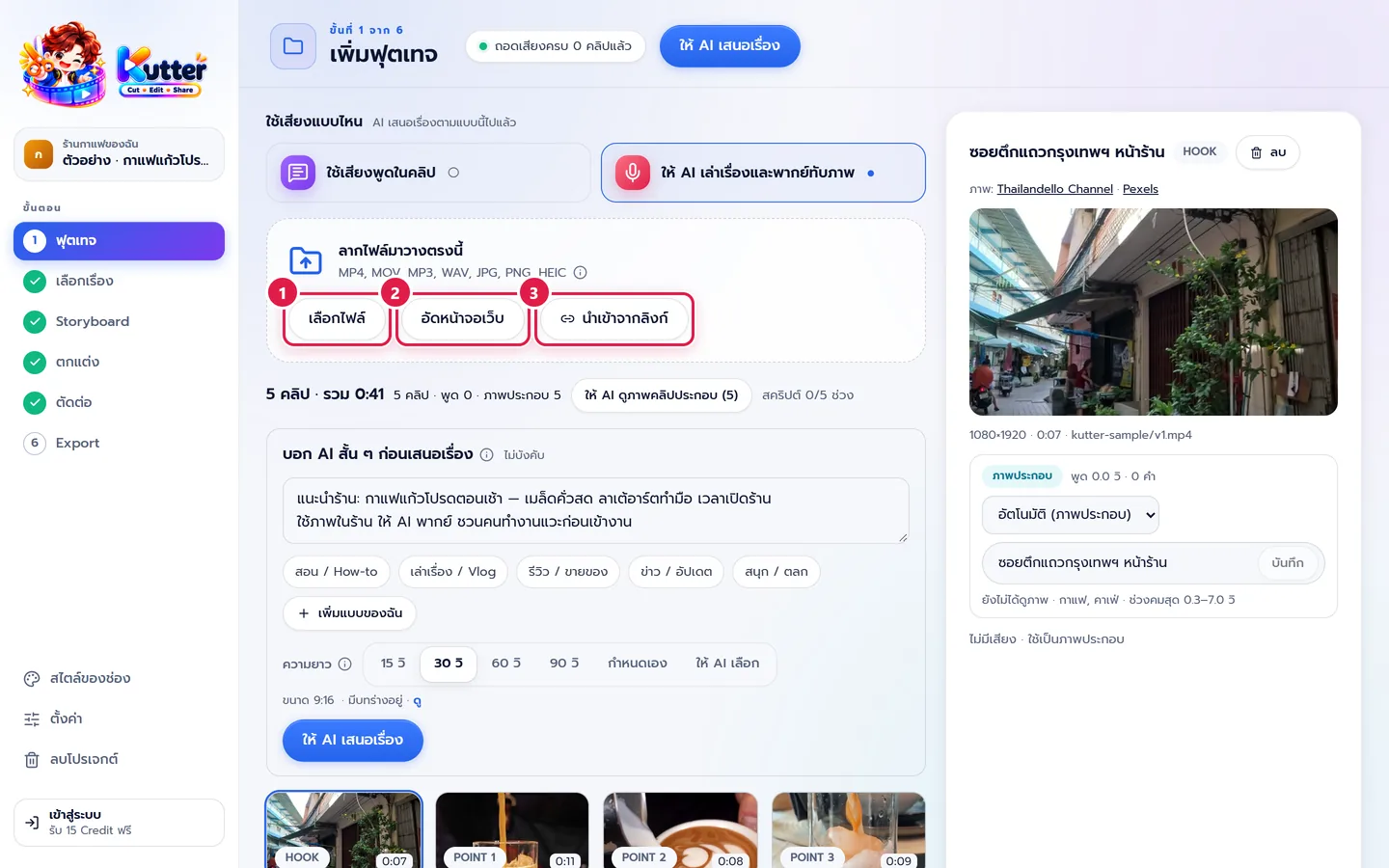
Each image becomes a 3-second B-roll shot. HEIC images from an iPhone are converted to JPG in your project folder. Your original files are not touched.
Import from a link
- Press นำเข้าจากลิงก์ (Import from link).
-
Paste a link that starts with https:// and press ดาวน์โหลด (Download).
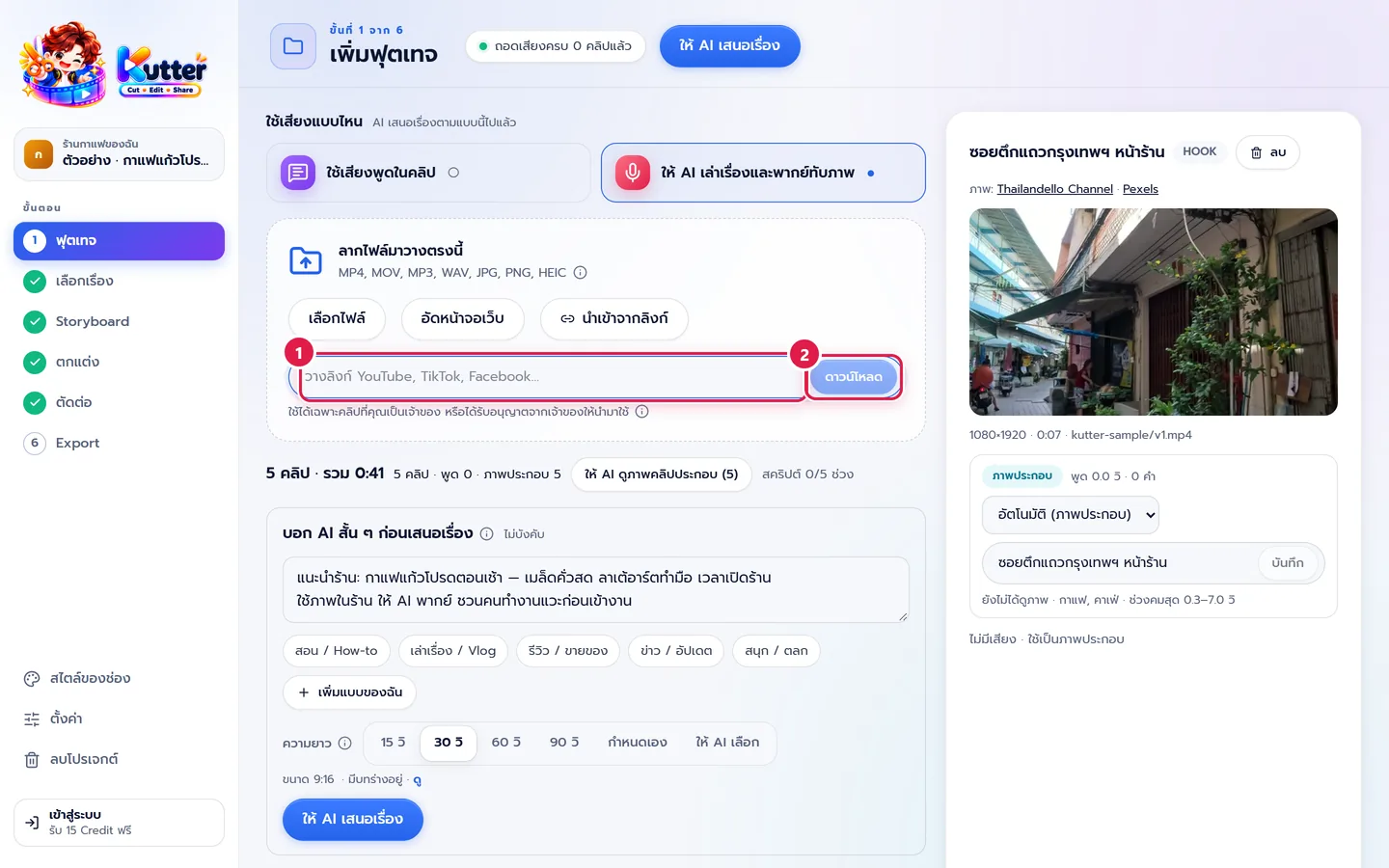
Downloaded clips are up to 1080p and are saved in your project folder. Only use clips you own or have the owner's permission to use. The first time, the app may download an extra helper tool.
Choose the audio
- ใช้เสียงพูดในคลิป (Use the speech in the clips) if someone talks on camera. AI cuts from what's said in the clips and adds B-roll.
-
ให้ AI พากย์เสียง (AI voice-over) if no one speaks in the clips, like the 5 café clips. AI looks at every clip, writes a script, and records a voice-over on top of your footage.
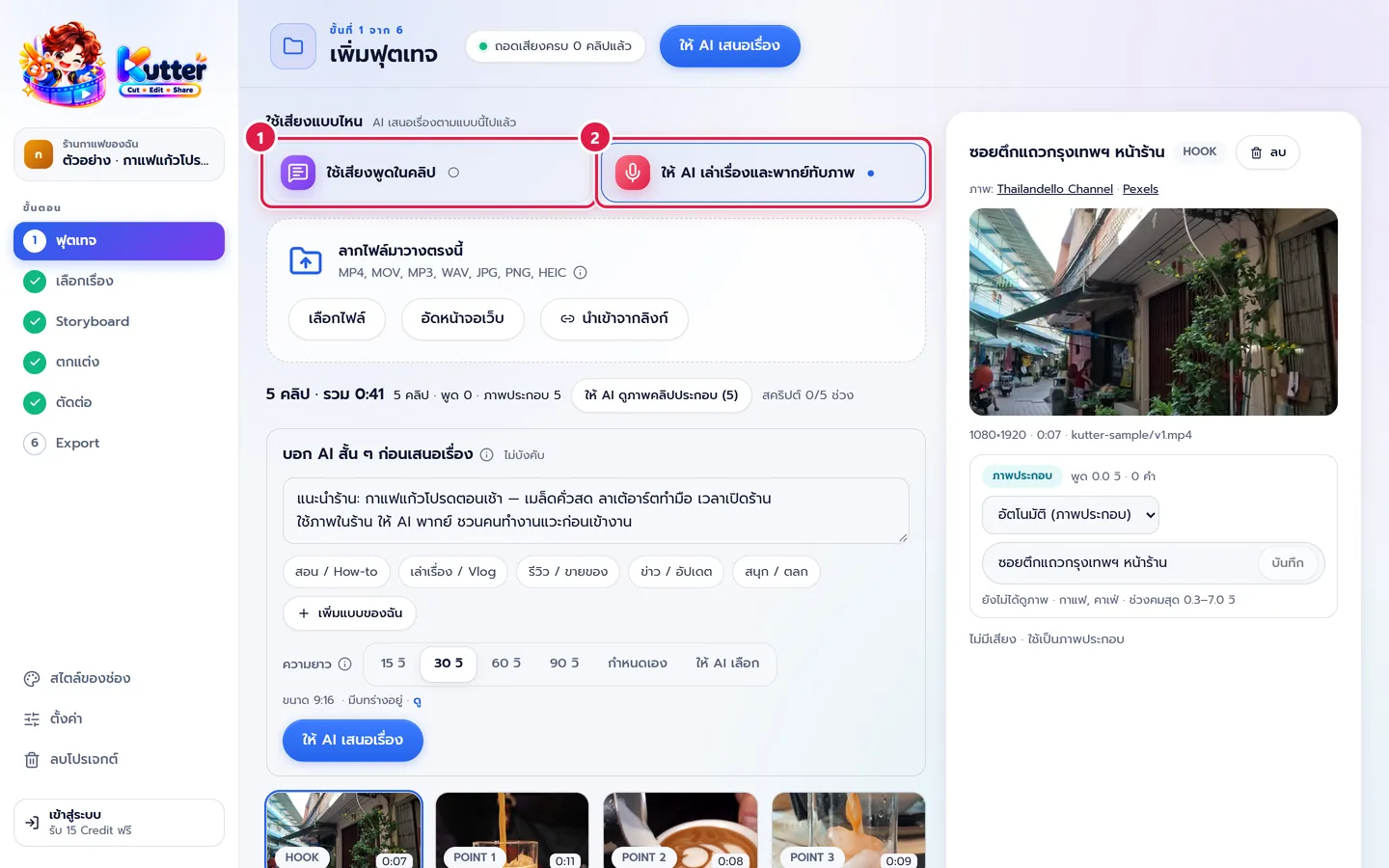
You can change this any time, except while AI is suggesting stories. After you change it, have AI suggest stories again.
Check each clip
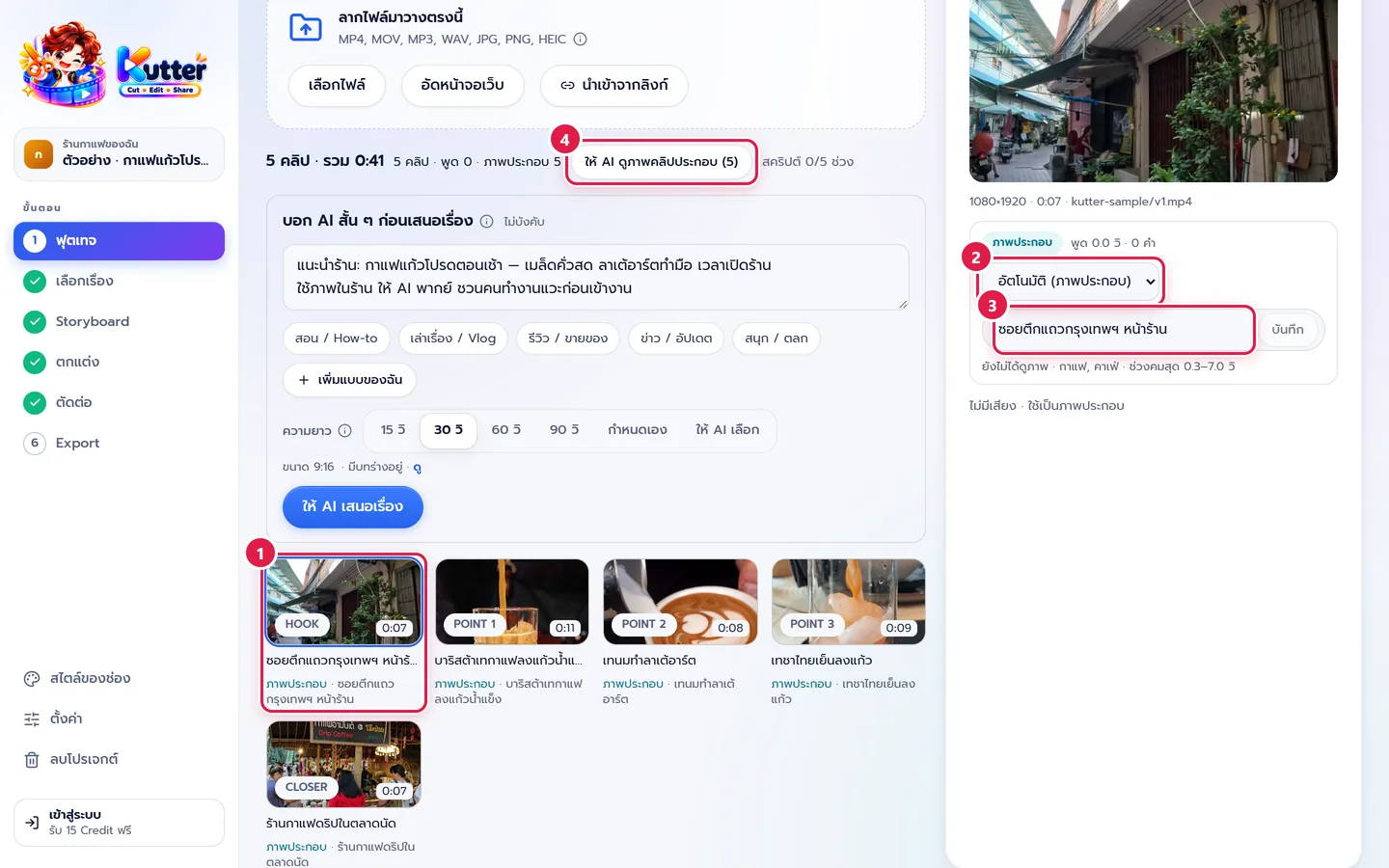
- Click a clip in the list. Its details appear on the right.
- Check the clip type: มีเสียงพูด (Has speech) or ภาพประกอบ (B-roll). If the app guessed wrong, change it in the options. Clips with speech are transcribed to text automatically.
- For a B-roll clip, type a short description of what it shows, for example "บาริสต้าเทกาแฟลงแก้วน้ำแข็ง" (A barista pours coffee over ice), and press บันทึก (Save).
-
Don't want to type? Press ให้ AI ดูภาพคลิปประกอบ (Let AI look at the B-roll clips). AI looks at every clip without speech and writes the descriptions for you (it also does this automatically when it suggests stories).
Give AI a short brief and get story ideas
- In the บอก AI สั้น ๆ ก่อนเสนอเรื่อง (Brief AI before it suggests stories) card, type what the clip is about. The first line is the topic, for example "แนะนำร้าน: กาแฟแก้วโปรดตอนเช้า — เมล็ดคั่วสด ลาเต้อาร์ตทำมือ เวลาเปิดร้าน" (Shop intro: your favorite morning coffee — freshly roasted beans, hand-poured latte art, opening hours).
- Choose a clip type, such as รีวิว / ขายของ (Review / Selling) or เล่าเรื่อง / Vlog (Storytelling / Vlog). If the type you want isn't there, press + เพิ่มแบบของฉัน (+ Add my own type).
- Choose a ความยาว (Length): 15, 30, 60, or 90 seconds, กำหนดเอง (Custom), or ให้ AI เลือก (Let AI choose).
-
Press ให้ AI เสนอเรื่อง (Let AI suggest stories).
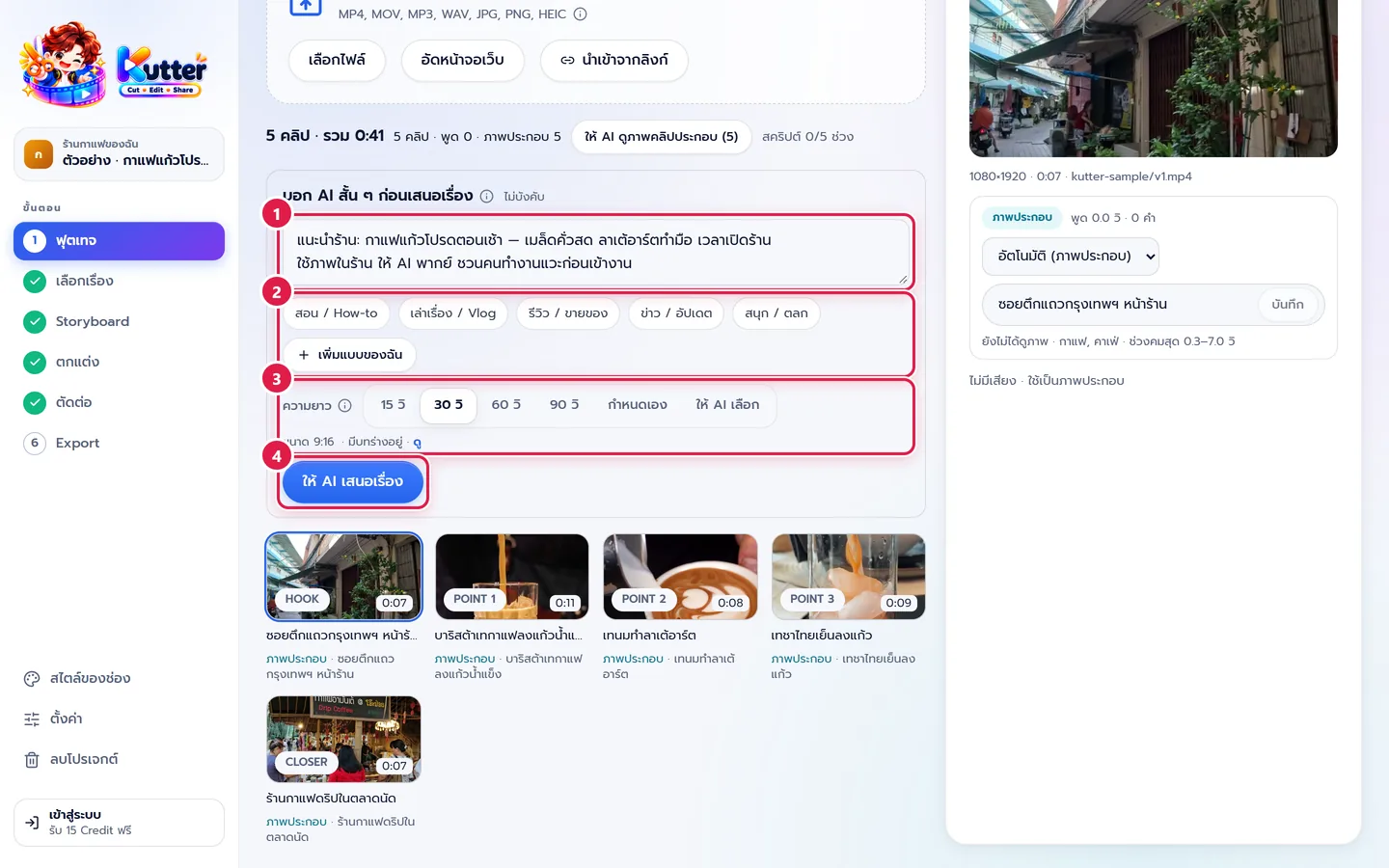
This card is optional. If you leave it empty, AI guesses from the clips, but a short brief gets you stories closer to what you want.
If you chose ใช้เสียงพูดในคลิป (Use the speech in the clips), the area under the length shows how many minutes of speech your footage has and suggests a good length. Press the "แนะนำ" (Recommended) number to use it right away. (The AI voice-over mode has no suggestion, because it doesn't cut from speech.)
If something goes wrong
- If the transcript is wrong, press ถอดเสียงใหม่ (Transcribe again) on that clip, or change the clip's transcriber before pressing it.
- If you see the warning "ฟุตเทจอาจไม่พอ" (Footage may not be enough), shorten the length or add clips.
- If a clip shows "ไฟล์หายไป" (File missing), select the same file from its new location. The existing transcript still works.
- If you see "ลิงก์ไม่ถูกต้อง" (Invalid link) when importing, paste a clip link that starts with https:// straight from that app.
- If you can't delete a clip, first delete the output clips that use this footage in the Storyboard step.
Next: The Story step
Still stuck? Chat with us (bottom right) or email support@helloworld-solution.com