 Kutter
Help › Make a clip step by step
The Render step
Have the app render your clip into a video file. You need to sign in first.
In this step the app combines everything you set up (scenes, subtitles, B-roll, zoom, music, sound effects, cover) into a real video file on your computer. The file is not uploaded to a server. You need to sign in first.
Render the clip
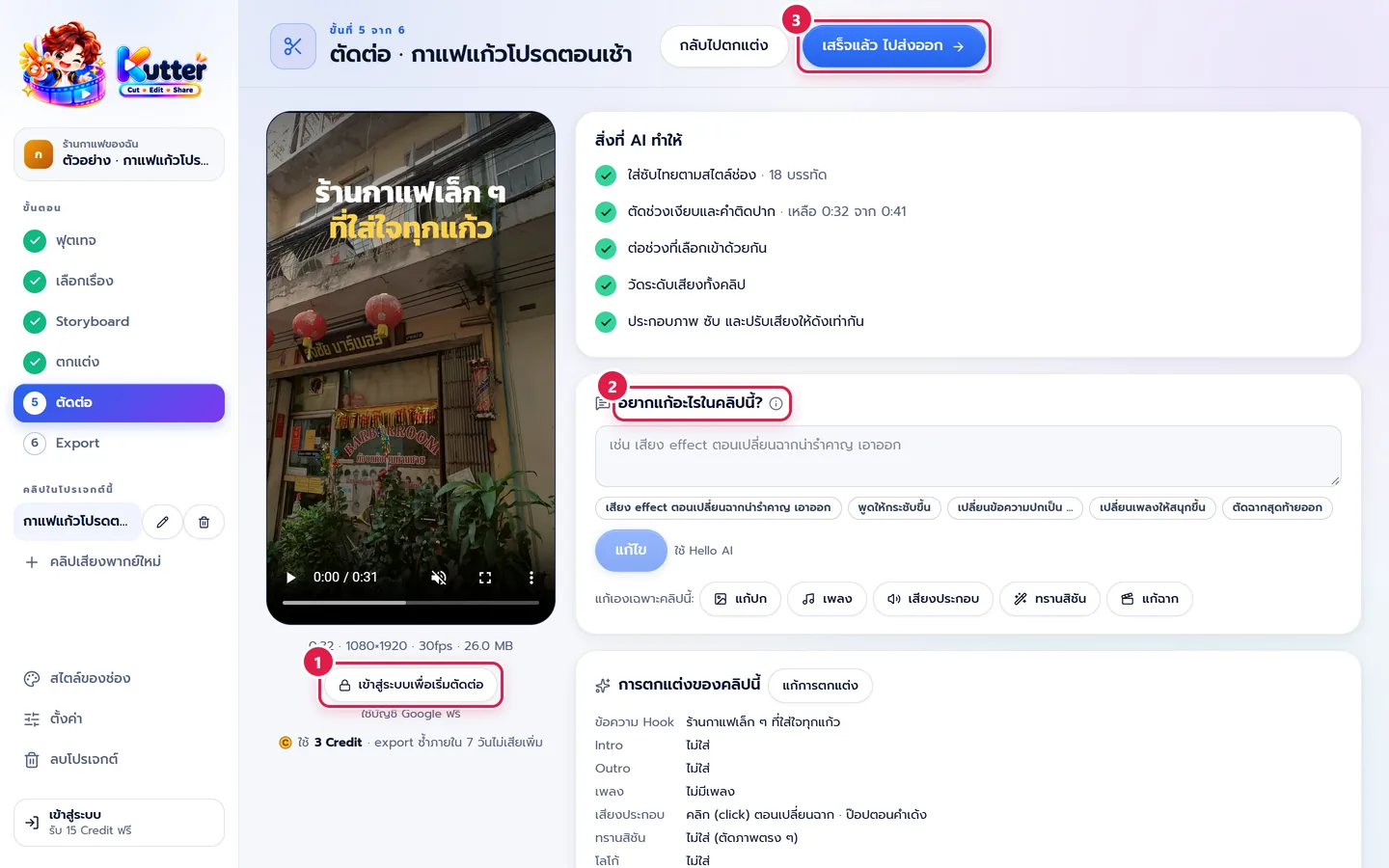
- If you haven't signed in yet, press เข้าสู่ระบบเพื่อเริ่มตัดต่อ (Sign in to start rendering) (with a free Google account). If you're already signed in, the button shows เริ่มตัดต่อ (Start render). Under the button you'll see how many Credits this render uses, for example "ใช้ 3 Credit" (Uses 3 Credits).
- While it works, the "สิ่งที่ AI ทำให้" (What AI did for you) card ticks off each step, such as adding Thai subtitles, cutting silences, and evening out the volume. Wait a moment (you can cancel). When it's done, press play to watch the clip in the app. If you see something you want to change, type it in the อยากแก้อะไรในคลิปนี้? (What do you want to change in this clip?) card, for example "เปลี่ยนเพลงให้สนุกขึ้น" (Change to a more upbeat song), and press แก้ไข (Edit). Or use the แก้เองเฉพาะคลิปนี้ (Edit this clip yourself) shortcut buttons (cover, music, sound effects, transitions, scenes).
- When you're happy with it, press เสร็จแล้ว ไปส่งออก (Done, go to Export).
Clip score
After rendering, the "คะแนนคลิปนี้" (This clip's score) card lets AI score the clip in 4 areas ("ทำให้คนหยุดดู" (Stops the scroll) · "เนื้อหามีของ" (Solid content) · "ทำให้อยากแชร์ / คอมเมนต์ / ติดตาม" (Makes people share / comment / follow) · "ภาพ & เสียง" (Picture & sound)). Press ให้ AI ให้คะแนนคลิปนี้ (Let AI score this clip) (the cost is shown next to the button before you press it). If you use local AI (free), the app scores the clip on its own after rendering. For anything that can be fixed, press ให้แก้ให้ (Fix it for me). The request goes into the "อยากแก้อะไรในคลิปนี้?" (What do you want to change in this clip?) box, and you press Edit yourself.
Clip sizes and video files
One render can make several sizes. For example, the café clip in 9:16 for TikTok / Reels, plus 1:1 for Facebook.
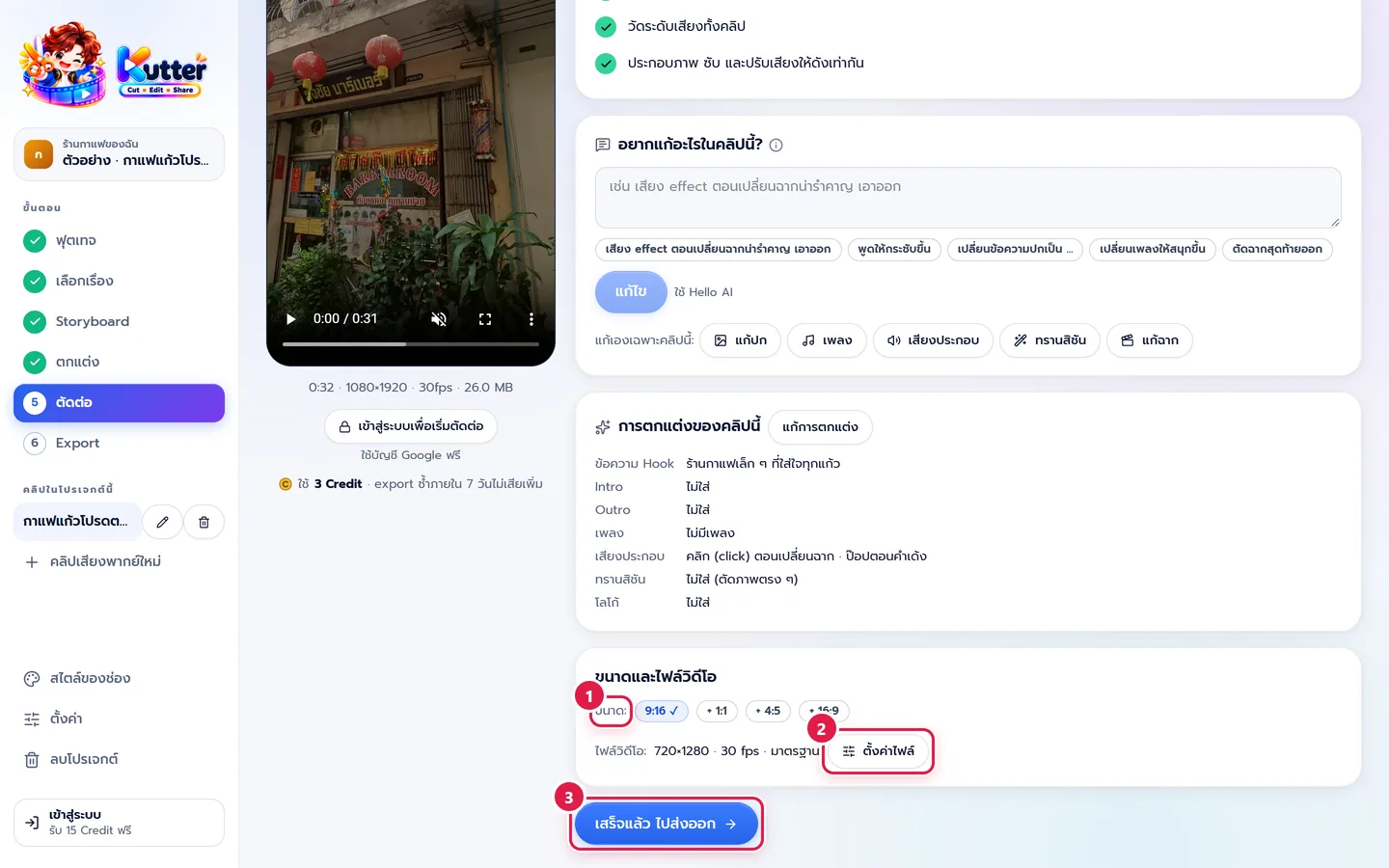
- In ขนาดและไฟล์วิดีโอ (Sizes and video files), press + on any extra size you want (1:1, 4:5, 16:9). Sizes that are already rendered show a ✓.
- Press ตั้งค่าไฟล์ (File settings) to change the resolution, fps, and quality for this clip only (the defaults are set in สไตล์ของช่อง (Channel style) → "ไฟล์ส่งออก" (Export file)). After changing them, press ตัดต่อใหม่ (Render again).
- When everything is done, press เสร็จแล้ว ไปส่งออก (Done, go to Export).
Credits used when rendering
Previewing, transcribing, and editing the Storyboard don't use Credits. Credits are charged only on export, based on the clip's length:
- Up to 90 seconds: 3 Credits · up to 3 minutes: 5 Credits · up to 10 minutes: 10 Credits
- Over 10 minutes: 10 Credits for every 30 minutes
- Exporting again within 7 days costs nothing extra
Resolution by plan: Free 720p / 30fps · Creator 1080p up to 60fps · Pro 4K and H.265. If your file settings go beyond your plan, the app renders at what your plan allows and shows a ใช้แบบฟรีแทน (Using free settings instead) line with an อัปเกรด (Upgrade) button.
Previous versions
Every time you render again, the app keeps the old file in the เวอร์ชันก่อนหน้า (Previous versions) card (the last 5 versions). You can watch them, and press ใช้เวอร์ชันนี้ (Use this version) to bring back both the file and the settings from that time.
If something goes wrong
- If you see "ตั้งค่าเปลี่ยนหลังตัดต่อ" (Settings changed after render), press ตัดต่อใหม่ (Render again). The existing file still has the old version.
- If you don't have enough Credits, claim your free daily Credits in the app, or see Plans and Credits.
- If rendering is very slow, close other programs that use the graphics card. Scenes with Matte turned on take a little longer.
- If rendering fails, see Fix error messages.
- If you want to change subtitles or scenes, press กลับไปตกแต่ง (Back to Finish) or go back to the Storyboard, then render again.
Next: The Export step
Still stuck? Chat with us (bottom right) or email support@helloworld-solution.com