 Kutter
Help › Make a clip step by step
The Story step
AI looks at all your footage and suggests several stories. Pick the ones you like.
AI looks at every clip in your footage and suggests stories to choose from. Each story shows which clips and which parts it uses. You can pick several stories, and several sizes for each one. Every combination comes out as a separate clip.
Pick a story
- Wait for AI to suggest stories. While you wait, you can see how far AI has got, for example "AI กำลังดูภาพจากคลิปประกอบ…" (AI is looking at the B-roll clips…).
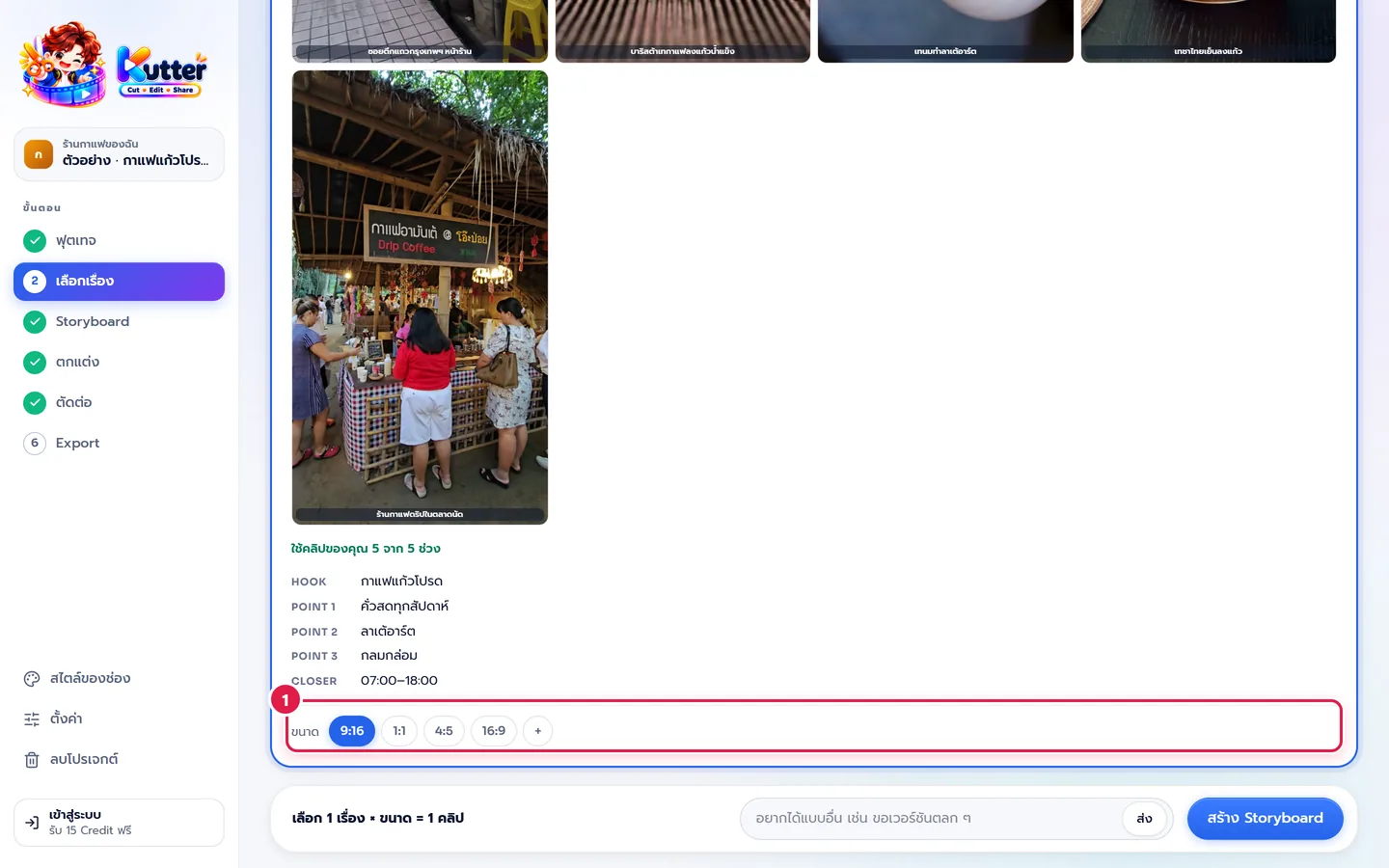
- Read the story cards: the title, length, the pictures for each section, and the HOOK / POINT / CLOSER structure. For example, the story "กาแฟแก้วโปรดตอนเช้า" (Your favorite morning coffee) uses your own clips in 5 of 5 sections.
- Tick the box in the corner of a card to pick that story.
- Don't like them? Type in the chat at the bottom, for example "ขอเวอร์ชันตลก ๆ" (Give me a funny version), and press ส่ง (Send).
-
Press สร้าง Storyboard (Create Storyboard).
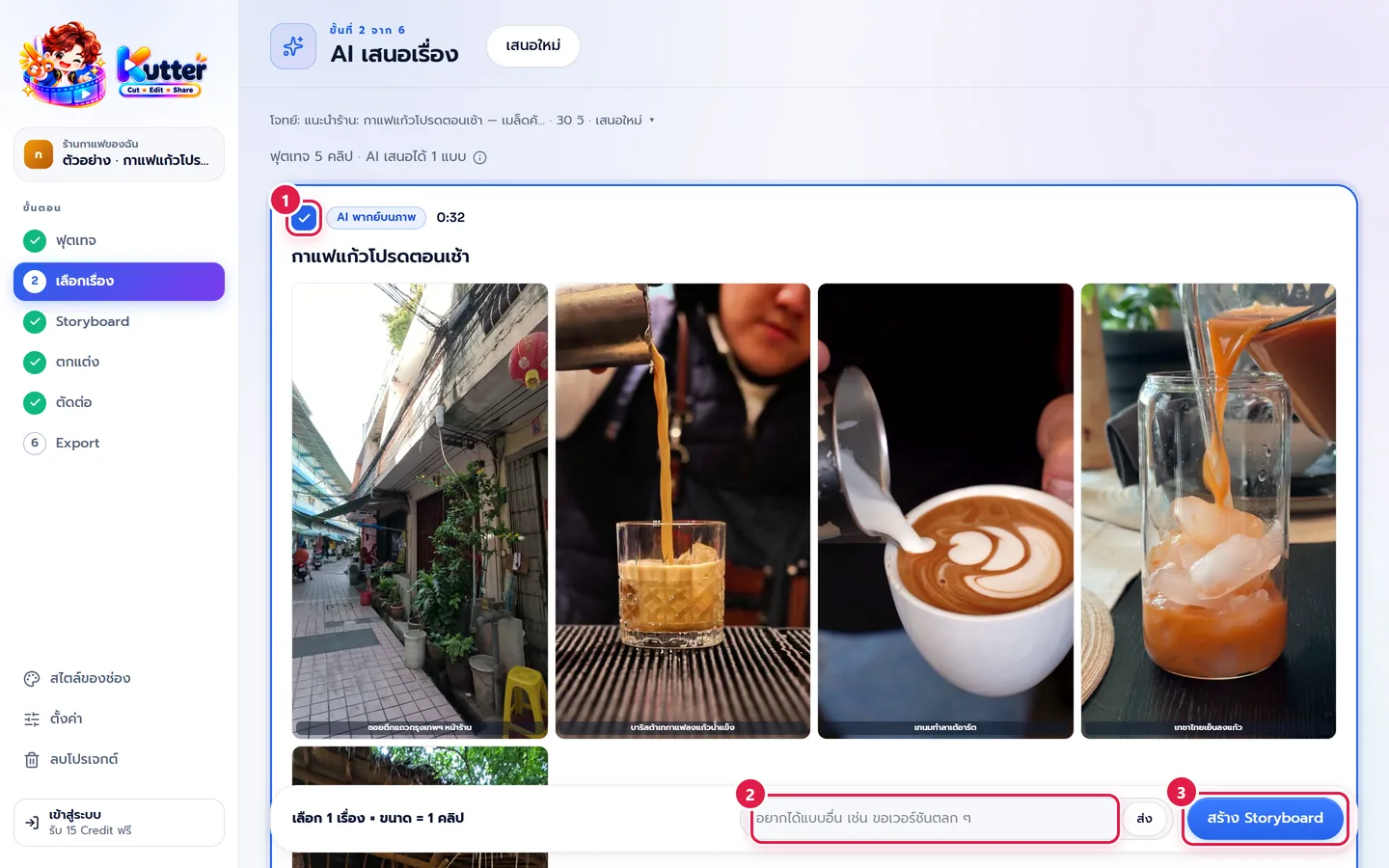
The tag on a card shows the story type, for example "AI พากย์บนภาพ" (AI voice-over on pictures) if you chose ให้ AI พากย์เสียง (AI voice-over) in the Footage step.
Choose clip sizes
- At the bottom of the card, in the "ขนาด" (Size) row, press 9:16, 1:1, 4:5, or 16:9. You can pick more than one size.
-
The bar at the bottom sums it up, for example "เลือก 1 เรื่อง × ขนาด = 1 คลิป" (1 story × size = 1 clip).
Change the brief and get new suggestions
What you wrote in the บอก AI สั้น ๆ ก่อนเสนอเรื่อง (Brief AI before it suggests stories) card in the Footage step shrinks to one line at the top, for example "โจทย์: แนะนำร้าน: กาแฟแก้วโปรดตอนเช้า… · 30 วิ · เสนอใหม่" (Brief: Shop intro: your favorite morning coffee… · 30 s · Suggest again).
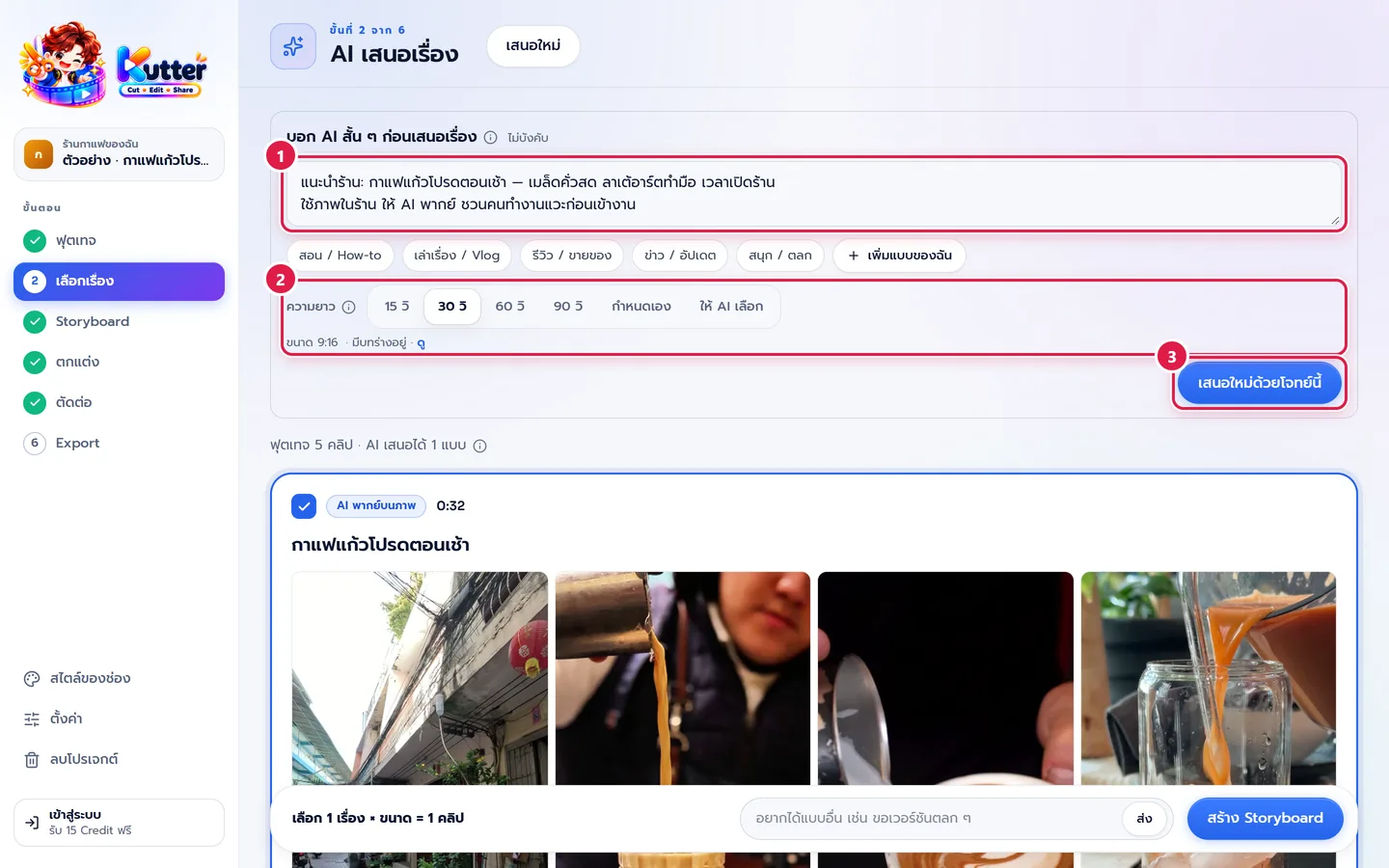
- Click that brief line. The card opens in full.
- Edit the topic, clip type, or ความยาว (Length).
-
Press เสนอใหม่ด้วยโจทย์นี้ (Suggest again with this brief).
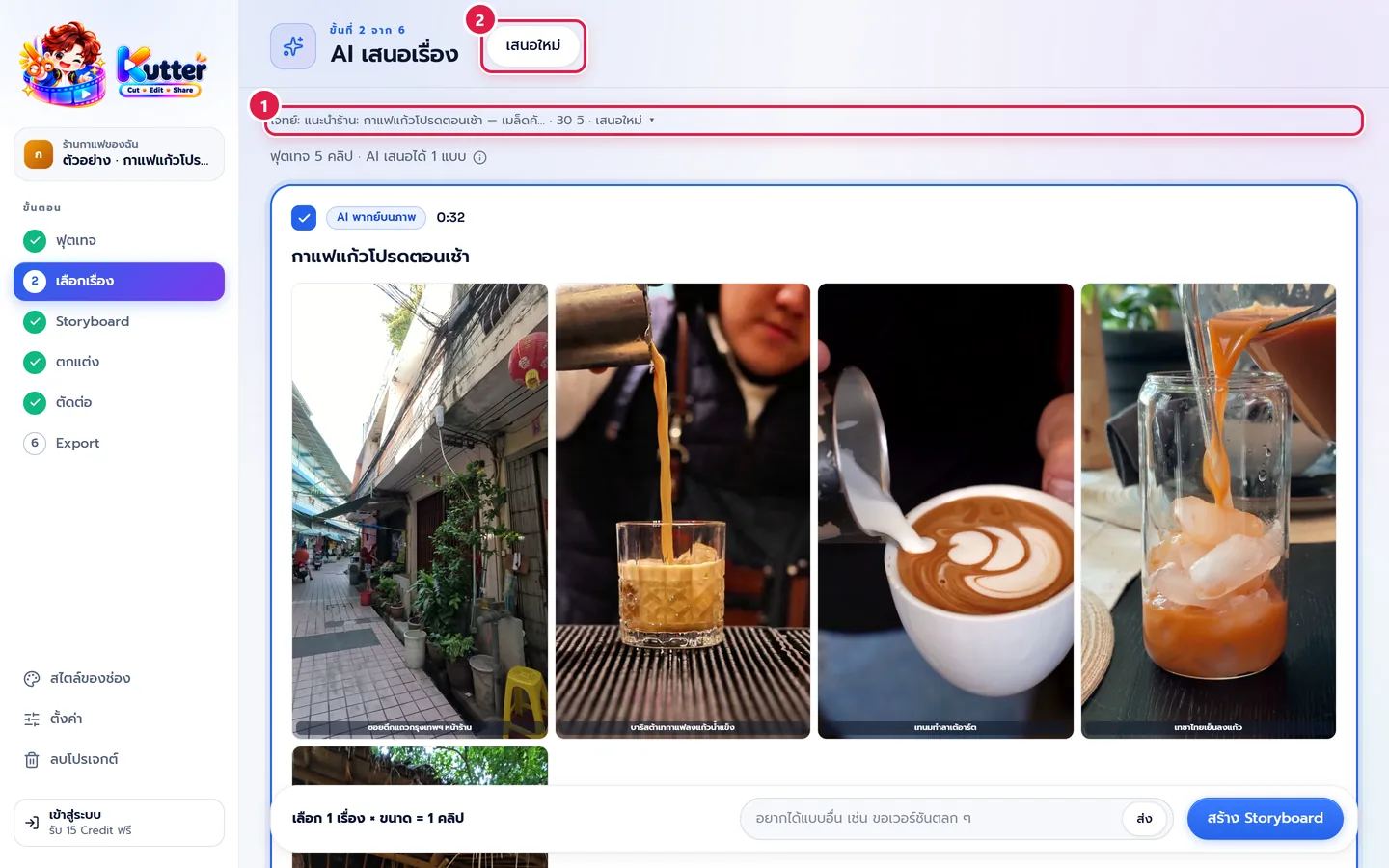
Want a new set without changing the brief? Press เสนอใหม่ (Suggest again) at the top.
If something goes wrong
- If there's no footage yet, press ไปเพิ่มฟุตเทจ (Go add footage) to go back to the Footage step.
- If you see orange text under the pictures, such as "อีก 1 ช่วงใช้ B-roll" (1 more section uses B-roll), there isn't enough footage for some sections. Film more or shorten the length.
- If you can't press สร้าง Storyboard (Create Storyboard), read the message next to the button. For example, you haven't picked a story or size yet, or AI hasn't finished suggesting stories.
- If the stories aren't what you had in mind, open the brief line, be more specific, and press เสนอใหม่ด้วยโจทย์นี้ (Suggest again with this brief).
Next: The Storyboard step
Still stuck? Chat with us (bottom right) or email support@helloworld-solution.com