 Kutter
Help › Make a clip step by step
The Storyboard step
Review the clip scene by scene, ask for changes in plain words, then approve.
The Storyboard is the plan for your clip that AI puts together, split into scenes. For example, the sample clip "กาแฟแก้วโปรดตอนเช้า" (Your favorite morning coffee) has 5 scenes: HOOK, POINT 1–3, and CLOSER. Each scene has its own subtitles, B-roll, zoom, sound effects, and graphic cards.
In this step you go through one scene at a time. If you don't like a scene, ask for changes. When you like it, approve it.
See the whole clip, then pick a scene
-
Press เล่นทั้งคลิป (Play whole clip) to watch all the scenes in a row first. You'll see whether the overall pacing works.
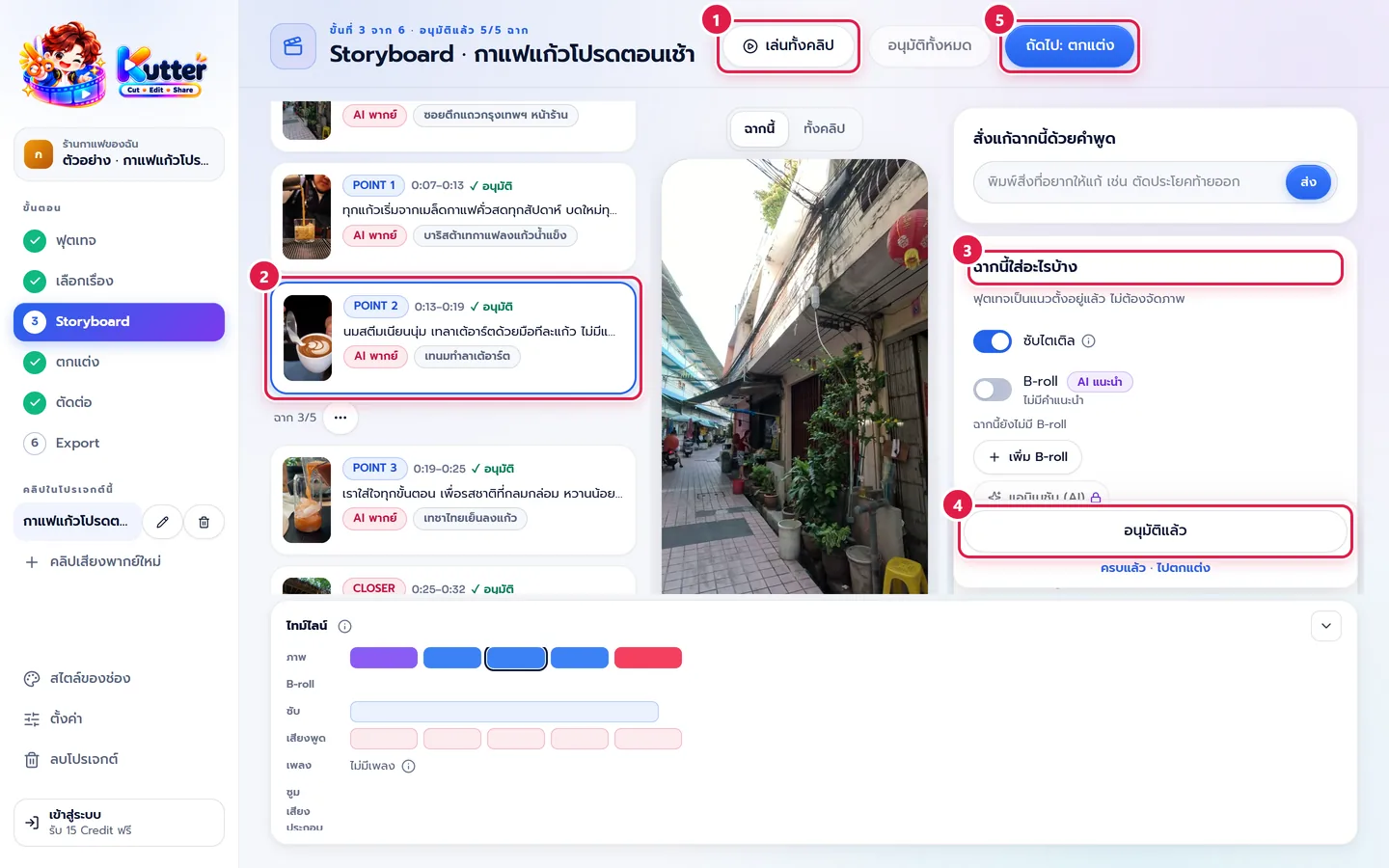
- Click a scene card on the left to select it, for example "POINT 2", which talks about latte art. The preview in the middle plays only that scene. (Switch between ฉากนี้ (This scene) and ทั้งคลิป (Whole clip) above the preview.)
- Check the ฉากนี้ใส่อะไรบ้าง (What's in this scene) card on the right to see whether subtitles, B-roll, and Matte are turned on for this scene.
- When the scene looks good, press อนุมัติฉากนี้ (Approve this scene). The button changes to "อนุมัติแล้ว" (Approved).
- When every scene is done, press ถัดไป: ตกแต่ง (Next: Finish) (or press อนุมัติทั้งหมด (Approve all) to do them all at once).
Ask for scene changes in plain words
You don't have to cut anything yourself. Type what you want, as if you were talking to an editor.
- Select the scene you want to change first.
-
In the สั่งแก้ฉากนี้ด้วยคำพูด (Edit this scene with words) card, type what you want, for example "ตัดประโยคแรกออก" (Cut the first sentence).
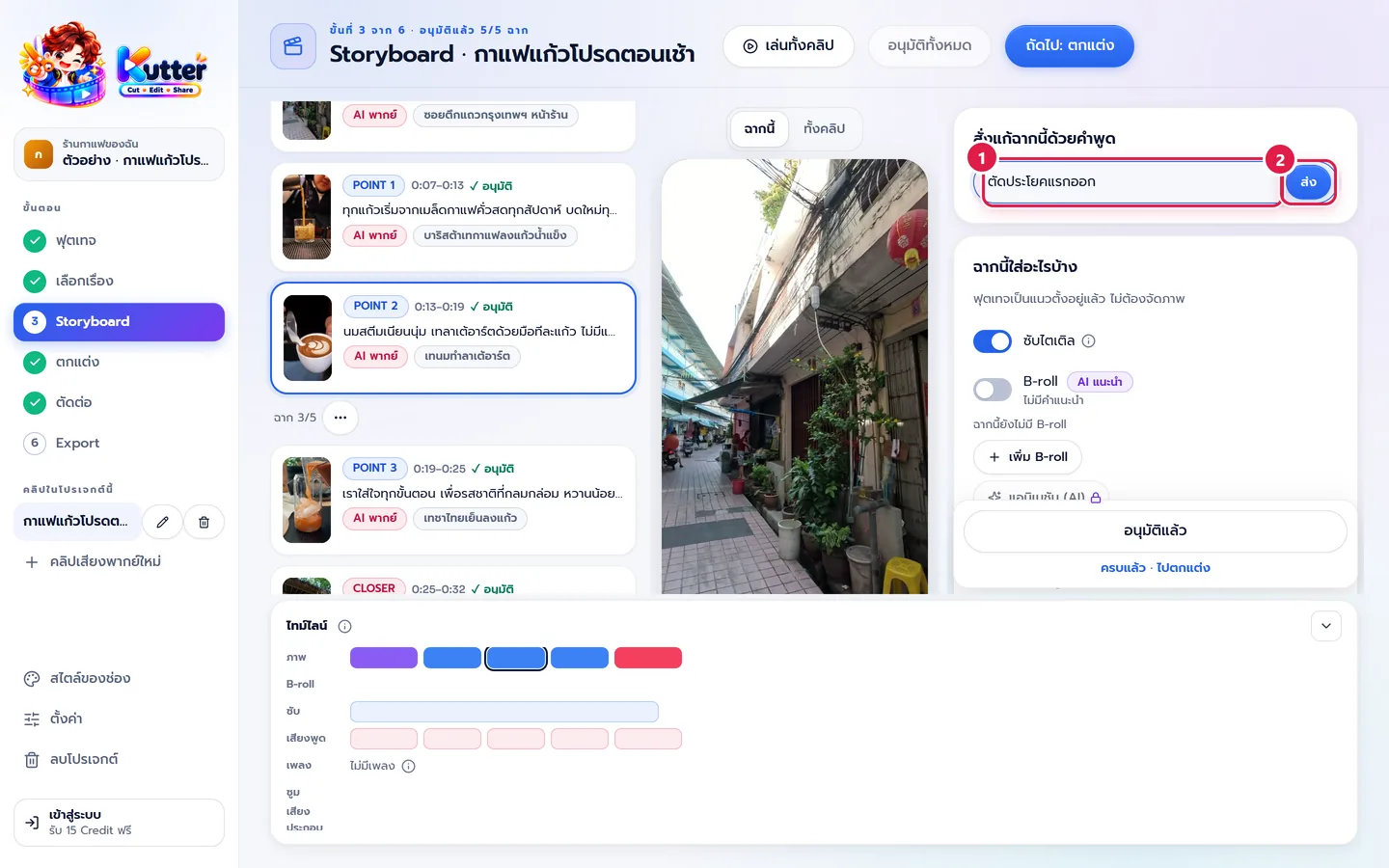
- Press ส่ง (Send). The scene shows that it's being edited, and asks you to review it again when it's done.
- Play that scene again. If it looks good, approve it.
Examples that work well: "ตัดประโยคท้ายออก" (Cut the last sentence), "ให้ฉากนี้สั้นลง" (Make this scene shorter), "เริ่มที่คำว่าลาเต้" (Start at the word "latte").
Cut by deleting words (talking clips)
Deleting a word in the text cuts the video at that spot, like editing a document.
- Above the scene list, press แก้จากคำพูด (Edit by words). The whole clip appears as text, scene by scene.
- Tap the first word, then tap the last word (or drag over them with the mouse) to select.
- Press the Delete key or ลบคำที่เลือก (Delete selected words). Those words are cut from the clip but stay visible in the text, struck through.
- Deleted the wrong thing? Tap the struck-through word and press เอากลับ (Restore), or press เลิกทำ (Undo).
- Want to hear that spot? Press เล่น (Play) (plays from this word).
Shortcut buttons (the number is how many spots were found): คำติดปาก (Filler words) removes "เอ่อ" / "อืม" / "อ่า" (uh / um / er) across the whole clip at once · เทคซ้ำ (Repeated takes) removes sentences you said more than once and keeps the best take · for words like "แบบ" "คือ" (like, I mean), press AI ดู แบบ/คือ (AI checks "like" / "I mean") so AI reads the context before deleting them.
Add things to a scene: B-roll, Matte, cards, sound, zoom
Everything is in the ฉากนี้ใส่อะไรบ้าง (What's in this scene) card. Scroll down to find it all.
B-roll is the pictures that appear over the footage while someone talks. Turn on the B-roll switch, or press เพิ่ม B-roll (Add B-roll) and search for pictures yourself (press เปลี่ยน (Change) to replace the picture AI chose). Then scroll down to set the rest:
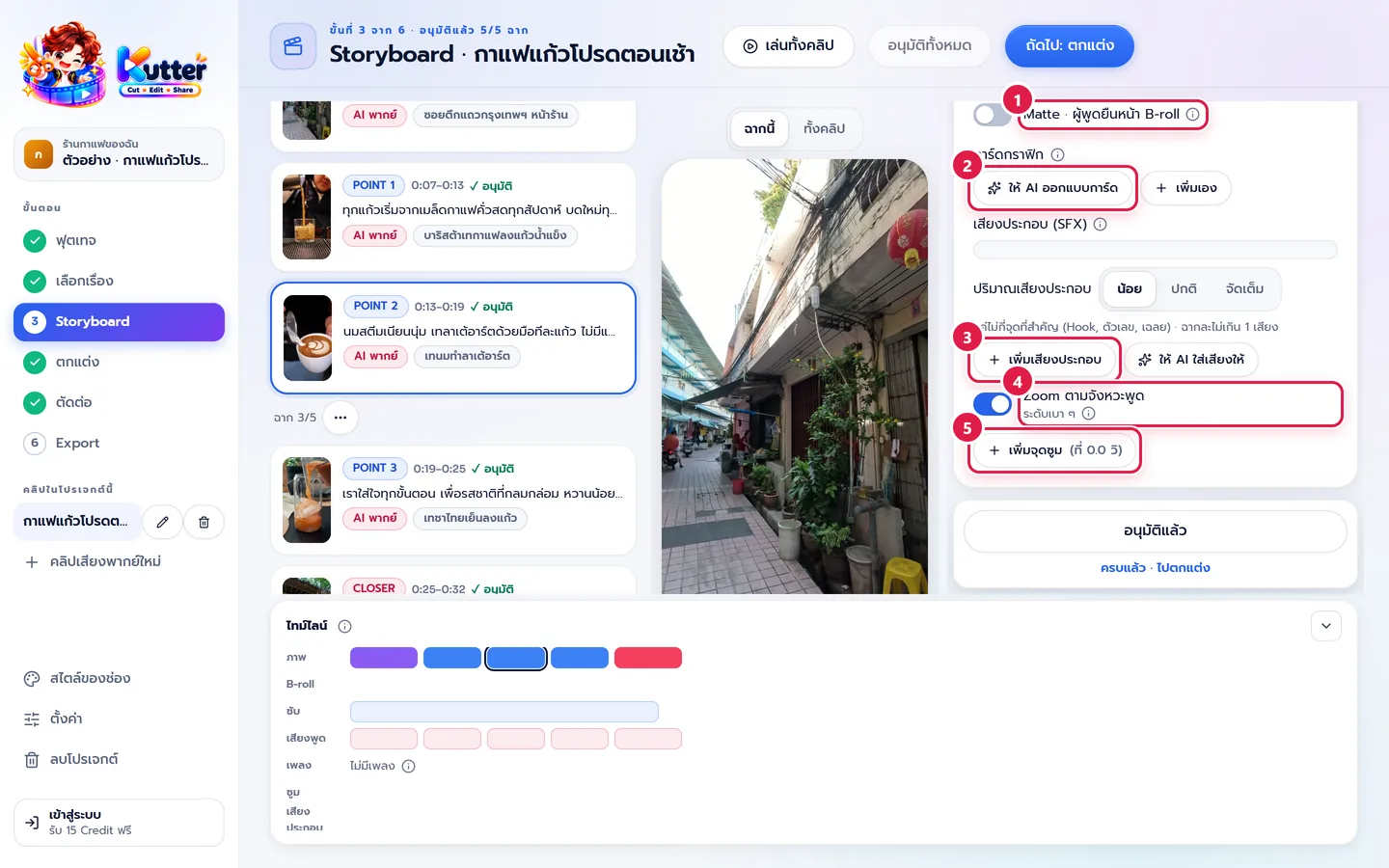
- Matte: turn on Matte · ผู้พูดยืนหน้า B-roll (Matte · Speaker in front of B-roll) to have the speaker stand in front of the B-roll. It works when the scene has a speaker and B-roll (rendering takes a little longer).
- Graphic cards: press ให้ AI ออกแบบการ์ด (Let AI design a card) or เพิ่มเอง (Add your own), for example a card with the shop's opening hours "07:00–18:00" in your channel's brand colors.
- Sound effects (SFX): press เพิ่มเสียงประกอบ (Add sound effect), choose a sound, and set whether it plays at the start of the scene, on a word, or at a specific second. Or press ให้ AI ใส่เสียงให้ (Let AI add sounds) after choosing a ปริมาณเสียงประกอบ (Sound effect amount) of "น้อย" (Light) / "ปกติ" (Normal) / "จัดเต็ม" (Full).
- Auto zoom: Zoom ตามจังหวะพูด (Zoom to the speech rhythm) zooms for you at cuts, emphasized words, and during long stretches of talking. You can turn it off scene by scene.
- Zoom on a spot: press เพิ่มจุดซูม (Add zoom point), set the start time, length, and how far to zoom, then tap the preview to pick the spot to zoom into, for example zooming in on the latte glass as the milk is poured.
See everything on the timeline
The ไทม์ไลน์ (Timeline) card at the bottom lays everything out by time: pictures, B-roll, subtitles, speech, music, zoom, and sound effects.
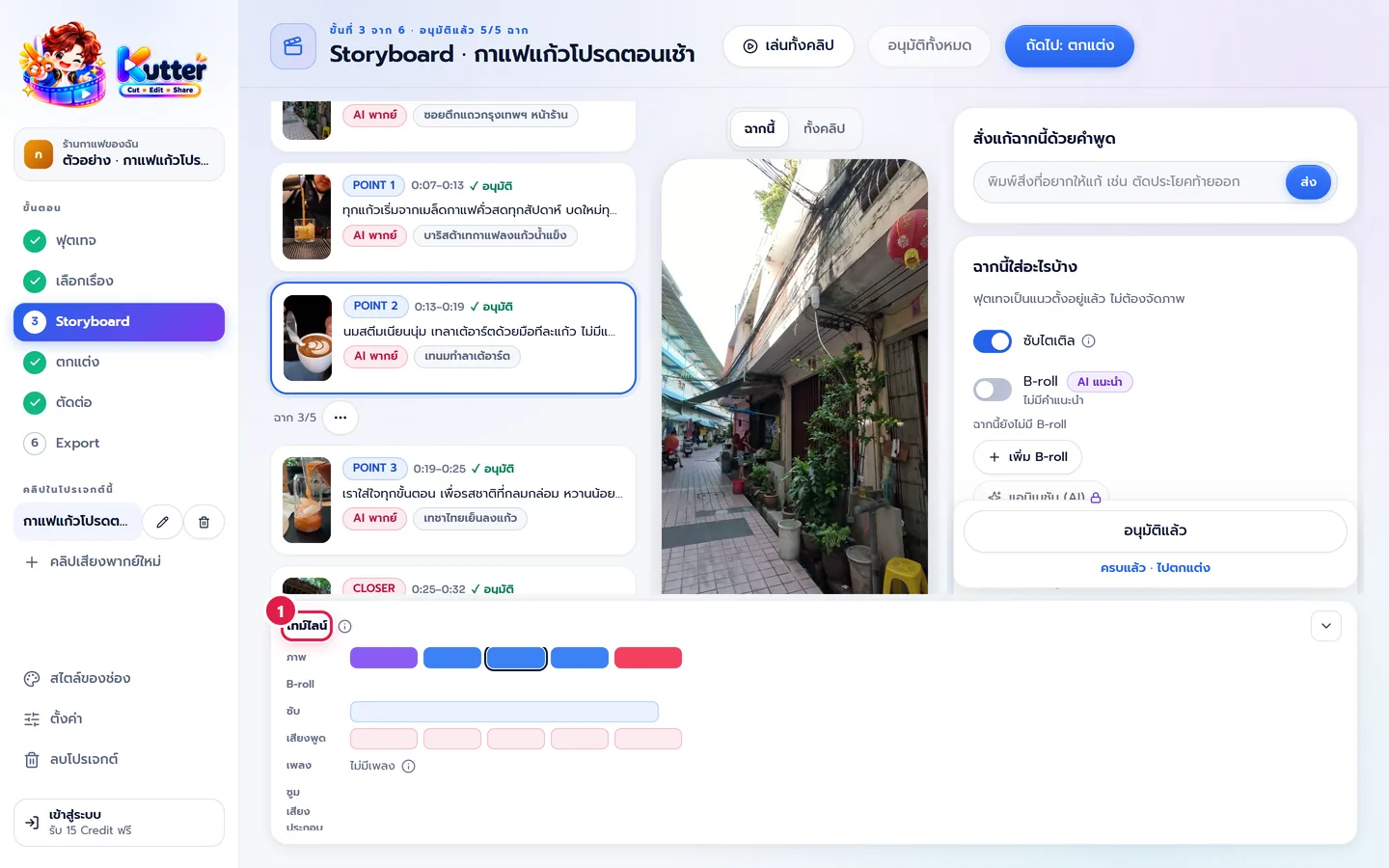
- Click any scene's picture bar to jump to that scene.
- Drag a B-roll bar to move it, or drag its edge to change its length (arrow keys move it 0.1 seconds at a time; hold Shift to move 1 second at a time).
- Don't want to see it? Press ซ่อนไทม์ไลน์ (Hide timeline). Bring it back with แสดงไทม์ไลน์ (Show timeline).
Add, move, and delete scenes
- Press เพิ่มฉาก (Add scene), then pick a part of the speech in your clips, or type to tell AI what kind of scene you want, for example "ช่วงที่พูดถึงราคา" (the part about prices).
- The ⋯ button under a scene card moves the scene up/down or deletes it. You can bring deleted scenes back from ฉากที่ลบ (Deleted scenes).
- Select words in the subtitles to ยกมาเปิดคลิป (Move to the opening) and use them as a Hook, or press ✎ แก้คำในซับ (Edit subtitle text) if a subtitle is misspelled.
If something goes wrong
- If you see "ยังไม่มี Storyboard ของเรื่องนี้" (No Storyboard for this story yet), press ให้ AI ทำ Storyboard (Let AI make the Storyboard) or go back and pick a story first.
- If a scene still isn't right after you asked for changes, be more specific, for example say which word it should start or end on.
- If the B-roll doesn't match the story, press เปลี่ยน (Change) and search with a more specific word, such as "ลาเต้อาร์ต" (latte art) instead of "กาแฟ" (coffee).
- If zoom doesn't work, check whether it's turned off in สไตล์ของช่อง (Channel style) (it shows "ปิดในสไตล์ช่อง" (Off in channel style)). Zoom points you set yourself always work.
- If you can't turn on Matte, add B-roll to that scene first.
Next: The Finish step
Still stuck? Chat with us (bottom right) or email support@helloworld-solution.com