 Kutter
Help › Getting started
Transcription setup
Choose the speech-to-text transcriber and install Whisper on your computer.
Kutter transcribes the speech in your clips into text, then uses that text to cut repeated lines, cut silences, let the AI pick the best moments, and make subtitles. If transcription fails, the steps that rely on speech can't continue.
There are 3 transcribers
- "อัตโนมัติ" (Automatic) (the default) uses ElevenLabs if you have a key, otherwise Whisper on your computer. If the internet drops during transcription, it switches to Whisper for you.
- ElevenLabs is accurate for Thai, especially for English loanwords, proper names and filler words like "แบบ" (like) and "เอ่อ" (um). It can tell speakers apart. It needs a key and an internet connection, and it's billed per minute of audio.
- "Whisper ในเครื่อง" (Whisper on this computer) is free and works offline. Your audio never leaves your computer, but it may misspell some words and it can't tell speakers apart.
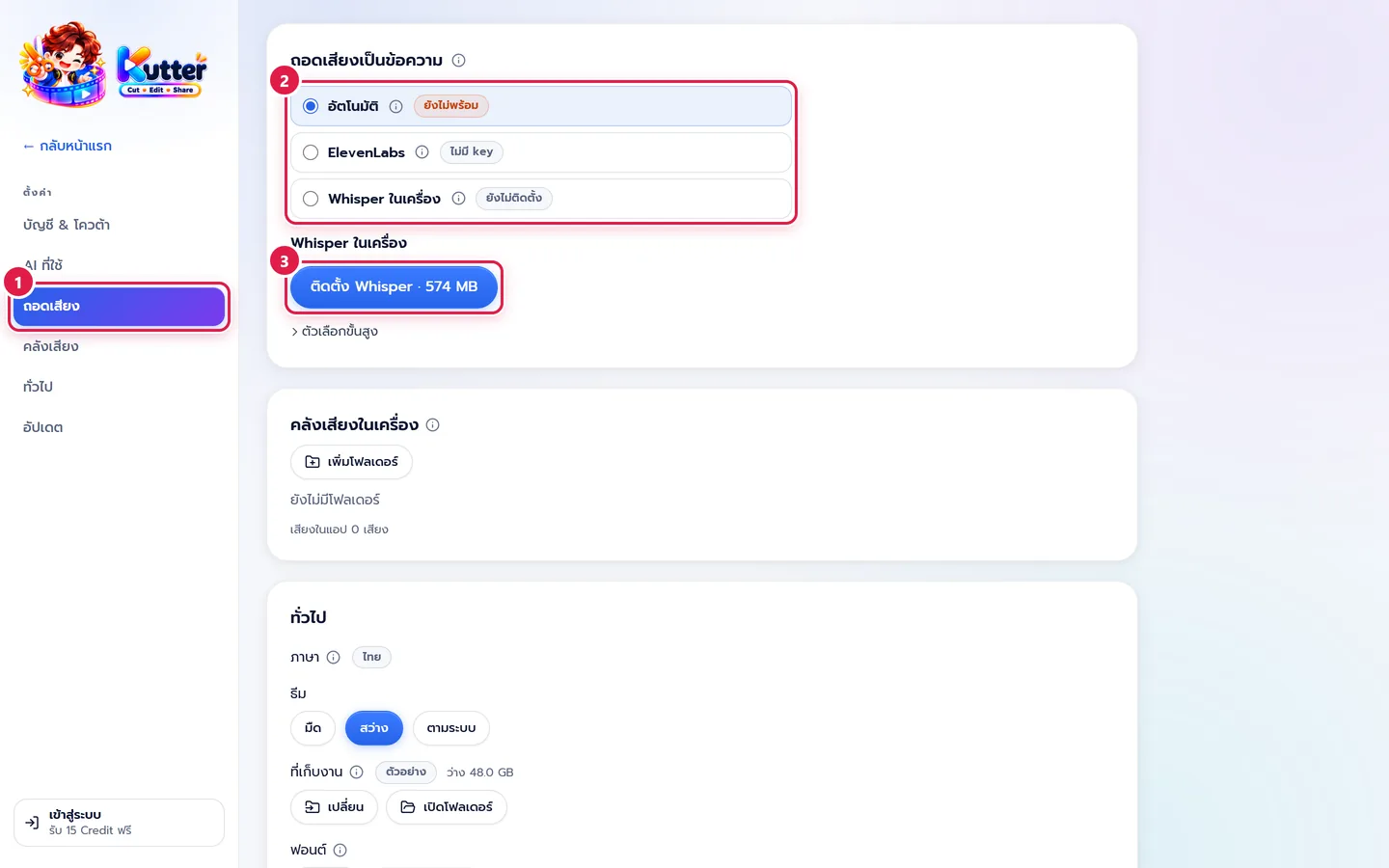
The tag next to each one shows its status, such as ยังไม่พร้อม (Not ready), ไม่มี key (No key), ยังไม่ติดตั้ง (Not installed) or ใช้ Whisper (Using Whisper) (Automatic is currently using Whisper).
Choose a transcriber and install Whisper
- Go to ตั้งค่า (Settings) and choose ถอดเสียง (Transcription) in the left sidebar (marker 1).
- On the "ถอดเสียงเป็นข้อความ" (Speech to text) card, choose the one you want (marker 2). If you're not sure, keep "อัตโนมัติ" (Automatic).
-
Under "Whisper ในเครื่อง" (Whisper on this computer), click "ติดตั้ง Whisper" (Install Whisper) (marker 3). The button shows the download size (about 574 MB). You download it once and it works for every project. If you don't see this section, click ตั้งค่า Whisper (Set up Whisper) to open it.
- Wait for the download bar to fill up. If your internet is slow, you can click "ยกเลิก" (Cancel) and continue later.
-
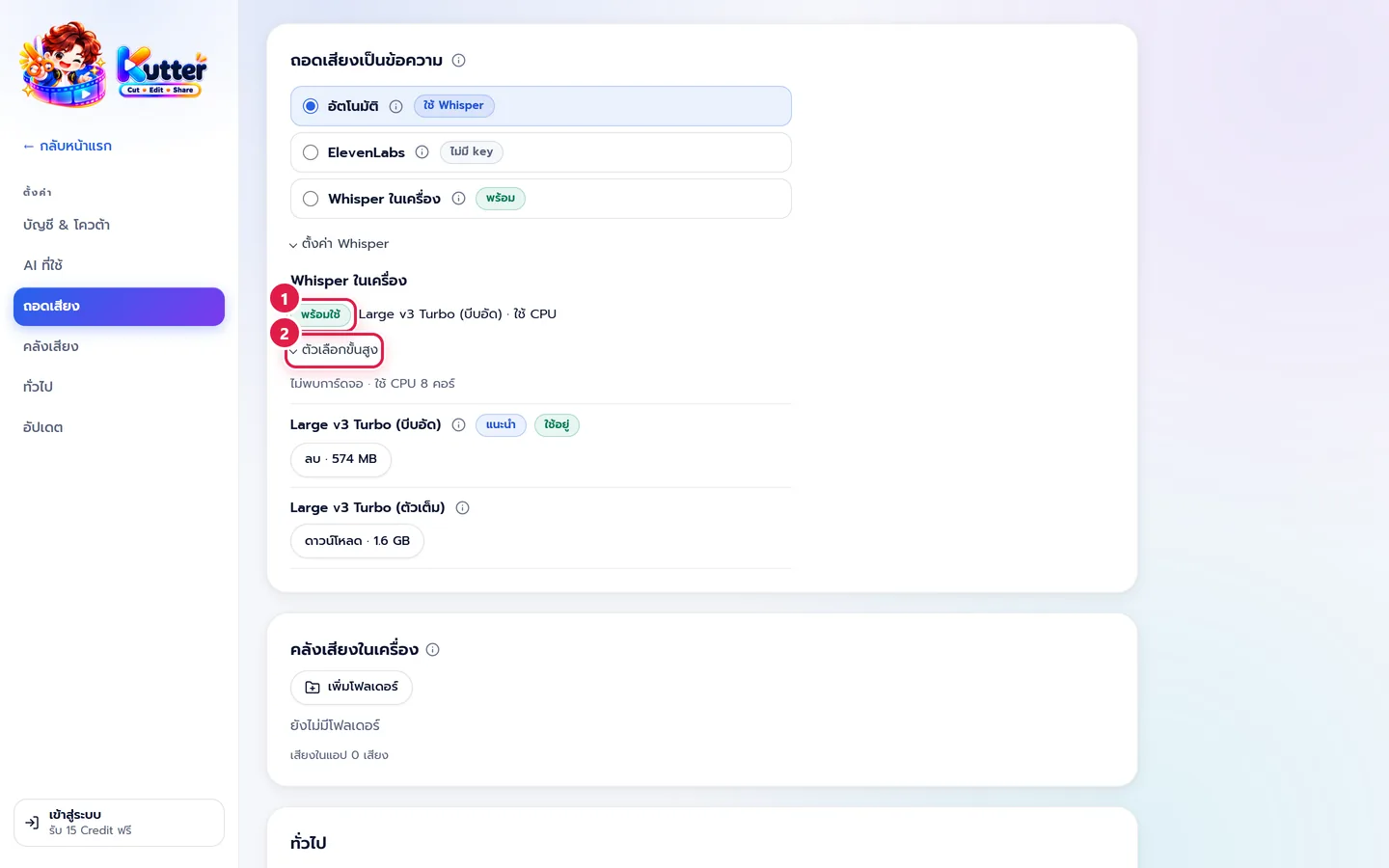
When it's installed, พร้อมใช้ (Ready) appears (marker 1) with the model name and whether it's using the graphics card or the CPU.
To use ElevenLabs: enter your ElevenLabs key in ตั้งค่า (Settings) › AI ที่ใช้ (AI). The tag changes to มี key (Has key).
Advanced options and the graphics card
- Click ตัวเลือกขั้นสูง (Advanced options) (marker 2 in the picture above).
- Look at the list of models. The แนะนำ (Recommended) one is Large v3 Turbo (compressed). The full version is slightly more accurate but larger. Click "ดาวน์โหลด" (Download), then ใช้โมเดลนี้ (Use this model) to switch.
- If your computer has a supported graphics card, you'll see a ใช้การ์ดจอเร่งความเร็ว (Use graphics card acceleration) switch and an ติดตั้งชุดเร่งความเร็วการ์ดจอ (Install graphics card acceleration) button. Transcription becomes several times faster. If it says "ไม่พบการ์ดจอ" (No graphics card found), the app uses the CPU instead. It's slower, but the result is the same.
- For models you no longer use, click "ลบ" (Delete) to free up disk space.
Change the transcriber for one clip
In the Footage step, select a clip with speech. A "ถอดเสียงด้วย" (Transcribe with) row lets you choose the transcriber for that clip. Then click ถอดเสียงใหม่ (Transcribe again). Use this when one clip's transcript has a lot of mistakes. For example, try transcribing the café's menu review clip with ElevenLabs instead of Whisper.
Troubleshooting
- If "อัตโนมัติ" (Automatic) shows ยังไม่พร้อม (Not ready), install Whisper or add an ElevenLabs key. Either one works.
- If the download stops partway, click "ดาวน์โหลดต่อ" (Resume download). The app continues from what it already downloaded.
- If it says you're low on disk space, delete files you don't use, or delete unused models in ตัวเลือกขั้นสูง (Advanced options).
- If transcription is very slow, turn on ใช้การ์ดจอเร่งความเร็ว (Use graphics card acceleration) if you have a graphics card, or use ElevenLabs.
- If proper names keep getting misspelled, add your channel's special words in สไตล์ของช่อง (Channel style), then click ถอดเสียงใหม่ (Transcribe again).
- If ElevenLabs doesn't work, check your internet and key. In the meantime, Automatic uses Whisper for you.
Next: Sign in
Still stuck? Chat with us (bottom right) or email support@helloworld-solution.com