 Kutter
Help › Channel style
Channel style: Brand & CI
Logo, fonts, brand color, image tone, and Intro / Outro.
The แบรนด์ & CI (Brand & CI) section makes every clip look like the same brand. Change a value and see the result right away in the ตัวอย่างสด (Live preview) on the right (you can switch between Intro / Content / Outro).
Brand kit / CI
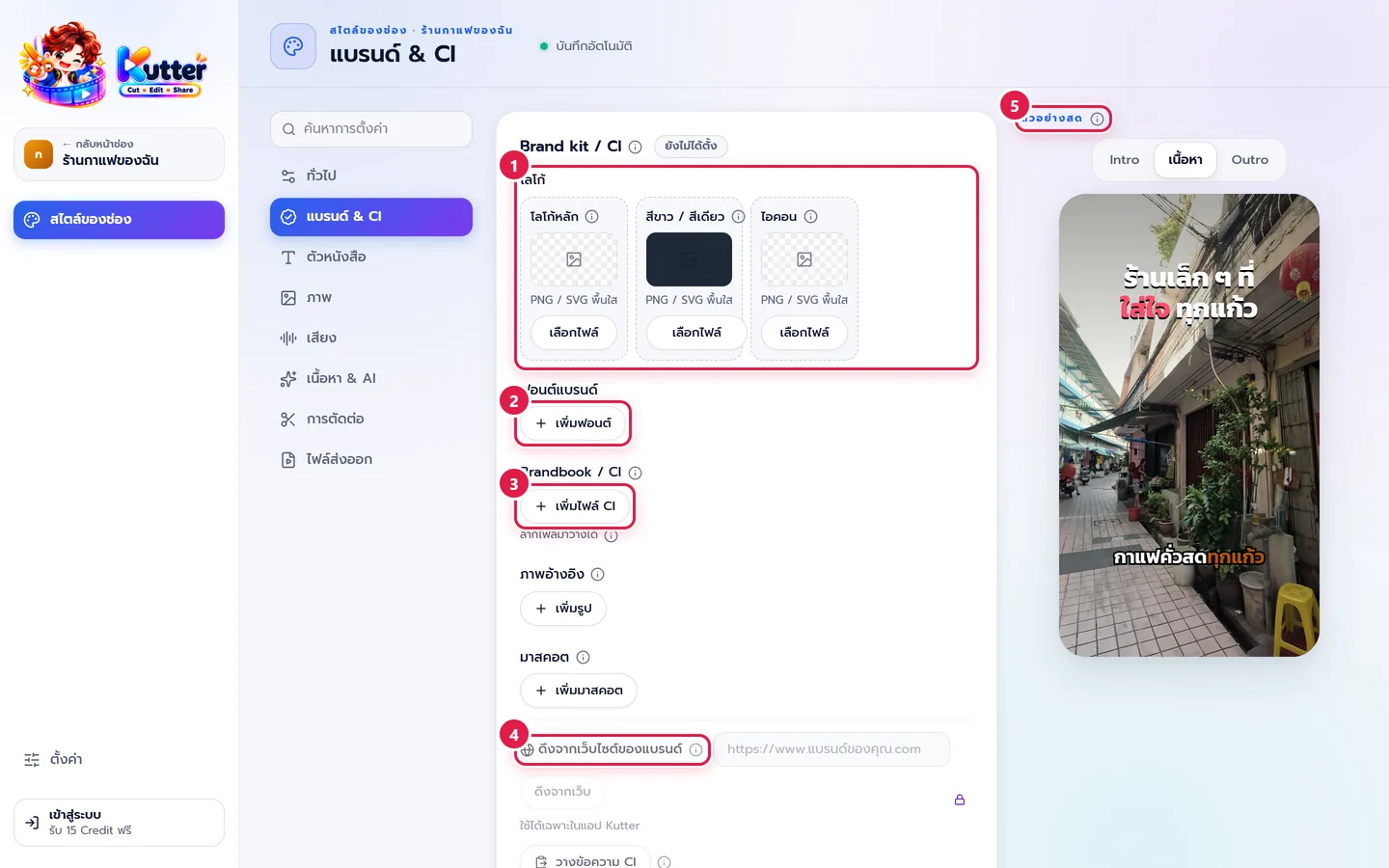
In สไตล์ของช่อง (Channel style), pick แบรนด์ & CI (Brand & CI). The first card is the Brand kit.
- Logo has 3 slots: โลโก้หลัก (Main logo) (watermark, subscribe card, cover label), สีขาว / สีเดียว (White / One color) (for dark backgrounds), and ไอคอน (Icon) (for small spaces). PNG or SVG with a transparent background looks best.
- Click เพิ่มฟอนต์ (Add font) to add your brand fonts (.ttf .otf .woff .woff2).
- Click เพิ่มไฟล์ CI (Add CI file) to add your brandbook, e.g. a PDF, PowerPoint, Word file, or image. You can also drag and drop files. (Below this are ภาพอ้างอิง (Reference images) and มาสคอต (Mascot).)
- Or paste a link under ดึงจากเว็บไซต์ของแบรนด์ (Pull from the brand's website) (works in the Kutter app).
- Click ดึงสี ฟอนต์ และกฎจากไฟล์ (Extract colors, fonts, and rules from files) to have the AI read your brand's colors, fonts, and rules. Review them, apply them to the channel, and check the result in the ตัวอย่างสด (Live preview).
In your clip: Cards, the cover, subtitles, and the Hook use your brand colors and fonts, and the AI follows your brand rules when it writes on-screen text.
Brand & image tone
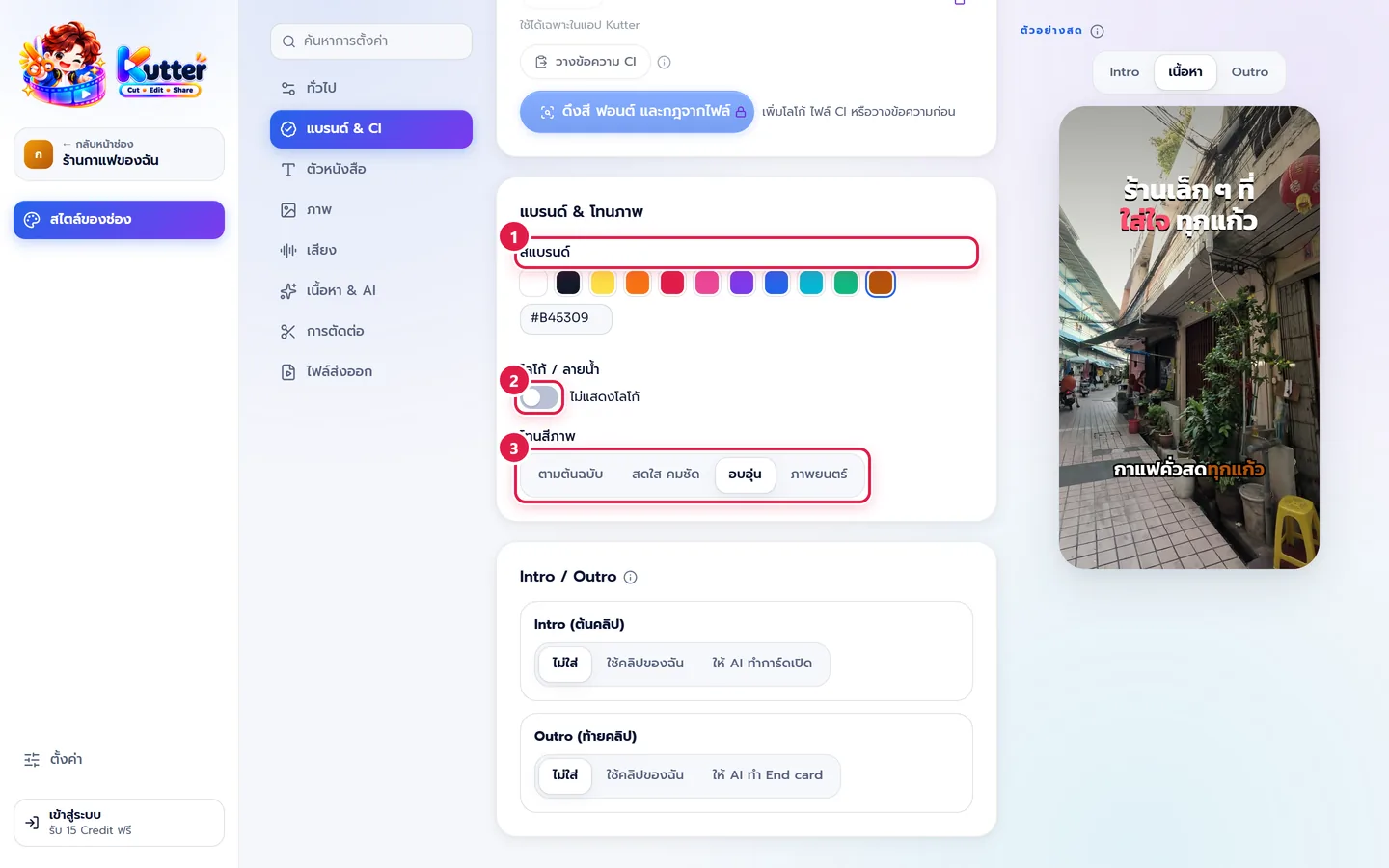
- สีแบรนด์ (Brand color): pick a color or type a color code. The café channel uses #B45309 (burnt orange). This color is used for emphasized words in subtitles and on cards.
- Logo / watermark: turn on แสดงโลโก้บนวิดีโอ (Show logo on video), then choose the file. Set its position (top left, top right, bottom left, bottom right), size, and opacity.
- โทนสีภาพ (Image color tone): choose ตามต้นฉบับ (Original), สดใส คมชัด (Vivid & sharp), อบอุ่น (Warm), or ภาพยนตร์ (Cinematic). The café picks Warm, which gives the footage a soft yellow tone that feels cozy.
Intro / Outro and End card
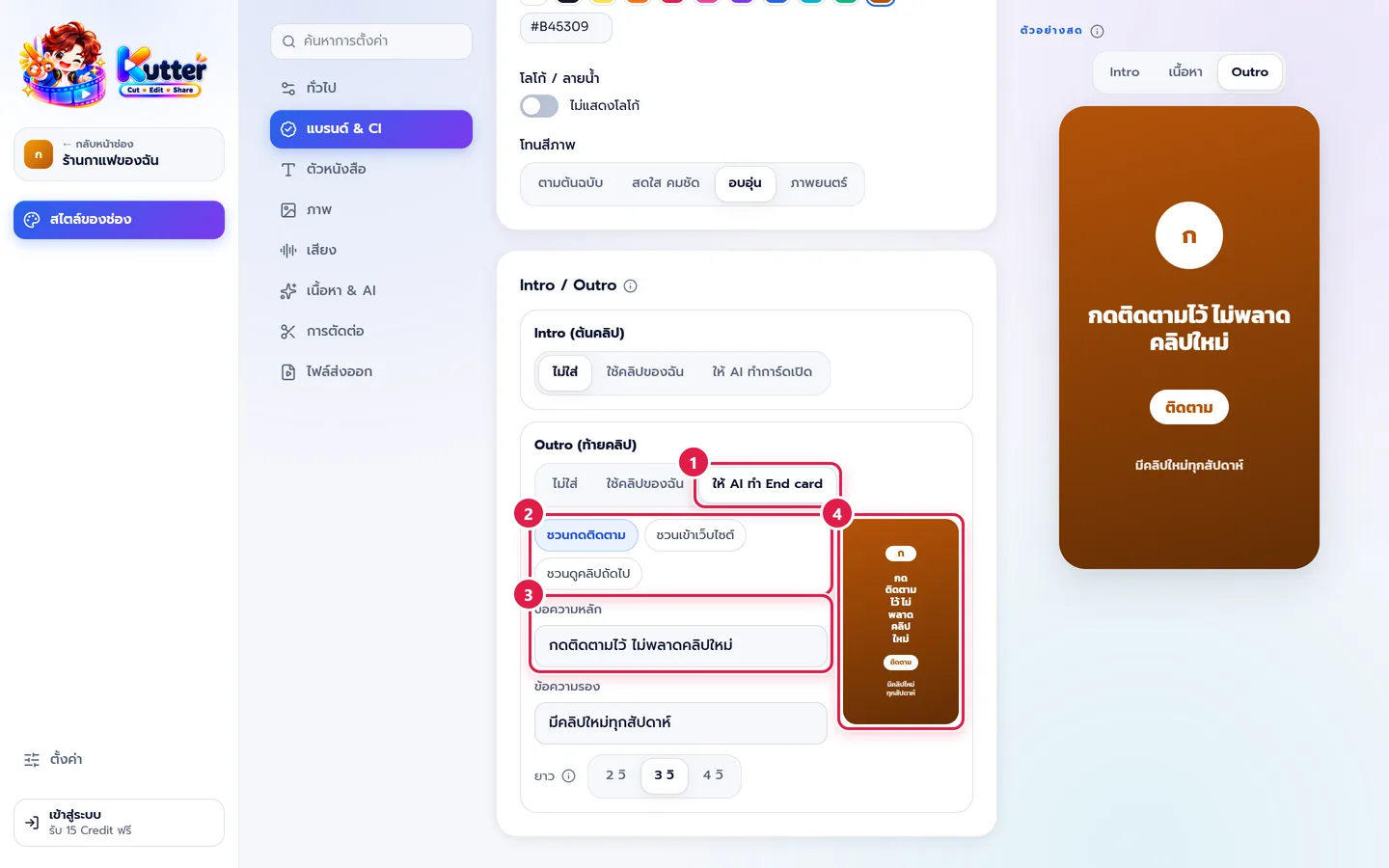
The Intro (start of the clip) and Outro (end of the clip) each have 3 options: none, ใช้คลิปของฉัน (Use my clip), or let the AI make a card.
- Under Outro, click ให้ AI ทำ End card (Let AI make an End card).
- Pick a card type: ชวนกดติดตาม (Ask to subscribe), ชวนเข้าเว็บไซต์ (Ask to visit website), or ชวนดูคลิปถัดไป (Ask to watch next clip).
- Edit the ข้อความหลัก (Main text) and the secondary text, e.g. "กดติดตามไว้ ไม่พลาดคลิปใหม่" (Subscribe so you never miss a new clip), then choose a length of 2–4 seconds.
- Check the card in the preview. It uses your channel's own brand color and heading font.
For a card Intro, click ให้ AI ทำการ์ดเปิด (Let AI make an opening card), then choose ชื่อช่อง (Channel name) or หัวข้อคลิป (Clip title) (the AI fills in the title for each clip).
Troubleshooting
- If you see "มีพื้นหลัง · ใช้ PNG พื้นใสจะดีกว่า" (Has a background · a transparent PNG works better), switch your logo to a file with a transparent background. Otherwise you'll see a rectangle around it on the video.
- If you can't add a font, try a different .ttf or .otf file.
- If you can't click the extract-colors button, add a logo or a CI file, or paste CI text first.
Next: Text
Still stuck? Chat with us (bottom right) or email support@helloworld-solution.com