 Kutter
Help › Channel style
Channel style: Editing
Tightness, filler-word cutting, zoom, transitions, and your channel's own vocabulary.
The การตัดต่อ (Editing) section sets how tightly the AI cuts this channel's clips, how it adds zooms and transitions, and which special words it uses when it transcribes.
Editing rules
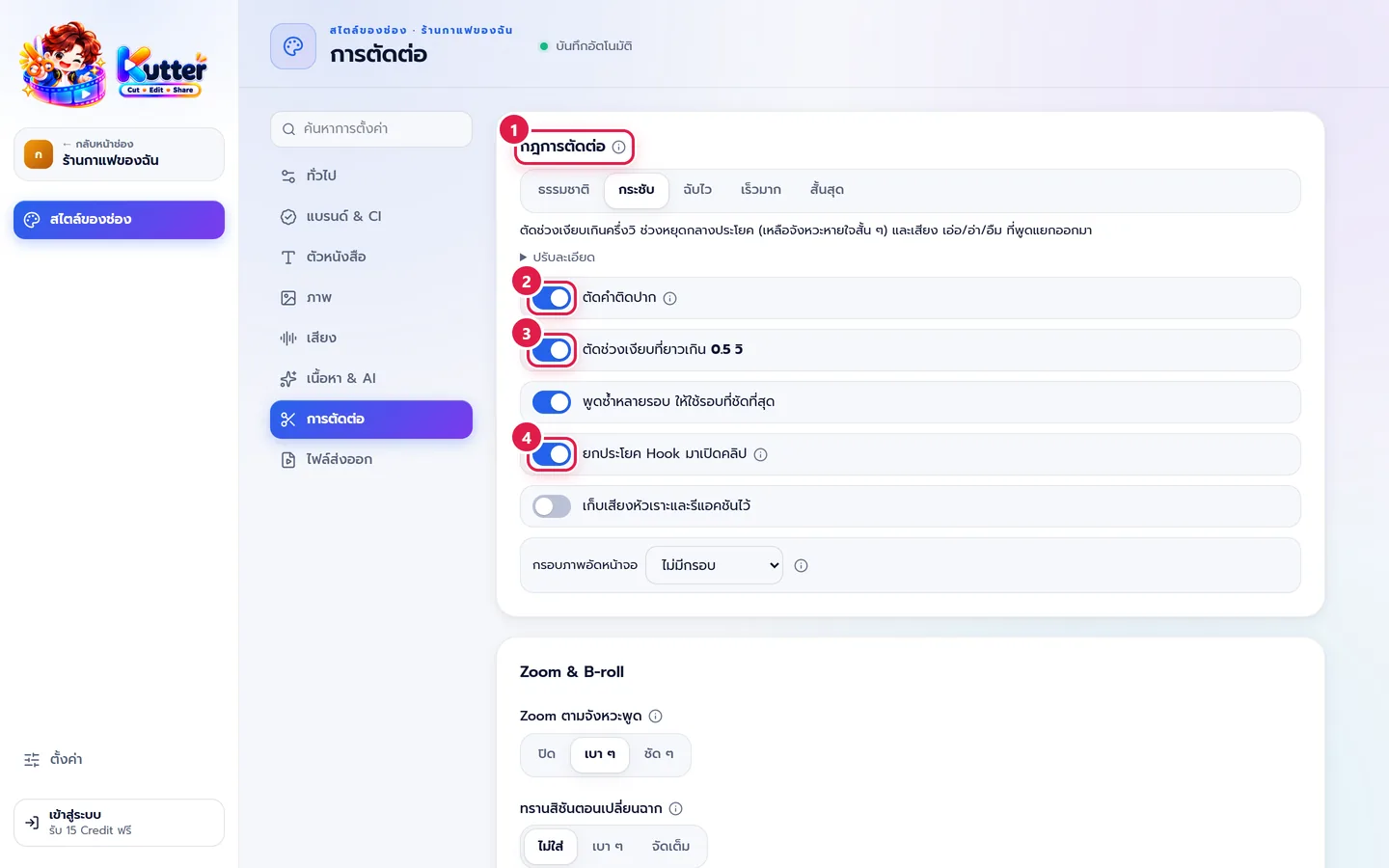
- In สไตล์ของช่อง (Channel style), pick การตัดต่อ (Editing), then choose a tightness level: ธรรมชาติ (Natural), กระชับ (Tight), ฉับไว (Snappy), เร็วมาก (Very fast), or สั้นสุด (Shortest). The text under the options explains what each level cuts. Click ปรับละเอียด (Fine-tune) if you want to set it yourself.
- ตัดคำติดปาก (Cut filler words): removes "um", "uh", and "hmm".
- Cut silences: removes silences longer than the value you set (e.g. 0.5 s).
- ยกประโยค Hook มาเปิดคลิป (Move the Hook line to the start): the AI finds a line that can stop viewers from scrolling within 3 seconds, copies it to the start of the clip, and still plays it in its original spot.
Other switches: พูดซ้ำหลายรอบ ให้ใช้รอบที่ชัดที่สุด (Repeated takes: use the clearest one), เก็บเสียงหัวเราะและรีแอคชันไว้ (Keep laughter and reactions), and กรอบภาพอัดหน้าจอ (Screen recording frame) for screen-recorded clips.
Example: The café uses Tight + cut filler words. Its 30-second menu clip flows smoothly with no dead air.
Zoom & B-roll and transcription method
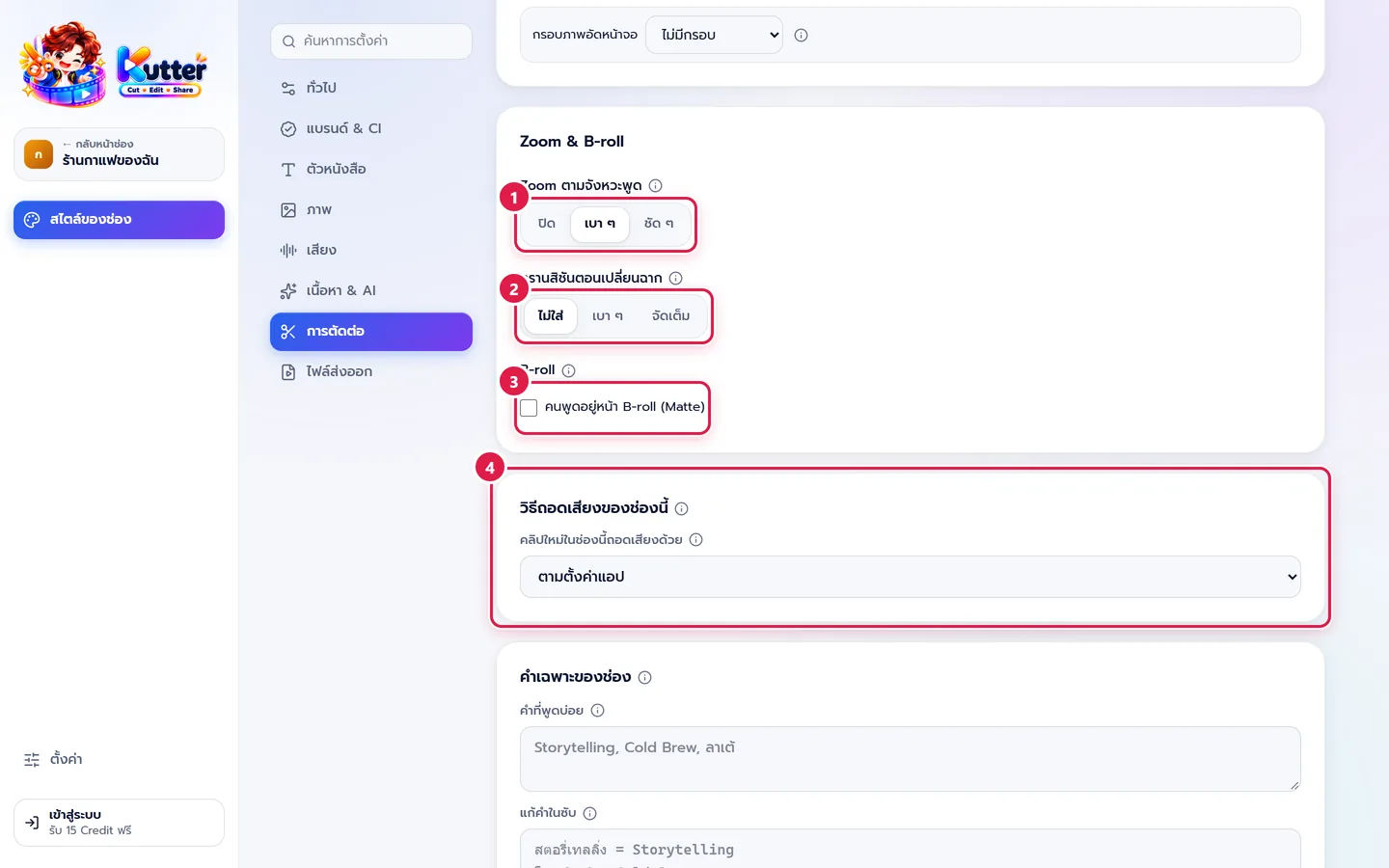
- Zoom ตามจังหวะพูด (Zoom with the speech rhythm): off, subtle, or strong. Zooms happen at cut points and on emphasized words.
- ทรานสิชันตอนเปลี่ยนฉาก (Scene transitions): ไม่ใส่ (None) (hard cuts), subtle (light punch-in zooms alternating with blur), or จัดเต็ม (Max) (swipes, zooms, flashes, shakes).
- คนพูดอยู่หน้า B-roll (Matte) (Speaker in front of B-roll (Matte)): cuts the speaker out and places them in front of the B-roll (rendering takes a few seconds longer per segment).
- This channel's transcription method: ตามตั้งค่าแอป (Follow app settings), ElevenLabs (cloud), or Whisper on your computer. See Transcription setup.
The AI picks B-roll from Pexels automatically. The café uses subtle Zoom, so the clip feels lively without making viewers dizzy.
Channel vocabulary
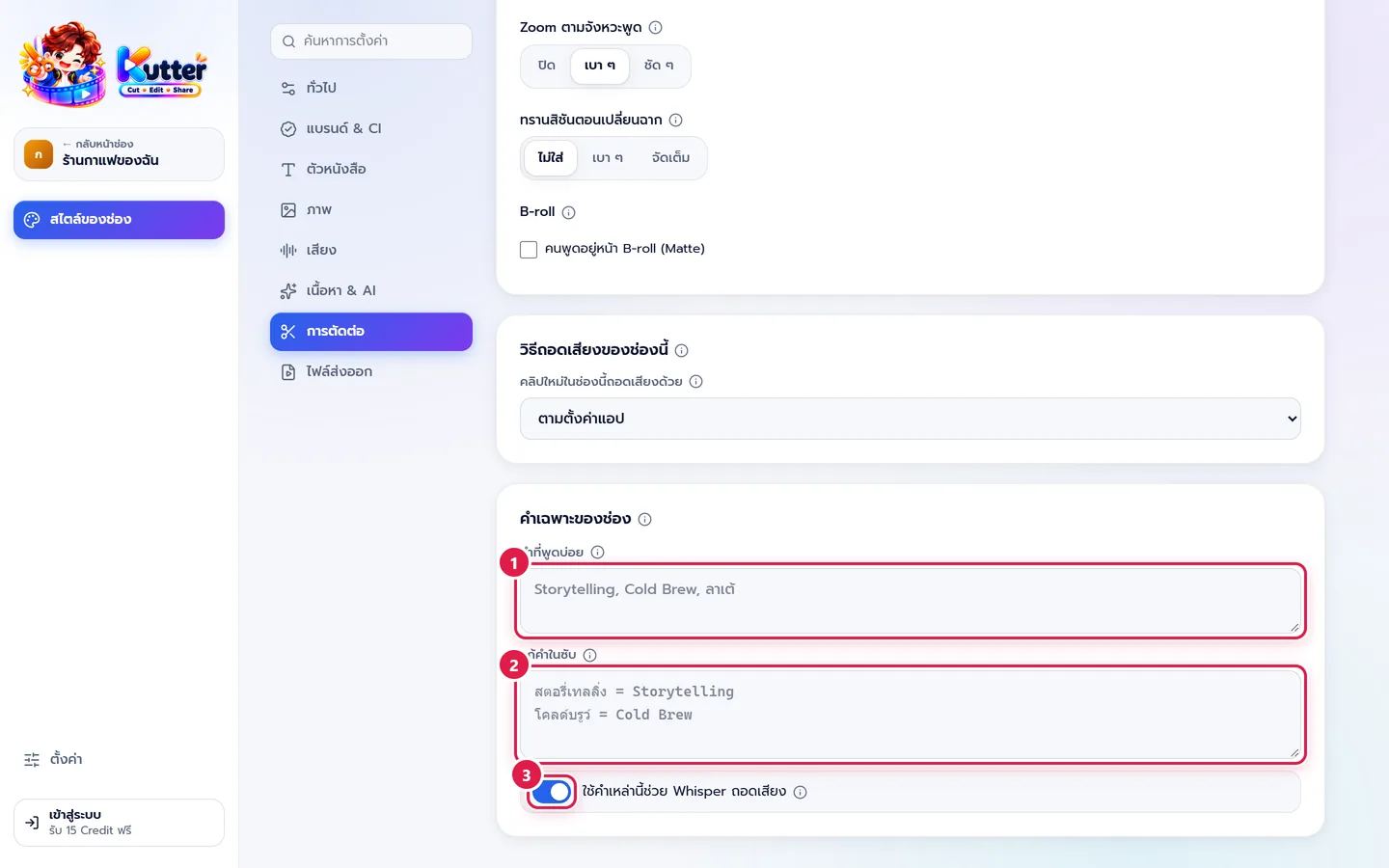
- คำที่พูดบ่อย (Frequently spoken words): names, brands, and English terms, separated by commas, e.g. "Cold Brew, ลาเต้, ดริป" (Cold Brew, latte, drip).
- แก้คำในซับ (Subtitle word fixes): one pair per line, transcribed word = word you want, e.g. "โคลด์บรูว์ = Cold Brew".
- ใช้คำเหล่านี้ช่วย Whisper ถอดเสียง (Use these words to help Whisper transcribe): keep this on so Whisper knows these words.
Troubleshooting
- If clips are cut so tightly that speech gets chopped off, lower the level to ธรรมชาติ (Natural) or กระชับ (Tight).
- If subtitles misspell menu names, add them to แก้คำในซับ (Subtitle word fixes), then click ถอดเสียงใหม่ (Transcribe again).
- If no B-roll shows up, check the image sources and keys in ตั้งค่า (Settings) › AI ที่ใช้ (AI providers). See App settings.
Next: Export files
Still stuck? Chat with us (bottom right) or email support@helloworld-solution.com