 Kutter
Help › Channel style
Channel style: Export files
Resolution, frame rate, quality, and codec of your video files.
The ไฟล์ส่งออก (Export files) section sets the default MP4 file settings for every clip in the channel. You can change them for a single clip on the Render screen (next to the clip size button).
Video file settings
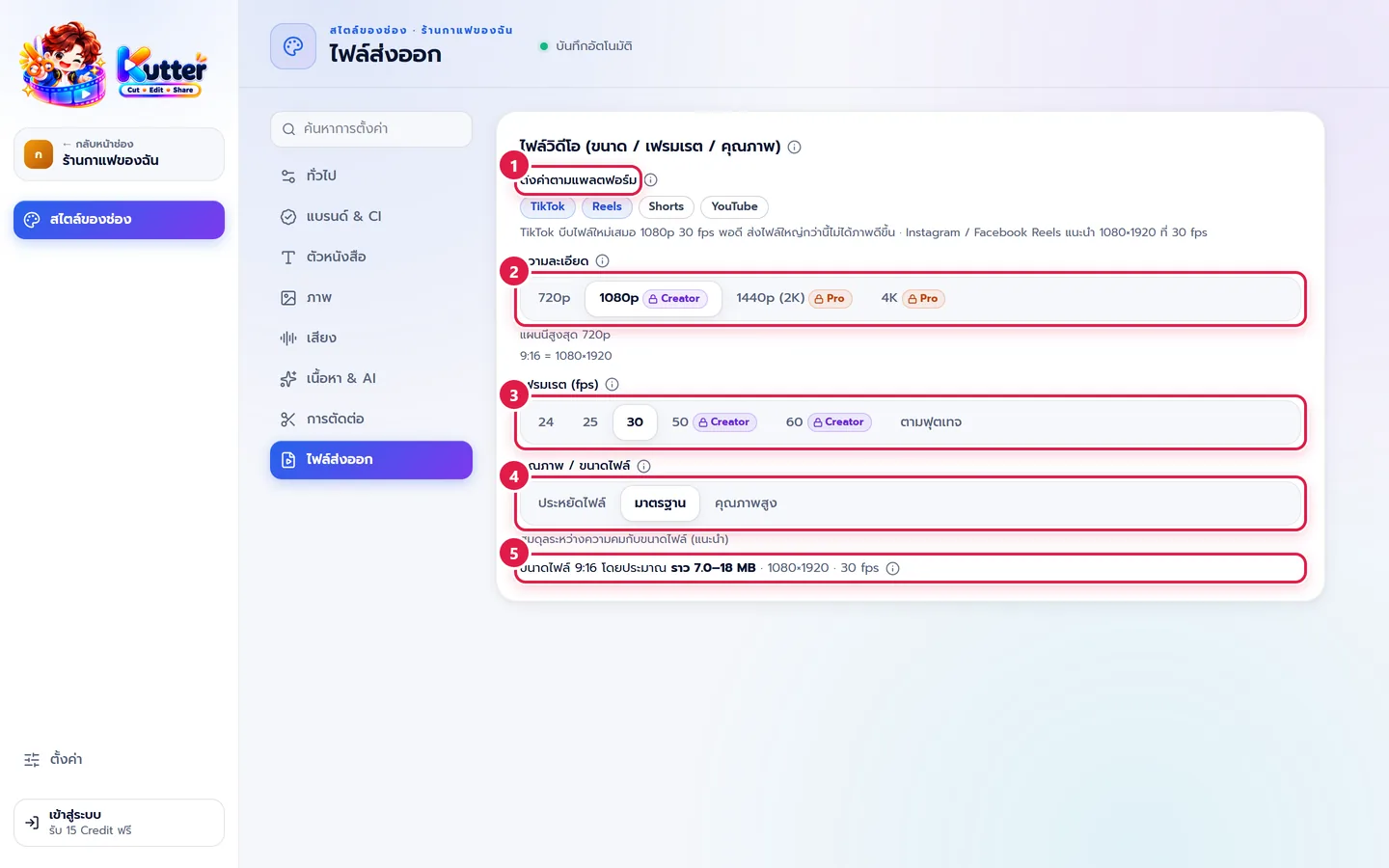
- ตั้งค่าตามแพลตฟอร์ม (Platform presets): click TikTok (TikTok), Reels (Reels), Shorts (Shorts), or YouTube (YouTube) to get the recommended settings instantly. The reason is shown below the buttons.
- ความละเอียด (Resolution): 720p (720p), 1080p (1080p), 1440p (2K) (1440p (2K)), or 4K (4K) (the short side of the frame, e.g. 9:16 at 1080p = 1080×1920).
- เฟรมเรต (fps) (Frame rate (fps)): 24, 25, 30, 50, 60, or ตามฟุตเทจ (Match footage). 30 suits most talking clips. 50/60 looks smoother but makes bigger files.
- คุณภาพ / ขนาดไฟล์ (Quality / File size): ประหยัดไฟล์ (Small file), มาตรฐาน (Standard) (recommended), or คุณภาพสูง (High quality).
- Check the estimated file size below.
Codec: H.264, or HEVC (H.265), which appears only if your computer supports it. H.265 gives a smaller file at the same quality.
Example: The café posts mainly to TikTok. Clicking TikTok gives 1080p, 30 fps, Standard. A 30-second clip is about 7–18 MB and uploads quickly.
What each plan includes
- Free: 720p, up to 30 fps, and H.264
- Creator: up to 1080p and frame rates above 30 (50 / 60 fps)
- Pro and Founder Edition: 1440p, 4K, and H.265
Options with a padlock and a Creator or Pro badge open the upgrade page when clicked. See Plans and Credits.
Troubleshooting
- If you see "แผนนี้สูงสุด 720p" (This plan is limited to 720p), choose a resolution your plan supports, or upgrade your plan.
- If you chose ตามฟุตเทจ (Match footage) and got 30 fps, check your plan. The free plan renders at up to 30 fps.
- If there's no codec option, your computer doesn't support H.265 yet, and the file will be exported as H.264.
Still stuck? Chat with us (bottom right) or email support@helloworld-solution.com