 Kutter
Help › Channel style
Channel style: Sound
AI voice-over, speaking speed, voice-over languages, and background music.
The เสียง (Sound) section sets the AI voice-over, background music, and sound effects (SFX) that every clip in the channel uses by default.
AI voice-over
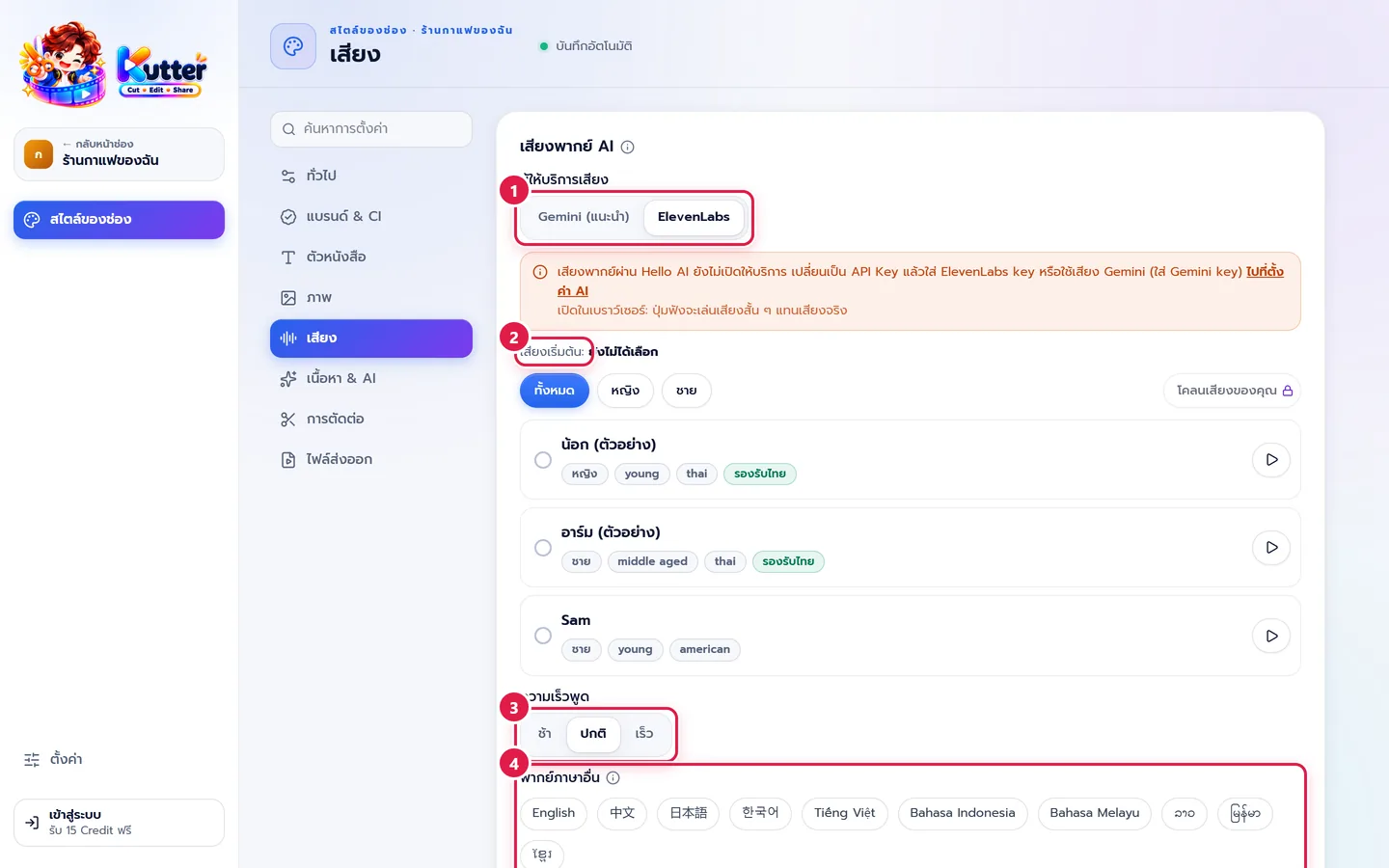
This applies when you choose AI voice-over in a project.
- In สไตล์ของช่อง (Channel style), pick เสียง (Sound), then set ผู้ให้บริการเสียง (Voice provider) to Gemini (แนะนำ) (Gemini (recommended)) or ElevenLabs.
- Look at the default voice and pick a voice from the list. You can filter by All / Female / Male. Click the play button to listen first. Voices labeled "รองรับไทย" (Supports Thai) read Thai well.
- ความเร็วพูด (Speaking speed): ช้า (Slow), ปกติ (Normal), or เร็ว (Fast).
- พากย์ภาษาอื่น (Voice-over in other languages): click the languages you use often, e.g. English. The languages you pick appear first on the render screen.
If you choose Gemini, there's a สไตล์การพูด (Speaking style) box where you describe how to speak, e.g. "Speak Thai in a friendly, warm tone, like a friend chatting with you." (It's a direction, not something that gets read aloud.)
Example: The café picks a female voice that supports Thai, at normal speed. It sounds relaxed, like a barista telling you about the menu.
Background music
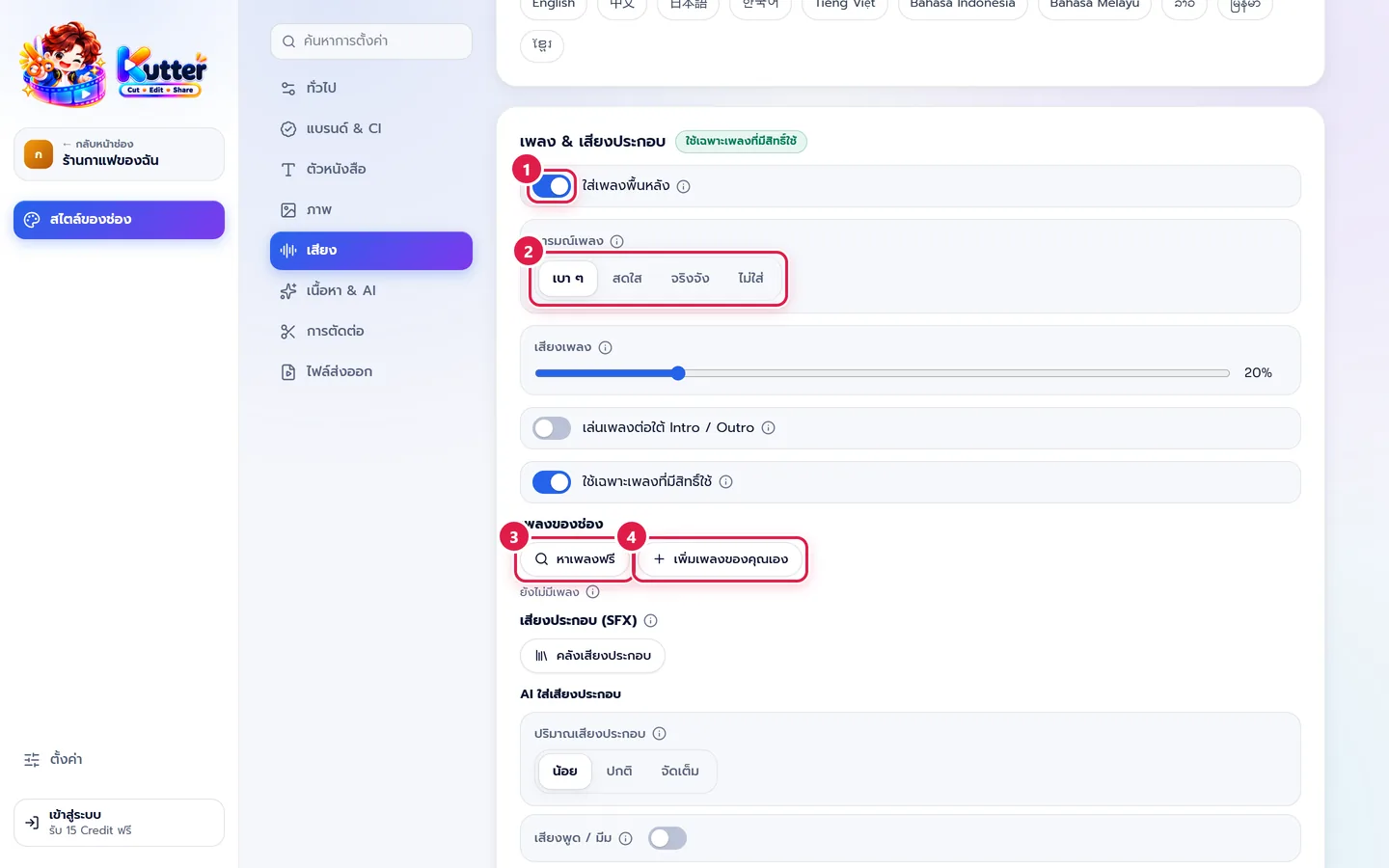
- Turn on ใส่เพลงพื้นหลัง (Add background music).
- อารมณ์เพลง (Music mood): soft, upbeat, or serious. This is used as the default search term when looking for free music.
- Click หาเพลงฟรี (Find free music) to find Creative Commons music you can use commercially.
- Or click เพิ่มเพลงของคุณเอง (Add your own music) (.mp3 .wav .m4a .aac .ogg .flac).
Music volume is the music level while someone is speaking. The music lowers automatically during speech and comes back up when the speaking stops. ใช้เฉพาะเพลงที่มีสิทธิ์ใช้ (Use only licensed music) helps keep your clips from being muted or hit with copyright claims on TikTok and YouTube.
The café picks the soft mood with music volume at 20%, so the voice stands out over the music.
Sound effects (SFX)
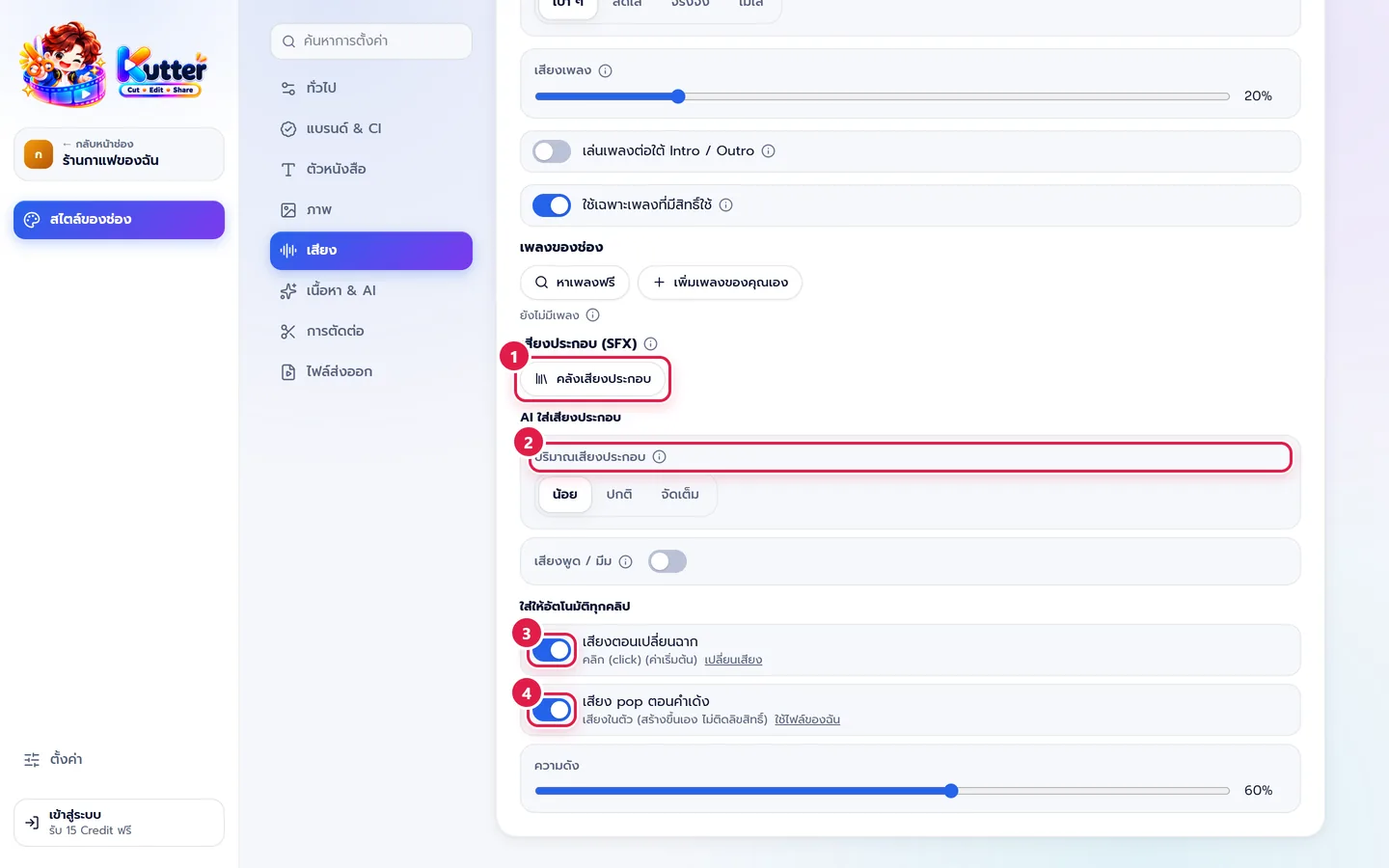
- Click คลังเสียงประกอบ (Sound effects library) to listen to and pick built-in sounds (whoosh, pop, click, ding, and more, all copyright-free).
- ปริมาณเสียงประกอบ (Amount of sound effects): low, normal, or max. This is used when you click "ให้ AI ใส่เสียงให้" (Let AI add sounds).
- เสียงตอนเปลี่ยนฉาก (Scene transition sound): when on, every cut gets a sound. Click เปลี่ยนเสียง (Change sound) if you want a different one.
- เสียง pop ตอนคำเด้ง (Pop sound for keywords): adds a sound when a keyword pops up. Adjust the volume below.
Troubleshooting
- If the voice-over card asks for a key, enter your key in ตั้งค่า (Settings) › AI ที่ใช้ (AI providers). See App settings.
- If the music drowns out the voice, lower the music volume.
- If you see "รองรับเฉพาะไฟล์เสียง" (Audio files only), convert the file to .mp3 or .wav first.
Next: Content & AI
Still stuck? Chat with us (bottom right) or email support@helloworld-solution.com