 Kutter
Help › Channel style
Channel style: Text
Ready-made subtitle themes, fonts, size, colors, the on-screen Hook, and keywords.
The ตัวหนังสือ (Text) section controls all the lettering in your clip: subtitles, the Hook text at the start, and keywords that pop up in the middle of the screen. See the result instantly in the ตัวอย่างสด (Live preview) on the right, with no need to render again.
Ready-made themes
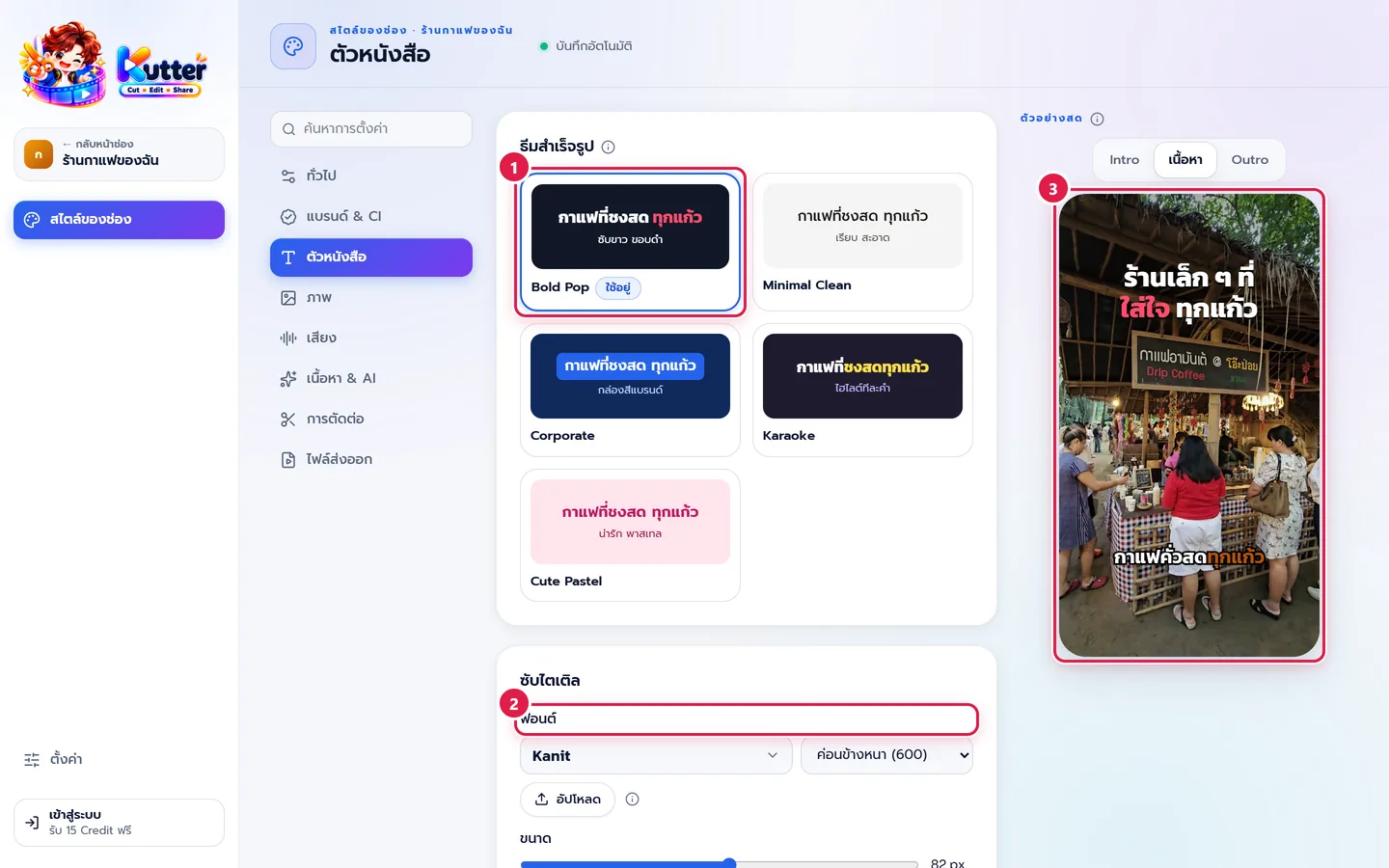
- In สไตล์ของช่อง (Channel style), pick ตัวหนังสือ (Text), then click a theme such as Bold Pop (Bold Pop), Minimal Clean (Minimal Clean), Corporate (Corporate), Karaoke (Karaoke), or Cute Pastel (Cute Pastel). You get a full set of subtitle settings in one click.
- Fine-tune the details in the ซับไตเติล (Subtitles) card, starting with the font. If you have your own font, click อัปโหลด (Upload).
- Check the result in the live preview.
The café uses Bold Pop with the Kanit font: white subtitles with a black outline, easy to read over busy shots of the shop. Emphasized words use the brand color #B45309.
Subtitles
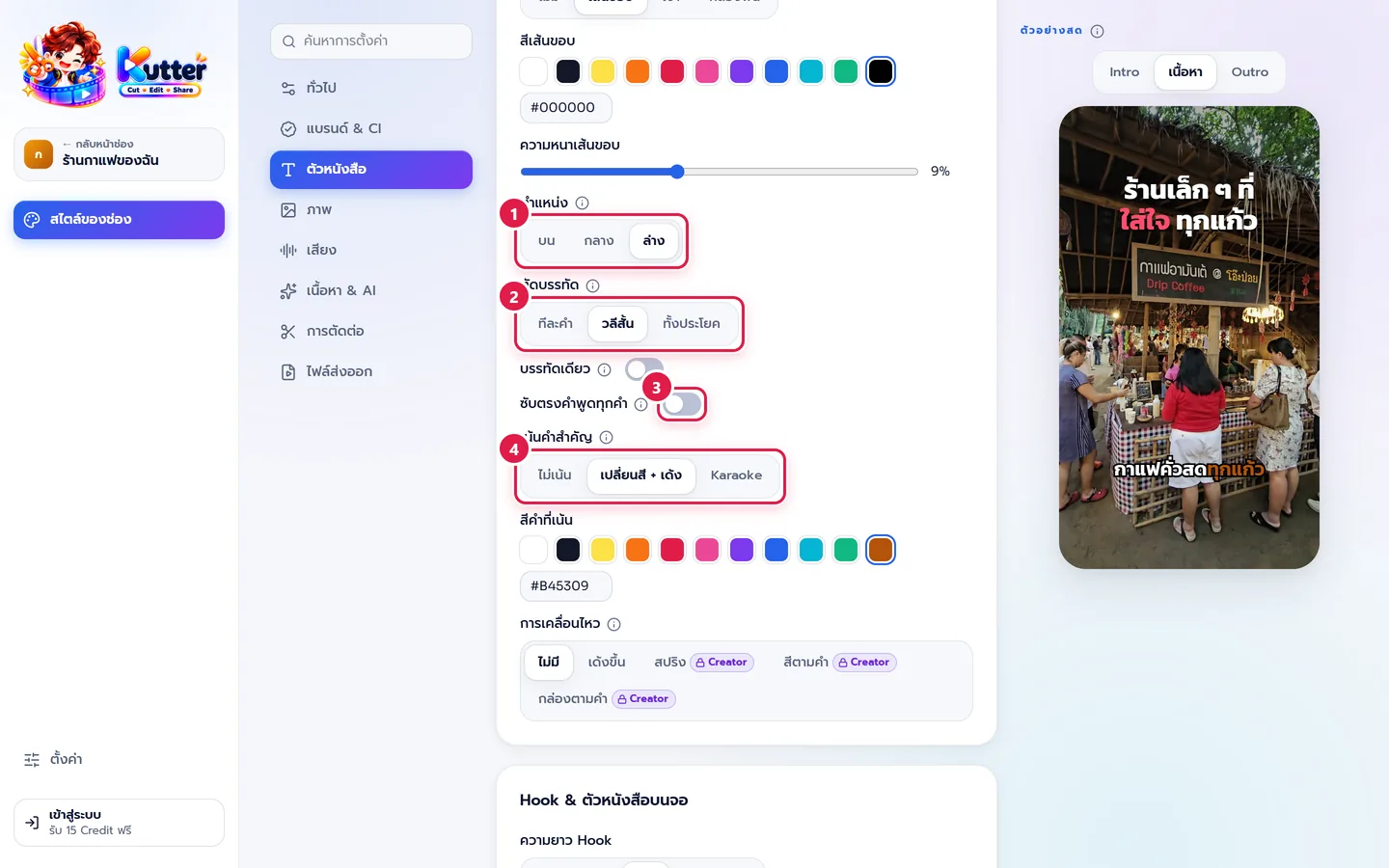
At the top of the card, set the size, สีตัวอักษร (Text color), and text outline (เส้นขอบ (Outline), เงา (Shadow), or กล่องพื้น (Background box)). Then continue with:
- Position: top, middle, or bottom (bottom leaves room for TikTok's buttons).
- Line breaks: ทีละคำ (Word by word), วลีสั้น (Short phrases) (up to 16 characters), or ทั้งประโยค (Full sentence).
- ซับตรงคำพูดทุกคำ (Verbatim subtitles): on = keep filler words as spoken; off = cut "um"/"uh" so it reads easily.
- เน้นคำสำคัญ (Emphasize key words): เปลี่ยนสี + เด้ง (Color change + pop) or Karaoke (spoken words gradually change color), then choose the สีคำที่เน้น (Emphasis color).
At the very bottom is subtitle animation, such as เด้งขึ้น (Pop up) or สีตามคำ (Color per word). It takes effect when the video is rendered.
Hook & on-screen text
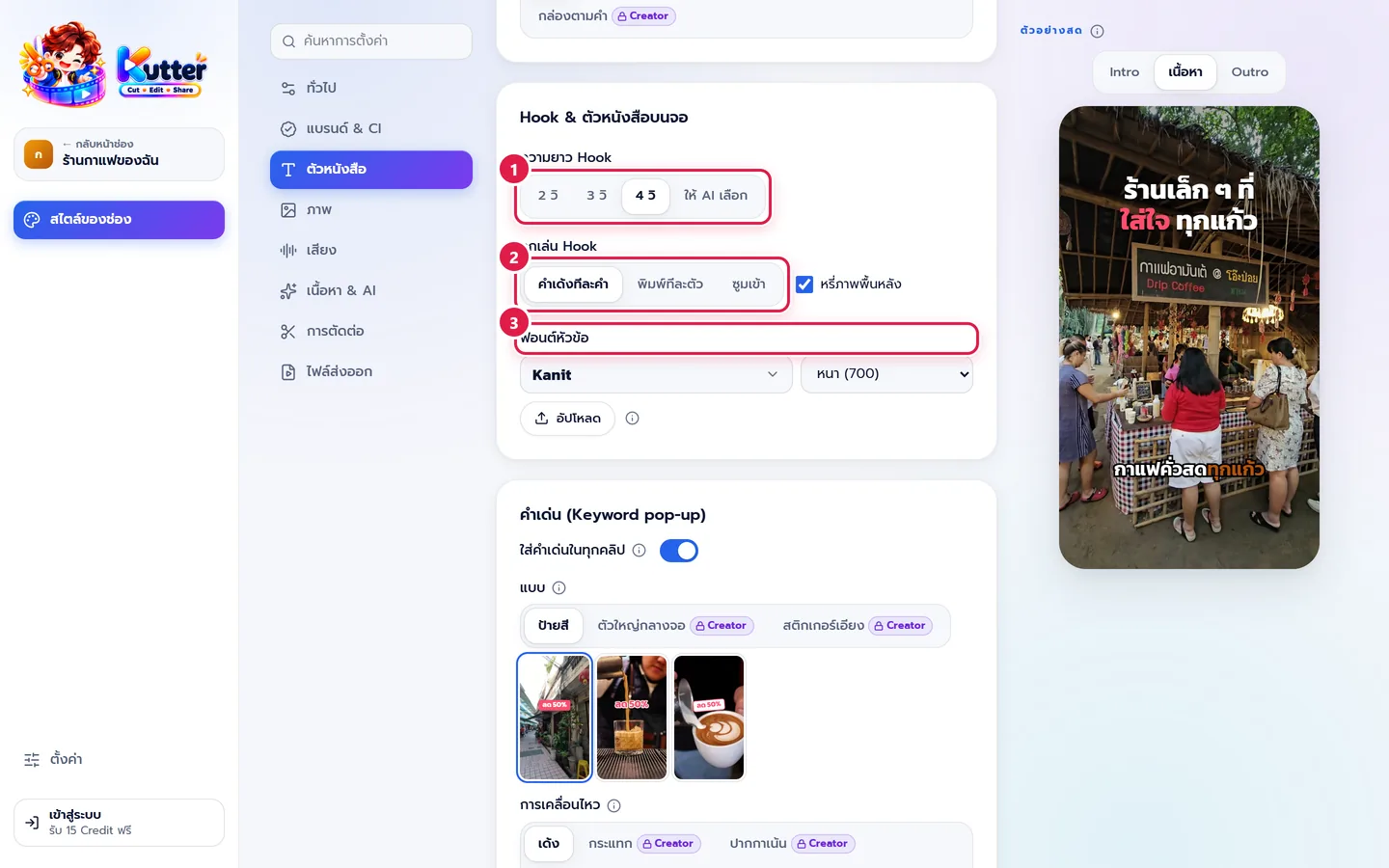
- ความยาว Hook (Hook length): 2, 3, or 4 seconds, or ให้ AI เลือก (Let AI choose).
- ลูกเล่น Hook (Hook effect): คำเด้งทีละคำ (Pop word by word), พิมพ์ทีละตัว (Typewriter), or ซูมเข้า (Zoom in). Tick หรี่ภาพพื้นหลัง (Dim background) to make the text stand out more.
- ฟอนต์หัวข้อ (Heading font): used for the Hook, cards, and keywords.
In your clip: The café opens its clip with "ร้านกาแฟเล็ก ๆ ที่ใส่ใจทุกแก้ว" (A little café that cares about every cup), popping in word by word for 4 seconds over a dimmed shot.
Keywords (Keyword pop-up)
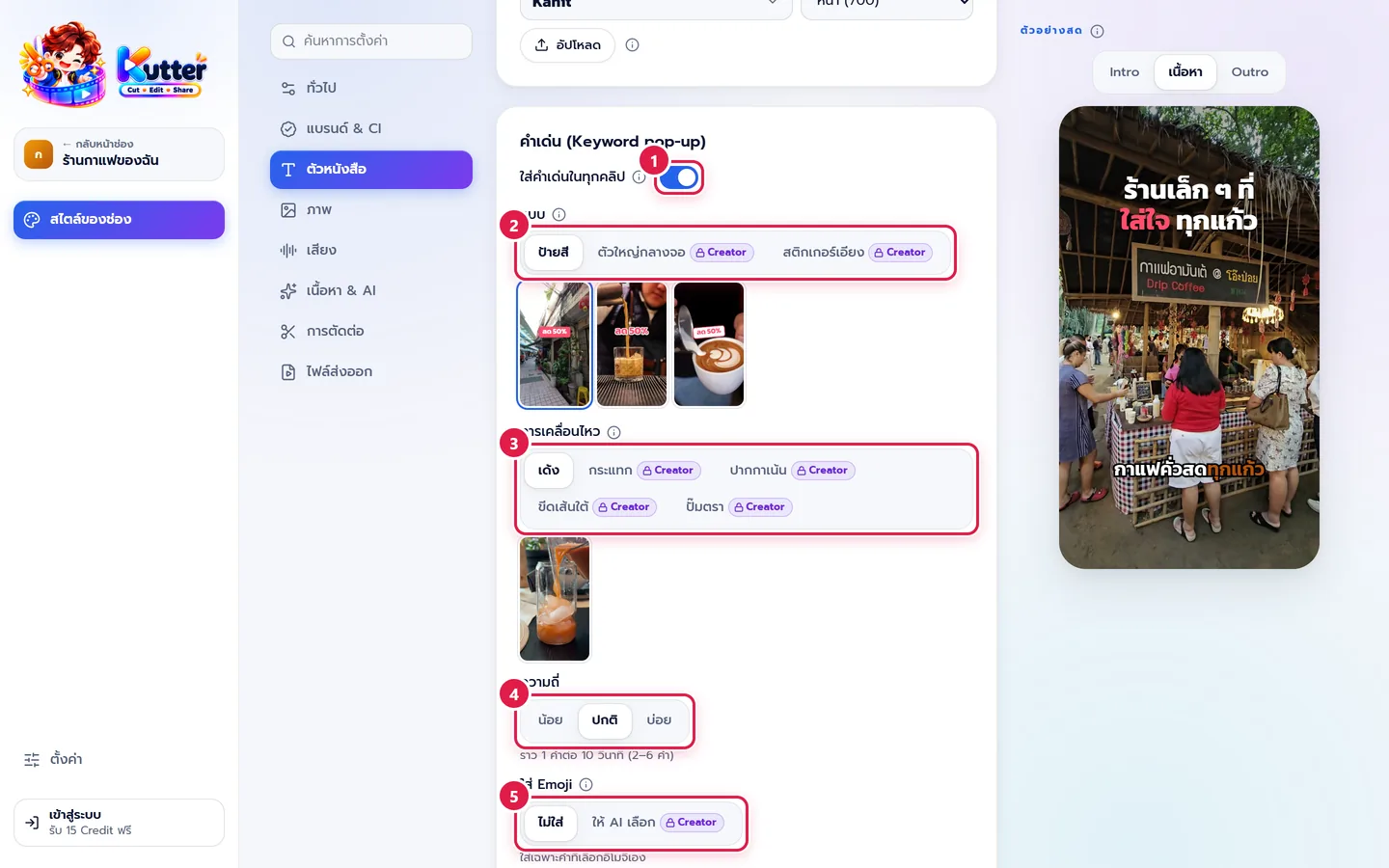
Important words pop up large in the middle of the screen when they're spoken. The AI picks 2–6 per clip.
- Turn on ใส่คำเด่นในทุกคลิป (Add keywords to every clip).
- Style: ป้ายสี (Color tag), ตัวใหญ่กลางจอ (Big center text), or สติกเกอร์เอียง (Tilted sticker) (you can click the sample pictures below to choose).
- Animation: e.g. เด้ง (Pop), กระแทก (Slam), ปากกาเน้น (Highlighter), ขีดเส้นใต้ (Underline), ปั๊มตรา (Stamp).
- Frequency: low (about 1 word every 15 s), normal (about 1 word every 10 s), or high (about 1 word every 7 s).
- ใส่ Emoji (Add emoji): none, or let the AI choose. Then pick a เสียงตอนเด้ง (Pop sound) below.
The café uses burnt-orange color tags with words like "คั่วสดทุกสัปดาห์" (Freshly roasted every week) and "ลาเต้อาร์ต" (Latte art). You can edit them one by one in the Finish step.
Troubleshooting
- If subtitles spill onto two lines, change Line breaks to วลีสั้น (Short phrases) or turn on Single line.
- If subtitles cover TikTok's buttons, set the position to bottom, which already leaves room for them.
- If you see "ไฟล์นี้ใช้เป็นฟอนต์ไม่ได้" (This file can't be used as a font), try a different .ttf or .otf file.
Next: Visuals
Still stuck? Chat with us (bottom right) or email support@helloworld-solution.com