 Kutter
Help › Channel style
Channel style: Visuals
Cover designs, the animation theme, and your channel's character.
The ภาพ (Visuals) section sets the look of your cover (the opening text of the clip) and of the animations the AI makes, so every clip in the channel looks like part of the same set.
Cover & opening text
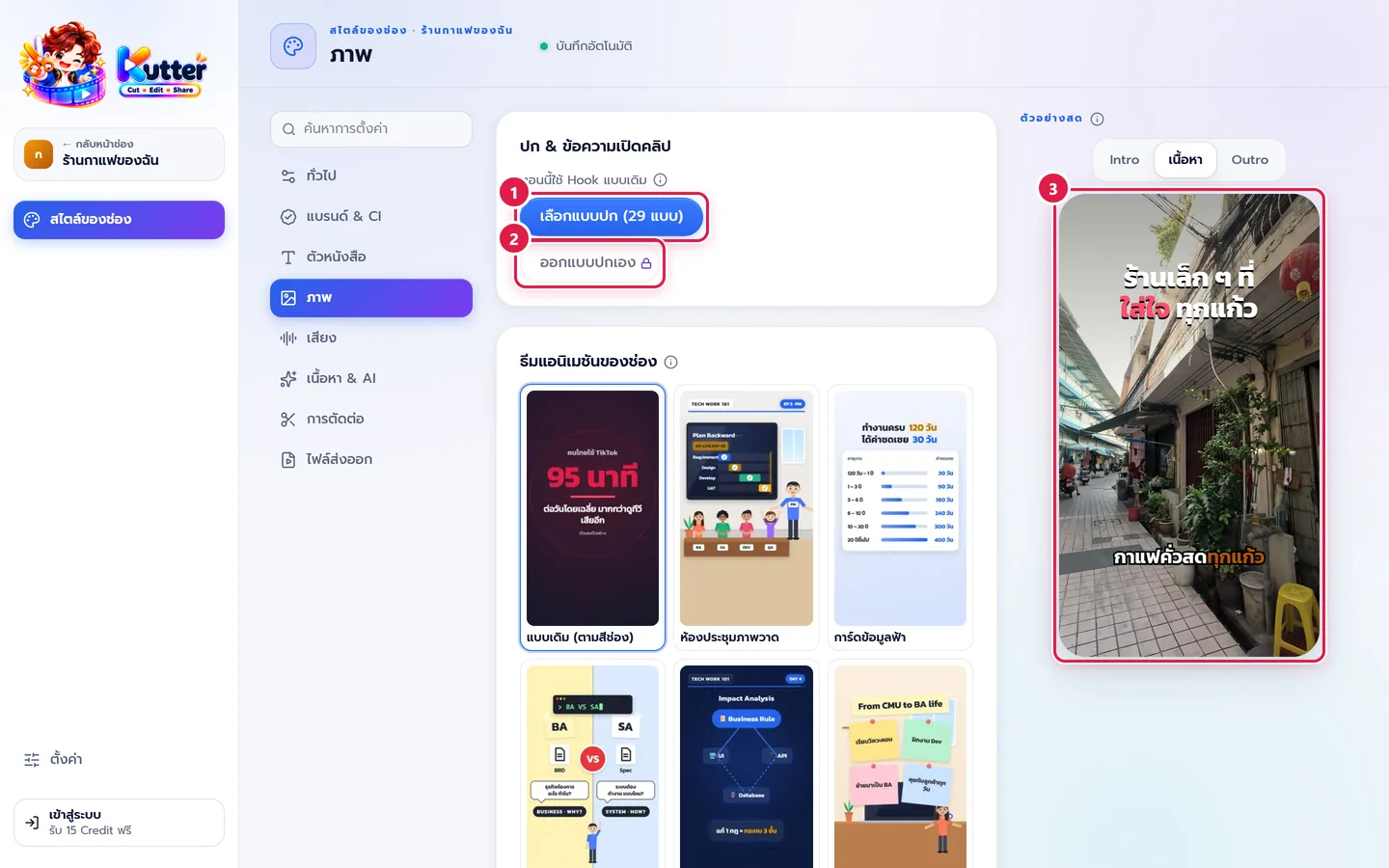
A new channel shows "ตอนนี้ใช้ Hook แบบเดิม" (Currently using the classic Hook), which means it still uses the Hook text from the Text section.
- In สไตล์ของช่อง (Channel style), pick ภาพ (Visuals), then click เลือกแบบปก (Choose cover design).
- If you want your own cover design, click ออกแบบปกเอง (Design my own cover). Move, resize, and rotate elements, and add text, shapes, stickers, and arrows.
-
Check the result in the ตัวอย่างสด (Live preview).
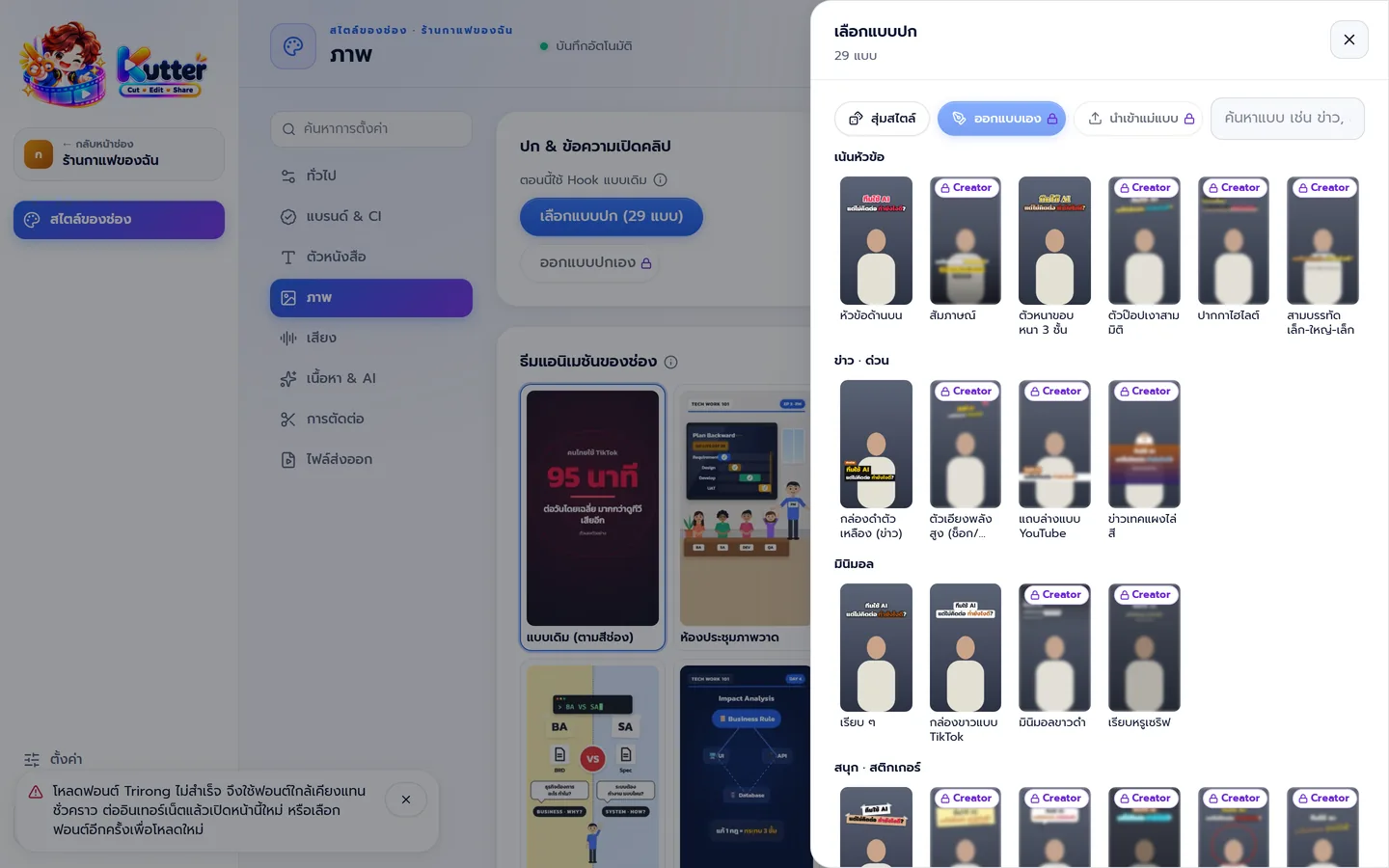
The cover design picker is split into groups, such as headline-focused, news · breaking, minimal, and fun · stickers. Search for a design in the search box, or click สุ่มสไตล์ (Random style).
Once you pick a design, the card shows a ใช้ปกนี้ (Use this cover) switch (off = go back to the classic Hook) and a button to change the design, plus controls for each line's font, size, color, and outline.
Example: The café uses a headline-focused cover with white text and key words in the brand color. The title "ร้านกาแฟเล็ก ๆ ที่ใส่ใจทุกแก้ว" (A little café that cares about every cup) appears from the very first frame, so it works as the TikTok cover image as is.
You can also change the cover for each clip in the Finish step.
Animation theme and character
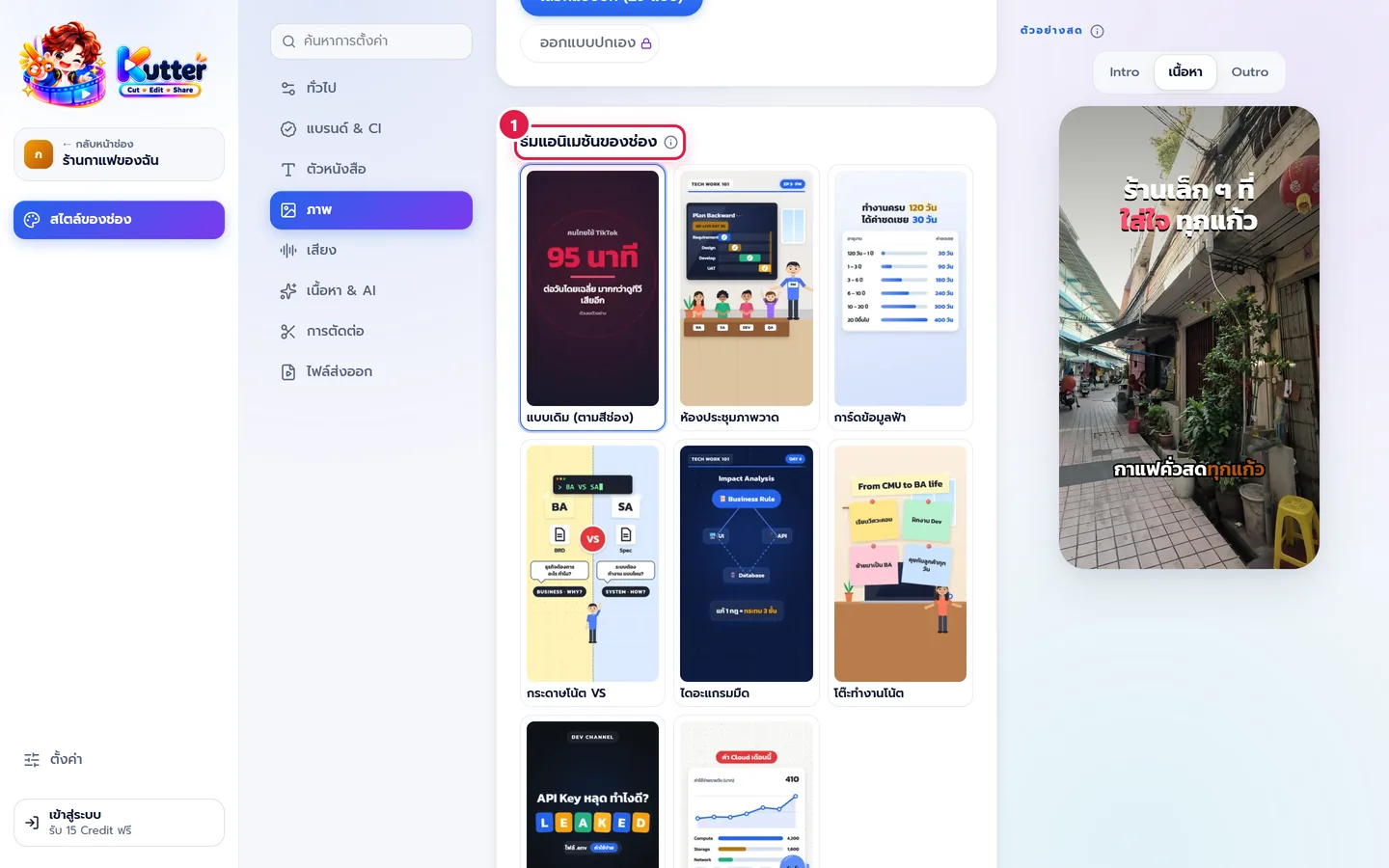
- ธีมแอนิเมชันของช่อง (Channel animation theme): pick the look that every AI animation shares: background, cards, series header, and accent color, e.g. แบบเดิม (ตามสีช่อง) (Classic (channel colors)) or การ์ดข้อมูลฟ้า (Blue info cards).
- Scroll down to ตัวละครของช่อง (Channel character). Add a mascot or a photo of your face (the app removes the background on your computer) so the AI places it in animations instead of drawing a person itself.
In your clip: Animated scenes the AI makes, such as a menu summary scene, use the same theme and character in every clip.
Troubleshooting
- If the cover doesn't show up in your clip, check that the ใช้ปกนี้ (Use this cover) switch is on.
- If you see a font loading error in the cover design picker, connect to the internet and reopen the page, or choose a different font.
- If you see a padlock when you click a cover design, that design requires the Creator plan.
Next: Sound
Still stuck? Chat with us (bottom right) or email support@helloworld-solution.com