 Kutter
Help › In depth
Channel style and templates for making clips again, fast
Set up your channel style fully once, emulate a clip you like, and use story structure templates, so your next clip needs almost no fixes.
Goal: Every new clip in the channel looks the same from the start, with no need to set up subtitles, music, or story structure again each time.
Everything in สไตล์ของช่อง (Channel style) is the default for every clip in that channel. To change only one clip, edit it in that clip's steps instead. The channel stays the same.
The order to set things up (do it once)
- ทั่วไป (General): who the channel talks to and what tone it uses (see how)
- แบรนด์ & CI (Brand & CI): logo, colors, and Intro / Outro (see how)
- ตัวหนังสือ (Text): subtitles and the Hook (see how)
- เสียง (Sound): voice-over, music, sound effects (see how)
- เนื้อหา & AI (Content & AI): Hook type, Master prompt, and story structure templates (see how)
- การตัดต่อ (Editing): tightness, zoom, B-roll (see how)
Emulate a clip you like
This is the fastest shortcut if you have a clip you want your channel to look like.
-
In สไตล์ของช่อง (Channel style) › ทั่วไป (General), find the เลียนแบบจากคลิปที่ชอบ (Emulate a clip you like) card.
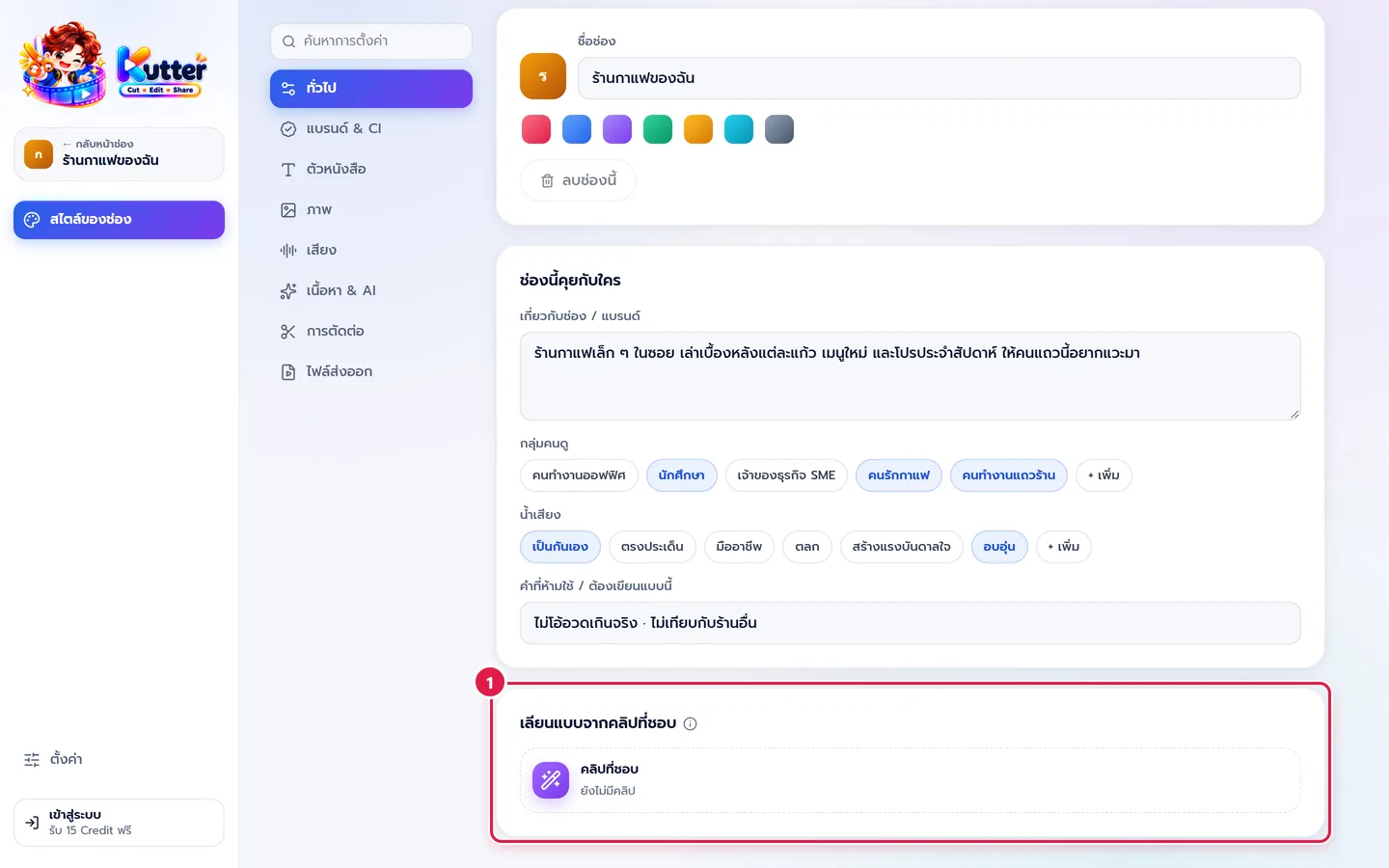
- Paste a link to the clip, or choose a clip file on your computer.
- Kutter looks at the cut pacing, subtitles, colors, and sound, then suggests new settings one by one, with a confidence level for each.
- Tick only the items you want to use, then confirm. Items you don't tick aren't changed.
Story structure templates
A template is the structure of a clip, e.g. Hook › Problem › Solution › Ask to subscribe, with a length for each section. The AI uses it when it writes the script and arranges the Storyboard.
-
In เนื้อหา & AI (Content & AI), scroll to เทมเพลตโครงเรื่อง (Story structure templates).
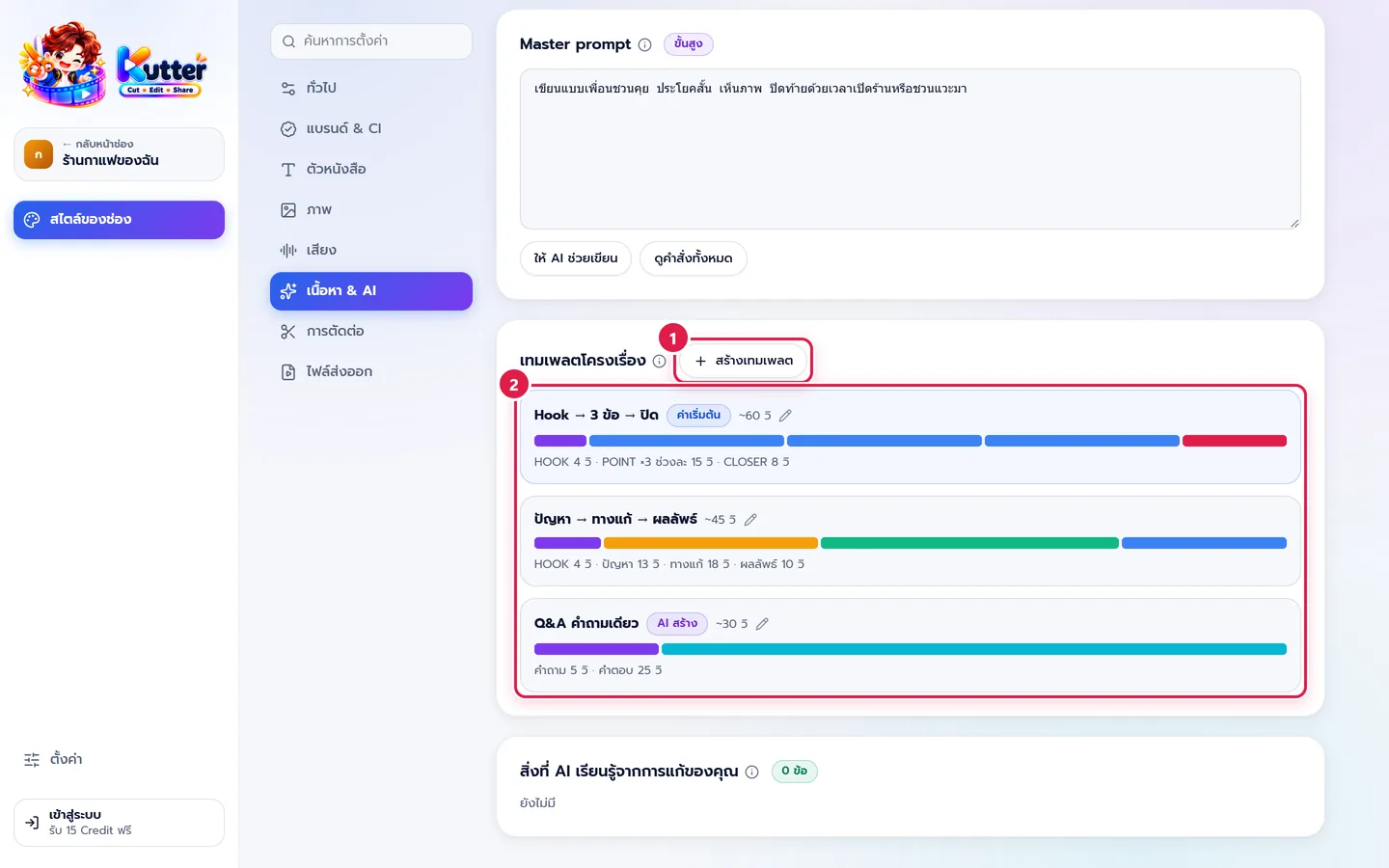
- Click สร้างเทมเพลต (Create template) (marker 1), or click an existing template to edit it (marker 2).
- Adjust the sections and lengths, then set it as the default. That template gets a ค่าเริ่มต้น (Default) tag.
- Want a similar structure? Open the existing template, click ทำสำเนา (Duplicate), and change only what you need.
- When you write the script, you can pick a different template for that project only (Script step).
Result: When you open a new project in this channel, the subtitles, music, logo, and story structure are ready from the start. All that's left is to check and continue.
Common problems
- If you changed the channel style but old clips didn't change, open the clip and render it again. Files you already rendered don't update on their own.
- If some clips don't follow the channel, those clips have their own clip-specific settings. Edit that clip directly.
- If the AI writes scripts that are too long or too short, adjust the lengths in the template marked ค่าเริ่มต้น (Default).
Still stuck? Chat with us (bottom right) or email support@helloworld-solution.com