 Kutter
Help › In depth
Cut filler words, silences, and tightness
Five tightness levels, fine-tuning, and letting AI smooth out the cuts.
Goal: a talking-head clip that flows, with no "เอ่อ" (um) and no dead air, but still sounds natural.
This applies to clips with someone speaking (using the speech in the clip). AI voice-over clips don't need it.
Set the channel default
-
Go to สไตล์ของช่อง (Channel Style) → การตัดต่อ (Editing), the Editing rules card
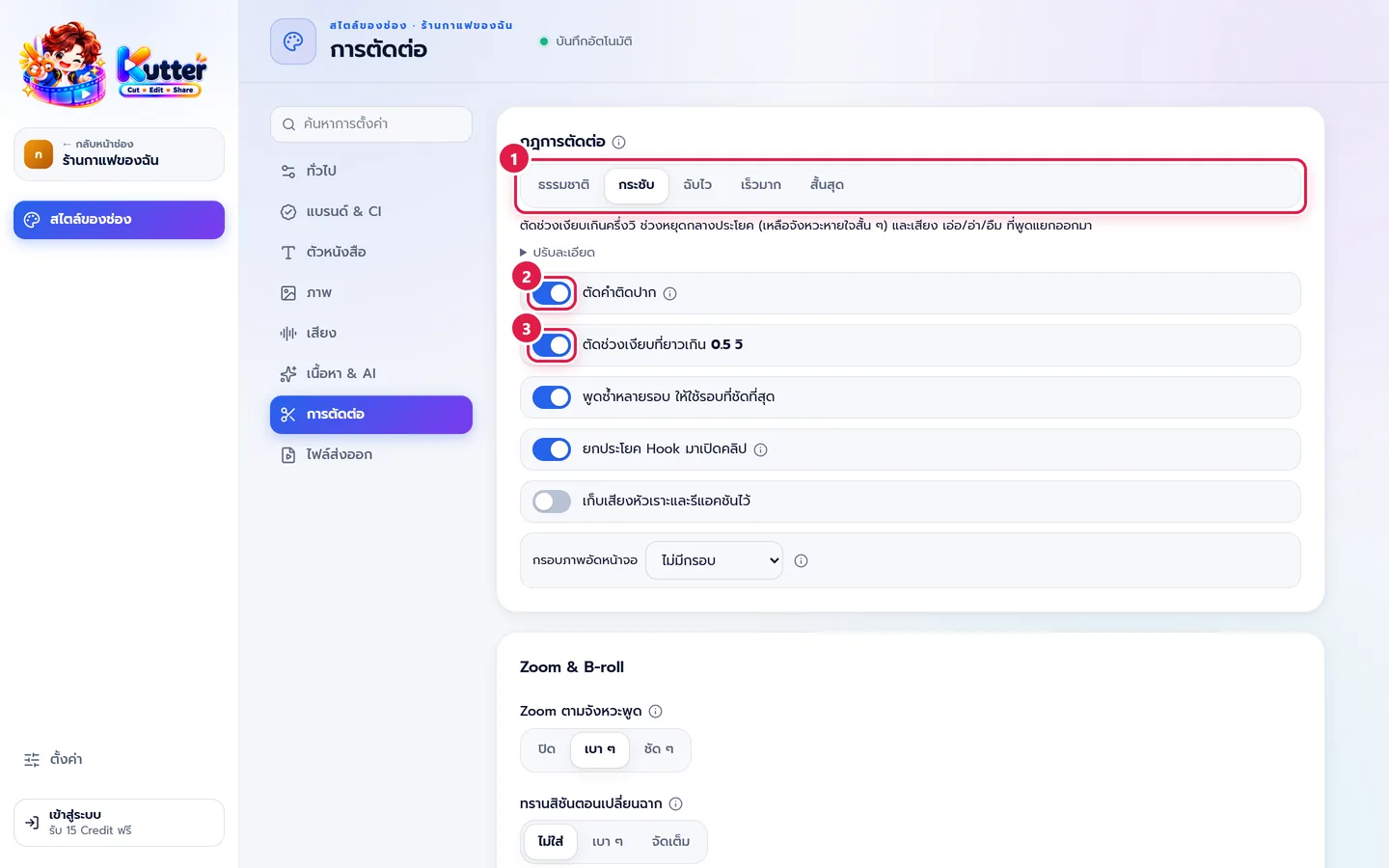
- Pick a level. The text under the buttons explains what each level cuts.
- Turn on ตัดคำติดปาก (Cut Filler Words) to cut "เอ่อ/อ่า/อืม" (um/uh/hmm)
- Turn on ตัดช่วงเงียบ (Cut Silences) to cut silences longer than the set limit
Five levels — pick one to match the clip:
- ธรรมชาติ (Natural) cuts only silences over 1 sec. Good for interviews and slow storytelling.
- กระชับ (Tight) (default) cuts silences over half a second plus um/uh/hmm. Good for most clips.
- ฉับไว (Snappy) cuts pauses over 0.35 sec and stuttered repeats. Good for TikTok / Reels.
- เร็วมาก (Very Fast) is jump-cut style, cutting pauses over 0.3 sec.
- สั้นสุด (Shortest) works like Very Fast, then has AI cut repeated sentences to hit your target length.
Fine-tune
-
Press ปรับละเอียด (Fine-tune) under the levels
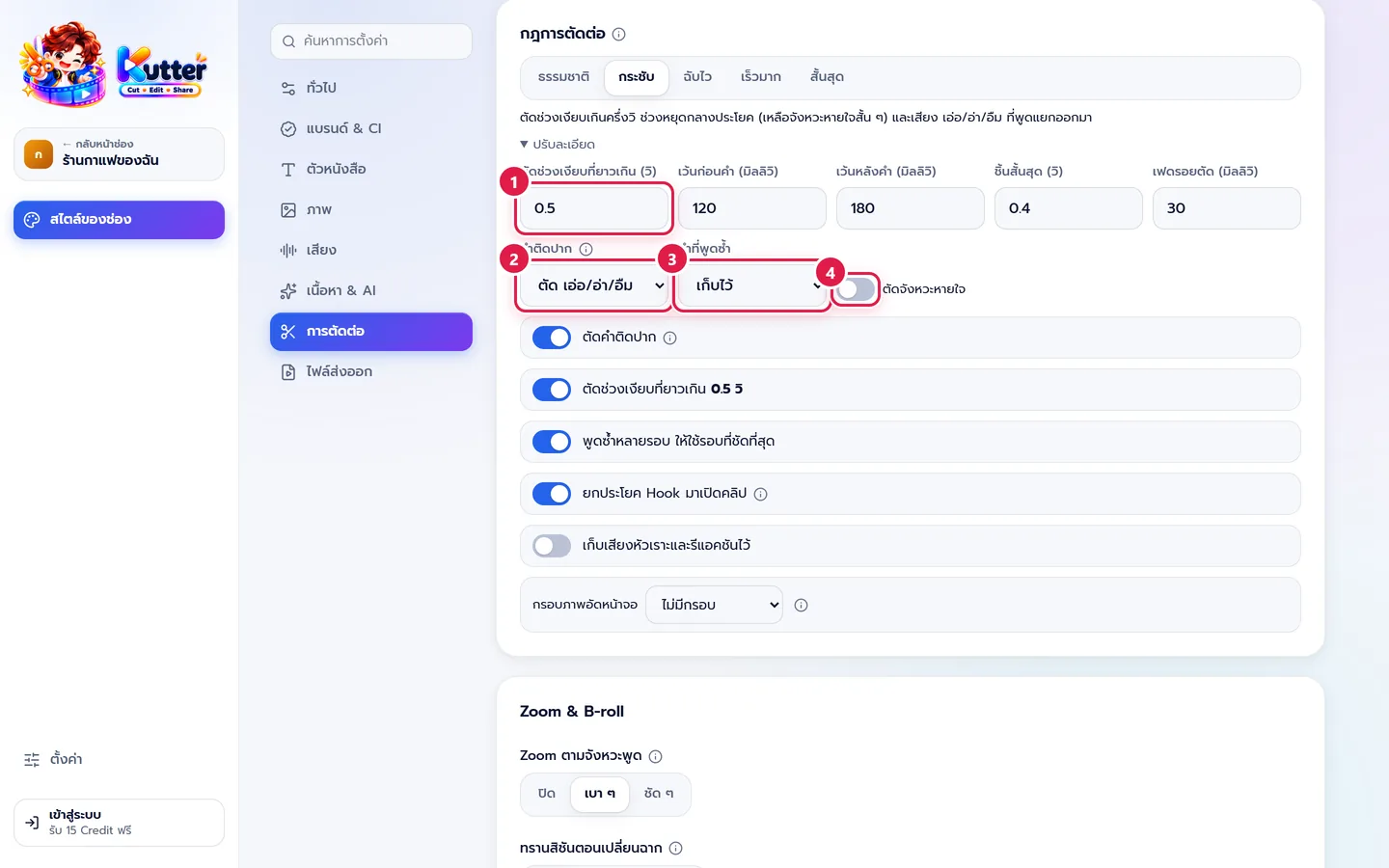
- Cut silences longer than — the smaller the number, the closer the words sit together.
- Filler words — keep them all, or cut um/uh/hmm.
- Repeated words — choose to cut words stuttered back to back.
- Turn on ตัดจังหวะหายใจ (Cut Breaths) when you want a truly tight jump-cut.
Adjust one clip in the Storyboard
- The Storyboard page of a talking clip has a tightness card showing the before → after time for each level.
- At ฉับไว (Snappy) or above, press ให้ AI ช่วยตัดให้ลื่น (Let AI Smooth the Cuts). AI reads the context and cuts words like "แบบ" (like) and "คือ" (I mean), or sentences you said twice.
- See every cut word under สิ่งที่ตัดออก (What Was Cut). To keep a word, press เอากลับ (Restore).
- To cut word by word yourself, press แก้จากคำพูด (Edit by Transcript) above the scene list, select the words, and press Delete (the Storyboard step). Words you delete yourself override every level.
Common problems
- If words sound clipped at the end, increase "เว้นหลังคำ" (Padding after words) in Fine-tune, or drop down one level.
- If an important word went missing, open สิ่งที่ตัดออก (What Was Cut) and press เอากลับ (Restore).
- If the picture jumps at the cuts, increase "เฟดรอยตัด" (Fade at cuts), or turn on Zoom with speech pacing in Channel style: Editing.
Read more: The Storyboard step · Choose the clip length
Still stuck? Chat with us (bottom right) or email support@helloworld-solution.com