 Kutter
Help › In depth
Zoom, crop, and zoom pacing
Set speech-paced zoom for the whole channel, add your own zoom points per scene, and zoom/crop pictures 1–8× in voice-over clips.
Goal: a picture that never sits still long enough to get boring, zooms in on the words you stress, and is cropped so what you're talking about is clear.
1. Zoom pacing for the whole channel
-
Go to สไตล์ของช่อง (Channel Style) › การตัดต่อ (Editing), the Zoom & B-roll card
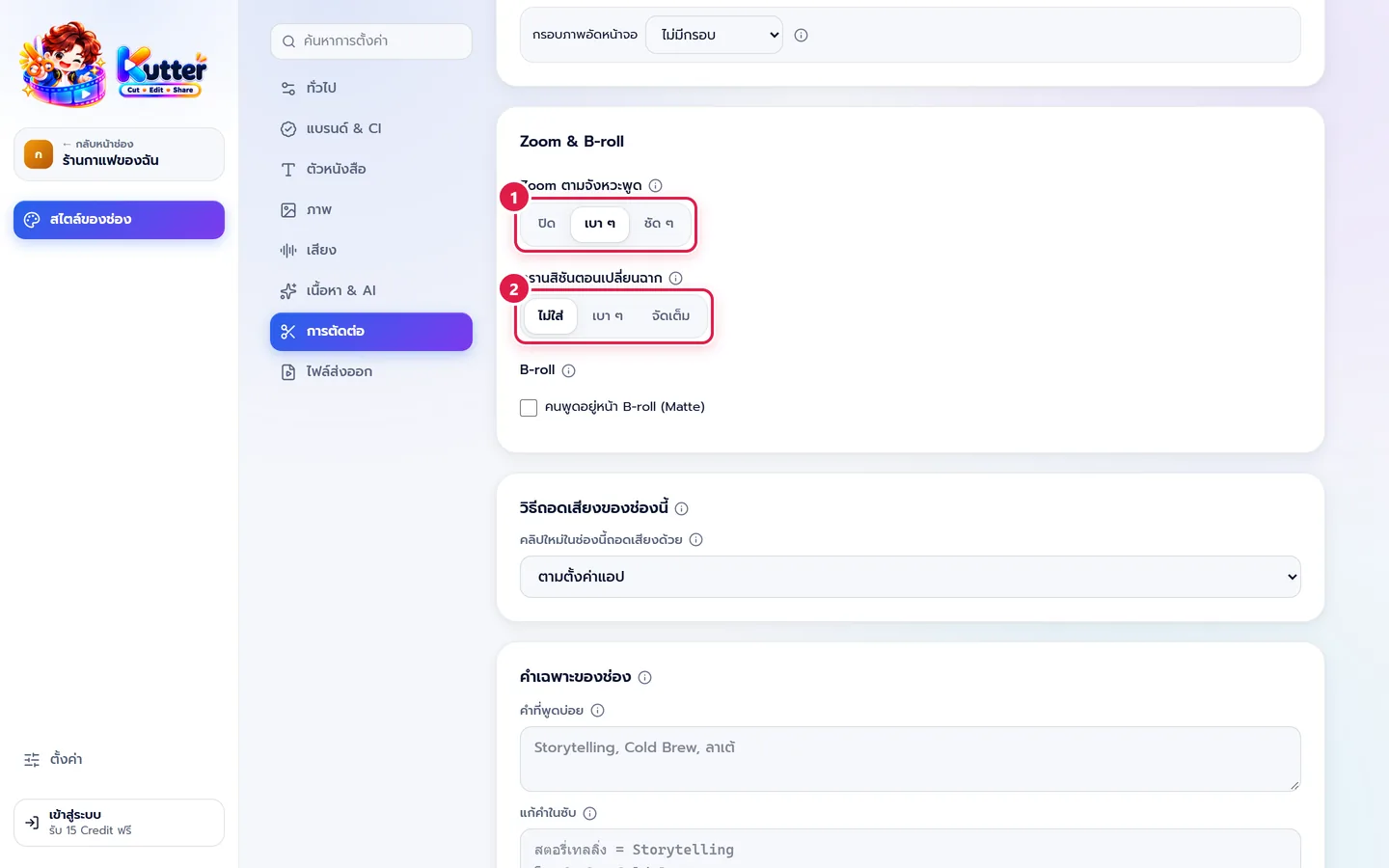
- Zoom with speech pacing — เบา ๆ (Subtle) suits almost every kind of clip. ชัด ๆ (Strong) switches shot size more often (about every 2 seconds) and suits fast-talking clips.
- The app zooms at cut points, zooms in on stressed words, and slowly pushes in during long stretches of talking.
2. Your own zoom points per scene (clips with footage)
-
In the Storyboard step, select a scene and scroll the ฉากนี้ใส่อะไรบ้าง (What's in This Scene) card down to Zoom
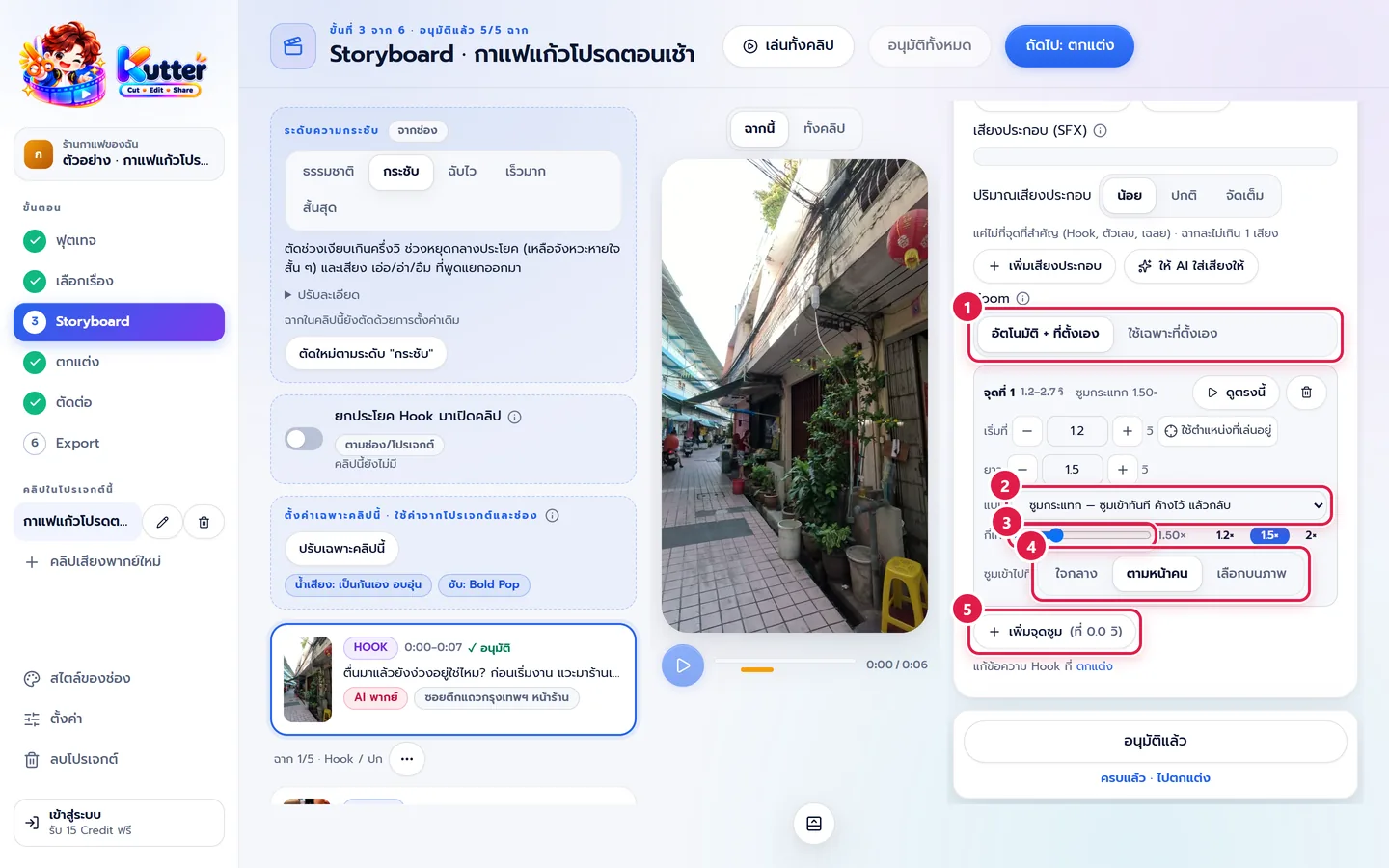
- Choose อัตโนมัติ + ที่ตั้งเอง (Auto + My Points) or ใช้เฉพาะที่ตั้งเอง (My Points Only)
- Play the preview, stop on the word you want to stress, then press เพิ่มจุดซูม (Add Zoom Point)
- Choose a style: ซูมกระแทก (Punch Zoom), ค่อย ๆ ซูมเข้า (Slow Zoom In), ค่อย ๆ ซูมออก (Slow Zoom Out), or ซูมเข้าแล้วกลับ (Zoom In and Back)
- Set how much from 1.1–2.5× (shortcuts 1.2× 1.5× 2×)
- Zoom in on — ใจกลาง (Center), ตามหน้าคน (Follow Face), or เลือกบนภาพ (Pick on Image), then tap a spot on the preview image
- Press ดูตรงนี้ (Preview Here) to check the result
3. Zoom/crop pictures in voice-over clips
-
In the voice-over Storyboard, press ซูม/ครอป (Zoom/Crop) under the scene's picture
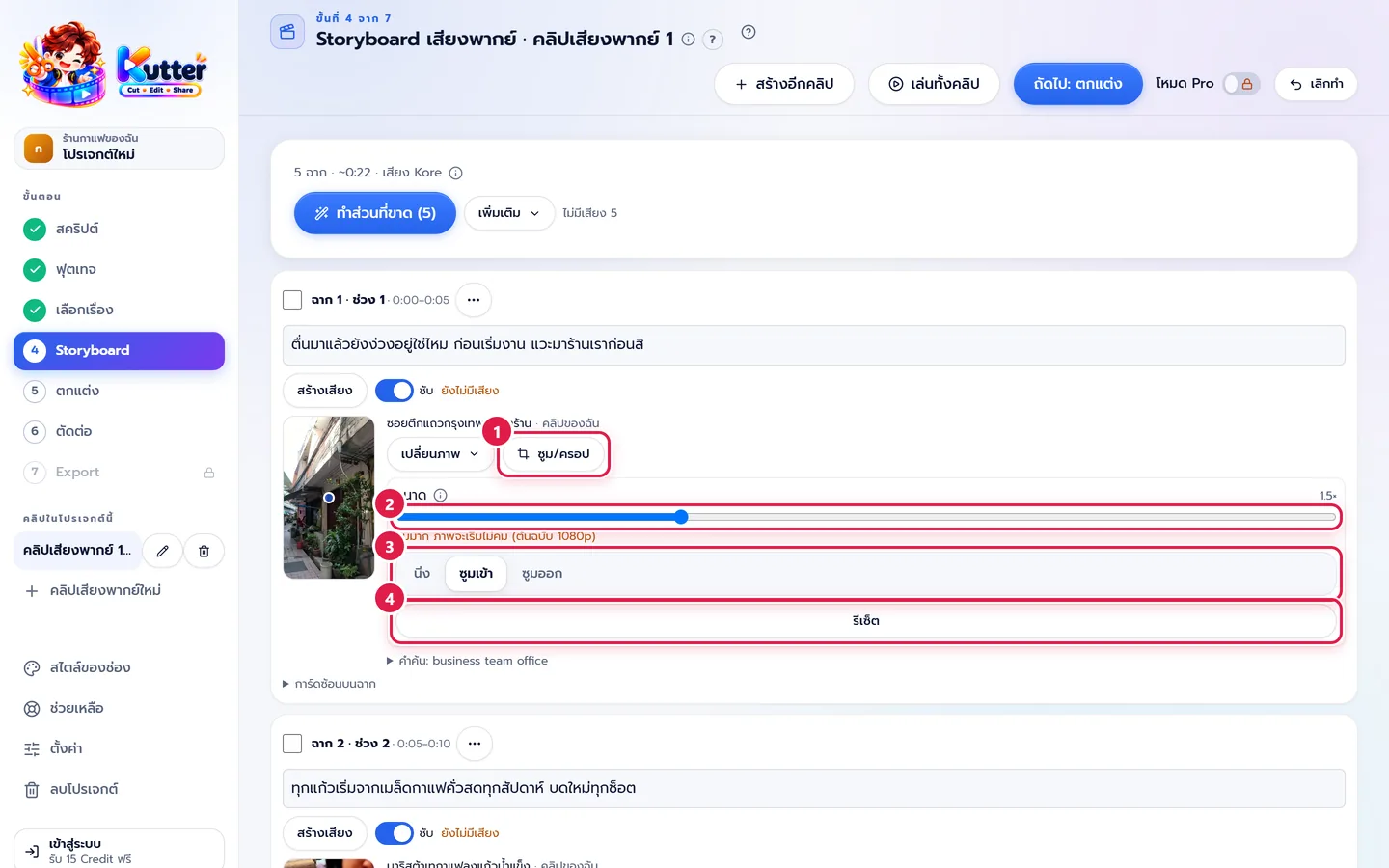
- Drag Size from 1–8×, then drag the blue dot on the thumbnail to choose the focus point
- Choose the motion: นิ่ง (Still), ซูมเข้า (Zoom In), or ซูมออก (Zoom Out)
- Don't like it? Press รีเซ็ต (Reset)
Result: the shop-front scene slowly zooms in on the shop sign, and the scene about prices punch-zooms 1.5× on the stressed word.
Common problems
- If you see the message "ซูมมาก ภาพจะเริ่มไม่คม" (Heavy zoom — the image will start to lose sharpness), lower the size or use a higher-resolution source file.
- If a zoom point says "ถูกตัดออก" (Cut out), that part has already been cut from the clip. Delete the point and add a new one in a part that's still there.
- If you see the message "ซูมอัตโนมัติปิดไว้ในสไตล์ของช่อง" (Auto zoom is turned off in Channel style), turn on Zoom with speech pacing in Channel style (your own zoom points always work).
- If a person's face slips out of frame when zoomed, change Zoom in on to ตามหน้าคน (Follow Face) or เลือกบนภาพ (Pick on Image).
More basics: Channel style: Editing · The Storyboard step · Voice-over clips
Still stuck? Chat with us (bottom right) or email support@helloworld-solution.com