 Kutter
Help › Getting started
Use your Claude or ChatGPT account with Kutter
Install the connector (Claude Code or Codex) and sign in. You do it once, in about 5 minutes, and you don't type any commands yourself.
If you already pay for a Claude or ChatGPT plan, Kutter can use that plan to write scripts, plan stories and help with editing. There's no extra AI cost and no API key to enter.
Kutter talks to the AI through a connector, a free program from the AI maker that you install on your computer:
- Claude uses Anthropic's Claude Code connector
- ChatGPT uses OpenAI's Codex connector
The app walks you through it one click at a time. You don't need to know anything about computer commands.
What you need
- Claude: a Claude Pro or Max plan (the free plan doesn't work)
- ChatGPT: a ChatGPT Plus or Pro plan
- An internet connection and about 5 minutes. You only do it once.
- Windows 10 or later, or macOS 13 or later
Set up Claude
- Go to ตั้งค่า (Settings) and choose AI ที่ใช้ (AI) in the left sidebar.
- On the "แหล่ง AI" (AI source) card, choose ใช้บัญชี AI ในเครื่อง (Use the AI account on this computer), then under ใช้ AI ตัวไหน (Which AI to use) choose Claude (Claude).
-
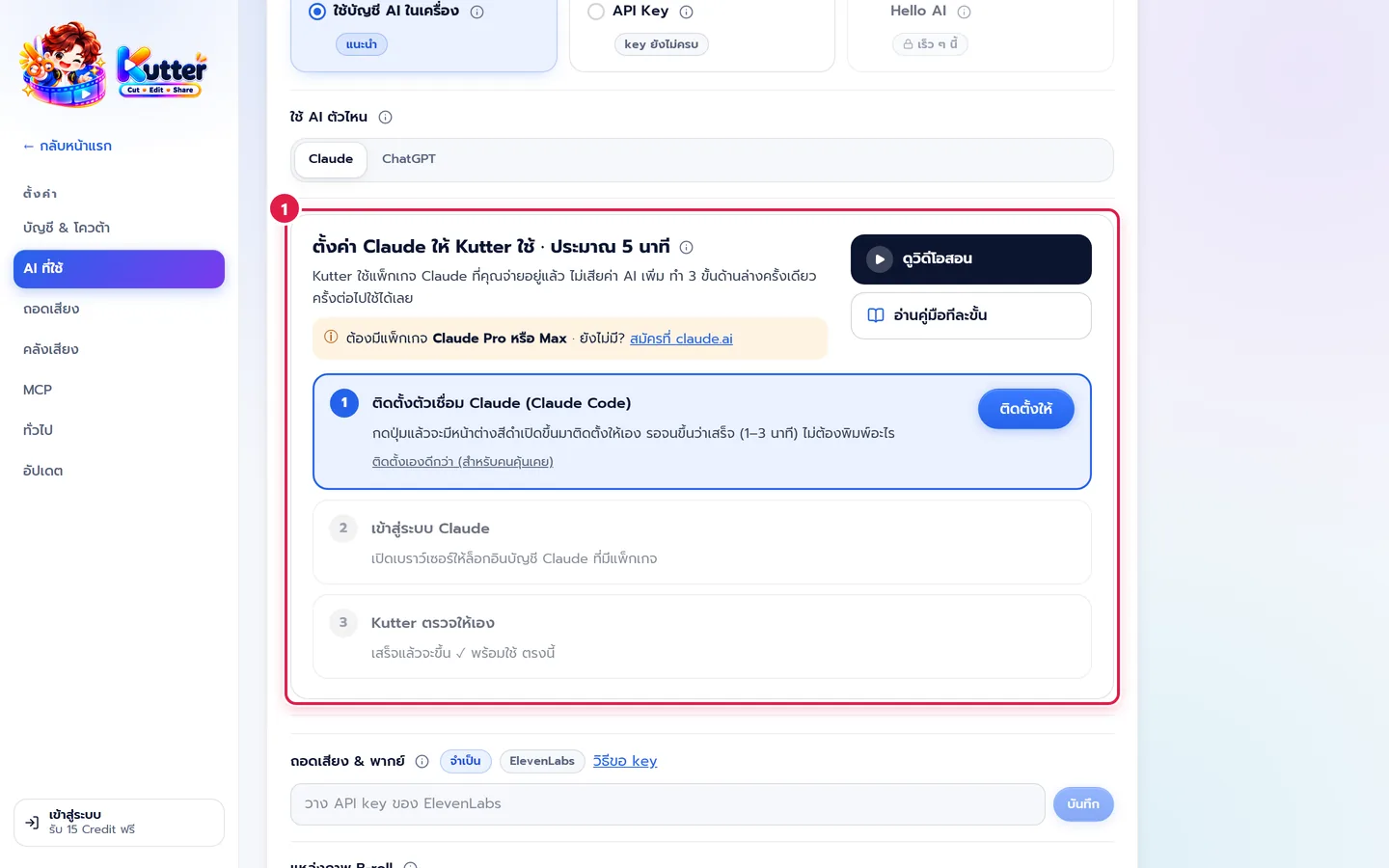
You'll see the "ตั้งค่า Claude ให้ Kutter ใช้" (Set up Claude for Kutter) card with 3 steps (marker 1). The ดูวิดีโอสอน (Watch the video) and อ่านคู่มือทีละขั้น (Read the step-by-step guide) buttons open this page.
-
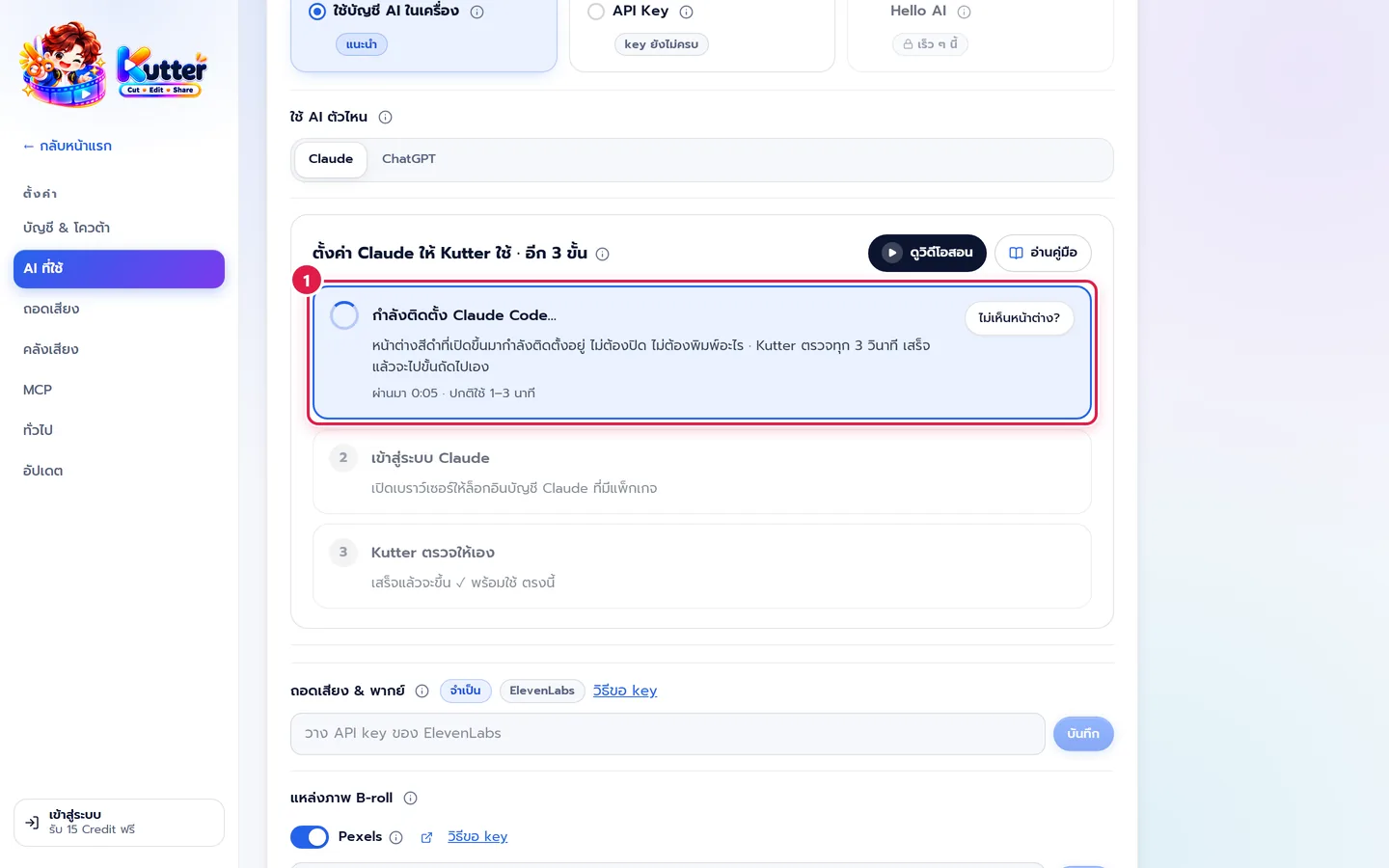
Step 1: click ติดตั้งให้ (Install for me). A black window opens and installs everything by itself. Don't close it and don't type anything. Wait 1–3 minutes until the window says "เสร็จแล้ว" (Done), then press any key to close it. The app shows how much time has passed. If you don't see the window, click ไม่เห็นหน้าต่าง? (Can't see the window?)
-
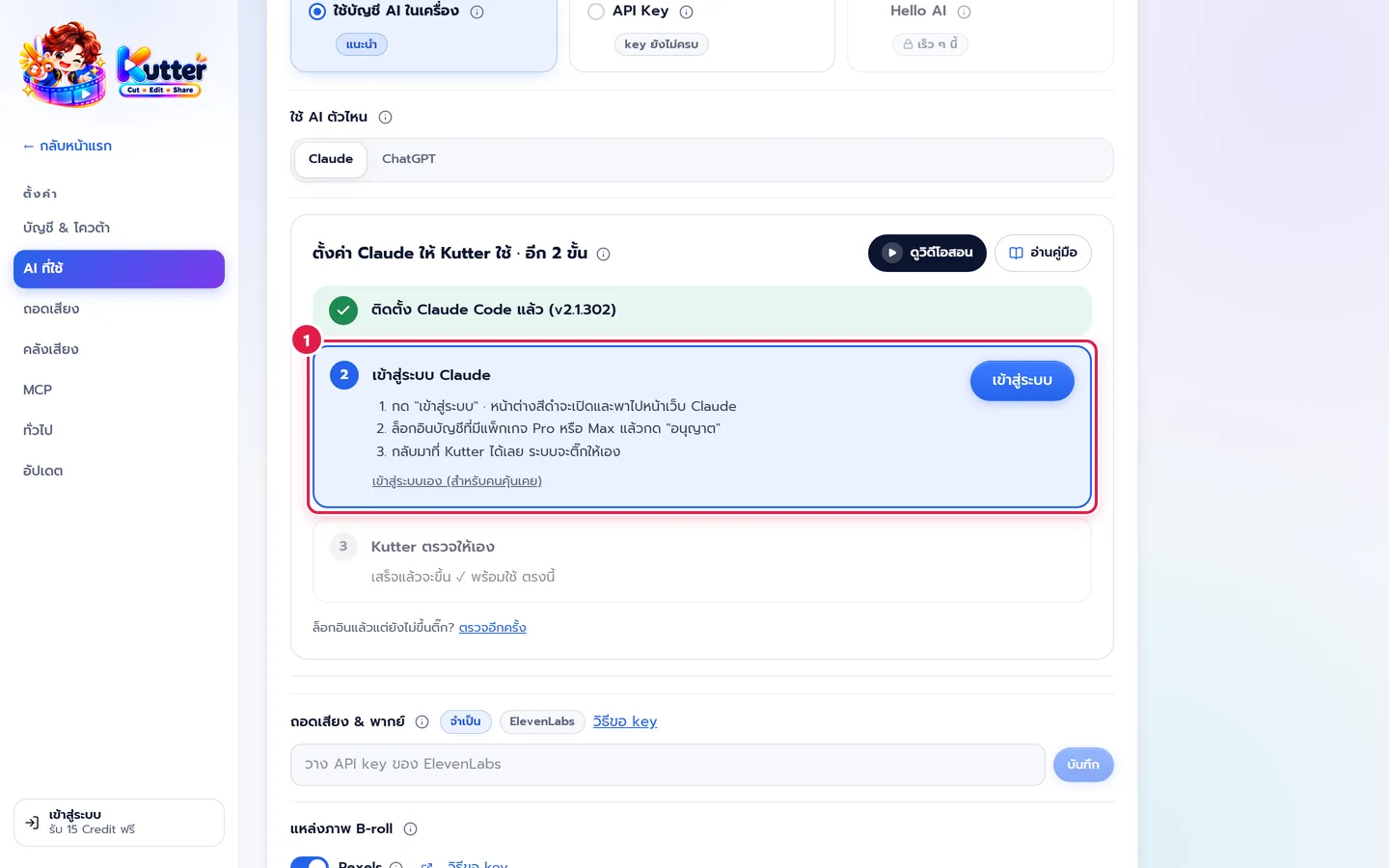
Step 2: click เข้าสู่ระบบ (Sign in). A black window opens and takes you to the Claude website (if the window asks anything, press Enter). Sign in with the account that has the Pro or Max plan, click "อนุญาต" (Authorize), and then go back to Kutter. Kutter never sees your password.
-
Step 3: Kutter checks the setup for you by asking one short question (it uses a tiny bit of your plan's quota). When it passes, a green พร้อมใช้ (Ready) bar and a "โมเดล" (Model) picker appear.
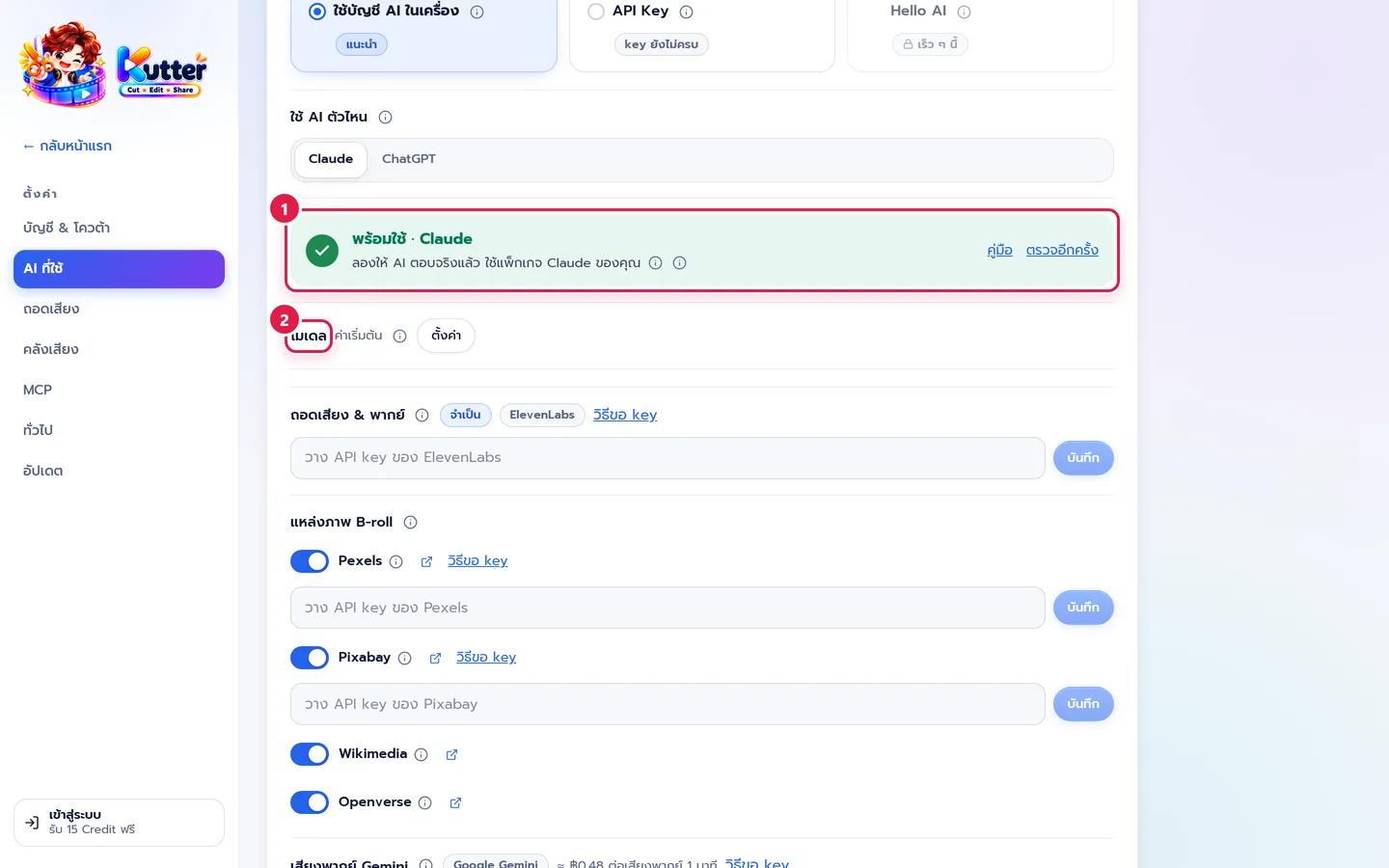
Signed in but still no check mark? Click ตรวจอีกครั้ง (Check again).
Set up ChatGPT
Every step is the same as for Claude. The only differences:
-
Under ใช้ AI ตัวไหน (Which AI to use), choose ChatGPT (ChatGPT). The card changes to "ตั้งค่า ChatGPT ให้ Kutter ใช้" (Set up ChatGPT for Kutter). You need a ChatGPT Plus or Pro plan.
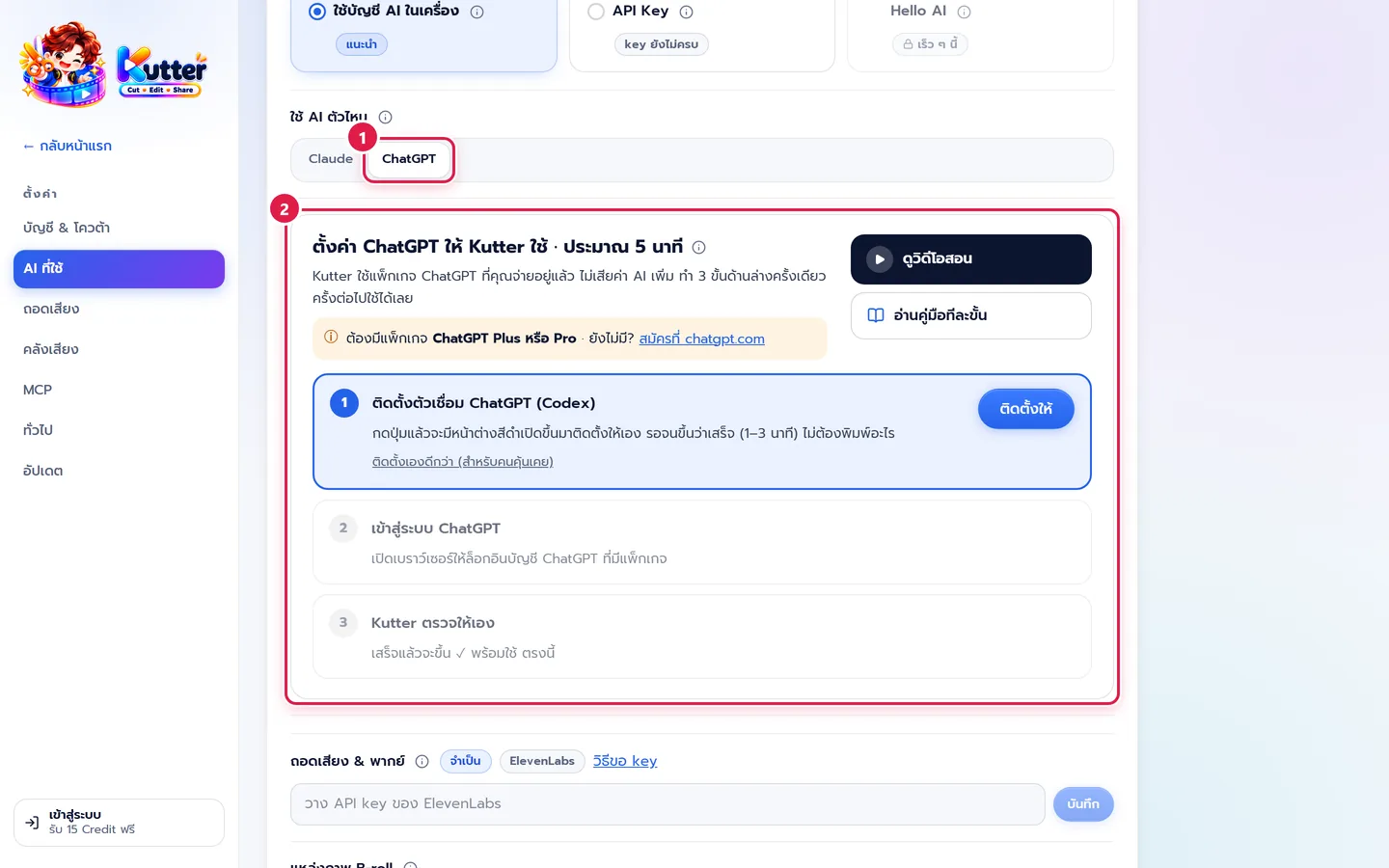
- In step 1, install the Codex connector with the ติดตั้งให้ (Install for me) button.
- In step 2, click เข้าสู่ระบบ (Sign in). The black window takes you to the ChatGPT website. Sign in with the account that has the Plus or Pro plan, then go back to Kutter.
Install it yourself (if the button doesn't work)
Click ติดตั้งเองดีกว่า (สำหรับคนคุ้นเคย) (I'd rather install it myself (for experienced users)) under step 1. The app shows the steps for your computer (Windows or Mac) with a "คัดลอก" (Copy) button for every command. On Windows, click ดูวิดีโอสอนทำเอง (Watch the manual setup video) to see the videos below.
Windows (PowerShell)
- Click the Start button, type PowerShell, and open it.
-
Type
cd C:\and press Enter (sometimes the window opens in a folder where it can't install, so this step moves you to the C: drive first). -
Paste the install command and press Enter: Claude
irm https://claude.ai/install.ps1 | iex· ChatGPTirm https://chatgpt.com/codex/install.ps1 | iex -
Wait until it finishes, then type
claude auth login(ChatGPT:codex login) and press Enter to sign in. - Go back to Kutter and click ตรวจอีกครั้ง (Check again).
Mac (Terminal)
- Press Command (⌘) + Space, type Terminal, and press Enter.
-
Type
cd ~and press Enter (this moves you to your home folder first). -
Paste the install command and press Enter: Claude
curl -fsSL https://claude.ai/install.sh | bash· ChatGPTcurl -fsSL https://chatgpt.com/codex/install.sh | sh -
Wait until it finishes, then type
claude auth login(ChatGPT:codex login) and press Enter to sign in. -
Go back to Kutter and click ตรวจอีกครั้ง (Check again).
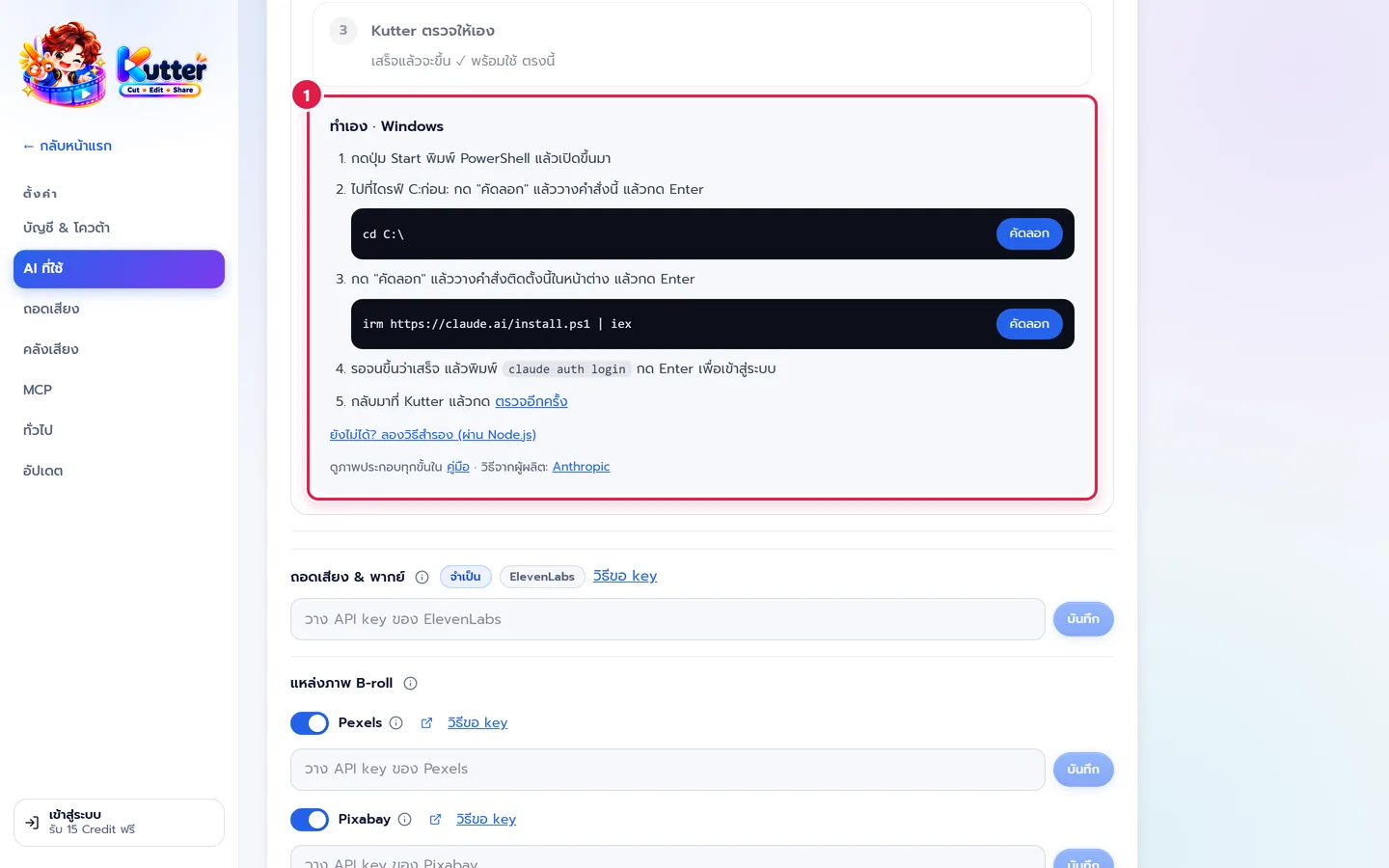
A backup method if the main one doesn't work: install Node.js (free, from nodejs.org), then use npm install -g @anthropic-ai/claude-code or npm install -g @openai/codex. In the app, click "ยังไม่ได้? ลองวิธีสำรอง (ผ่าน Node.js)" (Still not working? Try the backup method (via Node.js)).
Sources: Installing Claude Code · Installing Codex · Signing in to Codex
Troubleshooting
-
If you see an orange "ติดตั้งไม่สำเร็จ" (Install failed) box, read the cause in the box (for example, the internet dropped or an antivirus blocked it), then click ลองใหม่ (Try again) or follow the "ทำเอง" (Do it yourself) steps shown below the box.
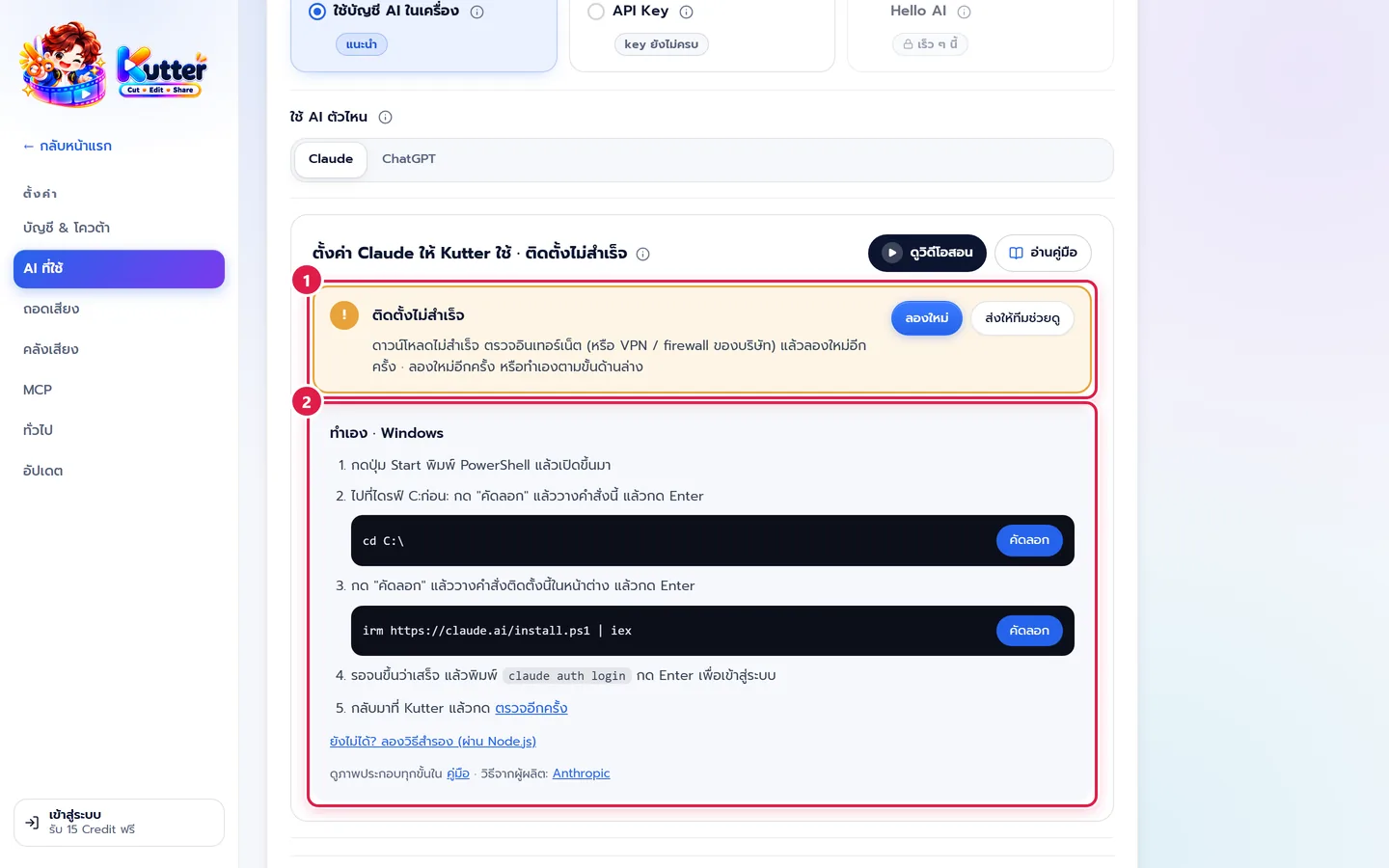
- If it still doesn't work after trying, click ส่งให้ทีมช่วยดู (Send to the team). The app sends technical details (messages from the installer, no passwords or keys) to the team. If you've turned off report sending, use "แชทกับเรา" (Chat with us) instead.
- If the install finished but the app still shows no check mark, close Kutter and open it again.
- If you click เข้าสู่ระบบ (Sign in) and the browser doesn't open, click "เปิดอีกครั้ง" (Open again), or type the sign-in command yourself as described above.
- If you signed in but it asks you to sign in again, check that the account has a plan that works, then click เข้าสู่ระบบ (Sign in) again with that account.
- If step 3 says your plan's quota has run out, wait for the next cycle (usually a few hours) or upgrade your plan, then click ลองใหม่ (Try again).
- If it says you're signed in with an API key, sign in again with your Claude or ChatGPT account if you want to use your plan instead of paying per API key.
Next: Transcription setup
Still stuck? Chat with us (bottom right) or email support@helloworld-solution.com