 Kutter
Help › Make a clip step by step
Make a clip from website and app screenshots
Make an app tutorial such as "How to order through the café app": take screenshots, paste them into scenes, zoom in on the buttons, then add subtitles and keywords.
The example in this article: a 5-step customer tutorial, "วิธีสั่งออเดอร์ผ่านแอปร้านกาแฟ" (How to order through the café app). The "ลานกาแฟ" (Lan Kafae) app in the pictures is a sample app made for this demo. It works with any website or app: screenshot → paste → zoom in on the button → subtitles and keywords.
1. Take a screenshot of each step
- Open the app or website you're teaching and go through it step by step like a real customer: choose from the menu → choose the sweetness → cart → scan the QR code → get a queue number
- Take a screenshot of every page where something gets pressed: on Windows press Win+Shift+S · on Mac press Cmd+Ctrl+Shift+4 · on a phone, take the screenshot and send it to your computer
- 1 picture = 1 scene = 1 step
If it's a web page, you can have AI record it as a video instead. See Record a web page.
2. Write the script step by step, then paste the pictures
- Make a voice-over clip (see Make a clip with AI voice-over) with one step per scene, for example "เลือกขนาดแก้วและความหวาน แล้วใส่ตะกร้า" (Choose the cup size and sweetness, then add to cart)
-
On that scene, press เปลี่ยนภาพ (Change Picture) (or เลือกภาพ (Choose Picture)) and choose วางภาพหน้าจอ (Paste Screenshot), or point your mouse at the scene card and press Ctrl+V. For screenshots from your phone, use รูป/คลิปของฉัน (My Photos/Clips).
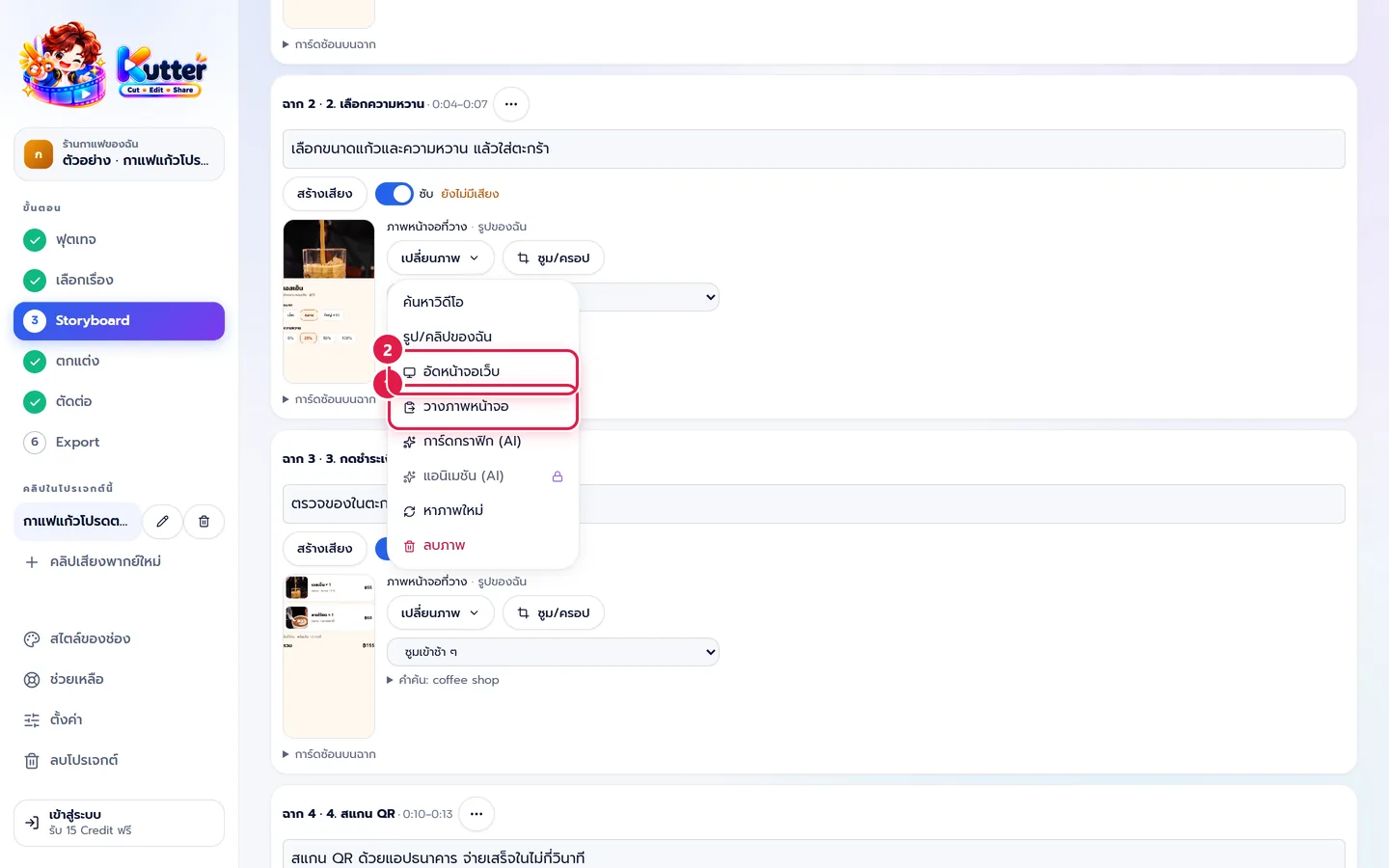
- The scene now shows "ภาพหน้าจอที่วาง" (Pasted screenshot)
3. Zoom in on that step's button
-
Press ซูม/ครอป (Zoom/Crop) under the scene's picture
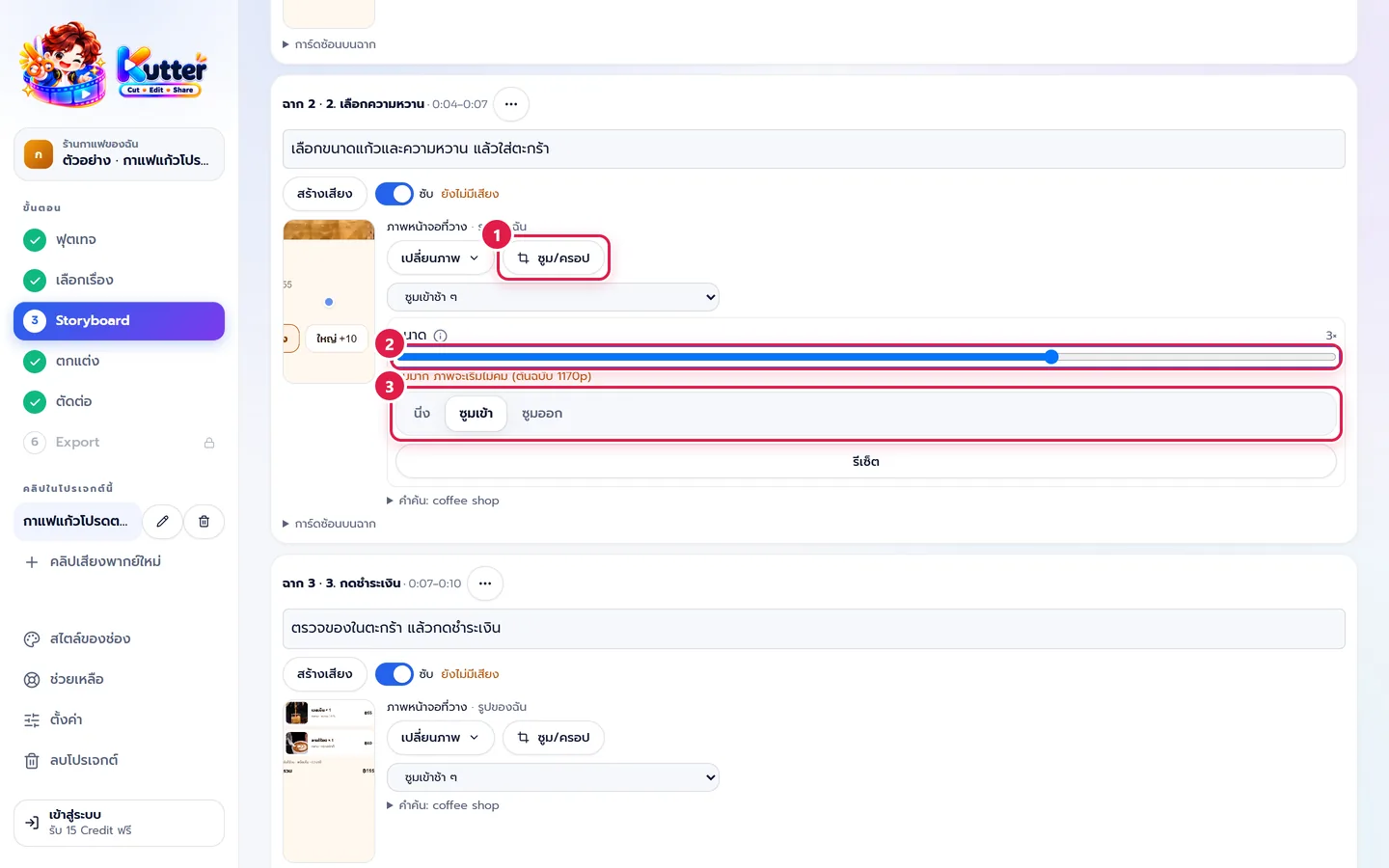
- Drag the blue dot on the thumbnail onto the button to press, for example the 25% sweetness button
- Drag Size to about 1.5–3× (up to 8×), then choose ซูมเข้า (Zoom In). The picture slowly pushes in on the button as the voice-over reaches it.
- For the last scene (queue number received), use ซูมออก (Zoom Out) to show the whole screen
4. Subtitles, keywords, and cards
- Subtitles are created from the voice-over automatically, and keywords (such as "ความหวาน" (sweetness)) pop up on screen when they're spoken. Set their look in สไตล์ของช่อง (Channel Style) › ตัวหนังสือ (Text). See Motion graphic cards and animated text.
- Make the first scene a การ์ดกราฟิก (AI) (Graphic Card (AI)) title card, such as "สั่งกาแฟผ่านแอป ใน 4 ขั้น" (Order coffee in the app in 4 steps), and the last scene a follow card
- Press เล่นทั้งคลิป (Play Whole Clip) to check the result, then press ถัดไป: ตกแต่ง (Next: Finish)
Result: a 9:16 clip of about 14 seconds. It opens with a title card, every step zooms in on the button to press, labels "1 เลือกเมนู" (1 Choose from menu), "2 เลือกความหวาน" (2 Choose sweetness), "3 กดชำระเงิน" (3 Tap to pay), and "4 สแกน QR" (4 Scan QR) pop up, and it closes with a card inviting viewers to order.
If something goes wrong
- If you see "ไม่มีภาพในคลิปบอร์ด" (No image on the clipboard), take the screenshot again (it must be an image, not a file) and paste again.
- If the text in the clip is too small to read, increase Size and move the focus point onto the text.
- If the button slips off the edge when zoomed, move the blue dot onto the button or lower the size.
See also: Screenshots in scenes · Zoom, crop, and zoom pacing
Still stuck? Chat with us (bottom right) or email support@helloworld-solution.com