 Kutter
Help › Getting started
Choose how to start a clip
3 ways to start from the Home page. Pick one based on what you have.
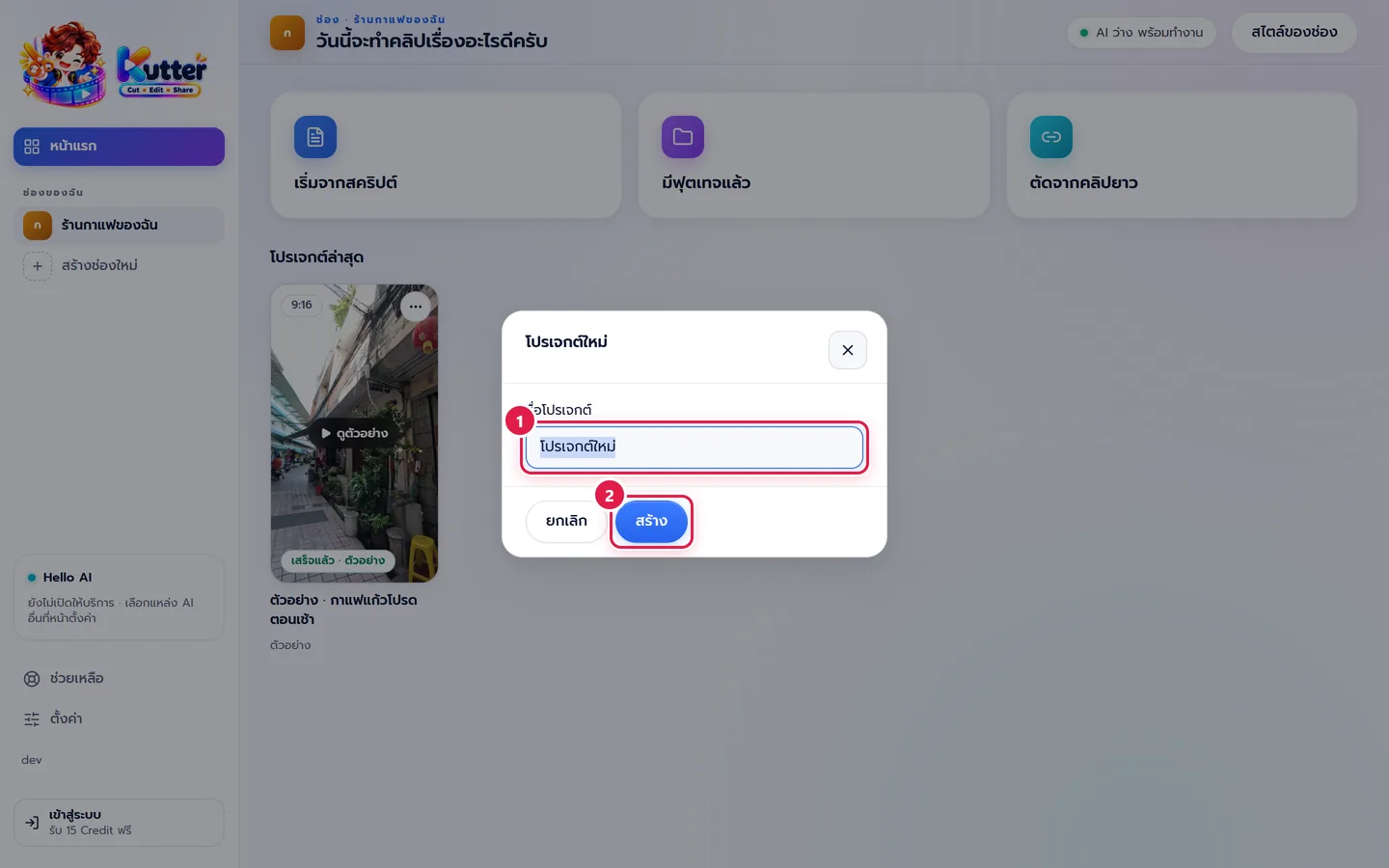
On each channel's หน้าแรก (Home) page, there are 3 cards for choosing what to start from. Hover over a card to see a short description. Click a card, name the project, and click สร้าง (Create). The app creates a new project in that channel.
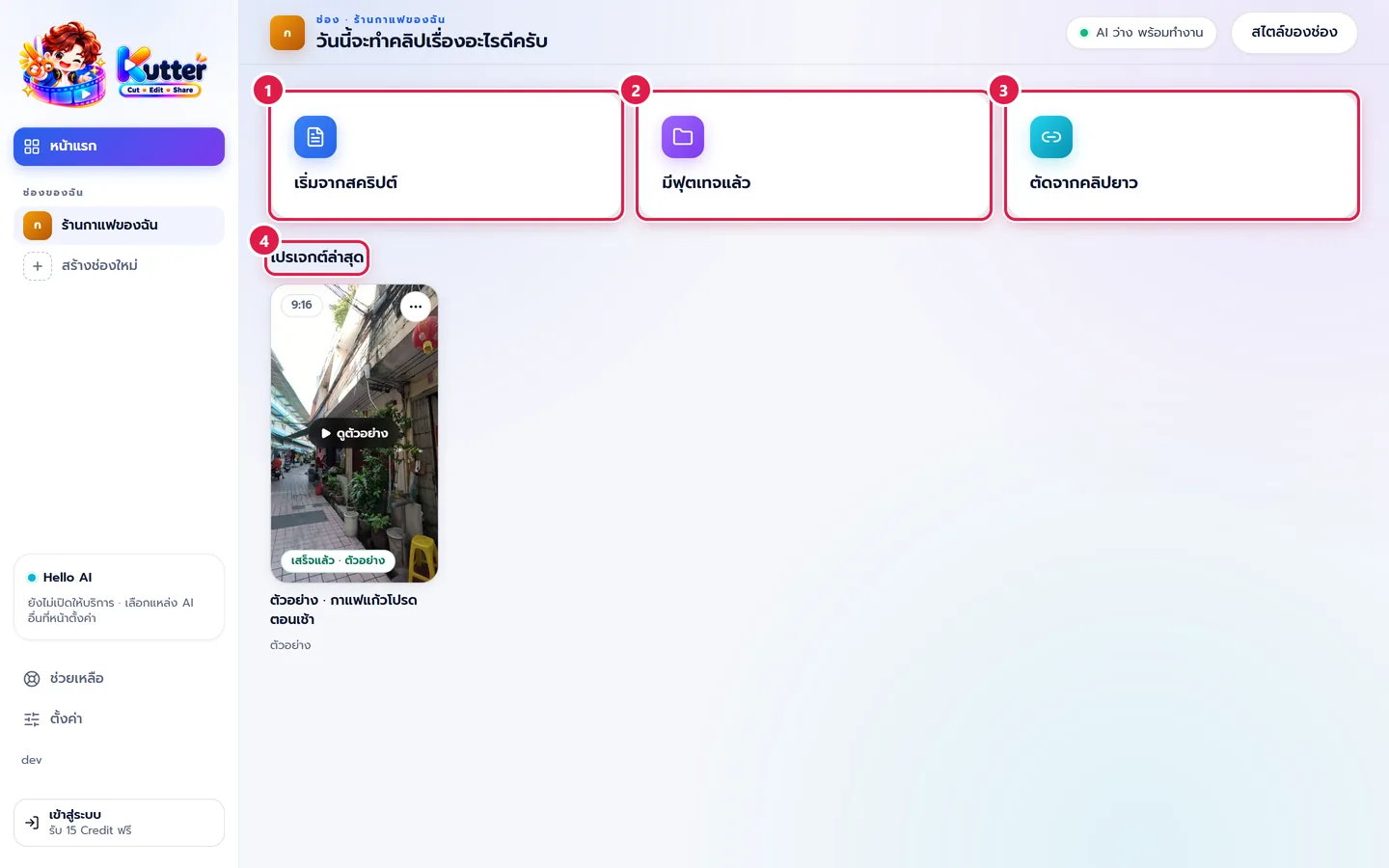
3 ways to start
- เริ่มจากสคริปต์ (Start from a script) (marker 1): you already have a script, let the AI write one, or mix the two part by part. The AI makes the voice-over and finds pictures scene by scene. You can add your own clips or speak some scenes yourself (see the next section).
- มีฟุตเทจแล้ว (I have footage) (marker 2): you already have clips, either talking to the camera or pictures with no speech, such as latte art and Thai iced tea clips. Choose the length and audio type in the Footage step → The Footage step
- ตัดจากคลิปยาว (Cut from a long video) (marker 3): a livestream, podcast or seminar. The AI finds the best moments and makes several short clips.
Work in progress is in โปรเจกต์ล่าสุด (Recent projects) (marker 4) below the cards. Click one to continue.
Start from a script: one path, mix anything in any scene
Click เริ่มจากสคริปต์ (Start from a script), name the project, and click สร้าง (Create). The app always opens the Script step. The steps are the same for everyone.
At the top of the brief card in the Script step, choose how you get your script:
- วางบทของฉัน (Paste my script): paste your script and click ทำ Storyboard (Make Storyboard). The app splits it into scenes following the script. Timings, shot directions and on-screen text are not read aloud → Paste your script
- ให้ AI เขียนบท (Let AI write the script) (the default): give a topic, such as "กาแฟแก้วโปรดตอนเช้า" (My favorite morning coffee), or write some parts yourself and click ให้ AI เติมช่วงที่ว่าง (Let AI fill the gaps).
ใครพูด (Who speaks) in the Script step is the default for the whole clip:
- AI พากย์ (AI voice-over) (selected for you) and ผสม (Mixed) go to the voice-over Storyboard. Mixed = choose scene by scene between AI voice-over and ฉันพูดเอง (I'll speak) in your own clip → Voice-over projects
- ฉันพูดเอง (ถ่ายมา) (I'll speak (filmed)) for the whole clip: take the script with you to film, then add the clips in the Footage step.
You choose pictures scene by scene in the same Storyboard: stock video, animation, cards or your own clips. Click ใส่ฟุตเทจของฉัน (Add my footage) and choose several files. The app places them by scene, so you don't need to change the project type.
I have footage: choose the audio in the project
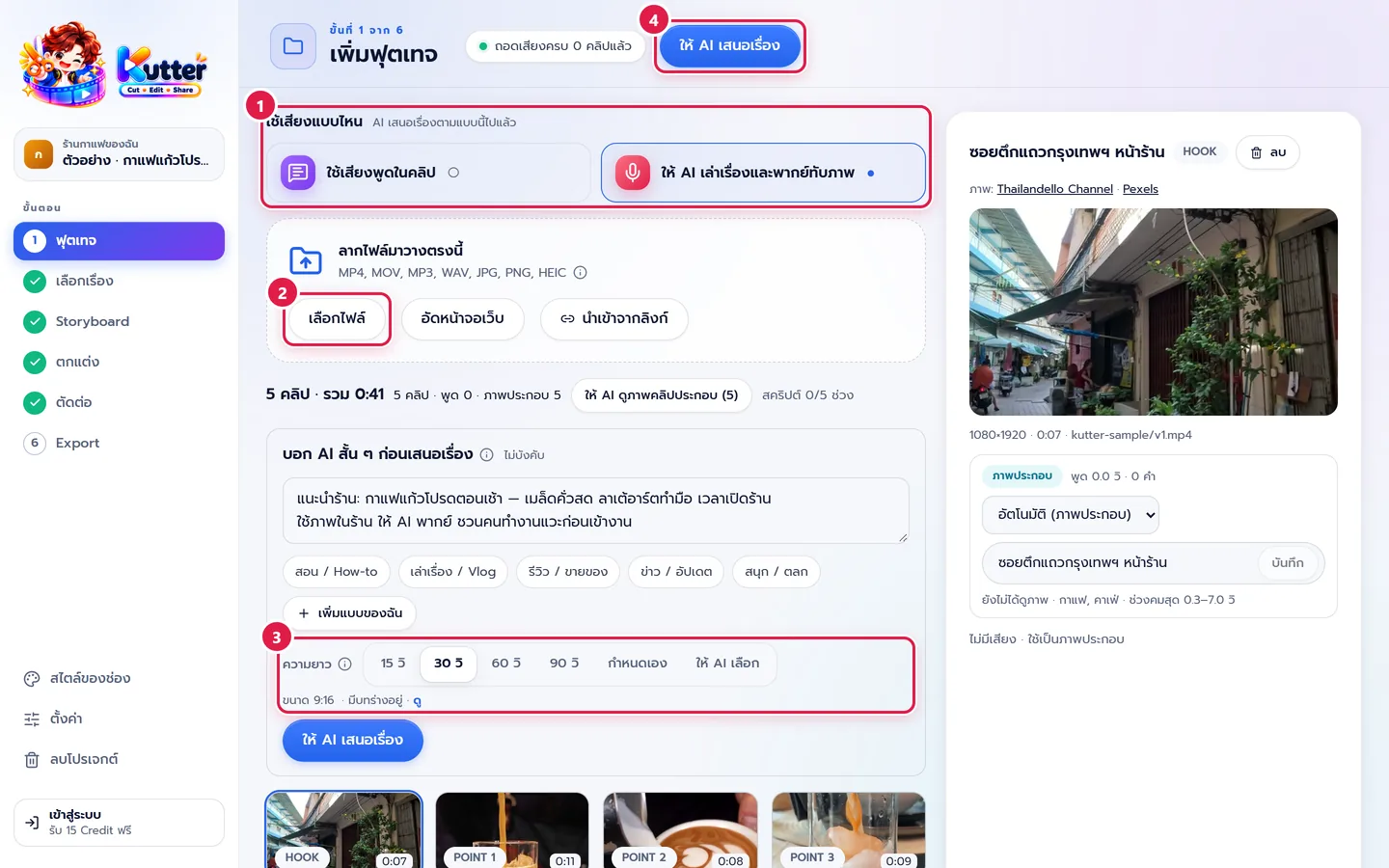
There is only one มีฟุตเทจแล้ว (I have footage) card. You choose the audio inside the project, under "ใช้เสียงแบบไหน" (Which audio to use) in the Footage step:
- ใช้เสียงพูดในคลิป (Use the speech in the clips): someone talks to the camera. The AI cuts from what's said in the clips, then adds B-roll.
- ให้ AI พากย์เสียง (AI voice-over): no one talks in the clips. The AI watches every clip, writes a script, then adds a voice-over on top of your footage.
If most of your clips have no speech, the app tags the voice-over-on-footage option "แนะนำ" (Recommended). You can switch at any time, except while the AI is suggesting stories. If you switch after the AI has already suggested stories, the app asks you to confirm first.
In the same step you can choose a ความยาว (Length): 15, 30, 60, 90 sec, กำหนดเอง (Custom) or ให้ AI เลือก (Let AI choose).
Use photos as footage (including HEIC from iPhone)
- Drag JPG, PNG or HEIC photos into the Footage step the same way as videos. Each photo becomes a 3-second B-roll shot.
- For HEIC photos from an iPhone, the app converts them to JPG in the project folder. Your original files are left untouched.
- When working out the length, the AI counts about 3 sec for each clip that is only a picture. If you only have 5 photos, the clip can be about 15 sec long.
Number of steps for each type
- มีฟุตเทจแล้ว (I have footage) and ตัดจากคลิปยาว (Cut from a long video) start at Footage and have 6 steps (no Script step).
- เริ่มจากสคริปต์ (Start from a script) has 7 steps and always starts at Script, whether you already have a script or let the AI write it.
Troubleshooting
- If you don't see the cards for choosing how to start, click หน้าแรก (Home) in the left sidebar.
- If a project ends up in the wrong channel, choose the right channel in the left sidebar first, then click the card.
- If you chose the wrong card, go back to หน้าแรก (Home) and click the right one. You can delete the project you created by mistake from the ⋯ menu on its project card.
- If a HEIC photo won't import, check that the file opens on your computer, or convert it to JPG first.
- If you can't change "ใช้เสียงแบบไหน" (Which audio to use), wait for the AI to finish suggesting stories first.
Still stuck? Chat with us (bottom right) or email support@helloworld-solution.com