 Kutter
Help › Make a clip step by step
Make a clip with AI voice-over
No need to be on camera. AI voices the script and finds pictures scene by scene, and you can mix in your own clips and voice.
You can make a clip without going on camera. AI reads your script as a voice-over, then adds pictures scene by scene — stock video, animation, cards, or your own photos and clips, all mixed in one clip.
Start a project
- On the home page, press เริ่มจากสคริปต์ (Start from Script), enter a name, and press สร้าง (Create). The app opens the Script step.
- Get your script any way you like: ให้ AI เขียนบท (Let AI Write the Script), วางบทของฉัน (Paste My Script), or mix them section by section (see the Script step and Paste your script)
- For ใครพูด (Who Speaks), choose AI พากย์ (AI Voice-over) (default), or ผสม (Mixed) if you'll speak some scenes yourself
- Press ทำเสียงพากย์ + ภาพ (Make Voice-over + Pictures). AI splits the script into scenes and takes you to the voice-over Storyboard.
Make the voice and pictures in the Storyboard
- Press สร้างเสียง + หาภาพ (Create Voice + Find Pictures). The app creates the voice-over and finds pictures for every scene at once. If part of it is already done, this button changes to Do what's missing — press it to continue.
- To create the voice one scene at a time, press สร้างเสียง (Create Voice) on that scene, then press to listen.
- If a picture doesn't fit, press เปลี่ยนภาพ (Change Picture) on that scene (see the next section).
-
When เสียงและภาพครบ (Voice and Pictures Complete) appears, press ถัดไป: ตกแต่ง (Next: Finish) and carry on as with a normal clip.
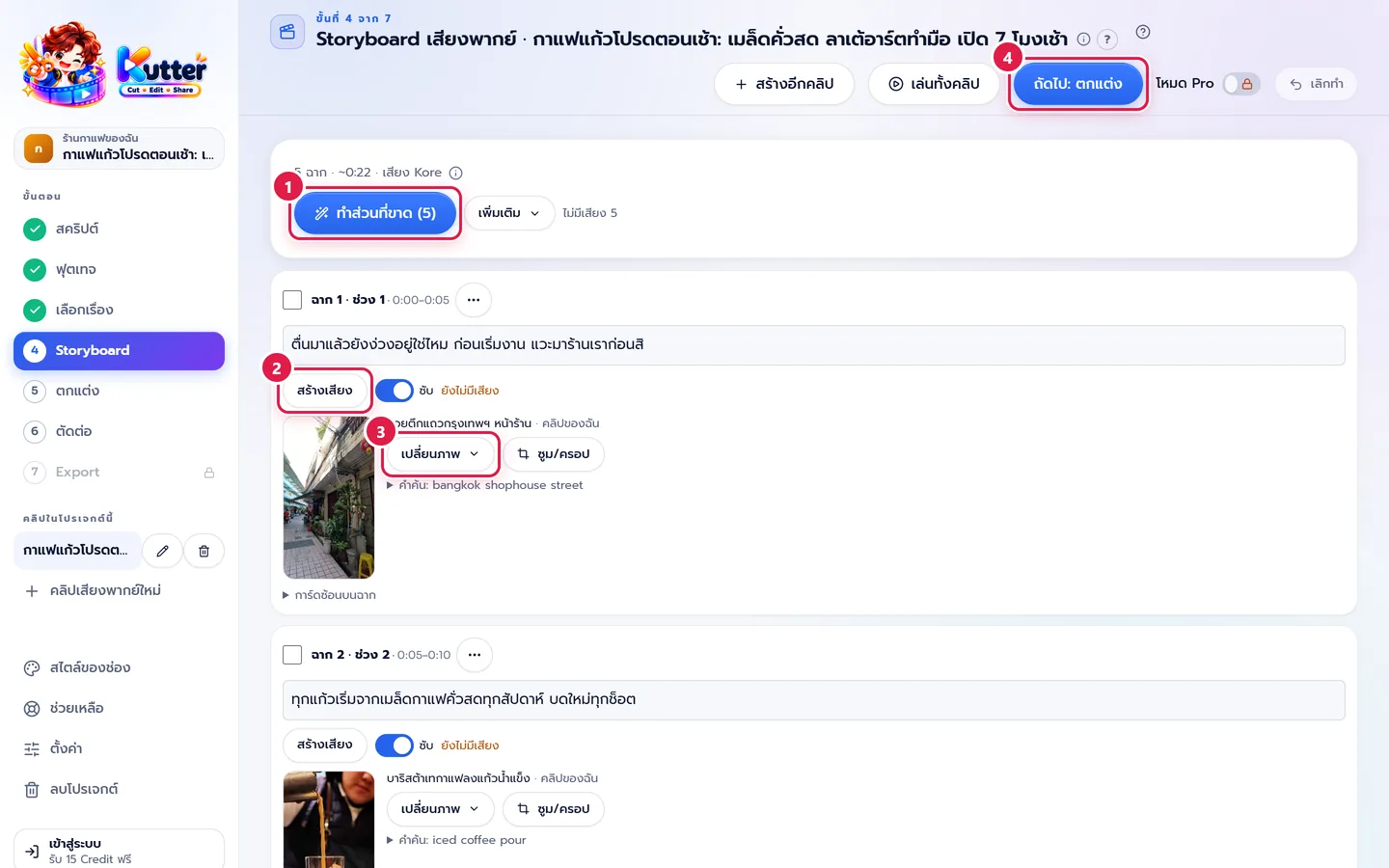
You can edit the voice-over text directly in each scene's box. After an edit, "ข้อความเปลี่ยน" (Text changed) appears — press to create the voice again.
Choose each scene's picture
The เปลี่ยนภาพ (Change Picture) menu (or เลือกภาพ (Choose Picture) if the scene has no picture yet) gives you several options:
- รูป/คลิปของฉัน (My Photos/Clips) uses a photo or clip from your computer, such as a clip you shot of a barista pouring latte art
- อัดหน้าจอเว็บ (Record Web Page) records a web page as this scene's picture, as long as the voice-over. Good for website tutorials.
-
วางภาพหน้าจอ (Paste Screenshot) pastes a screenshot you've taken as the scene's picture. You can also press Ctrl+V on the scene card.
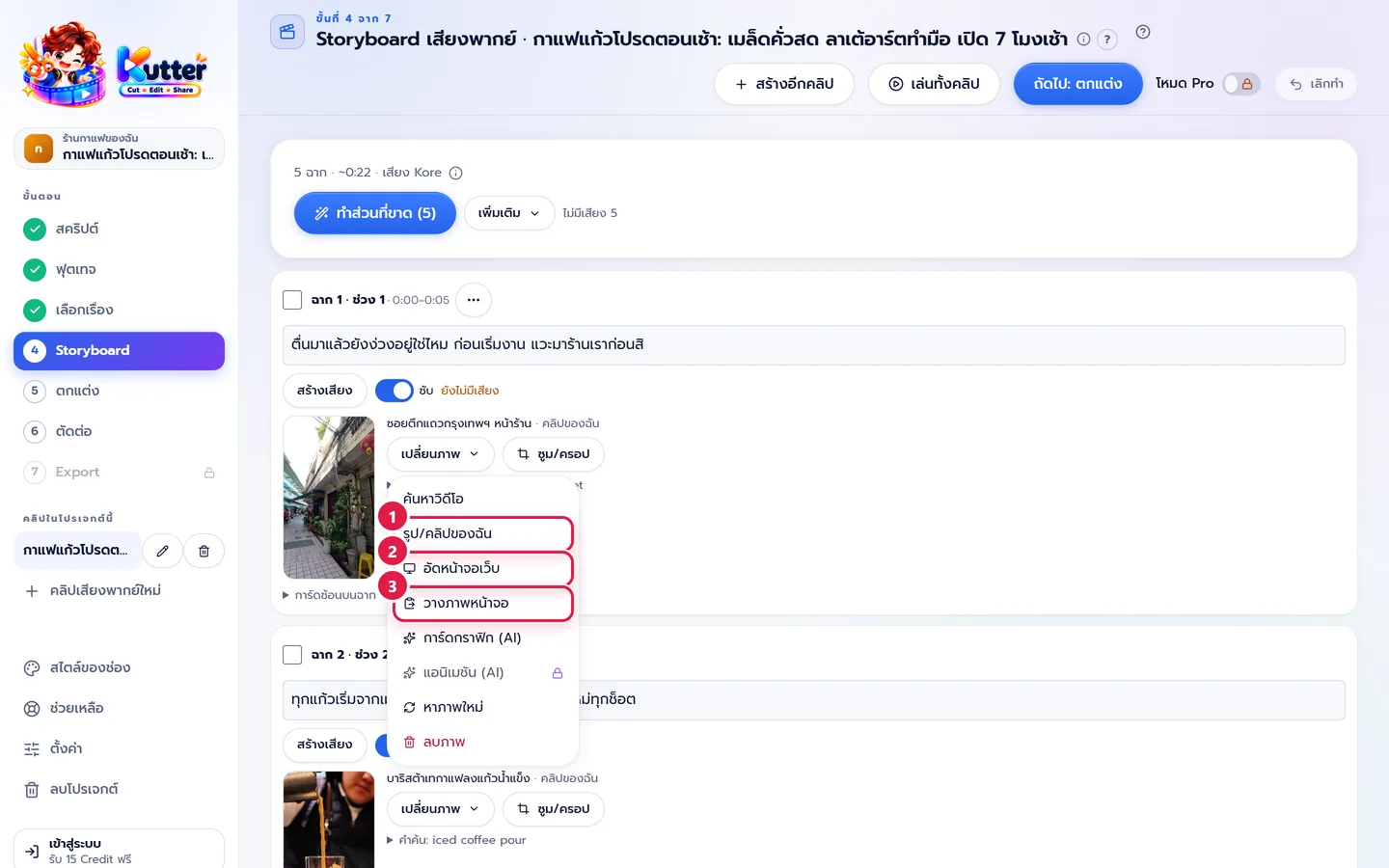
The menu also has ค้นหาวิดีโอ (Search Videos) (find stock video yourself), การ์ดกราฟิก (AI) (Graphic Card (AI)), and แอนิเมชัน (AI) (Animation (AI)).
Add your clips to many scenes at once
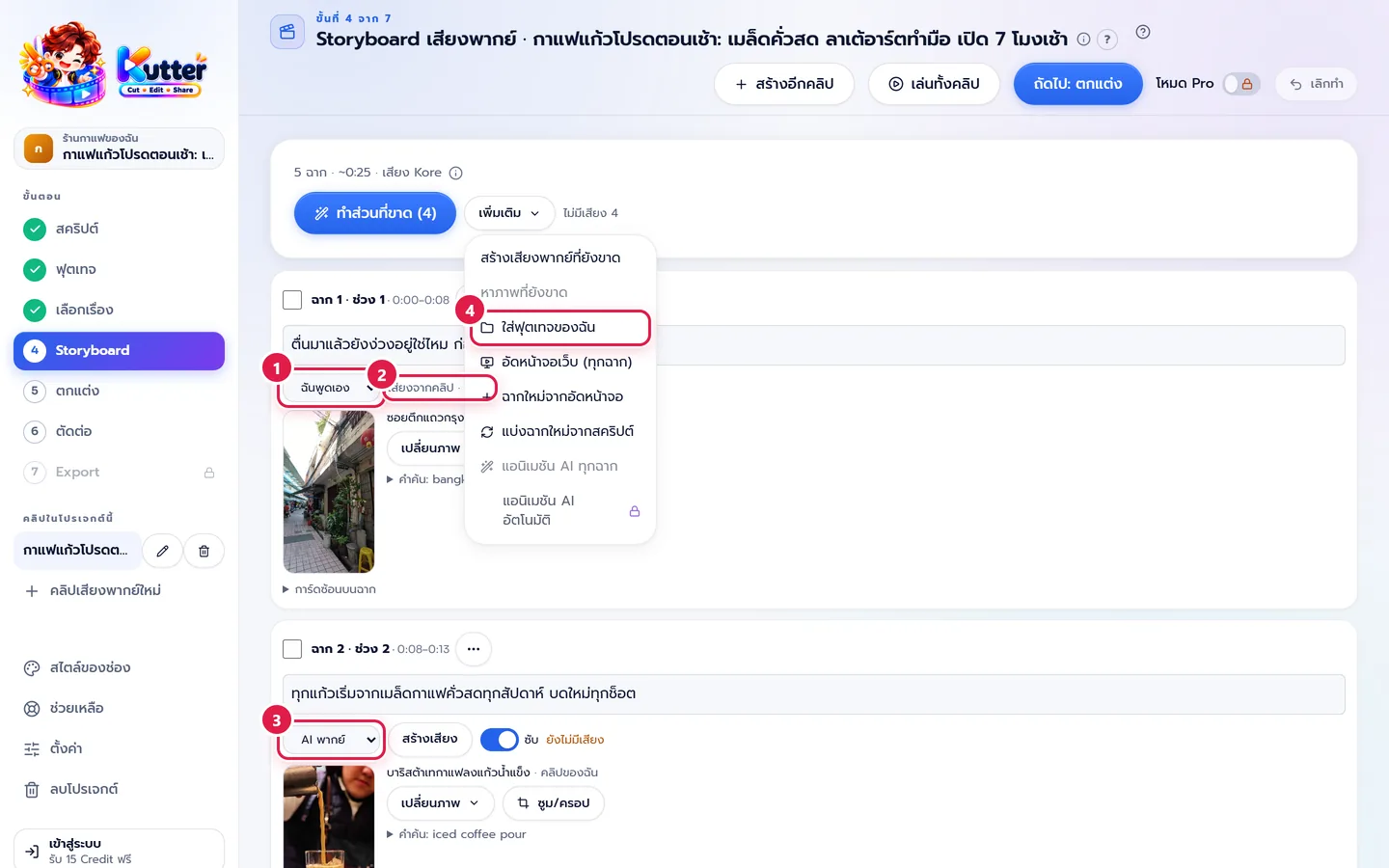
- Press เพิ่มเติม (More) → ใส่ฟุตเทจของฉัน (Add My Footage). You can select several files at once.
-
The app first places files whose names match words in a scene — for example,
latte-art.mp4goes to the scene that talks about lattes. The remaining files are placed in order, filling scenes that have no picture yet first. - To fill only some scenes, tick the scene checkboxes, then press ใส่ฟุตเทจของฉัน (Add My Footage) in the bottom bar.
Other scenes can still use stock video, animation, or cards as before. You don't need to change the project type, and one undo reverses it.
Speak some scenes yourself (Who Speaks: Mixed)
Set ใครพูด (Who Speaks) to ผสม (Mixed) in the Script step. Each scene in the Storyboard then has a Voice field.
- AI พากย์ (AI Voice-over) — the scene uses the AI voice-over
-
ฉันพูดเอง (I'll Speak) — choose a clip of you talking. The scene plays the clip with your voice, runs as long as the clip, and no AI voice is created. Type what you say in the text box so it can be used for subtitles.
You can change the channel's default voice-over in สไตล์ของช่อง (Channel Style). The voice settings are shown every time before you create.
If something goes wrong
- If a scene shows "ยังไม่มีภาพ" (No picture yet), press เลือกภาพ (Choose Picture) and choose ให้ AI หาภาพ (Let AI Find a Picture), or add your own picture.
- If a stock picture doesn't match the story, open "คำค้น" (Search terms) under the picture, change it to more accurate English words such as "latte art", and press หาภาพใหม่ (Find New Picture).
- If the voice-over can't be created, check the voice in สไตล์ของช่อง (Channel Style) → Sound.
- If ใส่ฟุตเทจของฉัน (Add My Footage) puts files in the wrong scenes, change them one scene at a time with รูป/คลิปของฉัน (My Photos/Clips), or rename the files to include words spoken in the scene and add them again.
- If you don't see the Voice field on a scene, set ใครพูด (Who Speaks) to ผสม (Mixed) in the Script step.
- If วางภาพหน้าจอ (Paste Screenshot) doesn't work, take a new screenshot first (the clipboard must contain an image) and use it in the Kutter app.
Still stuck? Chat with us (bottom right) or email support@helloworld-solution.com